Email Settings
Email Settings is a Platform Admin page in Hub. Use it to confirm that the Endatix API can send mail, which identity templates are registered, and which sender address each template will use.
This page does not take Hub .env keys. SMTP credentials stay on the API. To change the sender without a database edit, set Endatix:EmailTemplates:*:FromAddress on the API host — see Email Settings. A future Hub UI will let admins edit from-address (and HTML) per tenant; until then, config is the supported path.
Open Email Settings
- Sign in as a platform administrator.
- Open Platform Admin.
- Under Configuration, choose Email.
The page title is Email Settings. Tenant admins do not see this page; it is platform-wide, not per organization.
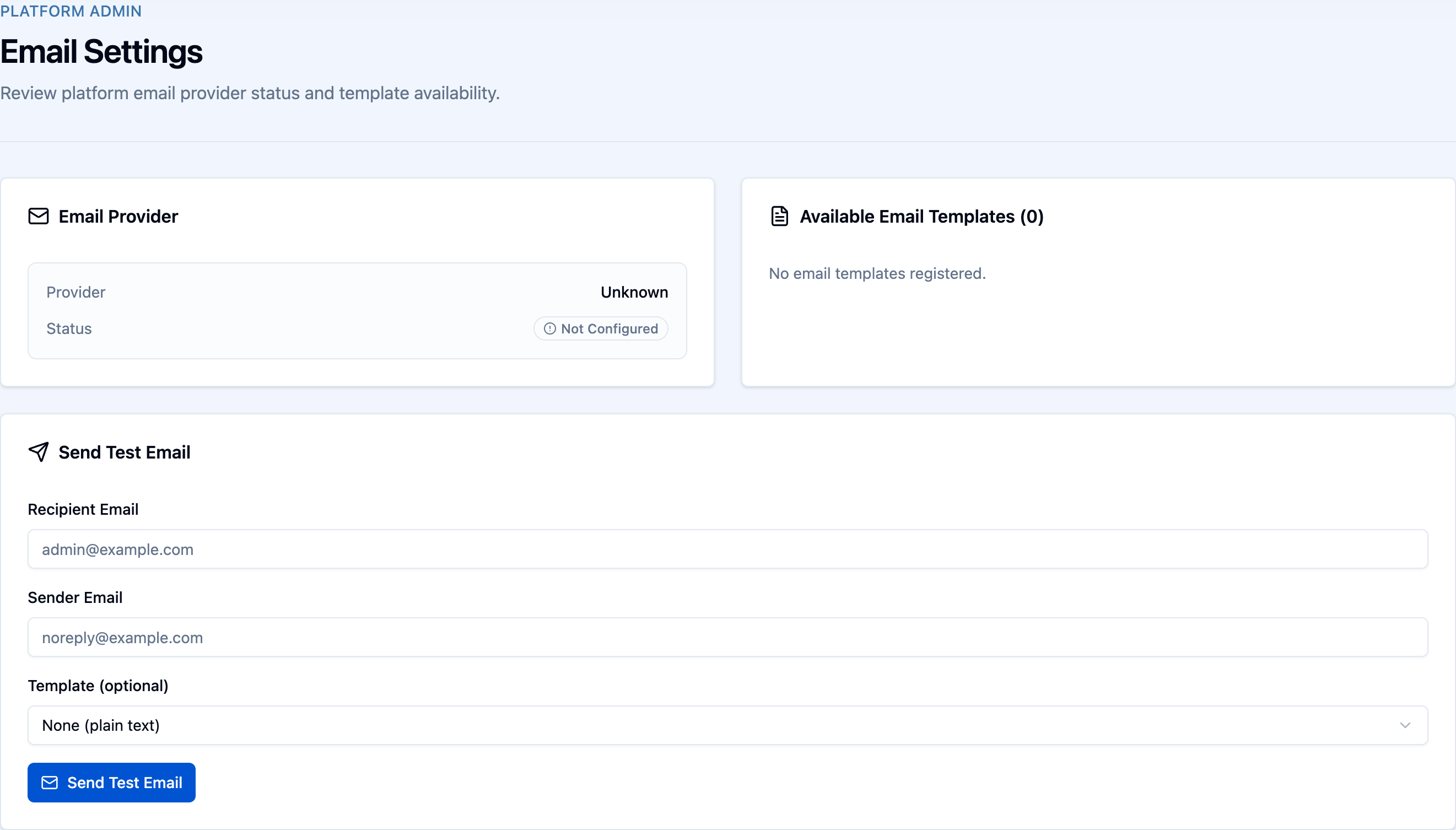
Email Provider
The Email Provider card shows the active sender (for example SMTP, SendGrid, or Mailgun) and whether it is Configured.
| Status | Meaning |
|---|---|
| Configured | The API has the required provider settings and can send mail. |
| Not Configured | Credentials or connection settings are missing. Identity emails will fail until a developer completes email provider setup. |
Available Email Templates
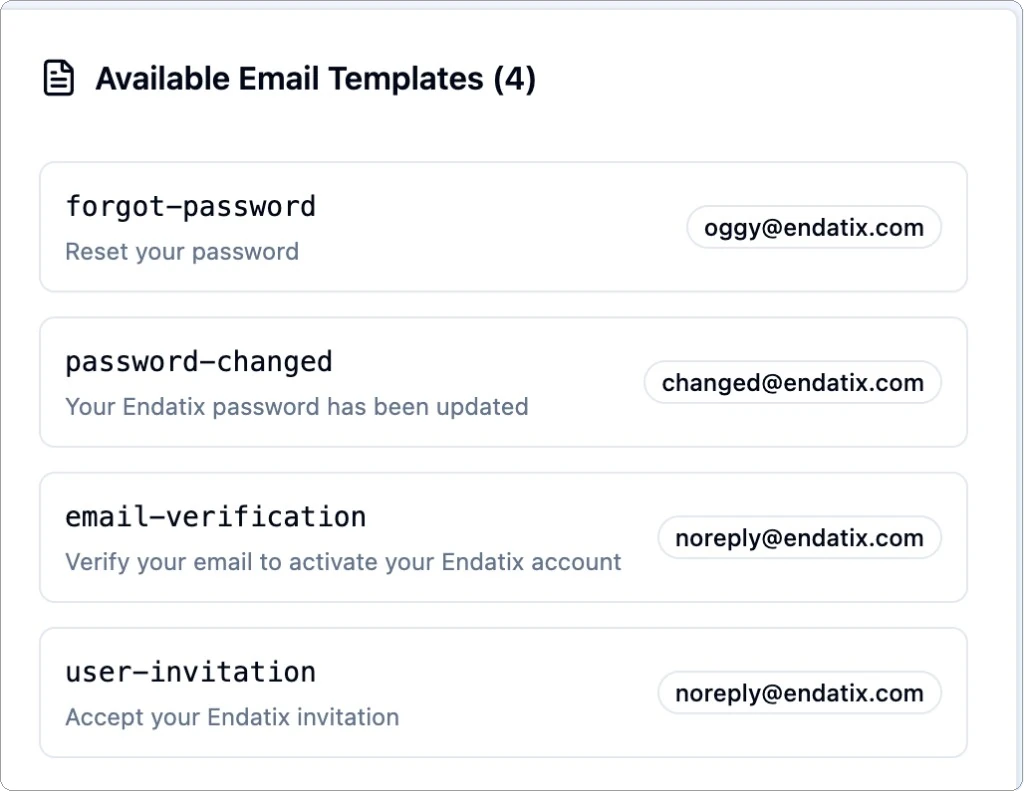
The Available Email Templates list is the seeded identity templates the API can send. Each row shows the template name, subject, and the effective from-address that list and send both use (config override if set, otherwise the seeded database value).
| Template name | When it is sent |
|---|---|
email-verification | The recipient must confirm their email (create-account / verification). |
user-invitation | An admin invited the person to the organization. They set a password on Activate invite. |
forgot-password | The recipient requested a password reset. |
password-changed | The account password was changed. |
The invitation template is listed as user-invitation. That is the seeded name. Developers configure it as Endatix:EmailTemplates:UserInvitation. The Hub always shows user-invitation.
If a from-address looks wrong, update Endatix:EmailTemplates:*:FromAddress on the API host and restart the API, then refresh this page. No database change is required.
Send a test email
Use Send Test Email to prove delivery without inviting a real user.
- Enter a Recipient Email you can open.
- Optionally pick a Template. The Sender Email fills from that template's effective from-address; you can override it for the test only.
- Choose Send Test Email.
A success toast means the API accepted the send. Check the inbox (and spam) for the message. If send fails, the provider is not configured or the from-address is rejected by the provider.
Related Hub pages
- Settings → Organization → Users — invite people to the organization. Those invitations use the
user-invitationtemplate. - Platform Admin → Auth — sign-in providers. Separate from email delivery.