Data Lists
A data list is a named set of answer options that lives in your workspace instead of inside one form. Countries, industry sectors, branch offices, product codes: anything several questions ask about, and that you would otherwise paste into each form and then have to fix in each form.
Questions point at a data list, they do not copy it. Change an item once and every question using that list serves the new value on its next load.
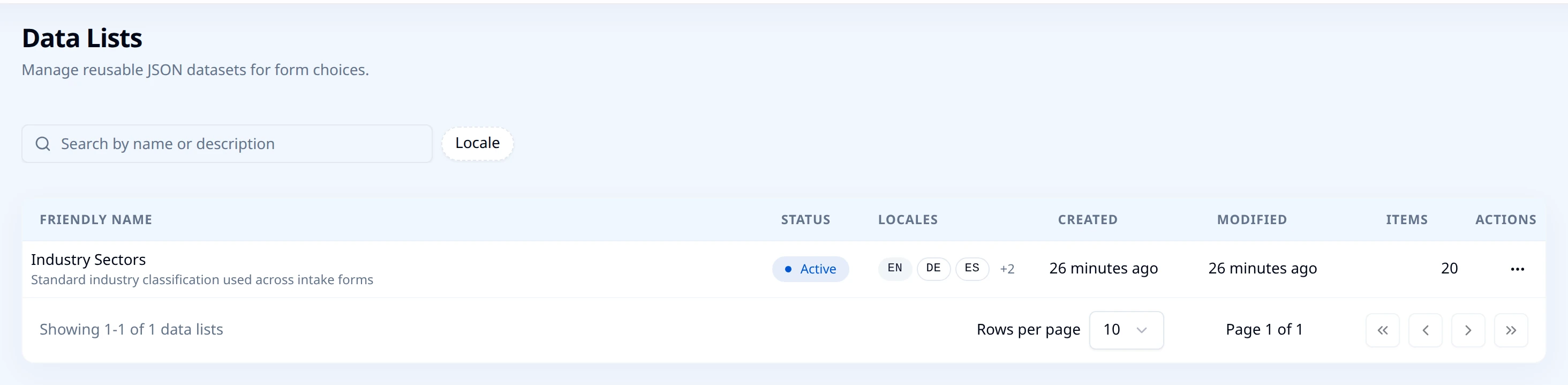
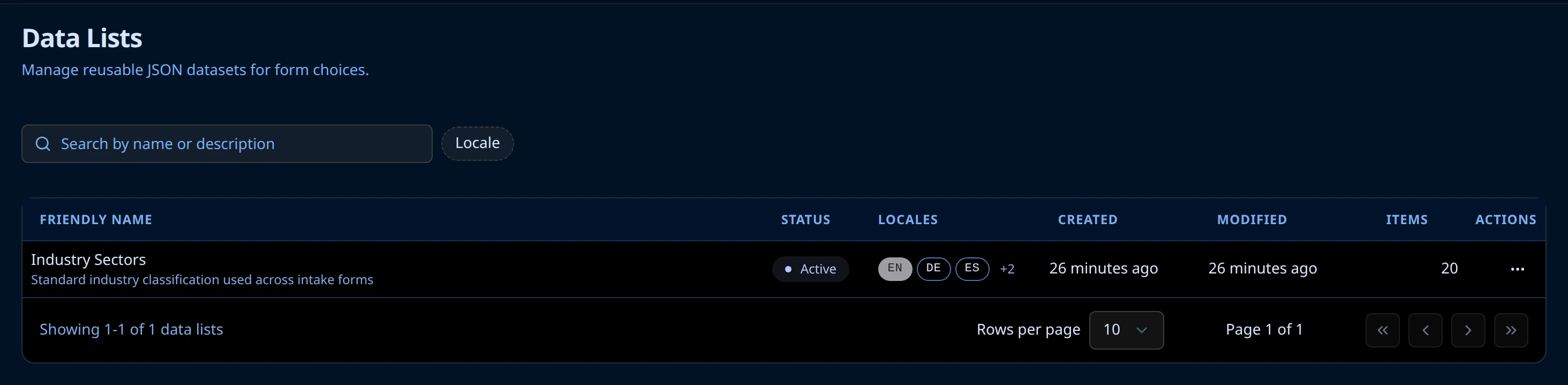
You manage lists from Data Lists in the Hub left navigation. The grid shows each list's Friendly Name and description, its Status, the Locales it carries, when it was created and last changed, and how many Items it holds.
What is inside a list
Every item in a list is two things:
- A value, the code Endatix stores in the submission. It never changes with language and it is what your downstream systems read.
- One or more labels, the text a respondent actually sees. Every item has a
defaultlabel, plus one label per language you add.
That split is the whole point of the model. A respondent in Tokyo picks 製造業, a respondent in Madrid picks Manufactura, and both submissions store manufacturing. Your exports and integrations stay in one vocabulary while the form speaks the respondent's language.
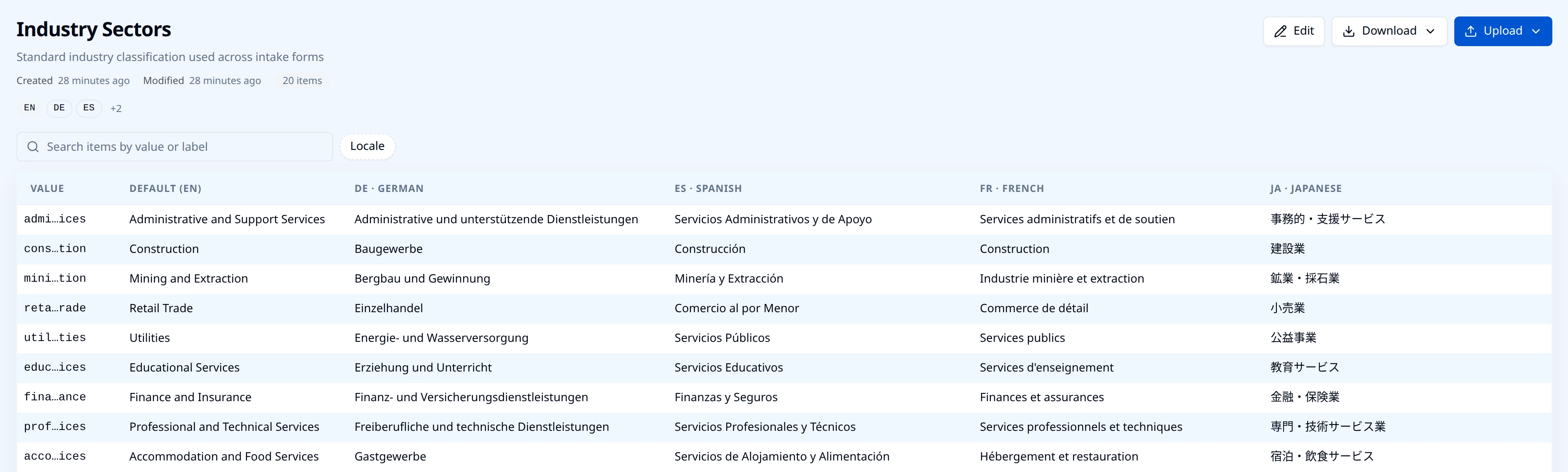
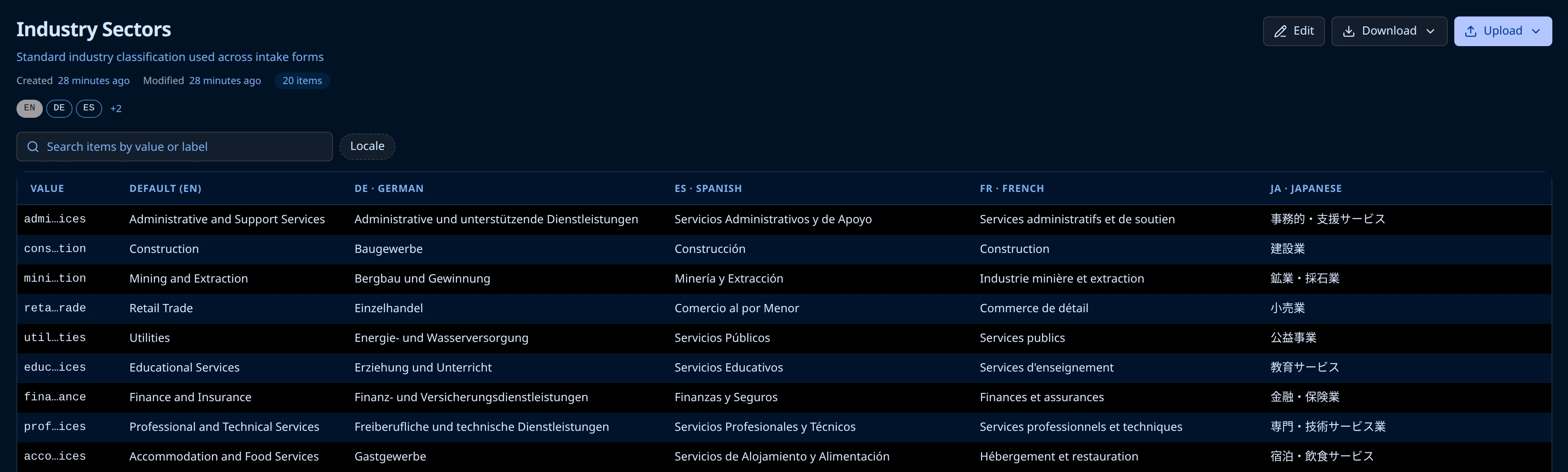
Open a list to see its items, search them by value or label, and filter by locale. The Locale chips under the title show which languages the list carries, with the default one first.
Create a list
You build a list by uploading a file, not by typing items one at a time.
- Open Data Lists and choose Create List.
- Give it a Friendly Name, and a description if the name alone will not tell a colleague what it is for.
- Pick CSV or JSON, then choose Browse CSV file or Browse JSON file. The Download template link below it gives you the exact shape for whichever format is selected.
- Review the preview, then choose Review locales.
- Confirm which language columns to import, then choose Confirm import.
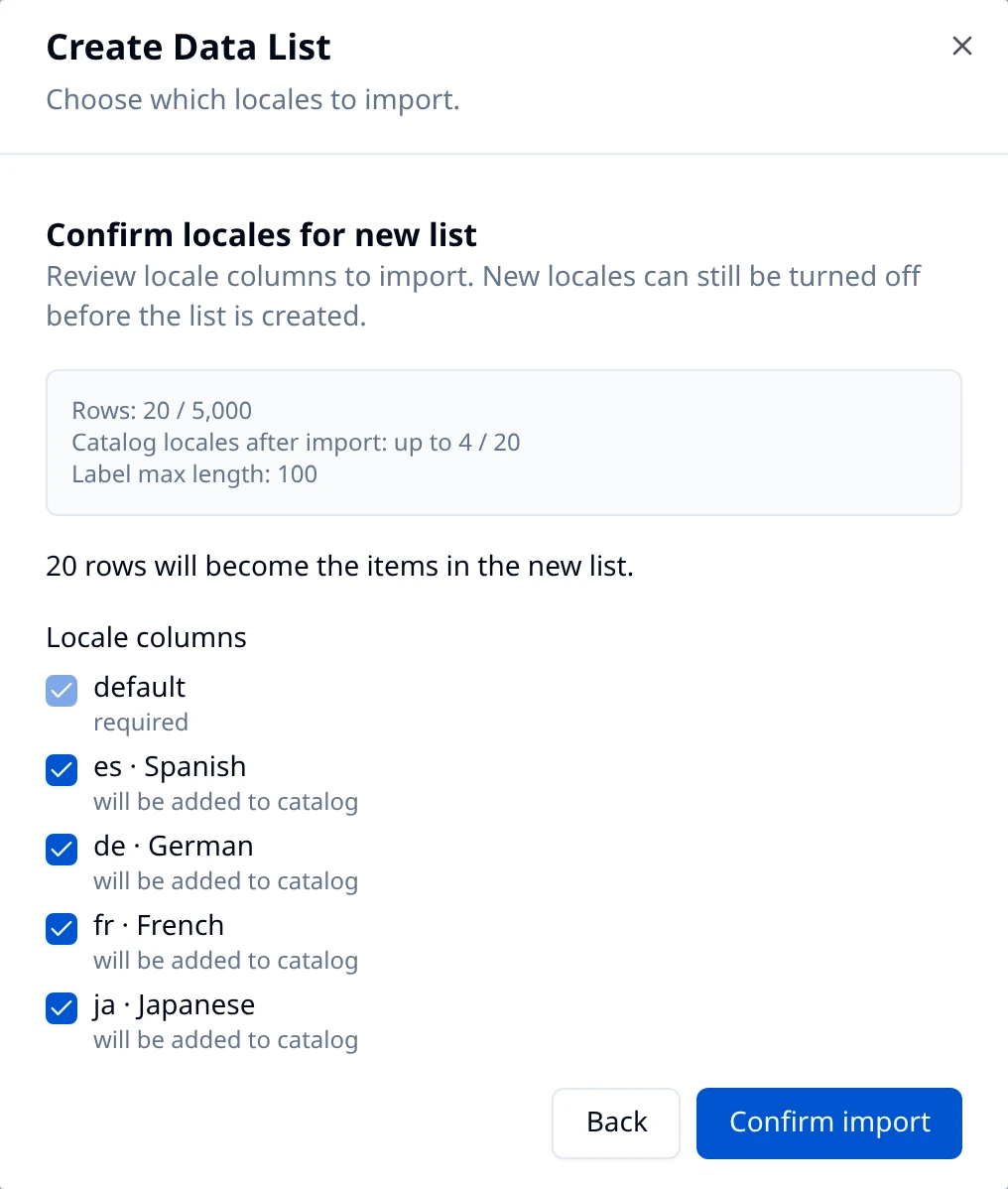
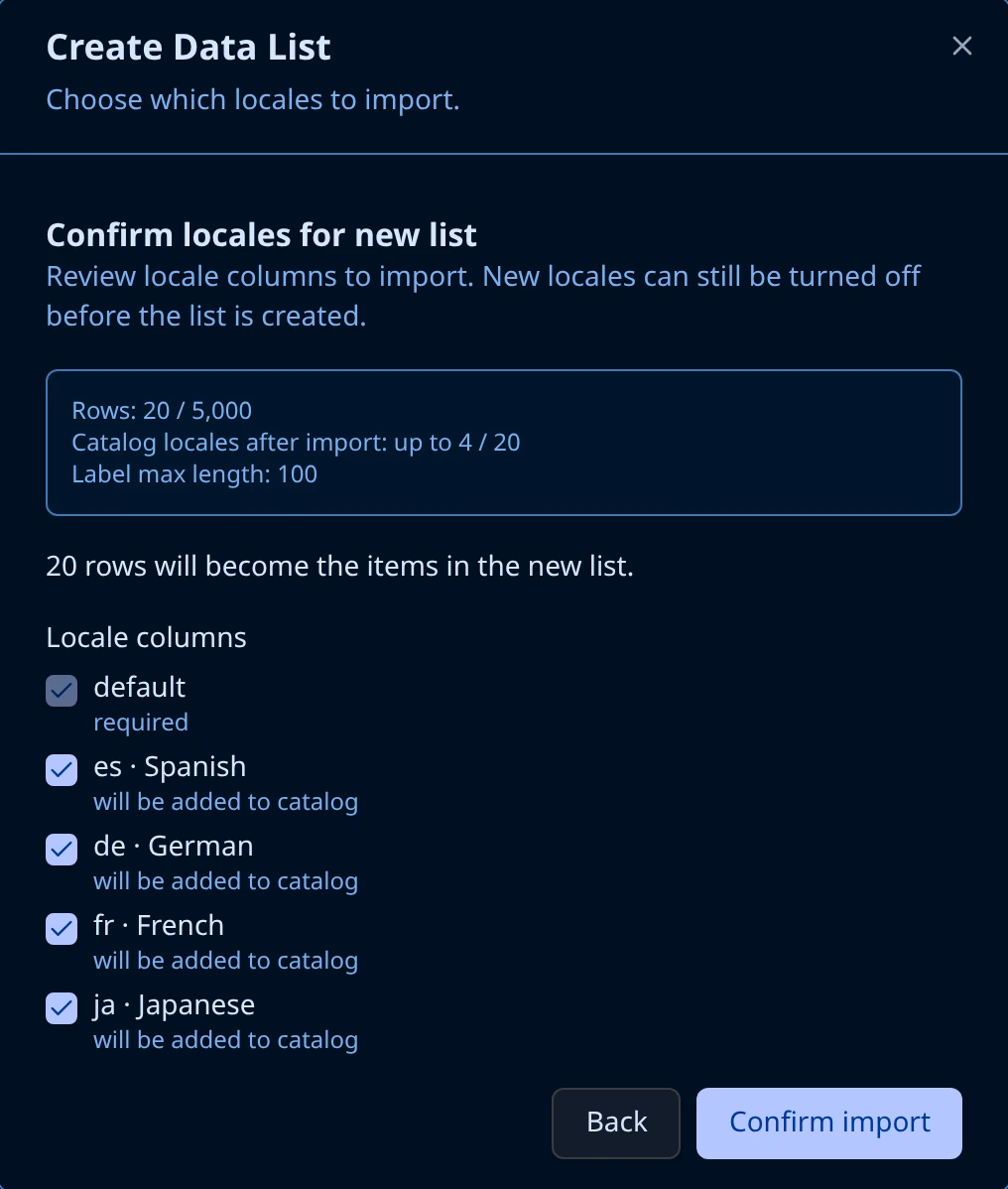
Endatix reads the language columns out of your file and shows you what it found before anything is saved. Clear a checkbox to leave that language out. The same panel states the limits the import has to fit, so you find out here rather than after a failed upload.
A CSV needs a value column and a default column, then one column per language, named with its culture code:
value,default,es,de,fr,ja
manufacturing,Manufacturing,Manufactura,Verarbeitendes Gewerbe,Industrie manufacturière,製造業
retail_trade,Retail Trade,Comercio al por Menor,Einzelhandel,Commerce de détail,小売業
Rows are keyed by value. An empty cell clears that language for that row.
If a question already has its options typed in by hand, you do not have to rebuild them as a file. Select the question in the Form Builder, open Choice Options, and use the Convert inline choices to data list button on the Choices editor. Endatix creates a list from those options and points the question at it. The inline choices are removed from the question, so save the form to keep the change.
Limits
- Items per list
- 5,000
- Languages per list
- 20
- Value and label length
- 100 characters
- CSV upload
- 2,000,000 characters
- JSON upload
- 5 MB
Use a list on a question
Data lists feed the two dropdown question types: Dropdown and Multi-Select Dropdown.
- In the Form Builder, select the question.
- Open Choice Options in the property panel.
- Set Choices from data list to your list.
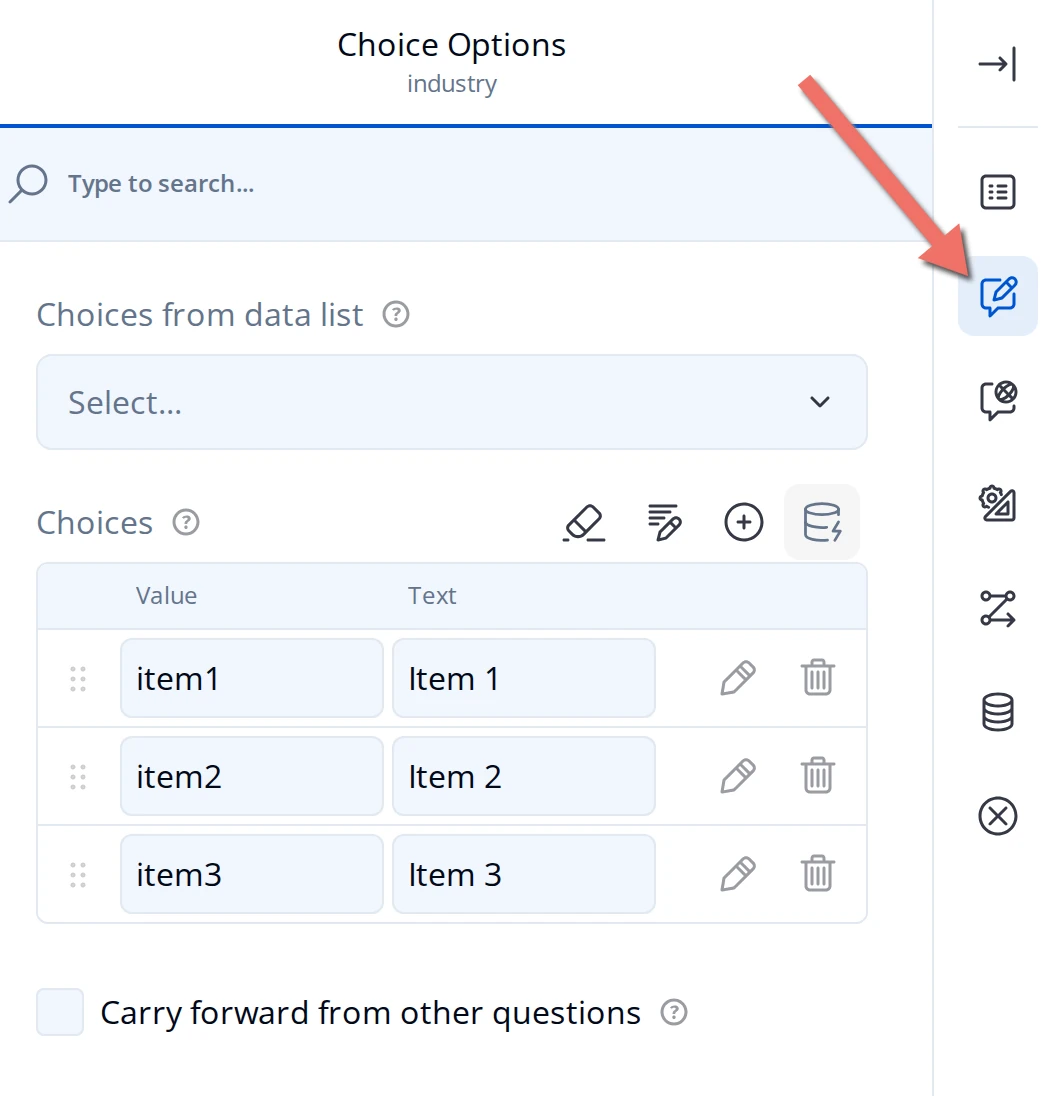
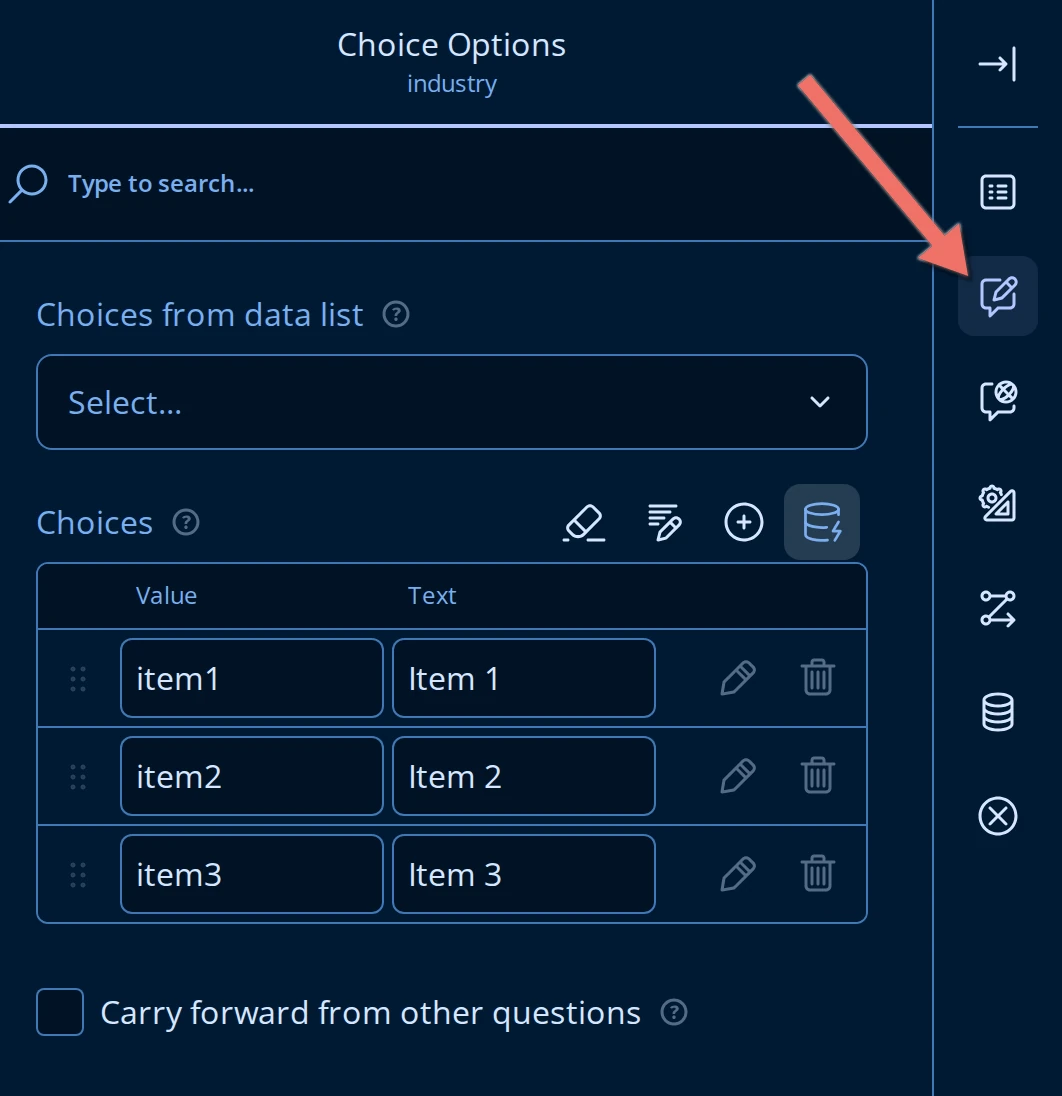
Once a list is set, the question's own Choices editor no longer drives it. The list is the source.
A question takes its choices from exactly one place, so Choices from data list cannot be combined with Carry Forward, Choices from URL, or Choices from question. Clear the data list to use one of those instead.
What respondents get
Choices are fetched as the respondent needs them rather than shipped with the form, which is what makes a 5,000 item list workable:
- The question loads a page of items at a time, not the whole list.
- Typing searches the list on the server, across both the item value and the label in the respondent's language. The question's Search mode decides whether that match is Contains or Starts with.
- The respondent sees the label for the form's current language, falling back to the
defaultlabel when that language is not in the list.
Because loading is on demand, a data list also pairs with Blind Search: nothing is fetched at all until the respondent has typed enough characters.
Change a list later
Open the list from Data Lists, or use the ... menu on its row.
- Edit changes the name and description, and manages the language catalog. Click a language to make it the default, or remove one with its X. New languages are added by importing a file that has them.
- Upload replaces the items. This is a full replacement, not a merge: every item in the list is swapped for what is in your file, so export first if you only mean to change a few rows.
- Download gives you the current list back as CSV or JSON. That is the file to edit and re-upload.
- Delete removes the list, but only when no form uses it. If any do, Hub names the dependent forms and blocks the delete until you point them elsewhere.
Editing items changes what respondents see from then on. Submissions already collected keep the values they stored, because a submission records the item's value, not its label.
A question can only draw choices from a data list when the Hub deployment has SurveyJS extensions enabled. Without that, the question falls back to a plain input and the setting does nothing. If your lists are not reaching your forms, this is the first thing to check with whoever runs your Hub: see Hub environment variables.