Audience
The Audience tab of a form holds the people the form is for and the facts you keep about each of them. Each person's values fill the form when they open it, so a form can greet someone by name or ask about their own company. Test people let you try that personalized form as someone, without sending a link or counting the result as a real response.
To open it, open the form from the Forms list, click the section menu next to the form name (it shows Overview), and choose Audience. The tab appears when your Endatix deployment has personalization turned on.
People and properties
The tab has two views, People and Properties. Each shows its count in the view switch.
- A property is one fact kept for each person on this form, such as a first name, a company, or a plan. Each property is a column in the people table.
- A person is someone in the form's audience. Endatix recognizes the same person on every form in your organization by the match key, for example their email. Removing someone takes them off this form only.
Add a property
- On the Properties view, click Add property.
- Enter a Name, such as
First name. Endatix builds the variable name from it (first_name). The variable name never changes, even if you rename the property later. - Choose a Type. Values are checked against the type when people are added or edited.
- Click Add property.
Use the variable name in the form the same way as any other variable, in braces: a title of Welcome, {first_name} shows each person their own first name. See Text Piping for where you can use it.
Check which values the form uses
If you can edit the form, the Properties view also shows how the saved form uses each property:
- Used in form is Used when the form reads the variable, and Not used when nothing in it does.
- Filled in (real) counts the real people who have a value for it, for example 2 of 3 filled. Test people are not counted. With no real people yet, it says No real participants.
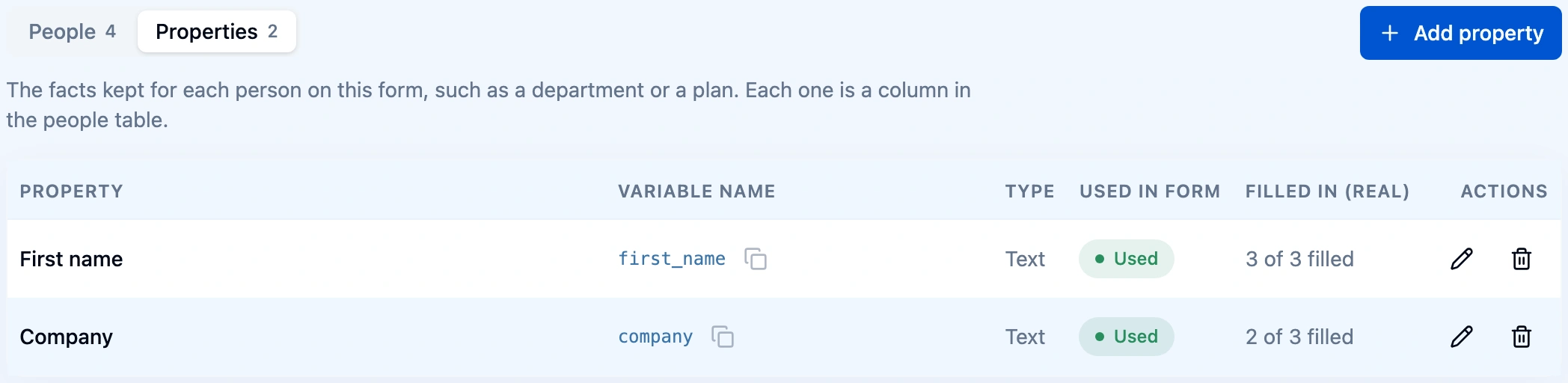
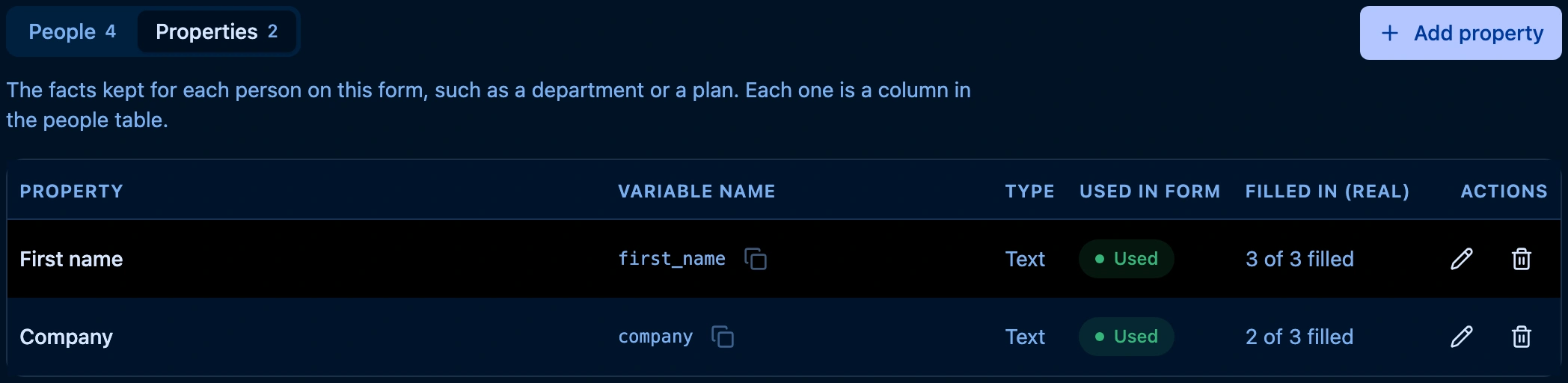
The counts follow the last saved version of the form. Save the form in the designer to update them.
Add people
The People view lists everyone on the form, with one column per property.
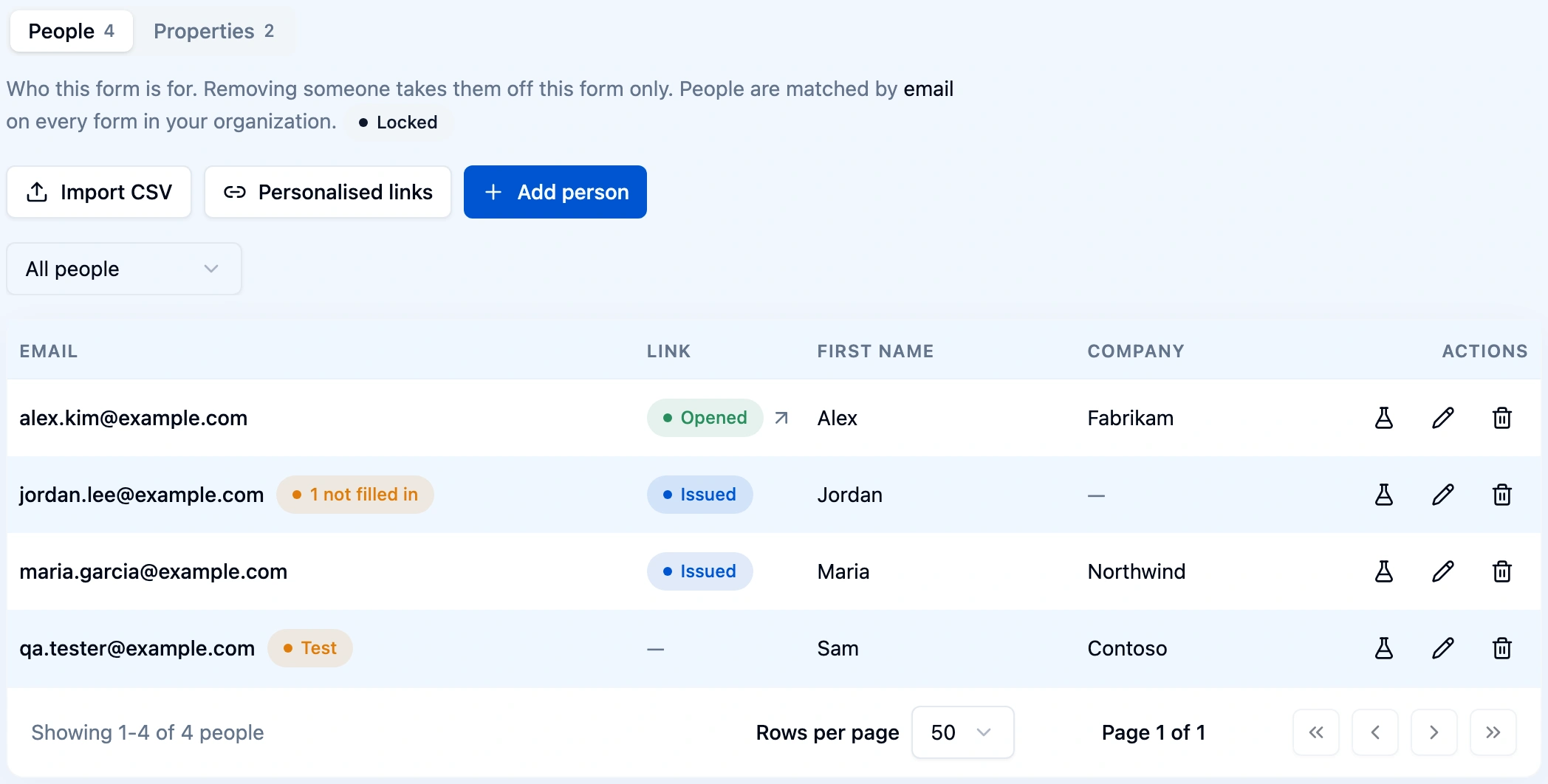
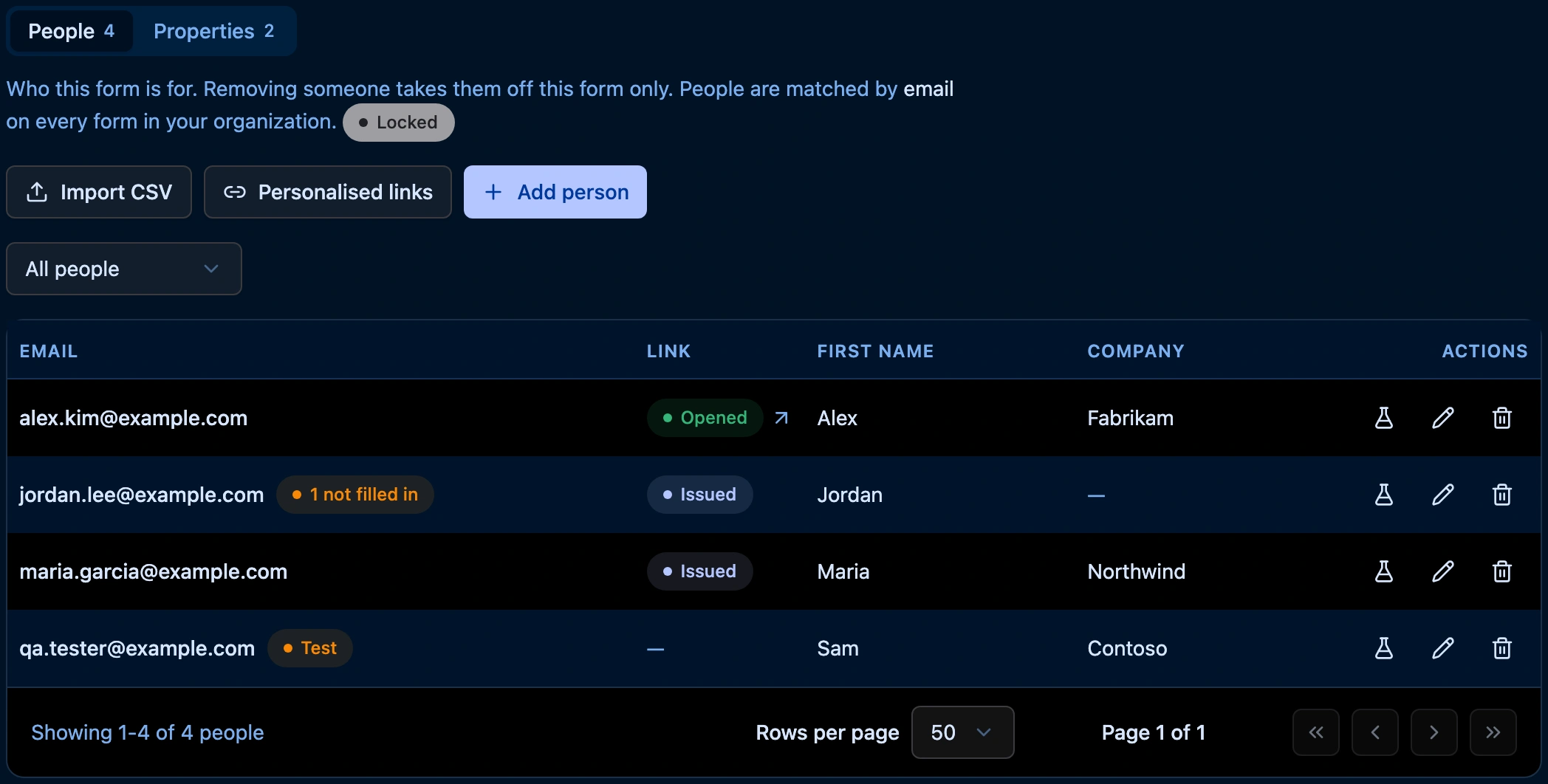
- Add person adds one person: enter their identifier (the match key, for example Email) and, optionally, a value for each property.
- Import CSV adds many at once from a file with one person per row. Choose the column that identifies people and the property each other column fills, then review and import. Nothing is written until the last step.
- Personalised links creates one link per real person who has none yet and downloads them as a file to send from your own email or panel tool. Each link opens that person's own response, and resumes it on later opens.
Two marks help you check the list before you send links:
- Link shows each real person's link: Not issued, Issued, or Opened. Click Opened to see the response the link started. A test person never gets a link. The column appears once anyone on the form has a link.
- N not filled in next to a person means the saved form reads values they don't have. Hover over it to see which ones. Fill them in with Edit, or the form shows those places empty for that person. Only people who can edit the form see this mark.
Open a participant's page
Click a person's identifier to open their page on this form. It needs permission to edit the form.
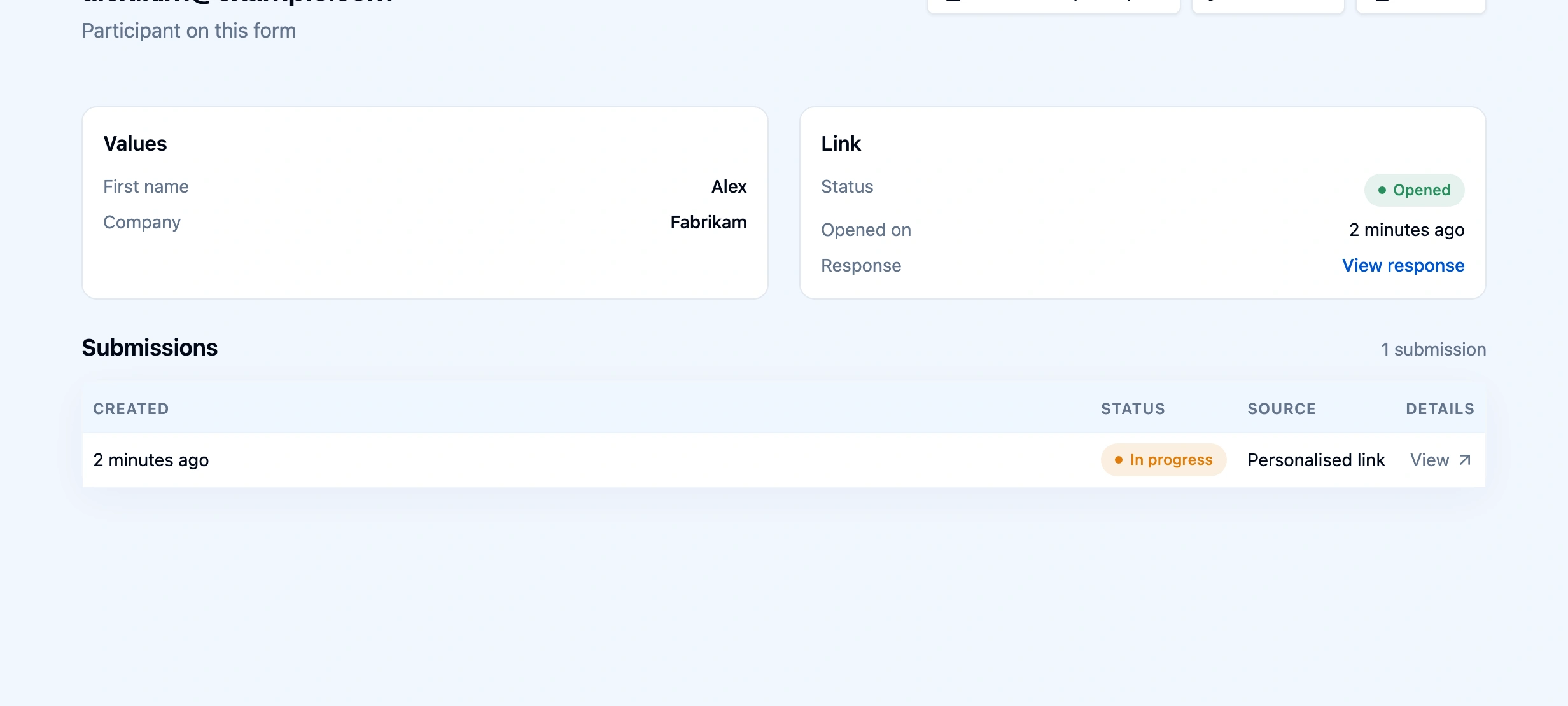
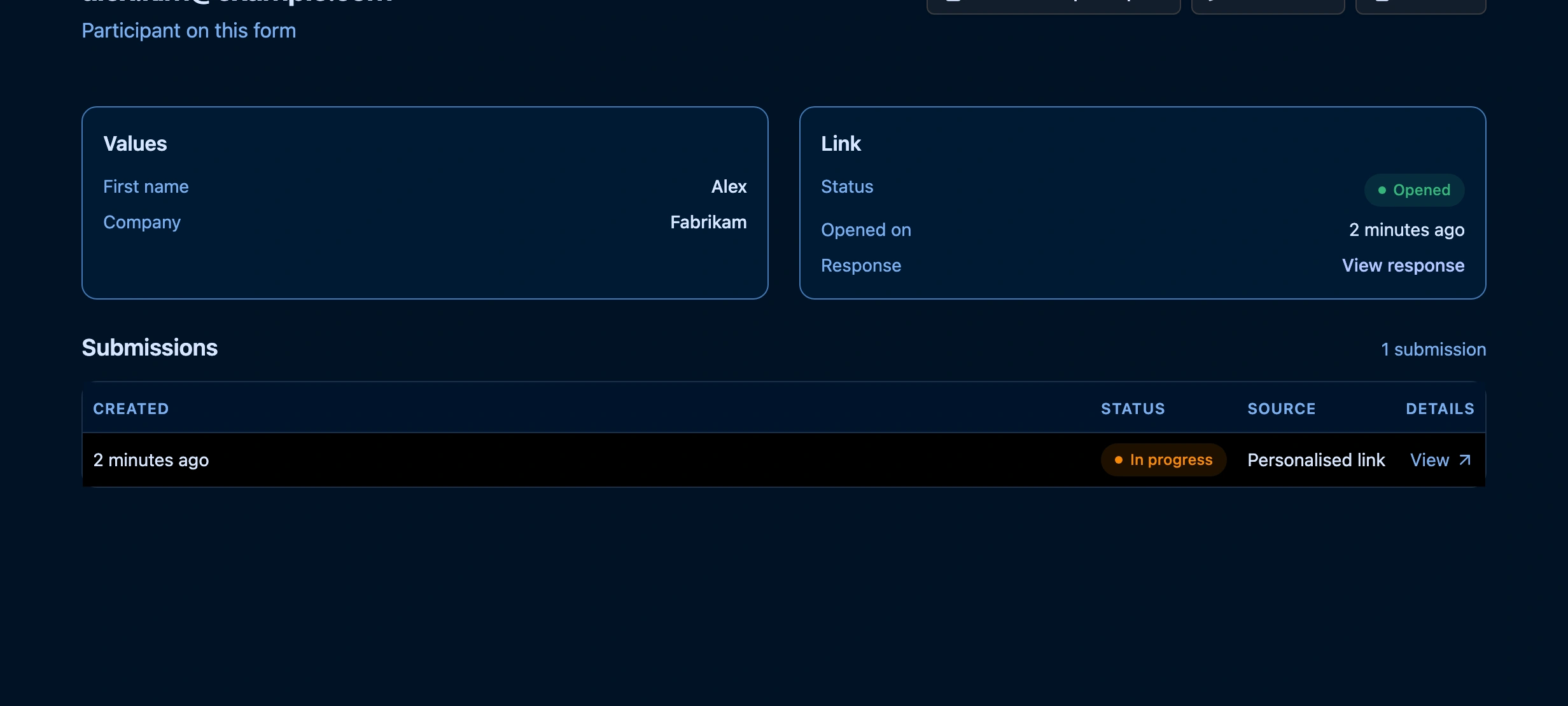
- Values lists the person's value for each property.
- Link shows their personalized link's status, when it was opened, and the response it started. It appears only once a link was issued, so a test person never has it.
- Submissions lists their newest submissions on this form, up to 50, with the status and where each came from: Personalised link, On behalf, or Test as this participant. Click View to open one.
The page has the same actions as the row: Test as this participant, Edit values, and Remove. Click Audience at the top to go back to the list.
Test people
A test person exists only for testing on this form. They are never sent a personalized link and do not count as part of the audience. Use test people to see the form the way a respondent with those values sees it.
You choose whether someone is a test person when you add them. It cannot be changed later: to turn a test person into a real one, remove them and add them again.
Add a test person
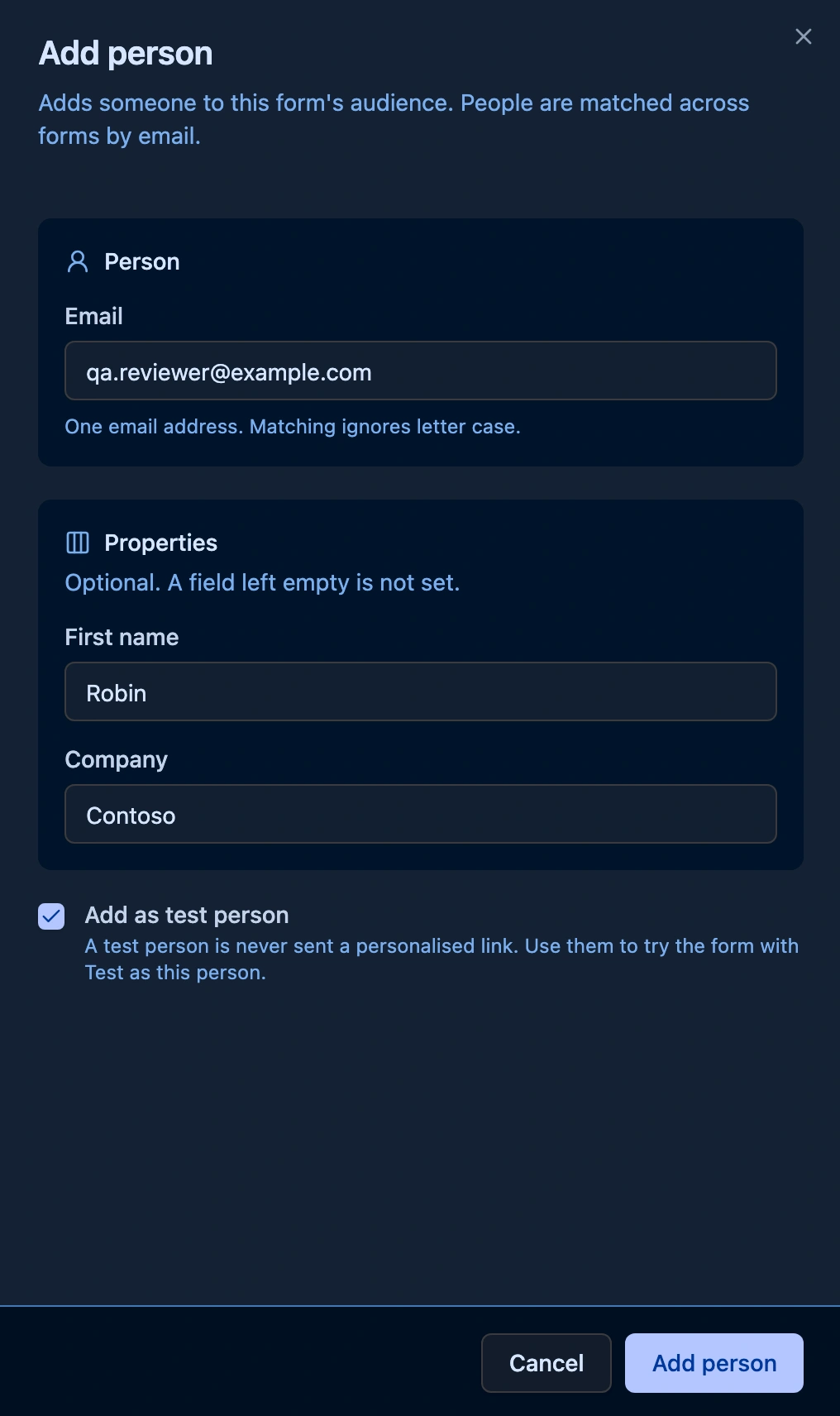
- On the People view, click Add person.
- Enter the identifier and the property values you want to test with.
- Select Add as test person.
- Click Add person.
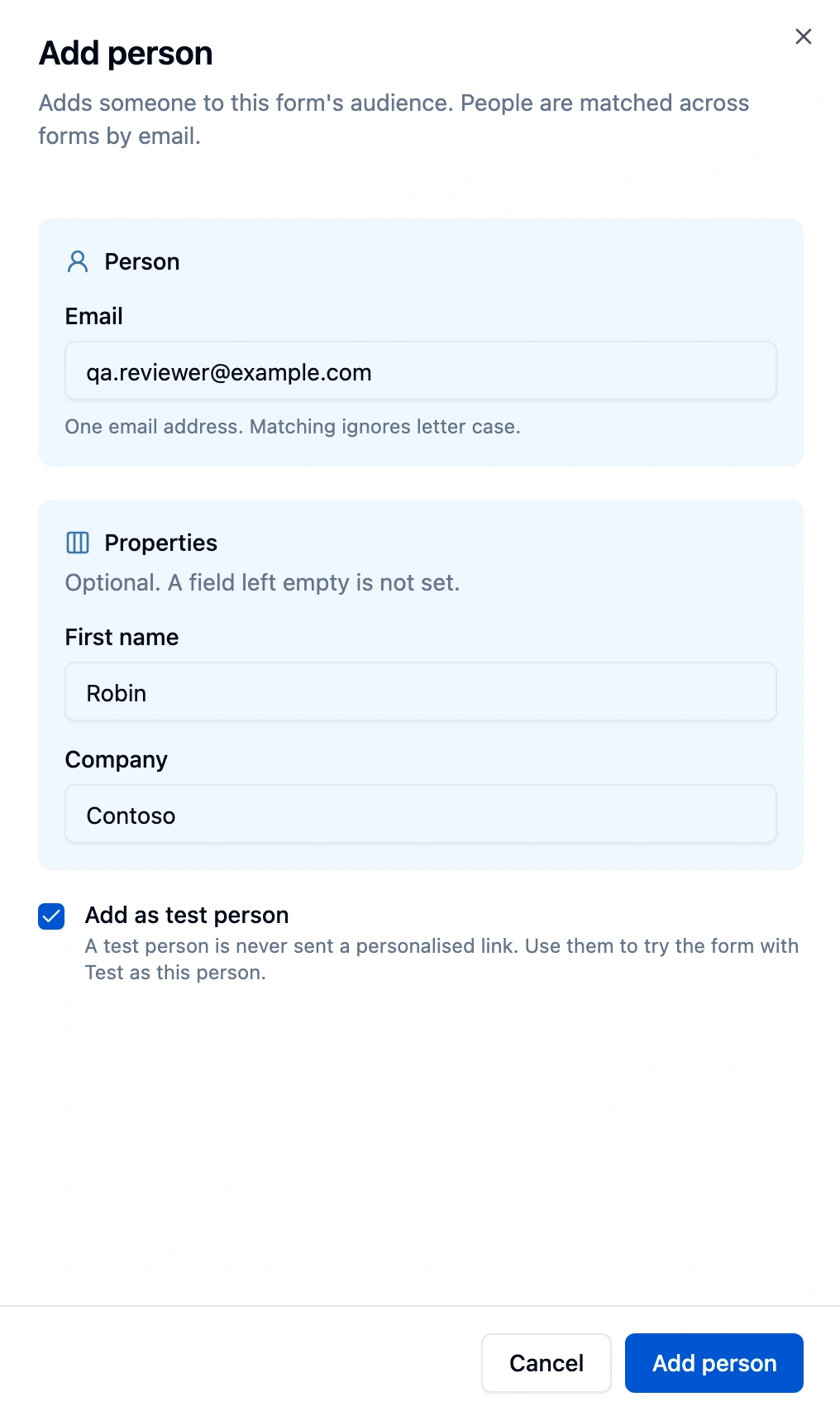
The person appears in the table with a Test badge next to their identifier.
Import test people
- On the People view, click Import CSV and choose the file.
- Map the columns, then click Continue to reach Review.
- Select Import as test people.
- Click Import. The button names the row count, for example Import 2 rows.
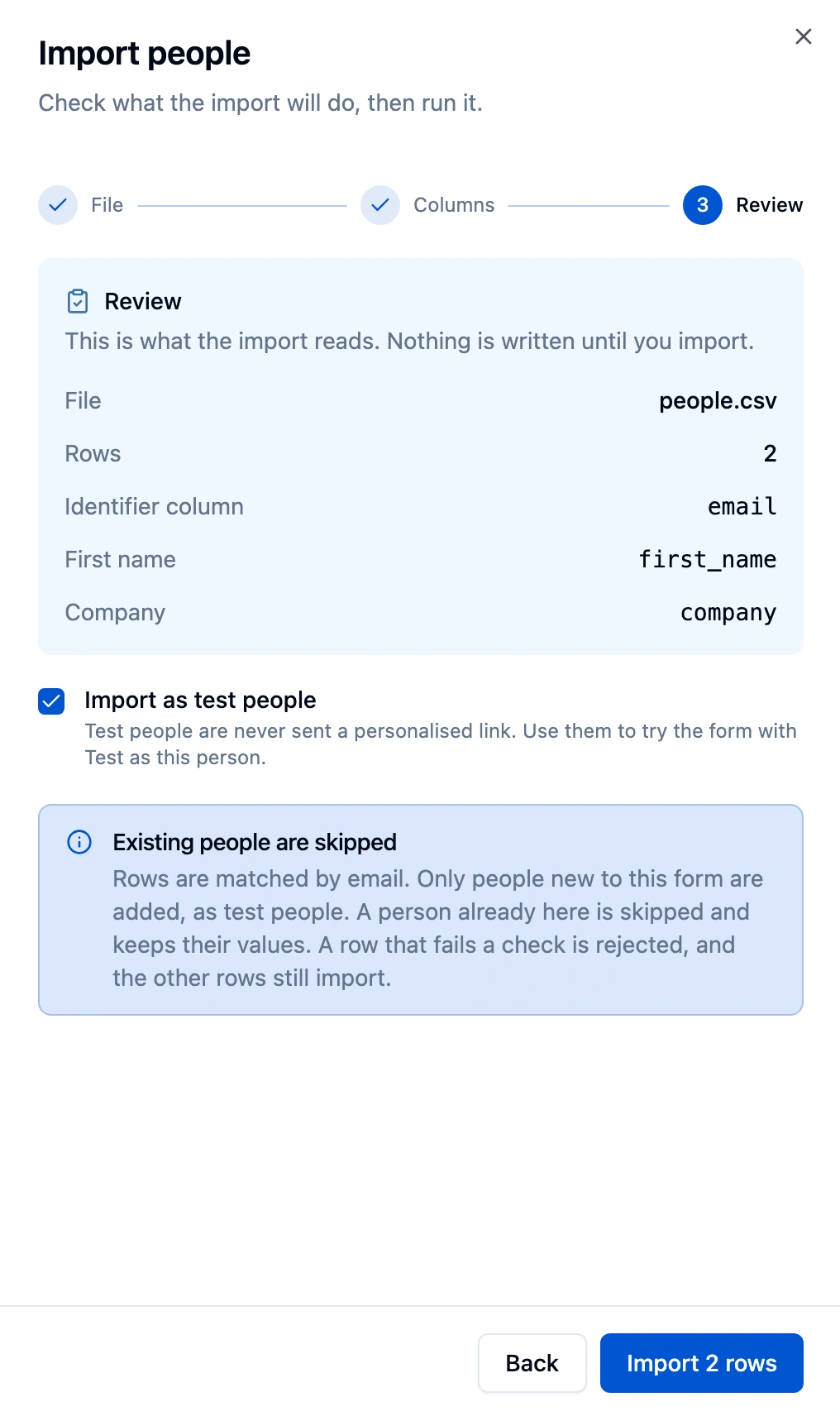
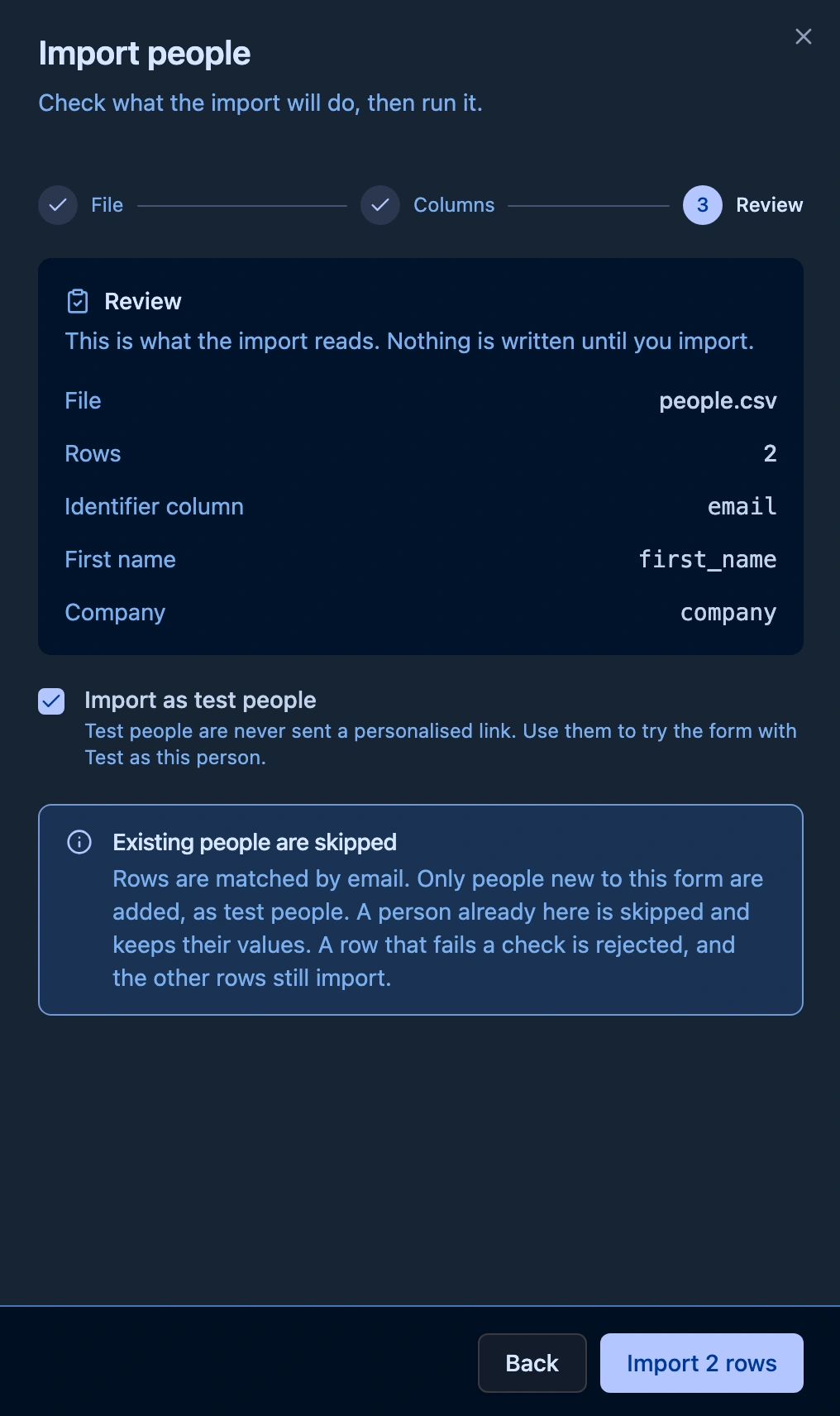
With Import as test people on, only people new to this form are added, as test people. A person already on the form is skipped and keeps their values, so a test import never changes a real person. The outcome counts both, for example 1 added as test people, 1 skipped because they are already on this form.
Filter real and test people
Once the form has people, a filter above the table shows All people, Real people, or Test people. The choice is kept in the page address, so you can bookmark or share a filtered view.


Test as this participant
Test as this participant opens the form as that person, with their current values, in a new browser tab. It is the flask icon in the row's actions and a button on the participant's page, and it needs permission to test forms.
- On the People view, find the person. A test person is the usual choice, but any person works.
- Click Test as this participant in their row, or on their page.
Each click creates a new test submission for that person, on the latest saved version of the form.
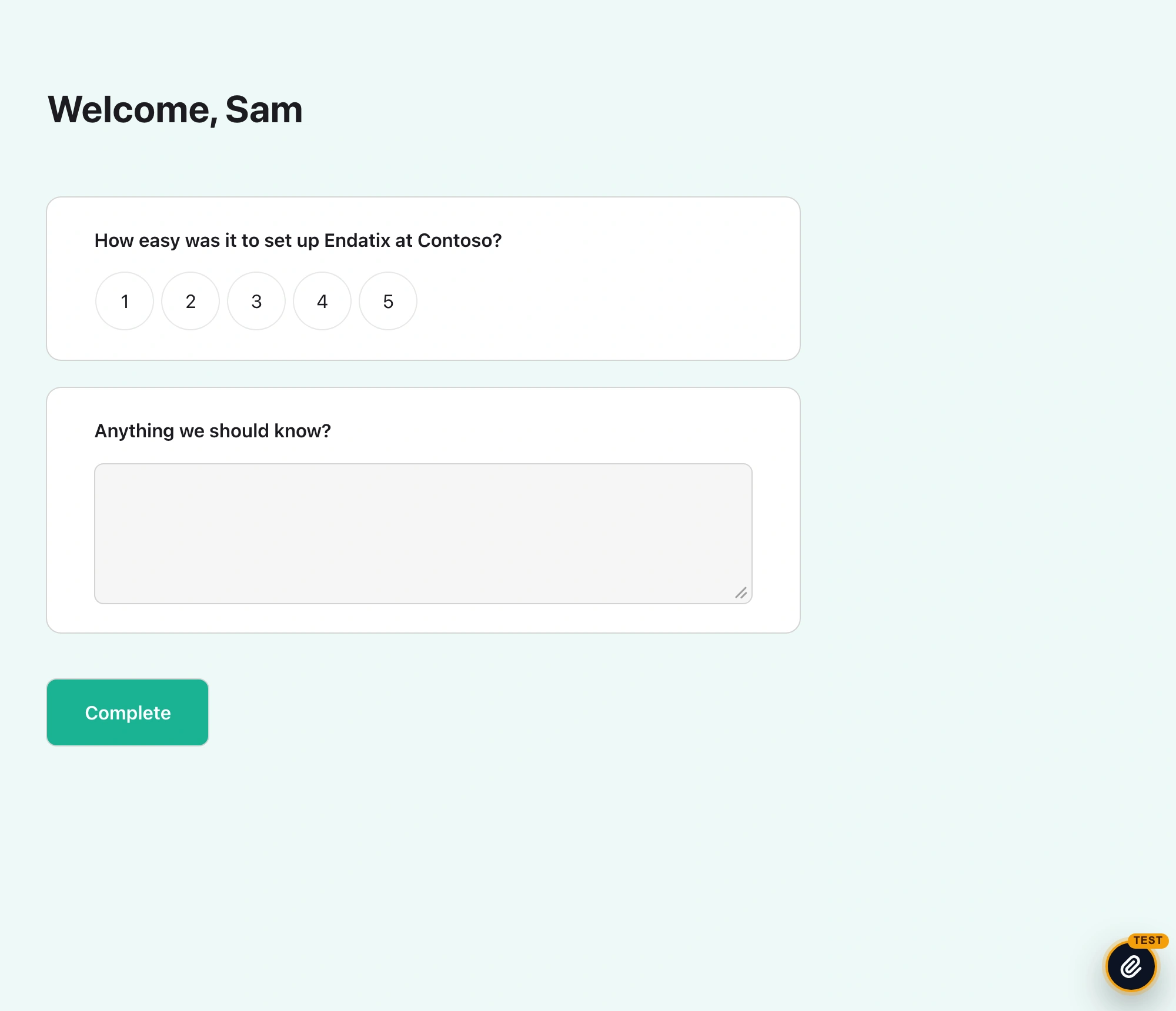
Testing as a real person does not use up their personalized link. When they open it, they still get a new real response of their own.
A test submission does not count toward Limit one per user. On the Submissions page, the Submission Type filter shows or hides test submissions, and an export includes them only when Include test submissions is on.
Test inspector
The round button with a TEST tag at the bottom right of a test submission is the Test inspector. Click it to see who you are submitting as and the values the form was opened with, to open the submission or the participant in Hub, and to Start over.
You see it when you can test forms. Anyone else who opens the same test submission sees only You are submitting a test submission, and real respondents see neither. See Testing Submissions for each row and panel.
Start over
Start over is in the Test inspector of a test submission opened with Test as this participant. It discards the current test submission and opens a new one for the same person.
Use it after you change the person's values or edit the form: the new test submission picks up the person's current values and the latest saved form. To try different values, edit the person on the People view, then click Start over in the form's tab.
If the person was removed from the form in the meantime, Start over goes away and the Test inspector says This person is no longer on this form, so this test submission cannot start over. Add a test person again and use Test as this participant.
Limitations
- Test status is set once. You cannot switch a person between test and real. Remove them and add them again.
- Test people get no links. Personalised links skips them, and a test import never touches people already on the form.
- Start over needs the person. It works only while the person is still on the form.
- No Test inspector in embeds. An embedded form shows the plain test notice with Start over.