Blind Search (Hide Choices Until User Types)
Blind Search is an Endatix Hub enhancement for Multi-select Dropdown (Tag Box) questions. When enabled, the setting Hide choices until user types prevents respondents from browsing the full choice list. No options appear in the dropdown until the respondent types at least the configured number of characters, then matching choices are shown using SurveyJS native search filtering.
Use Blind Search when you want unaided recall rather than recognition from a visible list — for example, brand awareness studies, product name validation, or any scenario where showing all options would bias the answer.
Blind Search applies to Tag Box questions only at this time. Single-select Dropdown questions will be supported with a later release.
Key Capabilities
- Blind dropdown: Opening the Tag Box or focusing the search field shows no choices until the respondent types.
- Minimum search length: Require a specific number of characters before any choices appear (default: 1).
- Native filtering: Once the threshold is met, choices are filtered case-insensitively using the question's Search mode (Contains or Starts with).
- Other fallback: When the threshold is met but nothing matches, the Other write-in option appears automatically so respondents can still enter a custom value.
- Data list compatibility: Works with Tag Box questions linked to a shared Data list — the list is not fetched until the search threshold is met.
- Carry forward compatibility: Works on the same Tag Box as Carry forward from other questions — Blind Search filters whatever choice pool carry forward builds from earlier answers.
Configuration Guide
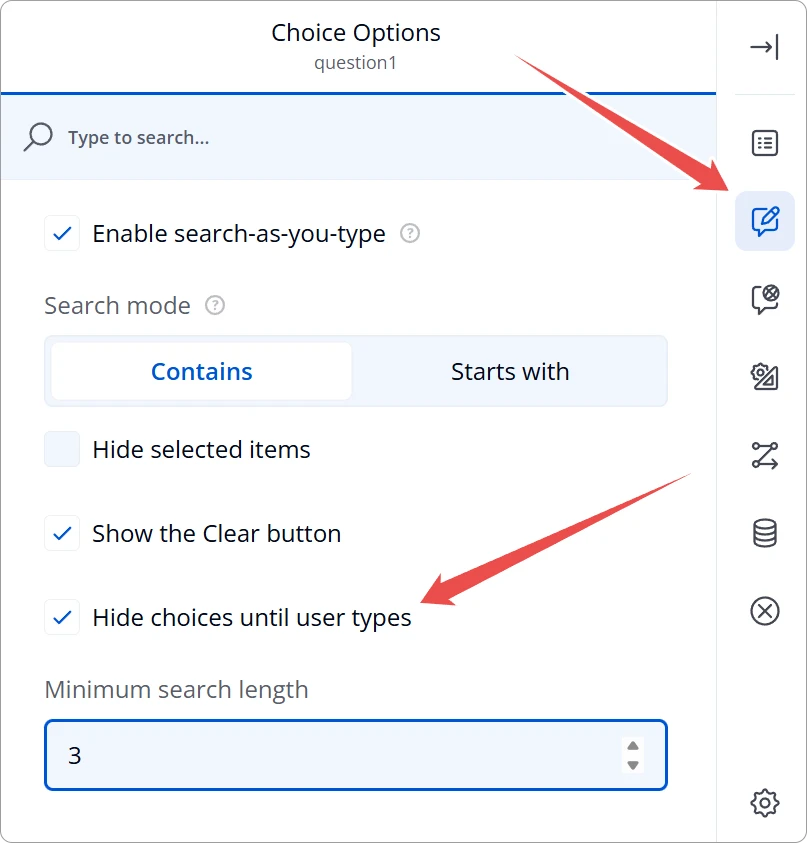
Select a Tag Box question and open the Property Grid. Under the Choices category, configure the Blind Search settings.
1. Enable Blind Search
Turn on Hide choices until user types.
When this setting is off, the Tag Box behaves like a standard searchable multi-select dropdown.
2. Set Minimum Search Length
After enabling Blind Search, set Minimum search length to the number of characters the respondent must type before choices appear.
| Setting | Description |
|---|---|
| 0 | Any keystroke (including a single character) reveals matching choices. |
| 1 (default) | At least one character is required. |
| 2 or more | Useful for longer lists where you want to avoid overly broad first-character matches. |
3. Optional — Configure Search Mode
Blind Search uses the Tag Box's built-in Search mode property (also under Choices):
| Search mode | Filter behavior |
|---|---|
| Contains (default) | Shows choices whose display text includes the typed text anywhere. |
| Starts with | Shows choices whose display text begins with the typed text. |
4. Optional — Enable Other for Custom Answers
If respondents may need to enter a value that is not in the list, enable Show "Other" item on the Tag Box. Blind Search uses this setting in two ways:
- No-match fallback: When the minimum search length is met and zero choices match, Other appears automatically — even if you did not enable it in the form design — so the respondent is not blocked.
- Restored after match: If the respondent later types text that matches choices again, Blind Search restores your original Show "Other" item setting.
Respondent Experience
Inline choices (choices defined in the form)
- The respondent opens the Tag Box. The dropdown is empty — no options are listed.
- They type in the search field. Until the typed text reaches Minimum search length, nothing appears.
- At or above the threshold, matching choices appear and can be selected.
- If they delete characters so the search falls below the threshold, the list hides again.
- If they type enough characters but nothing matches, Other appears so they can enter a custom answer (when applicable).
With Data Lists
When the Tag Box uses Choices from data list, Blind Search applies the same threshold rules:
- Below the minimum search length, no choices are loaded from the data list.
- At or above the threshold, Endatix fetches and displays matching items from the linked list.
- If the fetch succeeds but returns no matches, Other fallback applies the same way as for inline choices.
You can combine a data list Tag Box with Blind Search without changing how the data list is managed in Hub.
With Carry Forward
Carry forward from other questions and Hide choices until user types can both be enabled on the same Tag Box. They operate on different layers:
- Carry forward builds the choice pool from answers on earlier questions (for example, only brands the respondent said they use).
- Blind Search controls when that pool becomes visible and how it is filtered as the respondent types.
Typical combined behavior:
| Scenario | Expected behavior |
|---|---|
| Carry forward populated the pool; respondent has not typed enough | No options visible (blind state). |
| Respondent types below Minimum search length | No options visible, even if the carry-forward pool has items. |
| Respondent types at/above threshold with matching carried-forward values | Matching options appear. |
| Respondent types at/above threshold with no match in the pool | Other appears (if fallback applies). |
| Source answers change while the respondent is searching | The pool updates; the current search filter is re-evaluated on the next search. |
Neither feature hides or disables the other in the Form Builder — configure both when you need a dynamic pool and unaided search.
Example Scenario
You run a brand-tracking study. An earlier question asks which beverage brands the respondent uses (checkbox). A follow-up Tag Box asks them to name additional flavors they associate with each selected brand.
- Enable Carry forward from other questions on the Tag Box and copy choices from the brand checkbox (selected answers only).
- Enable Hide choices until user types with Minimum search length set to 2.
- Set Search mode to Starts with.
- Enable Show "Other" item for flavors not in your master list.
Respondents only see flavor options for brands they already selected, and they must type at least two characters before any flavor names appear — reducing list bias while still allowing a custom flavor via Other when nothing matches.
Technical Reference (JSON Schema)
Advanced users and template authors can configure Blind Search directly in the form JSON. Properties are stored on the Tag Box question object.
{
  "type": "tagbox",
  "name": "brand_flavors",
  "title": "Which flavors do you associate with this brand?",
  "choices": [
    { "value": "cola", "text": "Cola" },
    { "value": "lemon", "text": "Lemon" },
    { "value": "cherry", "text": "Cherry" }
  ],
  "edxHideUntilTyping": true,
  "edxMinSearchLength": 2,
  "searchMode": "startsWith",
  "showOtherItem": true,
  "otherText": "Other (please specify)"
}
Blind Search Properties
| Property | Type | Default | Description |
|---|---|---|---|
edxHideUntilTyping | boolean | false | When true, enables Blind Search — choices stay hidden until the respondent meets the minimum search length. |
edxMinSearchLength | number | 1 | Minimum number of characters (after trimming whitespace) required before choices appear. Minimum value: 0. |
Related SurveyJS Properties
| Property | Type | Description |
|---|---|---|
searchMode | string | "contains" (default) or "startsWith". Controls how Blind Search filters visible choices once the threshold is met. |
showOtherItem | boolean | When true, the Other write-in is available. Blind Search may temporarily enable Other when no choices match at/above the threshold, then restore this value when matches return. |
otherText | string | Label for the Other option (for example, "Other (please specify)"). |
Example — Blind Search with Data List
{
  "type": "tagbox",
  "name": "product_codes",
  "title": "Enter the product code",
  "edxDataListId": "your-data-list-id",
  "choicesLazyLoadEnabled": true,
  "edxHideUntilTyping": true,
  "edxMinSearchLength": 3,
  "searchMode": "contains"
}
Example — Blind Search with Carry Forward
{
  "type": "tagbox",
  "name": "follow_up_brands",
  "title": "Select additional attributes for each brand",
  "edxCarryForwardEnabled": true,
  "edxCarryForwardSources": ["brands_used"],
  "edxCarryForwardMode": "selected",
  "edxHideUntilTyping": true,
  "edxMinSearchLength": 1,
  "showOtherItem": true
}