Conditional Logic
What Is Conditional Logic?
Conditional logic makes a form respond to the answers it receives. A follow-up question appears only after the answer that makes it relevant, a page of approval questions is shown only for expensive requests, a field becomes required only in the situation that calls for it, and a choice list offers only the options that apply to the respondent.
Every respondent gets a form that fits their situation: they don't scroll past questions that don't concern them, they aren't asked for details that don't apply, and they're less likely to give up halfway. You get cleaner data — no "N/A" answers to filter out — and you can serve several scenarios with one form instead of maintaining a separate form for each.
In Endatix Hub, you add conditional logic in the Form Builder, without writing code: create rules in the Logic tab, or set conditions on a question, panel, page, or choice in the Property Grid.
How It Works
- A condition is a yes-or-no question about the answers. It refers to questions by name, such as
{request_type} = 'new_hire'— "is the answer torequest_typeequal tonew_hire?" - Each condition controls one setting. For example, Make the question visible if shows the question while its condition is true and hides it while the condition is false.
- The form updates as the respondent answers. Conditions are re-checked the moment an answer they refer to changes, and their effect is reversed as soon as the condition stops being true.
- The Logic tab and the Property Grid show the same settings. A rule you create in the Logic tab is saved as the element's condition, and a condition you type in the Property Grid appears as a rule in the Logic tab.
- Conditions compare stored values. A choice is compared by its value (
new_hire), not the text respondents see, and a Yes/No question bytrueorfalse. Text comparisons ignore capitalization.
What You Can Control
Questions
Select a question and open the Conditions category in the Property Grid.
| Setting | What happens while the condition is true | Logic tab action |
|---|---|---|
| Make the question visible if | The question is shown. While it's hidden, it isn't validated, so a hidden required question doesn't block the respondent. | Show/hide question |
| Disable the read-only mode if | The question can be edited. Until then, it's shown read-only, and any default answer it has is still saved. | Enable/disable question |
| Make the question required if | The question must be answered before the respondent can continue. | Make question required |
| Reset value if | When the condition becomes true, the answer is cleared, or returned to the question's default value if it has one. | Reset question value |
| Set value if and Set value expression | When the condition becomes true, the answer is set to the result of Set value expression. Without a Set value if condition, the expression recalculates the answer whenever a value it uses changes. | Set question value |
| Default value expression | Not a condition: calculates the answer the question starts with. The respondent can change it. | — |
Choices
| Setting | Where | What happens while the condition is true |
|---|---|---|
| Make the option visible if | Choice Options → a choice's Show Details | The choice is offered. |
| Make the option selectable if | Choice Options → a choice's Show Details | The choice can be selected. Until then, it's shown but disabled. |
| Make choices visible if, Make choices selectable if | The question's Conditions category | One condition checked for every choice, where {item} stands for the choice's value — for example, {item} != 'phone' or {department} = 'sales'. |
| Hide the question if it has no choices | The question's Conditions category | Hides the question when conditions leave it without any choice to offer. |
If a choice the respondent has already selected is hidden, it's removed from their answer. Choice conditions aren't listed in the Logic tab. To build a choice list from earlier answers instead, see Carry Forward.
Panels and Pages
| Setting | What happens while the condition is true | Logic tab action |
|---|---|---|
| Make the panel visible if, Make the page visible if | The panel or page is shown. Hidden pages are skipped when the respondent clicks Next, and their questions aren't validated. | Show/hide panel, Show/hide page |
| Disable the read-only mode if | The questions in the panel or page can be edited. Until then, they're all read-only. | Enable/disable panel, Enable/disable page |
| Make the panel required if, Make the page required if | At least one question in the panel or page must be answered. | Make panel required, Make page required |
| Make an individual entry visible if | For a Dynamic Panel: shows only the entries that match, using {panel.question_name}. See Question Loops. | — |
Matrices
- Make rows visible if and Make columns visible if — in a matrix question's Conditions category, one condition checked for every row or column, with
{item}standing for its value. - Make the row visible if and Make the row editable if — on an individual row.
- Make the column visible if, Disable the read-only mode if, and Make the column required if — on a column of a Multi-Select Matrix or Dynamic Matrix. In the Logic tab, these are the Show/hide column, Enable/disable column, Make column required, Reset column value, and Set column value actions. Use
{row.column_name}to refer to another cell in the same row.
Form Flow and Results
Conditions also drive the features described in their own articles:
- Triggers — end the form, skip ahead, or fill in answers when a condition is met.
- Thank You Page — show a different message or redirect to a different page depending on the answers.
- Validation — accept an answer only when an expression is true.
- Custom Variables — calculate values, such as totals or scores, to use in other conditions.
Example: An IT Equipment Request Form
An IT team uses one form for three kinds of requests: equipment for a new hire, a replacement, or a repair. Conditional logic makes each respondent see only the questions for their request:
| What should happen | Setting | Condition |
|---|---|---|
| Ask for the new hire's name only for new hires | new_hire_name → Make the question visible if | {request_type} = 'new_hire' |
| Ask which devices are needed, except for repairs | devices → Make the question visible if | {request_type} anyof ['new_hire', 'replacement'] |
| Ask for a description of the problem only for repairs | issue_description → Make the question visible if | {request_type} = 'repair' |
| Offer a mobile phone only to the Sales department | devices → Mobile phone → Make the option visible if | {department} = 'sales' |
| Require a reason for urgent requests | urgency_reason → Make the question required if | {is_urgent} = true |
| Keep the head office as the delivery address unless the respondent chooses another one | delivery_address → Disable the read-only mode if | {ship_elsewhere} = true |
| Ask for manager approval for laptops and phones | Manager approval page → Make the page visible if | {devices} anyof ['laptop', 'phone'] |
1. Show a Question for New Hires in the Logic Tab
Open the form's Logic tab and click Add New Rule. Then:
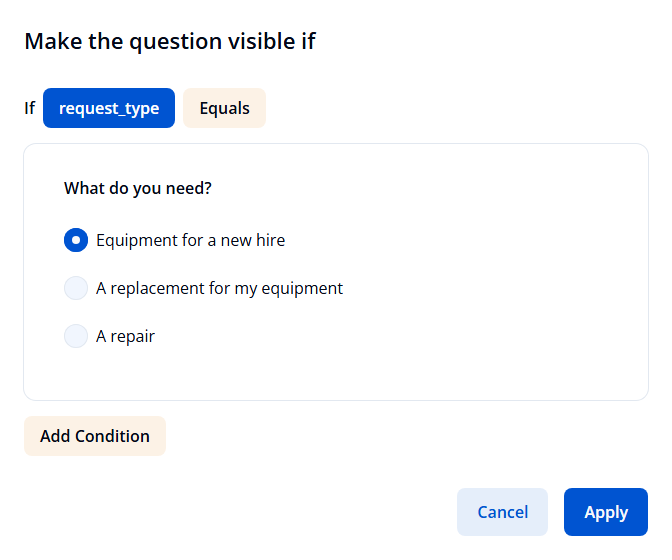
- In the If row, select the
request_typequestion with the Equals operator, and select Equipment for a new hire. - In the then row, open Select action..., choose Show/hide question, and select
new_hire_name. - Click Done.
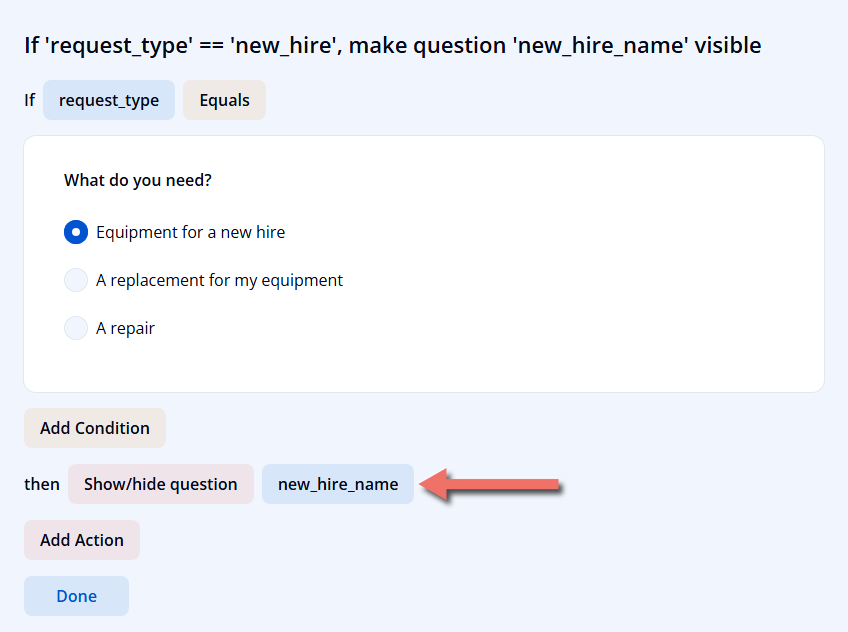
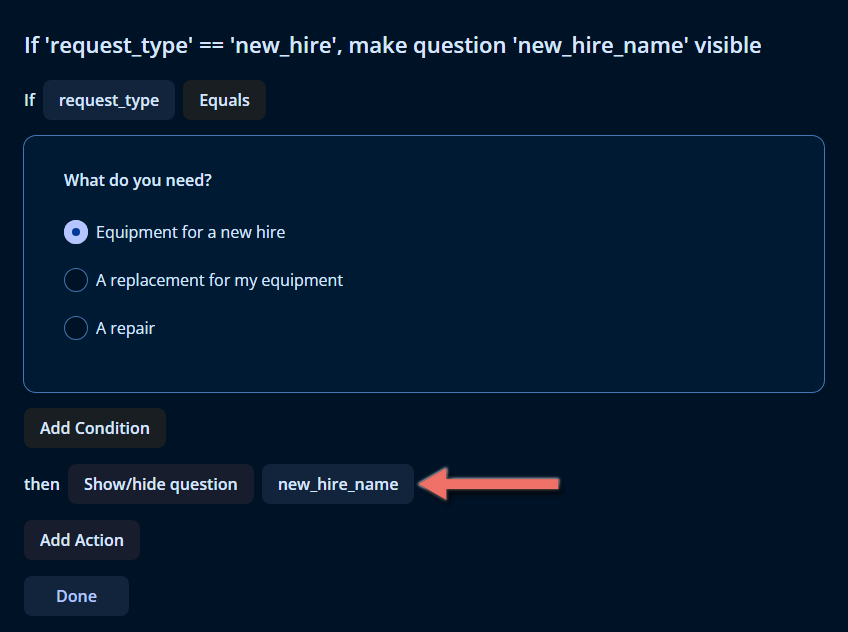
To combine conditions, click Add Condition and choose and or or for the new row. To type the condition instead, click Manual Entry at the top of the tab while the rule is open. Add Action attaches more actions to the same condition.
Add the other rules from the table the same way. The Logic tab lists them all, each summarized in a sentence:
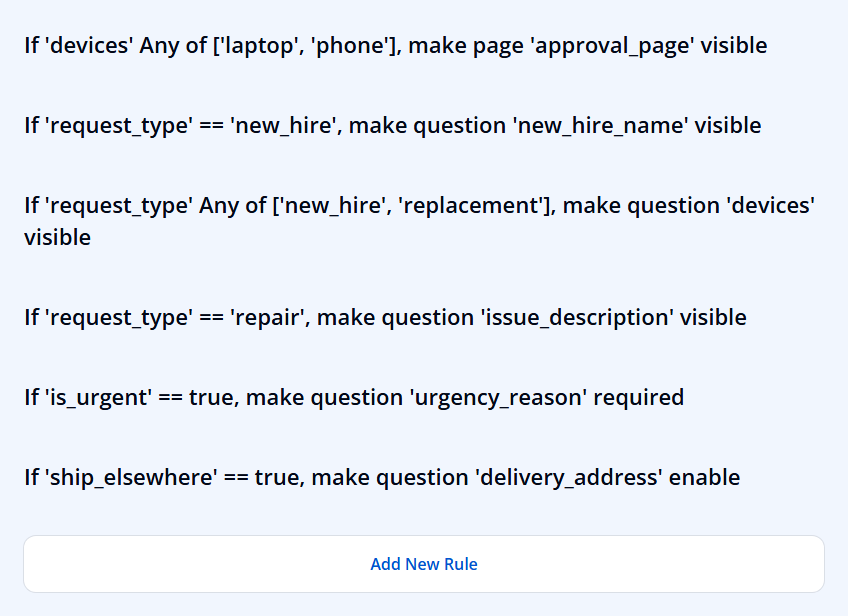
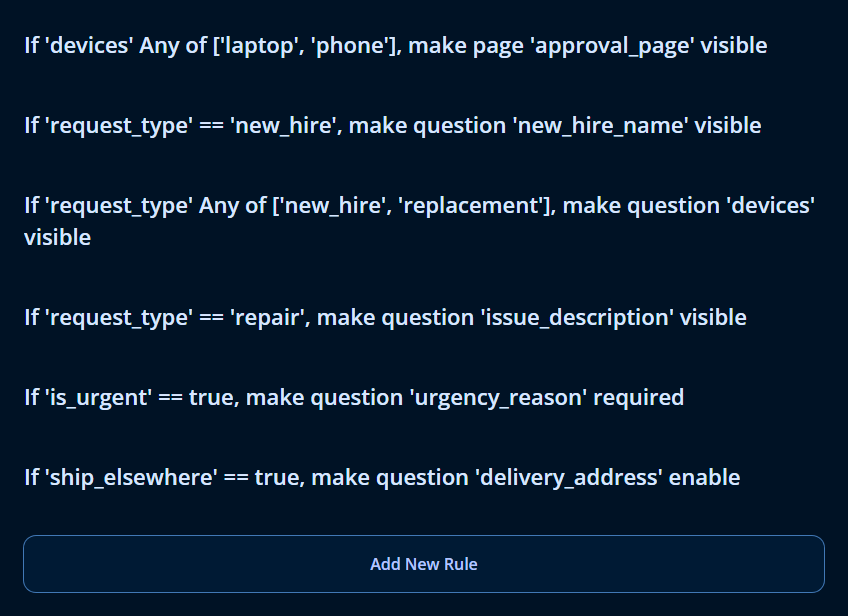
Click a rule to edit it. On a form with many rules, use All Questions and All Action Types at the top of the tab to show only the rules for one question or one kind of action.
2. Review a Question's Conditions in the Property Grid
Switch to the Designer tab, select the New hire's full name question, and click the Conditions icon in the category bar on the right of the Property Grid. The rule from step 1 is shown in Make the question visible if:
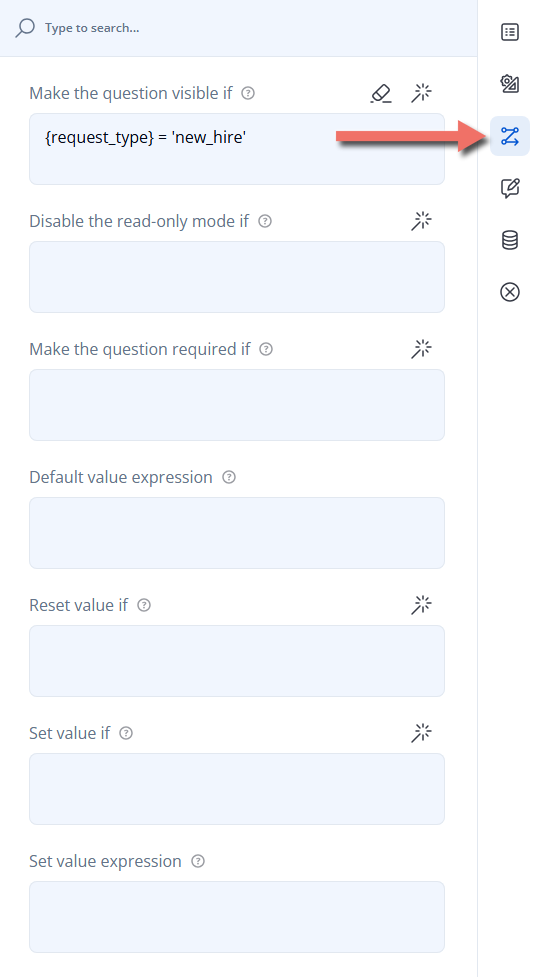
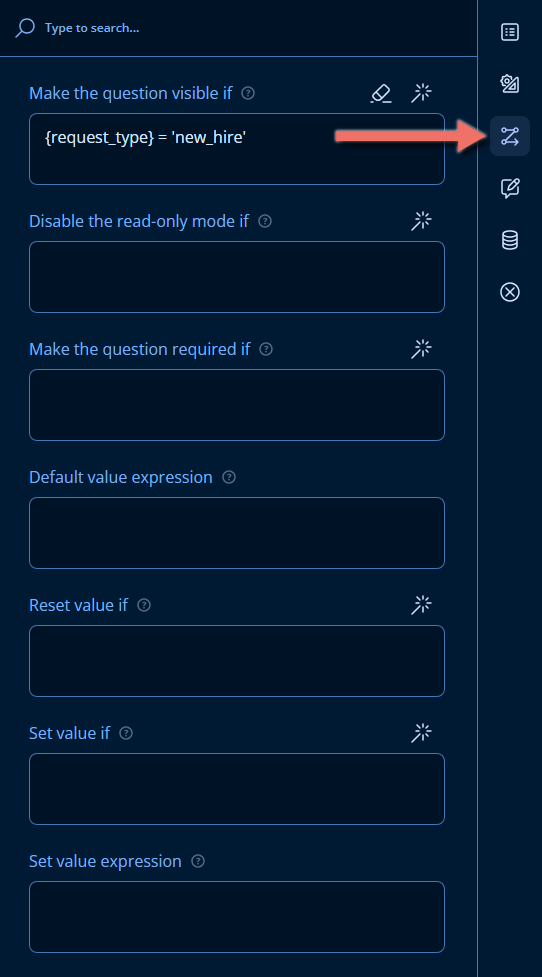
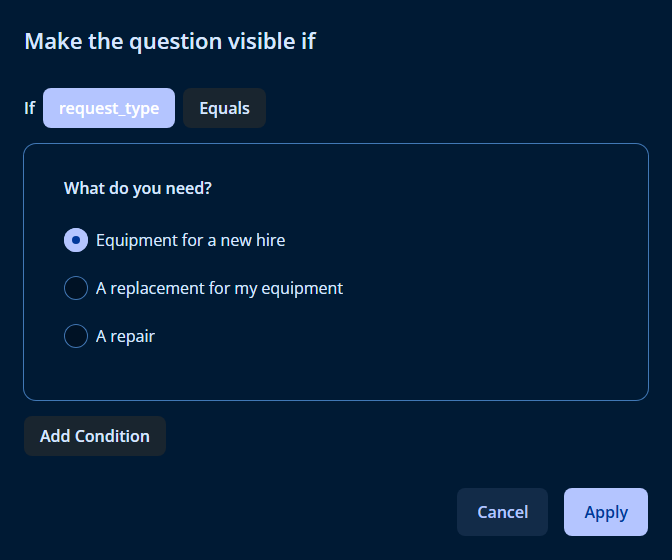
You can type a condition directly into any of these fields, or click the magic wand icon to build it with the condition editor — the same If row as in the Logic tab. Click the eraser icon to remove a condition.
3. Offer an Option Only to One Department
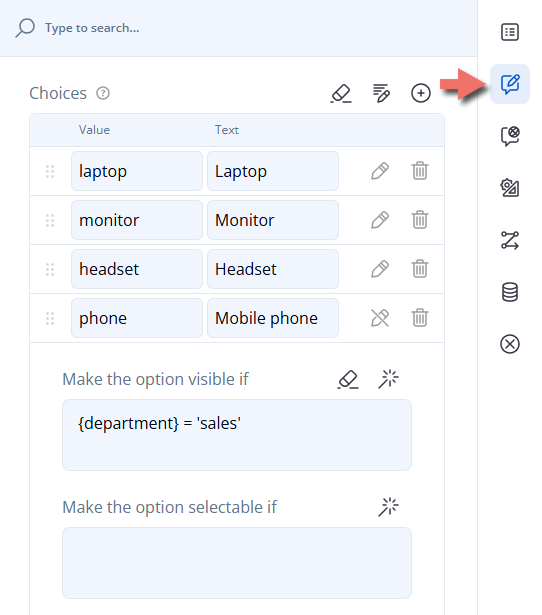
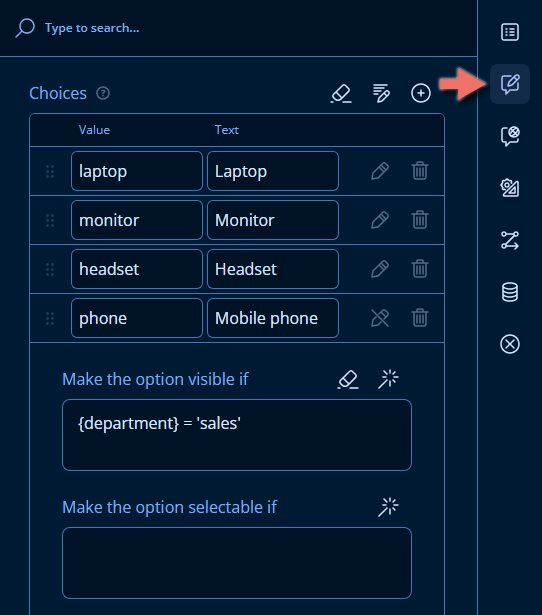
Choice conditions are set on the choice itself. Select the Which devices do you need? question, open the Choice Options category, and click Show Details (pencil icon) next to Mobile phone. Set Make the option visible if to {department} = 'sales':
4. Test the Logic
Open the Preview tab and answer the questions in different ways. To check your conditions without filling out the form, click Show invisible elements (eye icon) in the Preview toolbar: hidden questions are then shown too, so you can see what's there.
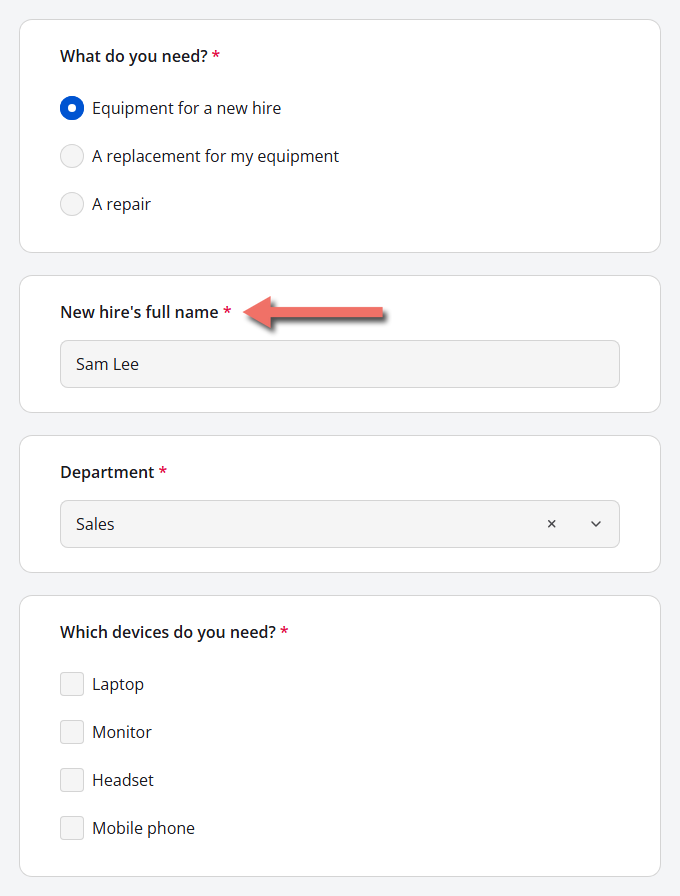
In the published form, a respondent from Sales who requests equipment for a new hire sees the name question and the Mobile phone option — and none of the repair questions:
Writing Conditions
The condition editor offers the operators that fit the selected question. When you type a condition, use the operator in the right column:
| Operator in the editor | In a typed condition | Example |
|---|---|---|
| Equals, Does not equal | =, <> | {request_type} = 'repair' |
| Greater than, Less than, Greater than or equal to, Less than or equal to | >, <, >=, <= | {quantity} >= 5 |
| Empty, Not empty | empty, notempty | {issue_description} notempty |
| Contains, Does not contain | contains, notcontains | {devices} contains 'laptop' |
| Any of, None of, All of | anyof, noneof, allof | {devices} anyof ['laptop', 'phone'] |
| and, or | and, or, and parentheses for grouping | {is_urgent} = true and ({devices} contains 'laptop') |
Typed conditions can also use functions, such as today() and age(), and custom variables. See Logic Expressions for the full reference.
Hidden Questions and Their Answers
When a question is hidden after it's been answered — for example, the respondent types a new hire's name and then switches to A repair — the answer is kept while the form is being filled out, so it comes back if the question is shown again. When the form is completed, answers to hidden questions are removed from the submission.
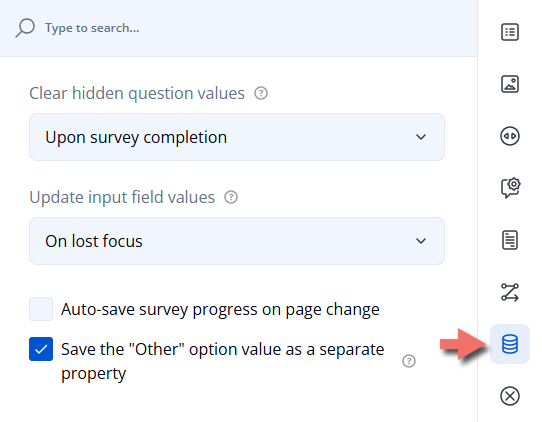
To change when that happens, click an empty area of the design surface, open the survey's Data category, and set Clear hidden question values:
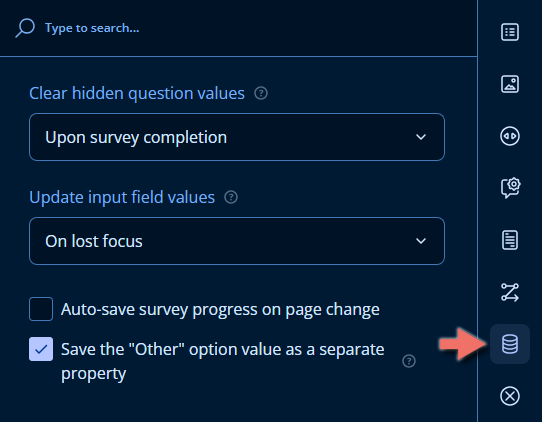
| Option | Answers to hidden questions are removed |
|---|---|
| Upon survey completion (default) | When the form is completed. |
| When question gets hidden | As soon as the question is hidden by its own condition. |
| When question or its panel/page gets hidden | As soon as the question, or the panel or page it's on, is hidden. |
| Never | Never — they're saved with the submission. |
A question can override this setting with its own Clear hidden question values in its Data category. Its default, Inherit, uses the survey's setting.
Hub saves a respondent's progress while they fill out the form. With the default setting, an incomplete submission can still contain answers to questions that are currently hidden; they're removed when the respondent completes the form.
Important Considerations
- Refer to questions that come earlier. A condition that depends on a question the respondent hasn't answered yet is evaluated with an empty answer, so base the logic for a page on the pages before it.
- A misspelled name doesn't produce an error. A condition that refers to a name no question uses is simply false, so a question it shows never appears. The Logic tab lists such a rule without a warning, and the Diagnostics tab doesn't flag it — check the names if something never appears.
- Renaming updates conditions. Conditions follow a question when you change its Question name, and a choice when you change its Value in the Property Grid. Changing a choice's text doesn't affect conditions, because they compare values.
- Hidden and read-only aren't the same. A read-only question is still visible and its answer is saved; a hidden question's answer is removed when the form is completed.
- Design mode shows everything. The Designer tab always shows all questions, whatever their conditions. Use the Preview tab to see the logic in action.
Related Documentation
- Logic Expressions — operators and functions for writing conditions.
- Triggers — make the form act when a condition is met.
- Custom Variables — calculate values to use in conditions.
- Validation — required questions and validation rules.
- Carry Forward — build a choice list from earlier answers.
- Question Loops — repeat questions, with conditions for each entry.
Technical Reference (JSON Schema)
Conditions are stored as properties of the element they control. The example form looks like this in the JSON Editor:
{
  "title": "IT Equipment Request",
  "pages": [
    {
      "name": "request_page",
      "title": "Request details",
      "elements": [
        {
          "type": "radiogroup",
          "name": "request_type",
          "title": "What do you need?",
          "isRequired": true,
          "choices": [
            { "value": "new_hire", "text": "Equipment for a new hire" },
            { "value": "replacement", "text": "A replacement for my equipment" },
            { "value": "repair", "text": "A repair" }
          ]
        },
        {
          "type": "text",
          "name": "new_hire_name",
          "visibleIf": "{request_type} = 'new_hire'",
          "title": "New hire's full name",
          "isRequired": true
        },
        {
          "type": "dropdown",
          "name": "department",
          "title": "Department",
          "isRequired": true,
          "choices": [
            { "value": "sales", "text": "Sales" },
            { "value": "engineering", "text": "Engineering" },
            { "value": "finance", "text": "Finance" }
          ]
        },
        {
          "type": "checkbox",
          "name": "devices",
          "visibleIf": "{request_type} anyof ['new_hire', 'replacement']",
          "title": "Which devices do you need?",
          "isRequired": true,
          "choices": [
            { "value": "laptop", "text": "Laptop" },
            { "value": "monitor", "text": "Monitor" },
            { "value": "headset", "text": "Headset" },
            { "value": "phone", "text": "Mobile phone", "visibleIf": "{department} = 'sales'" }
          ]
        },
        {
          "type": "comment",
          "name": "issue_description",
          "visibleIf": "{request_type} = 'repair'",
          "title": "Describe the problem",
          "isRequired": true
        },
        { "type": "boolean", "name": "is_urgent", "title": "Is this request urgent?" },
        {
          "type": "comment",
          "name": "urgency_reason",
          "title": "Why is it urgent?",
          "description": "Required for urgent requests.",
          "requiredIf": "{is_urgent} = true"
        },
        {
          "type": "panel",
          "name": "delivery",
          "title": "Delivery",
          "elements": [
            { "type": "boolean", "name": "ship_elsewhere", "title": "Ship to an address other than the head office?" },
            {
              "type": "text",
              "name": "delivery_address",
              "title": "Delivery address",
              "defaultValue": "Head office, 12 Harbor Street",
              "enableIf": "{ship_elsewhere} = true"
            }
          ]
        }
      ]
    },
    {
      "name": "approval_page",
      "title": "Manager approval",
      "visibleIf": "{devices} anyof ['laptop', 'phone']",
      "elements": [
        { "type": "text", "name": "manager_email", "title": "Manager's email address", "inputType": "email", "isRequired": true }
      ]
    }
  ]
}
Condition Properties
| Property | Available on | Property Grid setting |
|---|---|---|
visibleIf | Questions, panels, pages, choices, matrix rows and columns | Make the question / panel / page / option / row / column visible if |
enableIf | Questions, panels, pages, choices, matrix rows and columns | Disable the read-only mode if, Make the option selectable if, Make the row editable if |
requiredIf | Questions, panels, pages, matrix columns | Make the question / panel / page / column required if |
resetValueIf | Questions | Reset value if |
setValueIf, setValueExpression | Questions | Set value if, Set value expression |
defaultValueExpression | Questions | Default value expression |
choicesVisibleIf, choicesEnableIf | Choice questions | Make choices visible if, Make choices selectable if |
hideIfChoicesEmpty | Choice questions | Hide the question if it has no choices |
rowsVisibleIf, columnsVisibleIf | Matrix questions | Make rows visible if, Make columns visible if |
templateVisibleIf | Dynamic Panels | Make an individual entry visible if |
clearInvisibleValues | Survey | Clear hidden question values: "onComplete" (default), "onHidden", "onHiddenContainer", or "none" |
clearIfInvisible | Questions | The question's own Clear hidden question values: "default" (Inherit) uses the survey setting |