Custom Variables
What Are Custom Variables?
A custom variable is a named value that belongs to the form rather than to any question. Most custom variables are calculated from the respondent's answers with an expression — an order total, a discount, a risk score — and recalculated the moment an answer they depend on changes. Respondents never see a variable itself, only its effects.
Without variables, the same calculation has to be repeated wherever you need it: in the condition that shows a question, in the title that mentions the amount, and again when you analyze the results. A variable does the calculation once, gives it a name, and lets you refer to it everywhere with {variable_name}. When the price changes, you update one expression instead of hunting for every copy.
In Endatix Hub, you add custom variables in the Form Builder, in the survey's Conditions settings. A variable can also be saved with each submission, so the calculated value is kept alongside the answers.
How It Works
- Variables are referenced by name. Use
{total_price}wherever you can use a question name: in conditions, in other variables' expressions, in question titles and descriptions, and on the Thank You page. - Values update automatically. A variable is recalculated whenever an answer or another variable in its expression changes.
- Variables can build on each other. One variable can use another, in any order in the list — Hub works out which one to calculate first.
- Unanswered questions count as zero in calculations, so
{attendees} * 150is0until the respondent enters a number. - A variable without an expression holds a value supplied from outside the form, such as a parameter in the form's link. See Pre-filling and Personalization.
Settings at a Glance
Custom variables are in the Designer tab: click an empty area of the design surface, then click the Conditions icon in the category bar on the right of the Property Grid. Click the + icon next to Custom variables (or Add new variable when the list is empty) to add one, and Show Details (pencil icon) to edit it.
| Setting | What it does |
|---|---|
| Name | The name you use to refer to the variable, as {name}. It must be unique in the form: don't reuse the name of a question or another variable. |
| Expression | How the value is calculated. Leave it empty for a variable whose value comes from the form's link. |
| Add to the survey results | Saves the variable's value with the submission, next to the answers. See Saving Variables with the Submission. |
Example: Calculating the Total for a Workshop Registration
A training company takes group registrations for a workshop. Tickets cost $150 per person, or $120 with the early-bird rate, and nonprofit organizations get 20% off. The form should show the order total before the respondent submits, and ask for a purchase order number only for orders of $1,000 or more.
| # | Question type | Question name | Title |
|---|---|---|---|
| 1 | Radio Button Group | ticket_type | Ticket type — Standard (value standard) or Early bird (value early_bird) |
| 2 | Single-Line Input (number) | attendees | Number of attendees |
| 3 | Yes/No (Boolean) | is_nonprofit | Are you registering for a nonprofit organization? |
| 4 | Single-Line Input (required) | po_number | Purchase order number |
| 5 | Yes/No (Boolean) (required) | confirm_order | Do you confirm the order total of {total_price_text}? |
1. Add the Variables
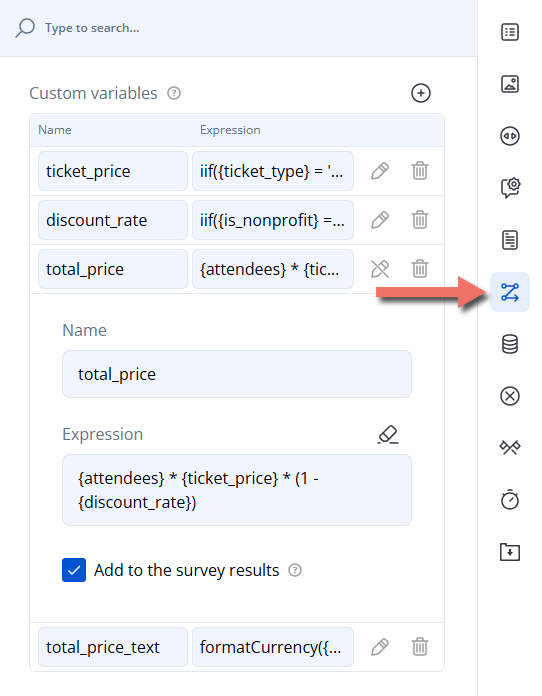
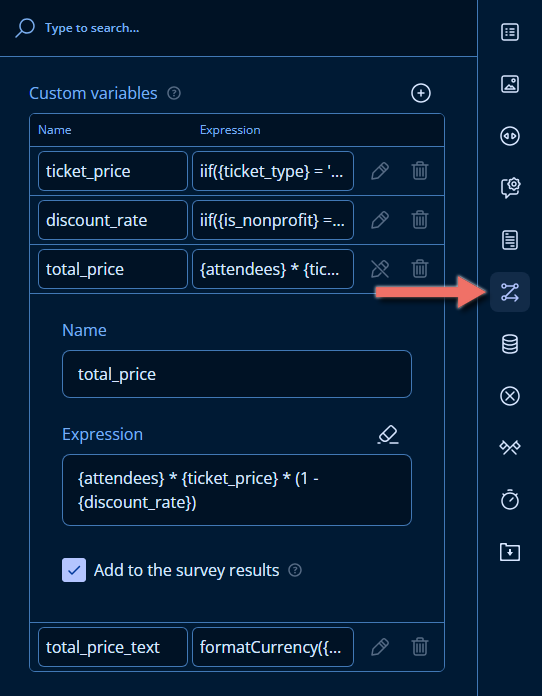
Open the form's Designer tab and click an empty area of the design surface. In the category bar on the right of the Property Grid, click the Conditions icon, and add four custom variables:
| Name | Expression | Add to the survey results |
|---|---|---|
ticket_price | iif({ticket_type} = 'early_bird', 120, 150) | Cleared |
discount_rate | iif({is_nonprofit} = true, 0.2, 0) | Cleared |
total_price | {attendees} * {ticket_price} * (1 - {discount_rate}) | Selected |
total_price_text | formatCurrency({total_price}) | Cleared |
Each variable does one job:
ticket_pricepicks the price per person for the chosen ticket type.discount_rateis0.2for nonprofit organizations and0for everyone else.total_pricemultiplies them into the order total. It's the value you'll want in your results, so Add to the survey results is selected.total_price_textformats the total as an amount, such as$1,200.00, for display.
formatCurrency() returns text, which can't be compared or used in further calculations. Keep the number in one variable (total_price) for conditions and math, and the formatted text in another (total_price_text) for question titles. See Logic Expressions for formatCurrency(), iif(), and the other available functions.
2. Ask for a Purchase Order Number on Large Orders
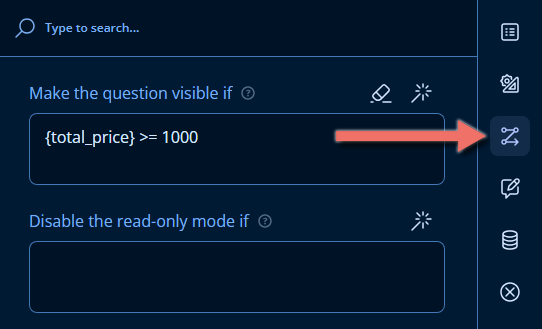
Select the Purchase order number question, open the Conditions category, and set Make the question visible if to:
{total_price} >= 1000
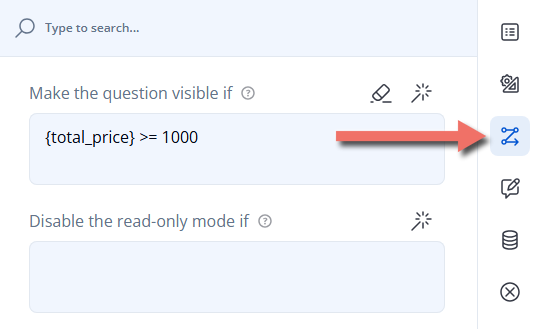
The question appears as soon as the total reaches $1,000 and disappears again if the respondent lowers the number of attendees. A hidden question isn't required, so smaller orders can be submitted without a purchase order number.
3. Show the Total in a Question Title
Set the title of the confirmation question to:
Do you confirm the order total of {total_price_text}?
The placeholder is replaced with the formatted total and updates as the respondent changes their answers. See Text Piping for more about placeholders.
4. Test the Form
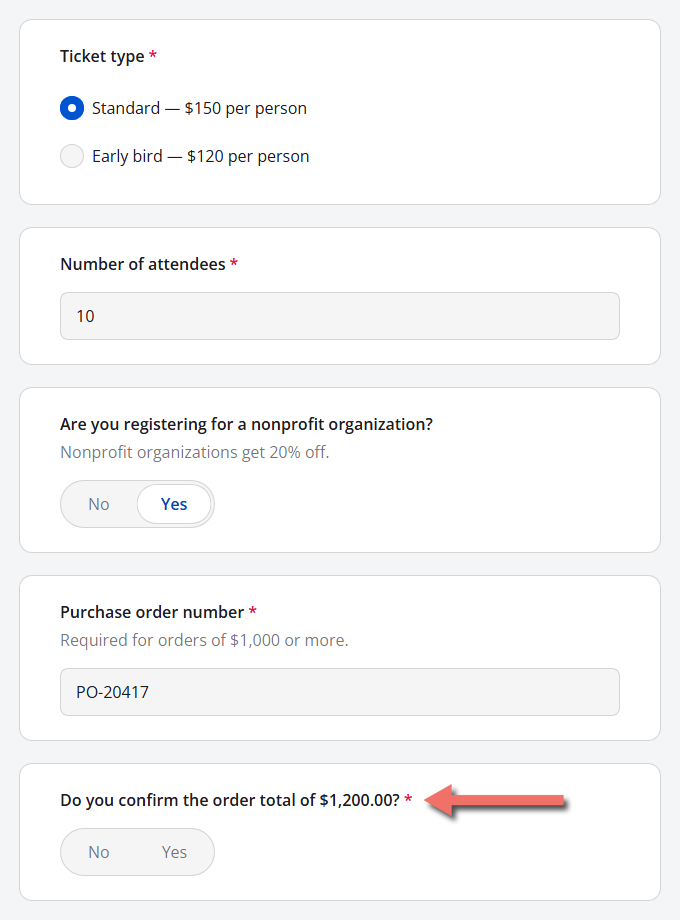
Open the Preview tab, or click Save and open the form with Share Link from the Forms list. A nonprofit organization that registers 10 attendees with standard tickets pays 10 × $150 × 0.8 = $1,200, so the purchase order number is requested and the total appears in the last question:
5. Review the Saved Values
When a submission comes in, open the form's Submissions page and click the submission. On the Calculated Values tab, every custom variable is listed with its value for that submission. In result marks the variables whose value is saved with the submission — here, total_price.
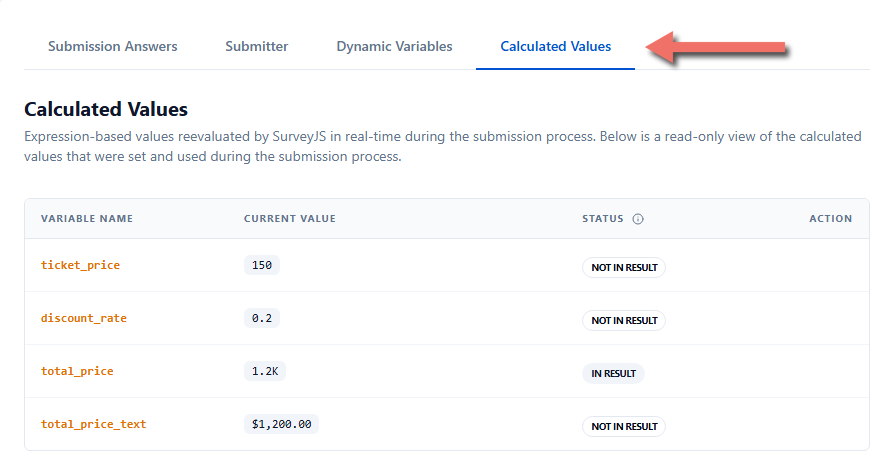
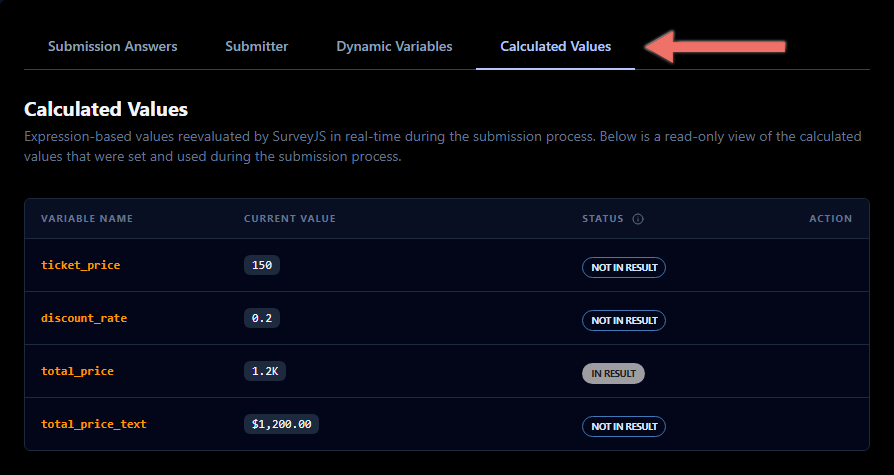
The tab shortens large numbers — 1.2K stands for 1200. To see the exact values saved with the submission, click Copy JSON at the top of the page and look at the copied jsonData field.
Writing Variable Expressions
A variable's expression uses the same syntax as every other condition and calculation in the Form Builder:
- Arithmetic:
+,-,*,/, and parentheses —{quantity} * {unit_price}. - Conditions that choose a value:
iif(condition, value if true, value if false)—iif({country} = 'US', 0.08, 0.2). - Functions: for example,
sum(),round(),age(),dateDiff(), and the formatting functionsformatCurrency(),formatNumber(), andformatDate(). - Other variables:
{total_price} - {deposit}.
Unlike Make the question visible if and other conditions, the Expression field of a custom variable has no condition builder: type the expression directly. Logic Expressions lists every operator and function.
Variables Without an Expression
A variable with an empty Expression isn't calculated. Its value comes from outside the form — most often a query string parameter in the link you send to respondents, such as ?campaign=spring_launch. You can then use {campaign} in conditions and text like any other variable.
See Pre-filling and Personalization to set this up. Values passed through the link are shown on the Dynamic Variables tab of the submission.
Saving Variables with the Submission
By default, a variable exists only while the form is being filled out. Select Add to the survey results to save its value with each submission, next to the answers:
{
  "ticket_type": "standard",
  "attendees": 10,
  "is_nonprofit": true,
  "po_number": "PO-20417",
  "confirm_order": true,
  "total_price": 1200
}
Save the values you'll want to filter, report on, or pass to other systems — such as an order total or a score — and leave helper variables, like the formatted total_price_text, unsaved.
Important Considerations
- Choose names that no question uses. If a variable and a question share a name,
{name}can't tell them apart. Use letters, digits, and underscores, such astotal_price. - Variables are invisible to respondents. To show a value, pipe it into a title, description, or the Thank You page, or add an Expression question.
- Check calculations with empty answers. Unanswered questions count as zero, so a total can be
0before the respondent reaches the relevant questions. Keep that in mind in conditions such as{total_price} < 500, which is already true while the form is empty. - Formatted text isn't a number. A condition such as
{total_price_text} >= 1000doesn't work as expected; compare the numeric variable instead. - The Calculated Values tab recalculates. It shows each variable's value calculated from the submission's answers when you open the page. The values actually saved with the submission are in the
jsonDatafield that Copy JSON copies.
Related Documentation
- Logic Expressions — the operators and functions you can use in a variable's expression.
- Pre-filling and Personalization — fill variables from the form's link.
- Text Piping — insert variables and answers into titles, descriptions, and choices.
- Triggers — set answers, end the form, or skip ahead when a condition is met.
- Thank You Page — show a variable, such as an order total, after the respondent submits.
Technical Reference (JSON Schema)
Custom variables are stored in the survey's calculatedValues array. The example form's variables and the conditions that use them look like this in the JSON Editor:
{
  "title": "Workshop Registration",
  "calculatedValues": [
    { "name": "ticket_price", "expression": "iif({ticket_type} = 'early_bird', 120, 150)" },
    { "name": "discount_rate", "expression": "iif({is_nonprofit} = true, 0.2, 0)" },
    {
      "name": "total_price",
      "expression": "{attendees} * {ticket_price} * (1 - {discount_rate})",
      "includeIntoResult": true
    },
    { "name": "total_price_text", "expression": "formatCurrency({total_price})" }
  ],
  "pages": [
    {
      "name": "registration",
      "elements": [
        {
          "type": "radiogroup",
          "name": "ticket_type",
          "title": "Ticket type",
          "isRequired": true,
          "defaultValue": "standard",
          "choices": [
            { "value": "standard", "text": "Standard — $150 per person" },
            { "value": "early_bird", "text": "Early bird — $120 per person" }
          ]
        },
        {
          "type": "text",
          "name": "attendees",
          "title": "Number of attendees",
          "inputType": "number",
          "min": 1,
          "max": 50,
          "isRequired": true,
          "defaultValue": 1
        },
        {
          "type": "boolean",
          "name": "is_nonprofit",
          "title": "Are you registering for a nonprofit organization?",
          "description": "Nonprofit organizations get 20% off."
        },
        {
          "type": "text",
          "name": "po_number",
          "visibleIf": "{total_price} >= 1000",
          "title": "Purchase order number",
          "description": "Required for orders of $1,000 or more.",
          "isRequired": true
        },
        {
          "type": "boolean",
          "name": "confirm_order",
          "title": "Do you confirm the order total of {total_price_text}?",
          "isRequired": true
        }
      ]
    }
  ]
}
Custom Variable Properties
| Property | Type | Default | Description |
|---|---|---|---|
name | string | — | Name. Required and unique. Referenced as {name}. |
expression | string (expression) | — | Expression. Recalculated whenever a value it uses changes. Omit it for a variable whose value is set from outside the form. |
includeIntoResult | boolean | false | Add to the survey results. When true, the value is saved in the submission data under the variable's name. |