Form Display Modes
The Display Modes settings in Endatix Hub allow you to control the structural flow and visual presentation of your survey. Whether you want a long-form scrolling experience or a focused, one-question-at-a-time interface, these settings define how respondents interact with your content.
These options are useful in market research scenarios where you need to eliminate order bias while maintaining the contextual integrity of your randomized list, or when you need to optimize for mobile vs. desktop experiences.
Configuration Guide
To change the general structure of your form, navigate to the Navigation section in the Property Grid and locate the Survey layout dropdown.
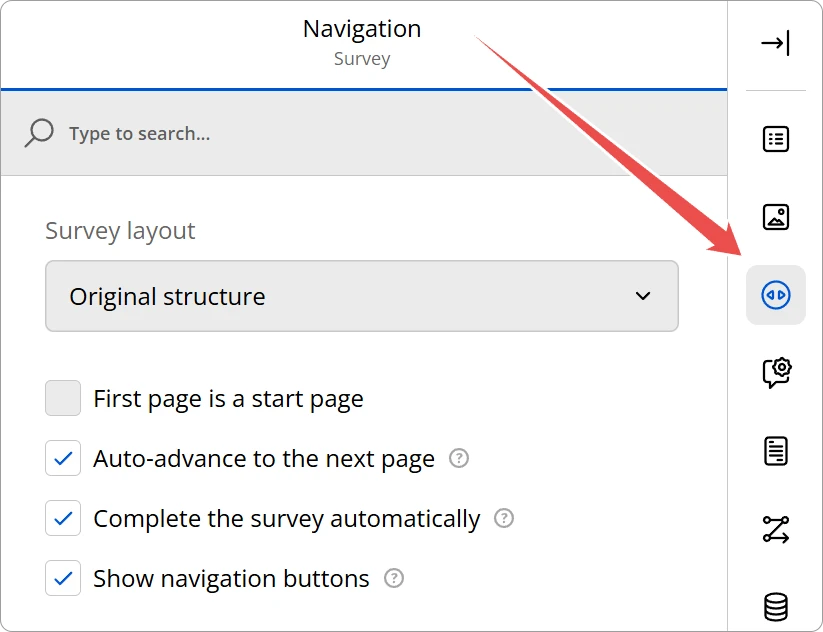
You can choose from the following four display modes:
| Mode | Description |
|---|---|
| Original structure | Questions are displayed exactly as you have organized them into pages in the editor. |
| Show all questions on one page | Overrides your page breaks to show every question on a single, continuous scrolling page. |
| Show single question per page | Automatically creates a page break after every question, regardless of your editor setup. |
| Show single input field per page | A focused mode that displays only one input field at a time. This is a prerequisite for features like Question Loops. |
Navigation Settings
Beyond the layout, you can further customize the user experience using the following toggle options found in the Navigation panel:
First page is a start page
When enabled, the first page of your survey acts as an introductory splash screen. This page usually contains a title and description but no questions. It will feature a "Start" button instead of the standard "Next" button.
Auto-advance to the next page
This feature speeds up the survey process by automatically moving the respondent to the next page as soon as they provide an answer.
This is most effective for single-choice questions (Radiogroups or Dropdowns) where the respondent's intent is finalized upon selection.
Complete the survey automatically
When Auto-advance is enabled you will be given the option to enable automatic form completion. When this options is selected the form will be completed as soon as the last question receives an answer.
Show navigation buttons
Determines whether the Next, Previous, and Complete buttons are visible to the respondent. If you have "Auto-advance" enabled and your survey is strictly linear, you might choose to hide these for a cleaner interface. For more information see Form Navigation
Technical Reference (JSON Schema)
For advanced users, these display modes correspond to the questionsOnPageMode property in the survey JSON configuration.
{
  "questionsOnPageMode": "singlePage", // Show all questions on one page
  "firstPageIsStartPage": true,
  "showNavigationButtons": true,
  "goNextPageAutomatic": true
}
Properties
| UI Option | JSON Property | Value |
|---|---|---|
| Original structure | questionsOnPageMode | "standard" |
| Show all questions on one page | questionsOnPageMode | "singlePage" |
| Show single question per page | questionsOnPageMode | "questionPerPage" |
| Show single input field per page | questionsOnPageMode | "inputPerPage" |