Panels
A panel is a container: it holds other questions instead of collecting an answer of its own. The Form Builder has two of them, and the difference is whether the group appears once or repeats.
| Container | What you put in it | How often it appears | Typical use |
|---|---|---|---|
| Panel | The questions themselves | Once | An address block, a consent section, any group you show or hide as a unit |
| Dynamic Panel | A template of questions | Once per entry | Employment history, one block per guest, one block per item picked earlier |
Both sit together in the Toolbox, between the text questions and the matrix questions:


Panel
A Panel draws one frame around the questions inside it and gives them a shared title and description. The answers do not change shape: every question inside still stores its own answer under its own name, exactly as it would on the page.
What the panel adds is a single handle for the whole group:
- Make the panel visible if, on the Conditions page, hides or shows every question inside with one rule instead of repeating that rule on each of them. Make the panel required if and Disable the read-only mode if work the same way. See Conditional Logic.
- Required, on General, blocks submission until at least one question inside has an answer. That is not the same as marking each question required.
- Question order within the panel, on Question Settings, is Inherit, Original, or Random. Random shuffles the questions inside the group and leaves the rest of the page in place.
Layout and collapsing
The Panel Layout page carries how the group sits on the page.
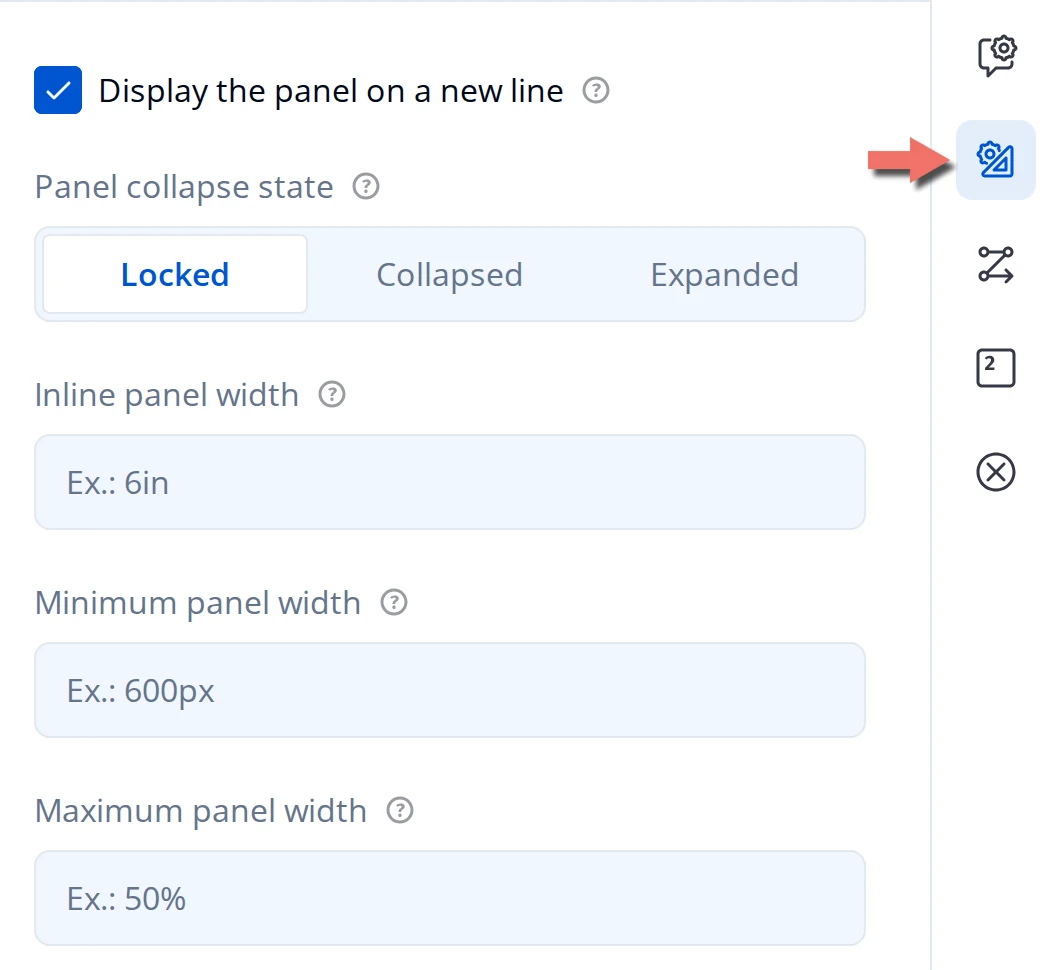
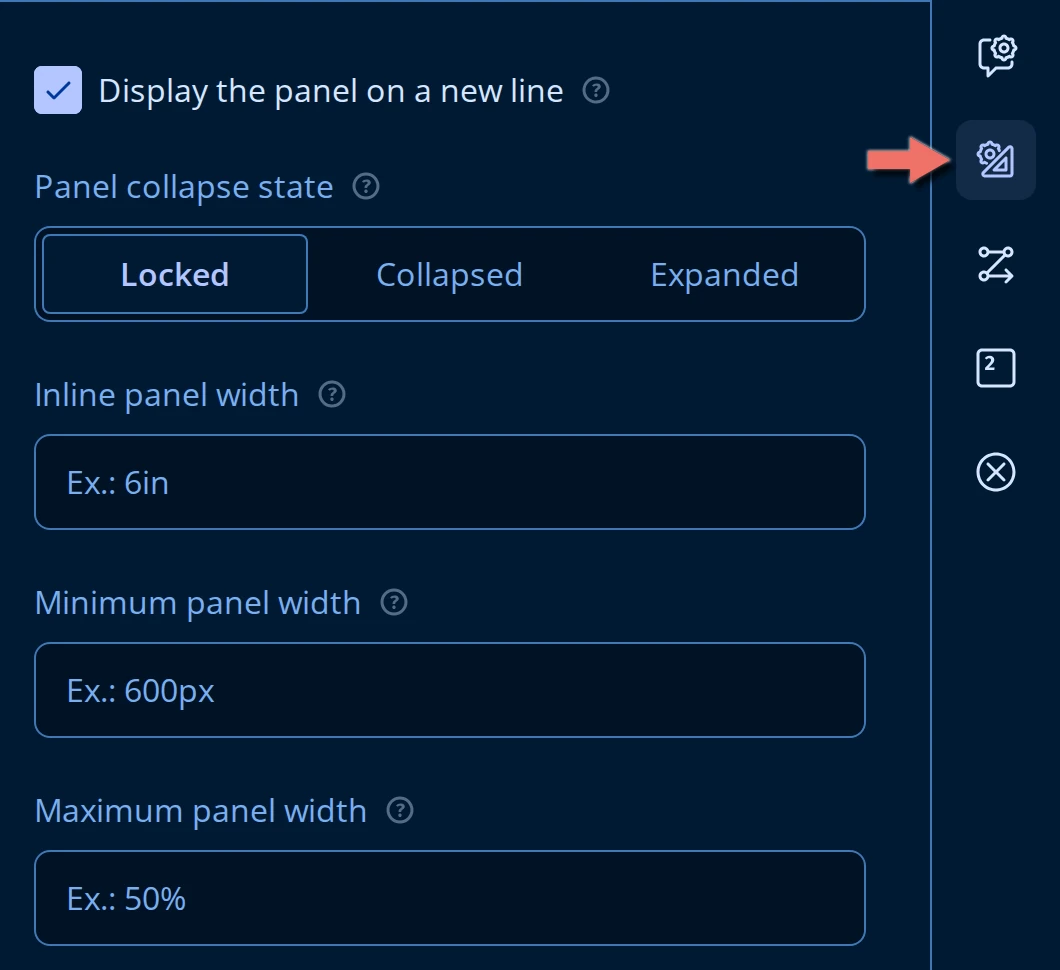
- Panel collapse state is Locked, Collapsed, or Expanded. Locked is the default and has no toggle at all. The other two give the panel a header the respondent can open and close, and differ only in how it starts.
- Display the panel on a new line is on by default. Turn it off to put the panel beside the question or panel before it.
- Inline panel width, Minimum panel width, and Maximum panel width take CSS values such as
6in,600px, or50%, and only matter once the panel shares a line with something else.
Number this panel and Question numbering, on the Numbering page, decide whether the panel takes a number of its own and how the questions inside it are numbered. Both start from the form-wide defaults on Question Settings.
Dynamic Panel
A Dynamic Panel holds a template rather than a fixed group. The respondent gets one copy of that template per entry, and each entry's answers stay together, so the question comes back as a list of entries rather than a flat set of fields.
How many entries
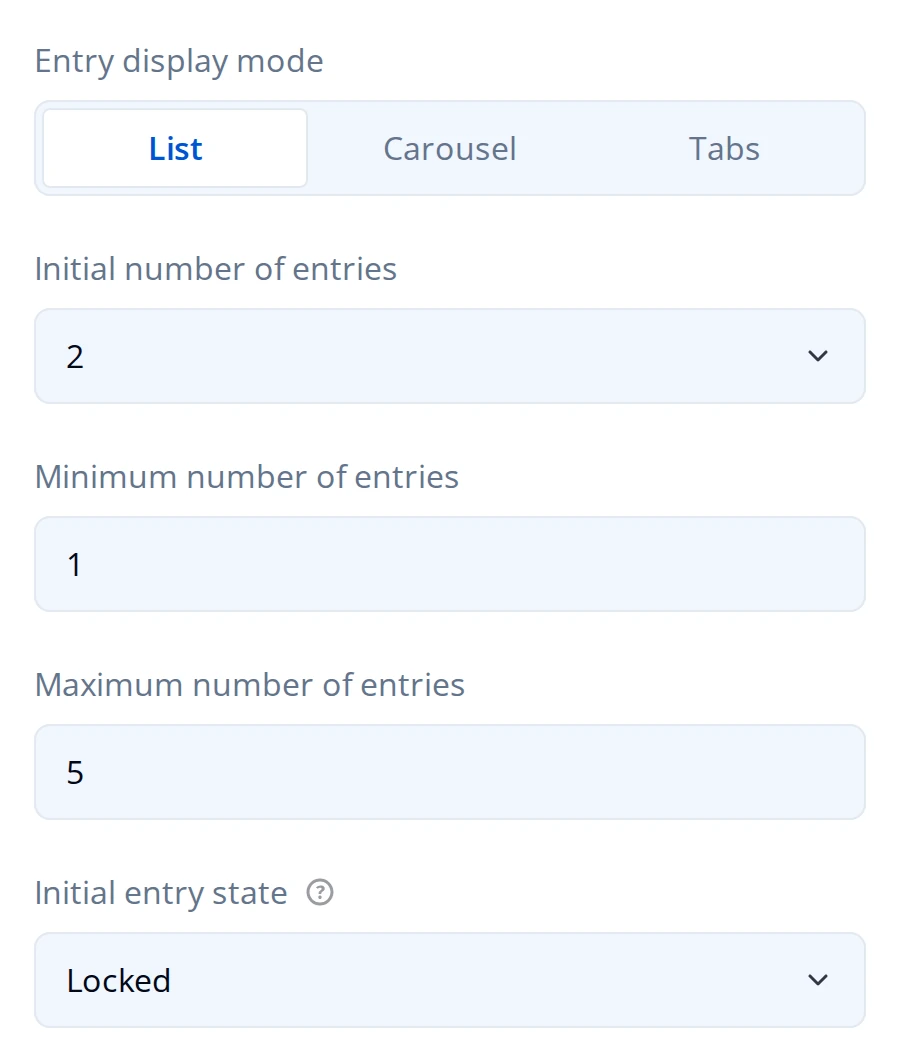
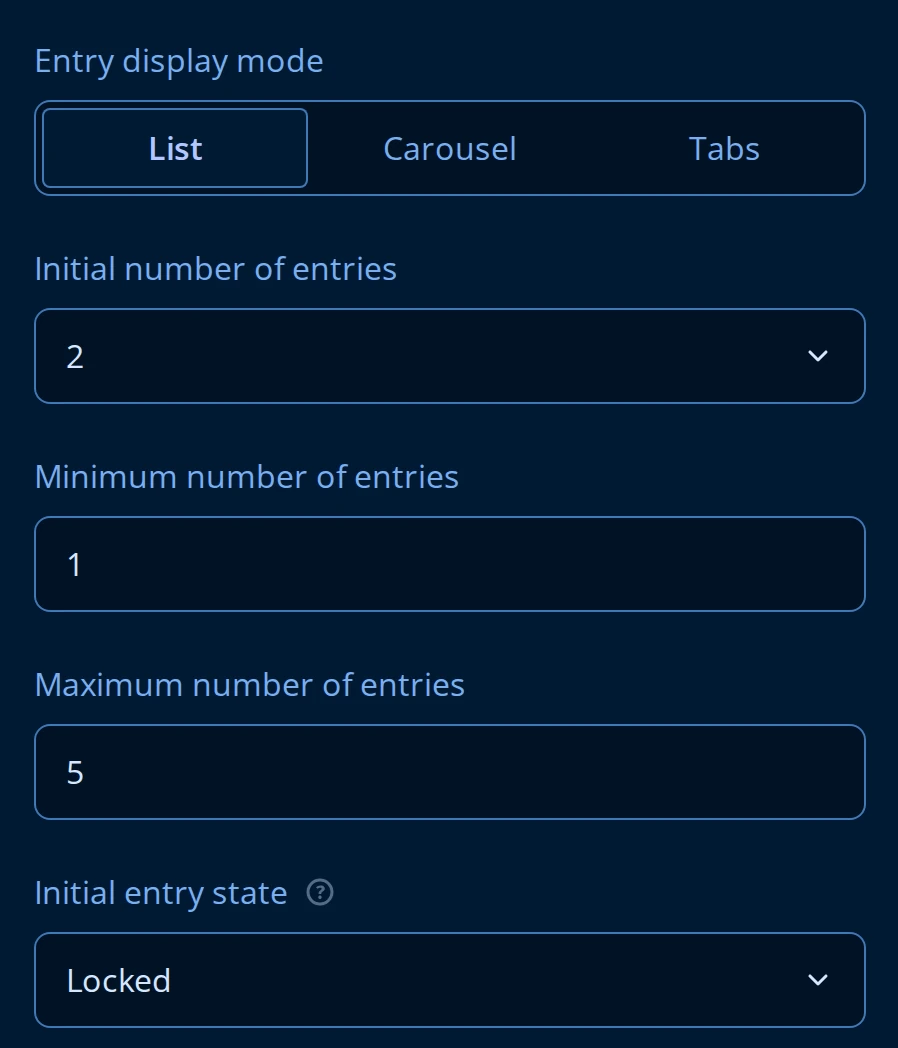
- Initial number of entries is how many copies the question opens with. A new Dynamic Panel opens with none, so the respondent meets the add button and nothing else.
- Minimum number of entries and Maximum number of entries bound what the respondent can reach. They start at 0 and 100, so the maximum is effectively no limit until you lower it.
- Entry display mode is List (every entry stacked, the default), Carousel (one entry per screen, with Back and Next), or Tabs (one tab per entry).
- Initial entry state collapses entries on arrival: Locked, Collapse all, Expand all, or First expanded. It applies only while Entry display mode is List and Entry title pattern is set, because a collapsed entry needs a title to show.
The add and remove buttons
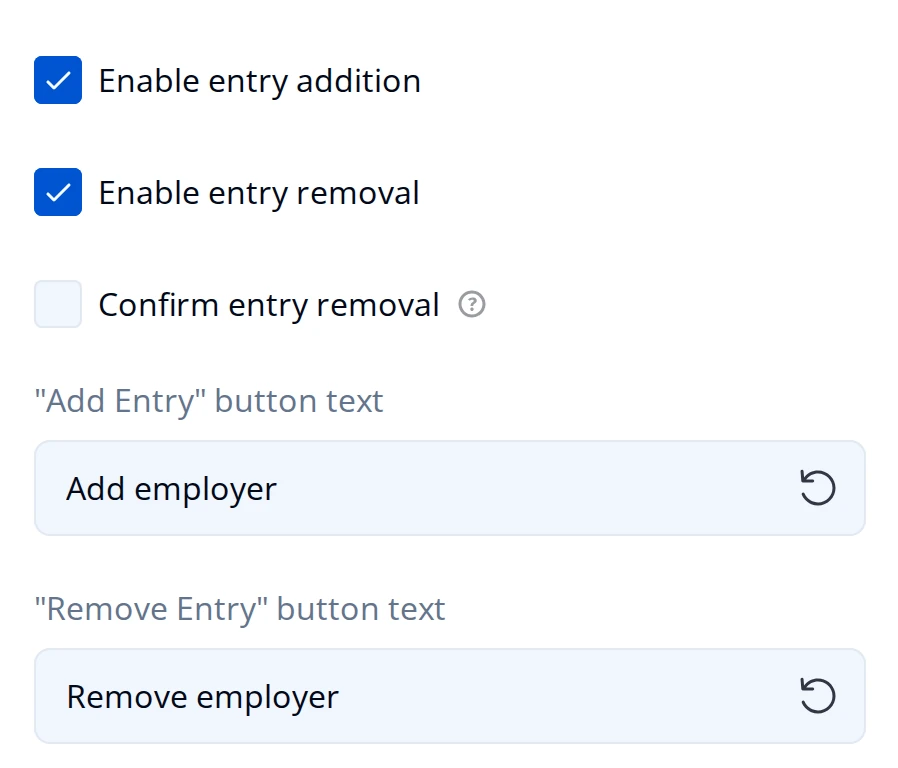
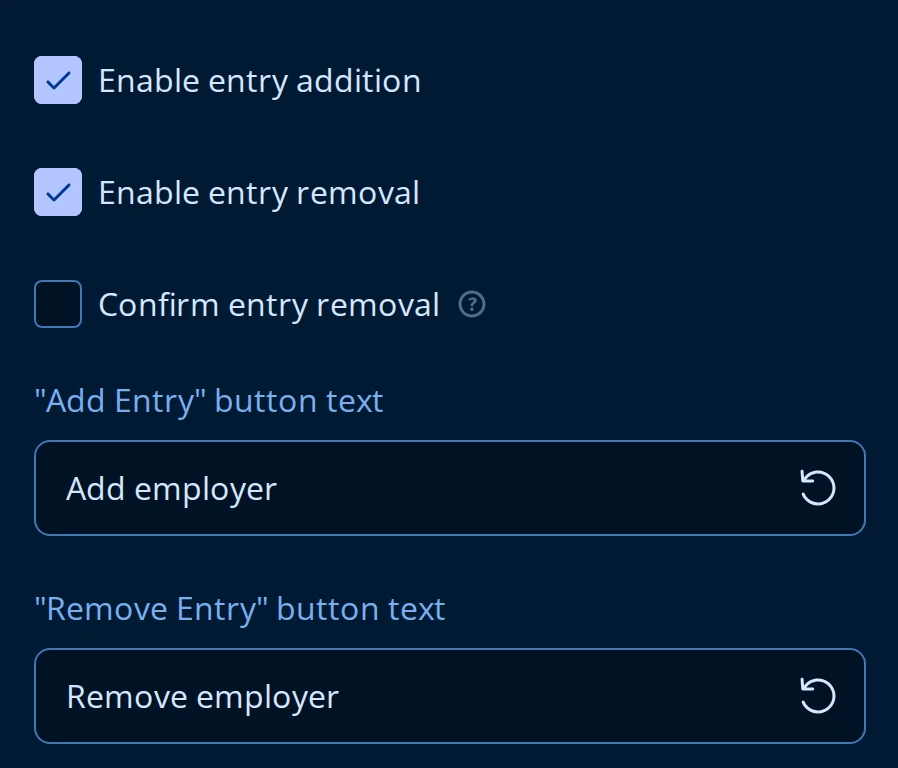
- Enable entry addition and Enable entry removal show or hide the add button and the per-entry remove button. Both are on by default. Turning both off fixes the question at Initial number of entries copies.
- "Add Entry" button text and "Remove Entry" button text replace the defaults,
Add newandRemove, with wording the respondent recognizes. - Confirm entry removal puts a prompt in front of the remove button. Worth turning on once an entry holds more than a couple of fields.
- Entry title pattern, further down General, names each copy.
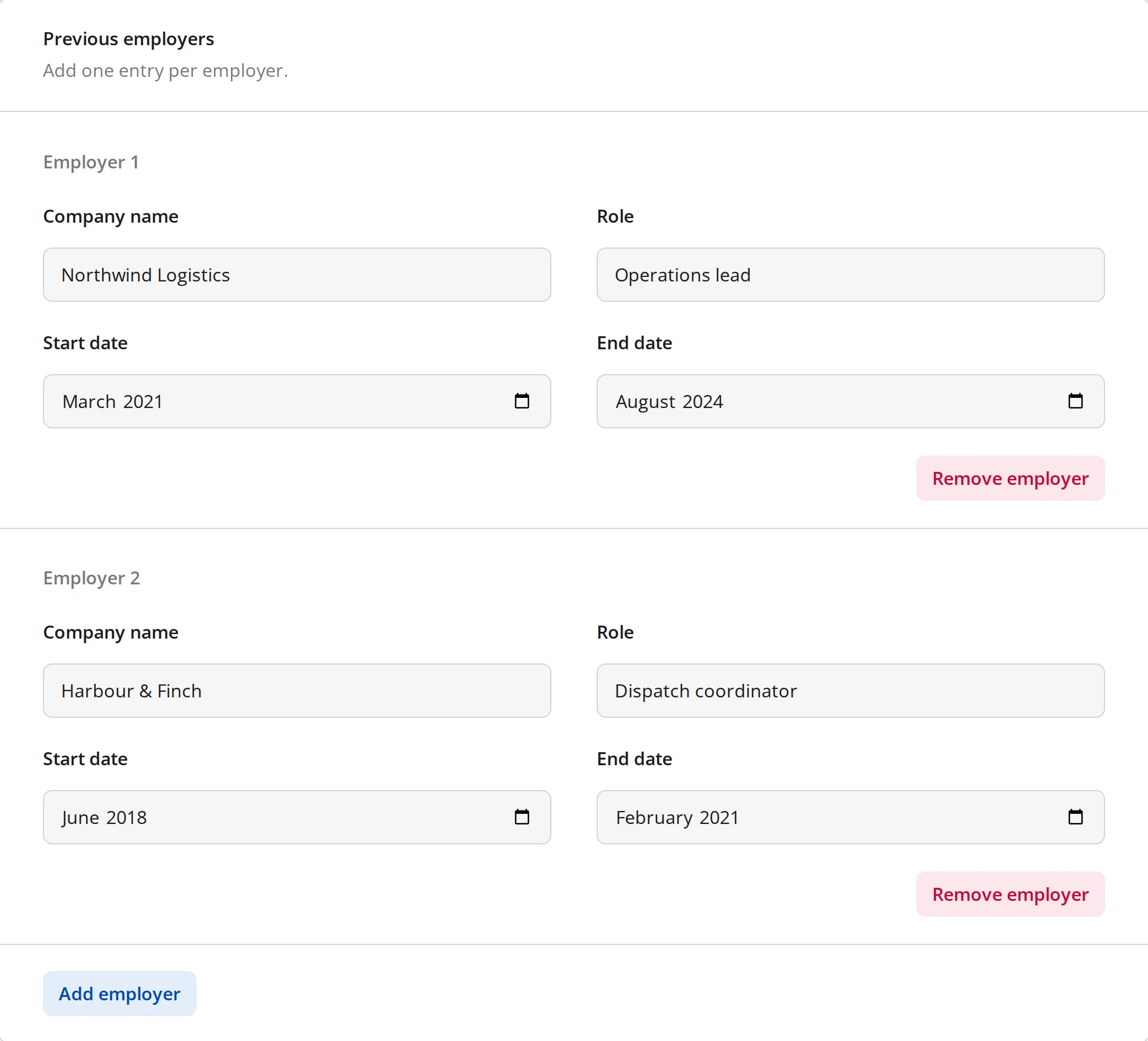
Employer {panelIndex}renders asEmployer 1,Employer 2, and so on.
Two more settings sit away from General. New entry location, on Layout, decides whether a new entry lands next to the current one or at the end. Prevent duplicate responses in the following question, on Validation, names one question inside the template that has to be unique across entries, such as an email address or a reference number.
Repeating a panel with question loops
A Dynamic Panel does not have to be driven by the respondent. The Question Loops category on its Property Grid builds the entries out of an earlier choice question instead: one entry per item the respondent picked, with that item's text available inside the template. That turns "Which brands do you use?" into one block of follow-up questions per brand.
Setting it up is covered in Question Loops, which also explains the display mode a loop needs and why you turn Enable entry addition and Enable entry removal off for one: the source question decides how many entries there are, not the respondent.
When an entry is one short row rather than a block of questions, a Dynamic Matrix is quicker to scan and quicker to fill. Reach for a Dynamic Panel when an entry needs its own headings, layout, or mix of question types.
Saving a panel for reuse
Selecting a Panel or a Dynamic Panel and choosing Create Custom Question saves the group to the Toolbox under a name you give it. The same block can then be dropped into other forms without rebuilding it.
What respondents see
A Panel: one frame, one heading, and the questions inside laid out as they would be on the page.
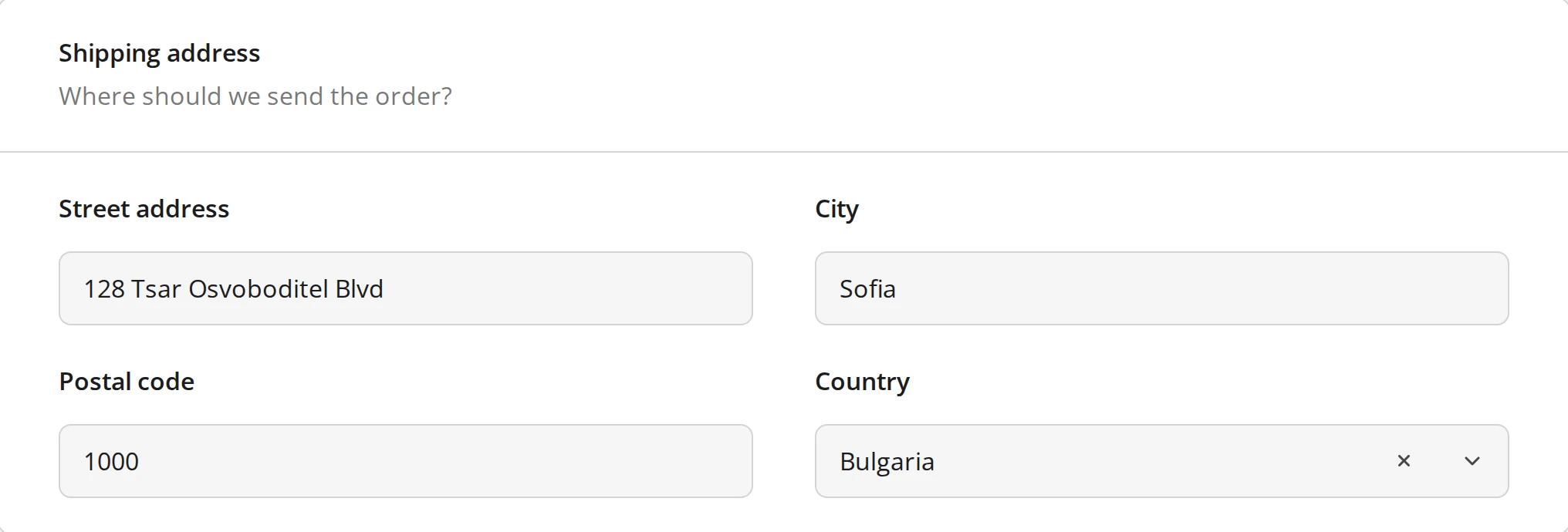
A Dynamic Panel with two entries, each titled from the entry title pattern, each carrying its own remove button, under the add button.