Question Settings
What Are Question Settings?
Question Settings are the form-wide defaults for how every question is presented: whether questions are numbered and in what style, which symbol marks a required question, where titles, descriptions, and error messages appear, whether questions are shuffled, and how text areas behave. Change a setting once and every question in the form follows it — a 40-question questionnaire stays consistent without editing each question.
Numbered questions make long forms easier to navigate and talk about: a respondent can phone your helpdesk about "question 12", and a research team can map "Q7" straight to its codebook. A clear required symbol tells respondents up front which answers they can't skip, and left-aligned titles turn a list of short fields, such as contact details, into a compact block that's quick to fill out.
In Endatix Hub, Question Settings are a category of the survey's settings in the Form Builder. Pages, panels, and individual questions can override most of them.
Where to Find Question Settings
- Open the form's Designer tab.
- Click an empty area of the design surface. The Property Grid shows the settings of the survey itself — the subtitle under the category name reads Survey.
- Click the Question Settings icon in the category bar on the right of the Property Grid.
The screenshot in step 1 of the example shows the icon. To jump straight to a setting, type part of its name — for example, numbering — into Type to search... at the top of the Property Grid.
Settings at a Glance
| Setting | Default | What it does |
|---|---|---|
| Question order | Original | Keeps questions in the order you designed them, or shuffles them for each respondent. See Question Order. |
| Question title alignment | Top | Shows titles above (Top), below (Bottom), or to the left of (Left) the answer area. See Title, Description, and Error Message Alignment. |
| Question description alignment | Under the question title | Shows descriptions under the title, under the input field, or not at all. |
| Question numbering | No numbering | Numbers the questions. See Question Numbering. |
| Question title pattern | 1. Question Title * | Sets the order of the number, the title, and the required symbol. See Required Symbol and Title Pattern. |
| Required symbol(s) | * | The text that marks required questions. |
| Question indexing type | 1. | The first number or letter, and the characters around it. Shown once numbering is turned on. See Numbering Style. |
| Error message alignment | Top | Shows validation messages above or below the question. |
| Focus first question on a new page | Cleared | Places the cursor in the first question whenever a page opens. |
| Restrict answer length | 0 (no limit) | The maximum number of characters for text answers. See Text Areas and Answer Length. |
| Restrict comment length | 0 (no limit) | The maximum number of characters for comment boxes and Other text boxes. |
| Comment area height (in lines) | 2 lines | The visible height of comment boxes and Other text boxes. |
| Auto-expand text areas | Cleared | Grows Long Text questions and comment boxes as the respondent types. |
| Allow users to resize text areas | Selected | Shows a resize handle on Long Text questions and comment boxes. |
Example: Numbering and Aligning a Supplier Registration Form
A supplier registration form has two pages. The first page collects the company's details and a Primary contact panel with three questions; the second asks about the supplier's products and services.
| # | Question type | Question name | Page | Notes |
|---|---|---|---|---|
| 1 | Single-Line Input | company_name | Company details | Required |
| 2 | Single-Line Input | registration_number | Company details | Required, with a description |
| 3 | Single-Line Input (in the Primary contact panel) | contact_name | Company details | Required |
| 4 | Single-Line Input (Input type: Email, in the panel) | contact_email | Company details | Required |
| 5 | Single-Line Input (Input type: Phone Number, in the panel) | contact_phone | Company details | |
| 6 | Checkboxes | categories | Products and services | Required |
| 7 | Long Text | offering_description | Products and services |
The goal: number the main questions Q1., Q2., and so on, spell out "(required)" instead of an asterisk, give the contact questions their own a), b), c) sequence, and line the contact fields up in a compact two-column layout.
1. Number the Questions and Change the Required Symbol
Click an empty area of the design surface, then click the Question Settings icon. Set:
- Question numbering to Auto-numbering. Every question title now starts with a number.
- Question indexing type — which appears once numbering is on — to
Q1.. The numbers becomeQ1.,Q2.,Q3., … - Required symbol(s) to
(required).
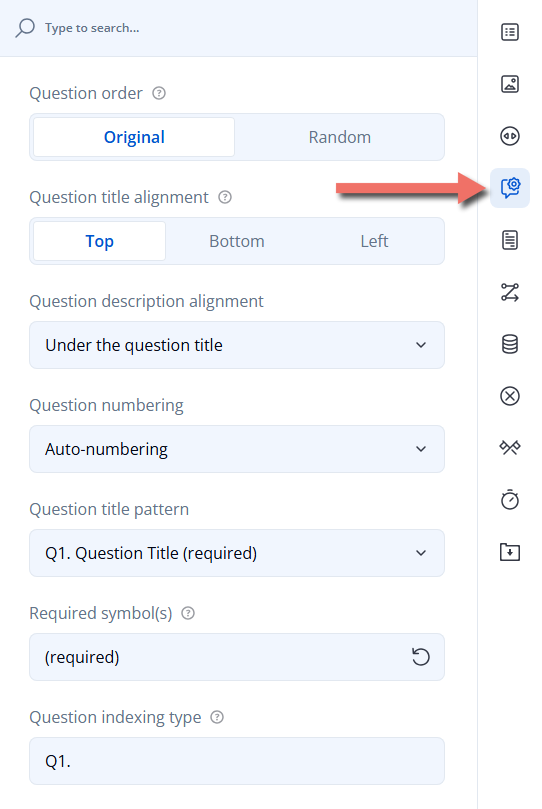
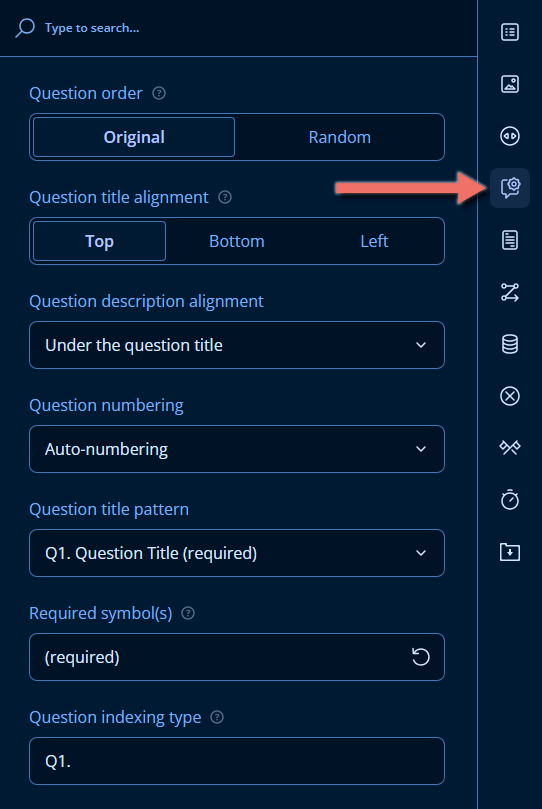
Question title pattern previews your choices — "Q1. Question Title (required)" — so you can check the result before looking at the questions.
2. Number the Contact Questions Separately
Select the Primary contact panel: click an empty spot inside the panel on the design surface, or click the category name at the top of the Property Grid and pick primary_contact from the list of form elements. Click the Numbering icon and set:
- Question numbering to Reset on each panel.
- Question indexing type to
a).
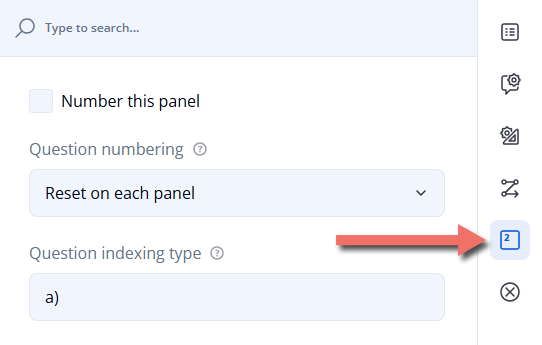
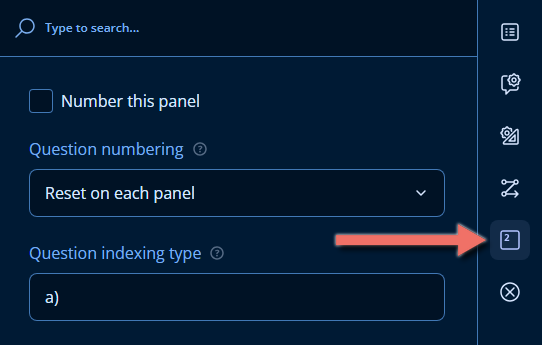
The contact questions are now numbered a), b), c). A panel with its own sequence doesn't use up the form's numbers, so the first question on the second page is Q3., not Q6..
3. Align the Contact Titles to the Left
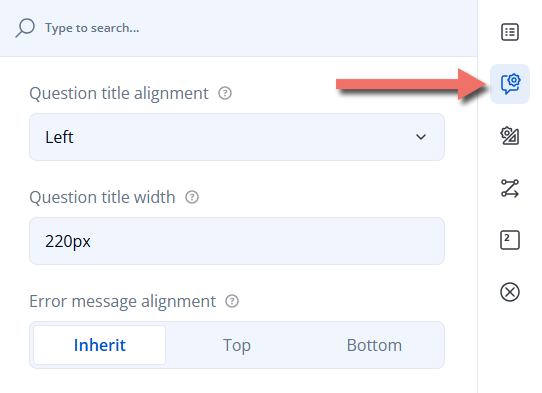
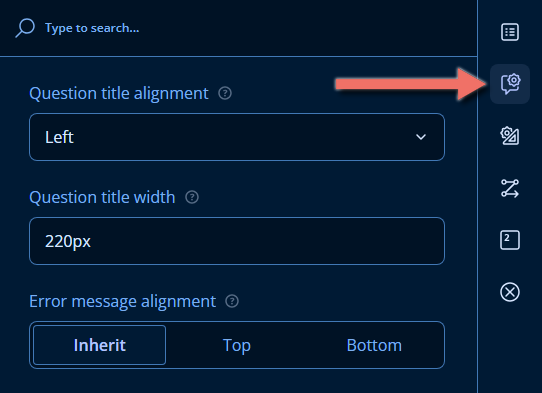
With the panel still selected, click the Question Settings icon and set:
- Question title alignment to Left. The titles of the three contact questions move next to their input fields; the rest of the form keeps its titles on top.
- Question title width — which appears once titles are aligned to the left — to
220px, so all three input fields start at the same position.
4. Preview the Result
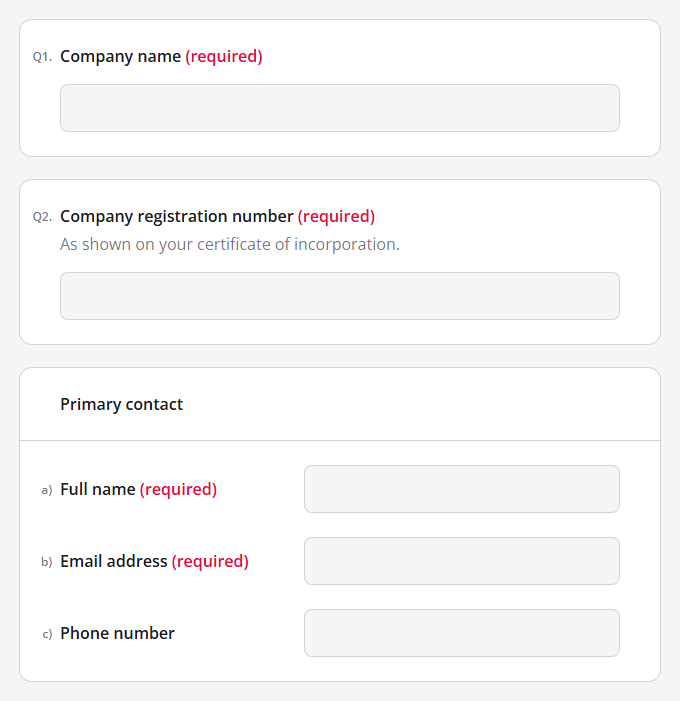
Open the Preview tab. The main questions are numbered Q1. and Q2., required questions end with "(required)", and the contact details form a compact block with their own a)–c) numbering:
When everything looks right, click Save.
Question Numbering
Numbering Options
Question numbering in the survey's Question Settings turns numbering on for the whole form:
| Option | What happens | Numbers in the example form (without the panel settings from step 2) |
|---|---|---|
| No numbering (default) | Questions have no numbers. | — |
| Auto-numbering | Questions are numbered in order through the whole form, including questions inside panels. Panel titles aren't numbered. | 1.–5. on the first page, 6.–7. on the second |
| Reset on each page | Numbering starts again at the beginning of every page. | 1.–5. on the first page, 1.–2. on the second |
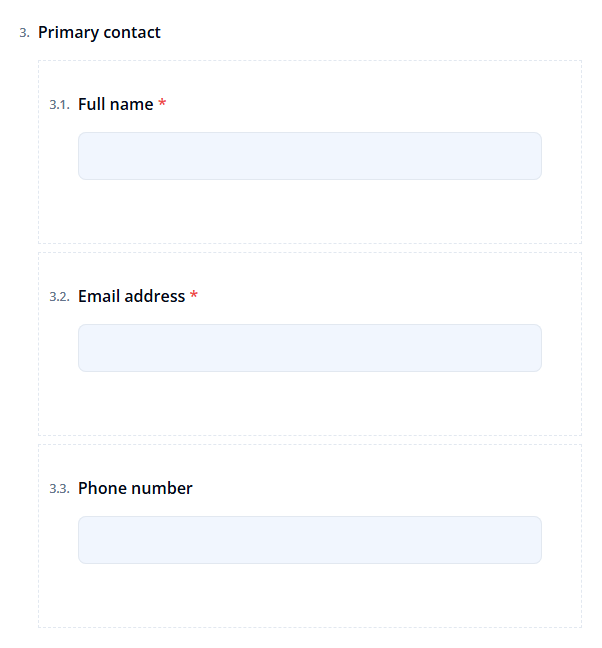
| Recursive numbering | Panels get a number, and the questions inside a panel are numbered under it. | 1., 2., 3. Primary contact (3.1., 3.2., 3.3.), then 4.–5. on the second page |
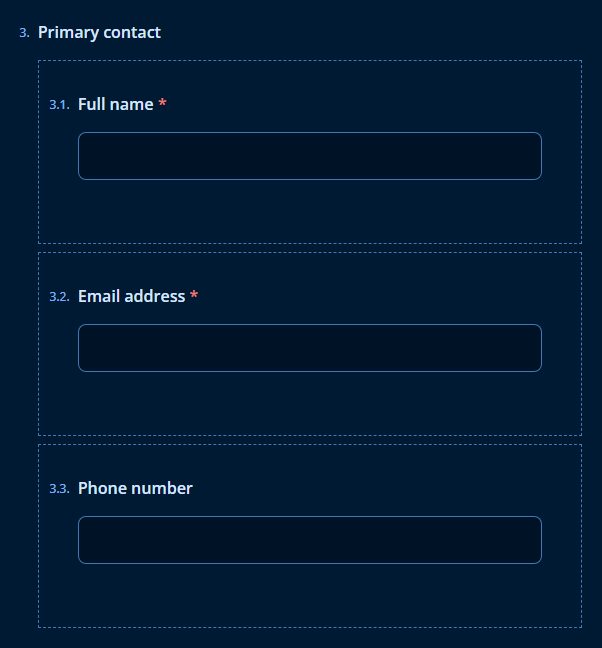
Which Questions Get a Number
- Only questions the respondent can see. A question hidden by a condition is skipped, and the numbers of the visible questions stay consecutive. When the condition shows the question, the numbers after it update immediately.
- Only questions with a visible title. HTML questions, and questions whose Question title alignment is Hidden, don't get a number and don't use one up.
- Not questions that opt out. Once numbering is on, every question has Number this question in its Layout category. Clear it for questions that shouldn't be counted, such as a consent checkbox at the end of the form; the next question takes the number instead.
- Panel titles only when asked. A panel title is numbered with Recursive numbering, or when Number this panel is selected in the panel's Numbering category. A numbered panel uses up a number of its own.
Numbering Style
Question indexing type sets what the first number looks like. The last number or letter in the value counts up; any characters around it are kept:
| Question indexing type | Questions are numbered |
|---|---|
| (empty — default) | 1., 2., 3. |
1) | 1), 2), 3) |
(1) | (1), (2), (3) |
Q1. | Q1., Q2., Q3. |
#3 | #3, #4, #5 |
5 | 5, 6, 7 |
a) | a), b), c) |
A. | A., B., C. |
Start at any number to continue the numbering of a form that follows another one — #3 begins at 3. Letters continue alphabetically, so Roman numerals aren't supported: i. gives i., j., k..
Recursive numbering repeats the indexing type at every level. With Q1., the first question inside panel Q3. becomes Q3.Q1.. Leave Question indexing type empty or use a plain number such as 1. when panels are numbered recursively.
Numbering Inside Panels
Select a panel (or a Dynamic Panel) and open its Numbering category to number its questions differently from the rest of the form:
| Setting | Options |
|---|---|
| Number this panel | Numbers the panel's title. |
| Question numbering | Auto-numbering (default) — the questions continue the form's numbering. Reset on each panel — the panel's questions get their own sequence, starting from the beginning, that doesn't use up the form's numbers. Recursive numbering — the panel gets a number, and its questions are numbered under it ( 2.1., 2.2.). No numbering — the questions inside the panel aren't numbered; the form's numbering continues after the panel. |
| Question indexing type | The style of the panel's own sequence, such as a). Without it, a reset sequence uses the form's style and starts again from the beginning. |
Panel numbering builds on the form's numbering: when the survey's Question numbering is No numbering, the panel's settings have no effect.
Required Symbol and Title Pattern
Required symbol(s) accepts any text: a symbol such as * or !, or a word such as (required). The symbol appears only on required questions and panels. Click the reset icon in the field to restore the *.
Question title pattern arranges the number, the title, and the required symbol. The options preview your current Question indexing type and Required symbol(s):
| Question title pattern | Example |
|---|---|
| 1. Question Title * (default) | Q1. Company name (required) |
| 1. * Question Title | Q1. (required) Company name |
| 1. Question Title | Q1. Company name |
The pattern applies with or without numbering. With 1. Question Title, required questions are still required, but nothing marks them — tell respondents which answers they must give, for example in the page description, so the error message doesn't come as a surprise.
To make questions required and customize the message respondents see when they skip one, see Validation.
Title, Description, and Error Message Alignment
Question Title Alignment
| Option | Result |
|---|---|
| Top (default) | The title is above the answer area. |
| Bottom | The title is below the answer area. |
| Left | The title is to the left of the answer area. |
| Hidden | The title, its number, and the description aren't shown. Available only for pages, panels, and individual questions. |
Left suits short fields — names, dates, phone numbers — while long titles and choice lists are easier to read with Top. Multiple Textboxes and Dynamic Panel questions don't support Left and keep their titles on top.
When questions on a page or in a panel are aligned to the left, the page's or panel's Question Settings category shows Question title width. Set it to a CSS width, such as 220px or 30%, to line up the input fields of all those questions.
Question Description Alignment
| Option | Result |
|---|---|
| Under the question title (default) | The description is between the title and the answer area — read before answering. |
| Under the input field | The description is below the answer area — a good place for a hint that doesn't need to be read first, such as "As shown on your certificate of incorporation." |
| Hidden | Descriptions aren't shown. |
Error Message Alignment
Validation messages appear at the Top (default) or Bottom of each question. See Validation for making questions required, adding validation rules, and writing error messages.
Overriding Alignment and Numbering
Pages, panels, and questions can override the survey's settings. Inherit — the default at every level — uses the setting of the nearest page or panel that contains the element, and finally the survey's own setting.
| Survey setting | Page (Question Settings) | Panel (Question Settings, Numbering) | Question (Layout) |
|---|---|---|---|
| Question order | Question order on the page | Question order within the panel | — |
| Question title alignment | Question title alignment | Question title alignment | Question title alignment |
| — | Question title width | Question title width | — |
| Question description alignment | — | — | Question description alignment |
| Error message alignment | Error message alignment | Error message alignment | Error message alignment |
| Question numbering | — | Question numbering | Number this question |
| Question indexing type | — | Question indexing type | — |
A Dynamic Panel's Question Settings category holds the same title alignment, title width, and error message alignment settings for the questions it repeats.
Question Order
Question order set to Random shuffles the questions on each page for every respondent — useful in surveys where the order of questions could influence the answers, such as a set of statements respondents rate one after another.
- Questions stay on their own page. Randomization never moves a question to another page.
- Panels move as a unit. A panel is shuffled together with the questions around it. The questions inside it are shuffled within the panel, unless the panel's Question order within the panel is Original.
- Numbers follow the displayed order. The first question a respondent sees is always
1., whichever question it is. - The Designer keeps the original order. Open the Preview tab to see the questions shuffled.
To keep one page in a fixed order — for example, a page of demographic questions — set that page's Question order on the page to Original. To shuffle the choices of a question instead of the questions, see Randomization of Choices.
Text Areas and Answer Length
| Setting | Applies to | Details |
|---|---|---|
| Restrict answer length | Single-Line Input, Long Text, Multiple Textboxes | The maximum number of characters; 0 (default) means no limit. A question's own Maximum character limit (Validation category) overrides it: -1 (default) uses this setting, 0 removes the limit. |
| Restrict comment length | Comment boxes (Add a comment box) and Other text boxes | The maximum number of characters; 0 (default) means no limit. |
| Comment area height (in lines) | Comment boxes and Other text boxes | The number of lines visible before the box scrolls — 2 by default. Long Text questions have their own Input field height (in lines) in the Layout category (4 by default). |
| Auto-expand text areas | Long Text questions, comment boxes, and Other text boxes | The box grows taller as the respondent types, instead of scrolling. A Long Text question can override it with Expand input field dynamically (Layout). |
| Allow users to resize text areas | Long Text questions and comment boxes | Shows a handle in the corner of the box that respondents can drag to make it bigger. A Long Text question can override it with Enable resize handle (Layout). |
Focus First Question on a New Page
When Focus first question on a new page is selected, the cursor is placed in the first question as soon as the form starts or the respondent moves to another page, so they can start typing right away. It's most useful on pages that begin with a text input, such as a name or reference number.
Important Considerations
- The required symbol and indexing type aren't translated. Both are stored as plain text, so a word such as
(required)or a prefix such asQappears as typed in every language of a multilingual form. Use a symbol, such as*, and numbers without words when the form is translated. See Form Translation. - Submission details are always numbered. The Submission Details page numbers questions in order — even when the form uses No numbering — so reviewers can refer to answers by number. The form's Question indexing type still applies there.
- Numbers aren't part of the collected data. Answers are stored under each question's Question name, so renumbering or shuffling questions doesn't change how submissions are stored or exported.
- Refer to questions by name, not by number. Numbers change when questions are added, moved, hidden by a condition, or shuffled. In conditions, validation rules, and Text Piping, always use question names such as
{company_name}. - Some settings are visible only in the Preview tab. Random question order, focusing the first question, and error message alignment take effect when the form is filled out; the Designer shows numbering, required symbols, and alignment.
Related Documentation
- Validation — make questions required and write the error messages that Error message alignment positions.
- Form Navigation — navigation buttons, the progress bar, and the table of contents.
- Form Display Modes — show all questions on one page or one question per page.
- Randomization of Choices — shuffle, pin, and group the choices of a question.
- Question Loops — repeat a set of questions with Dynamic Panels.
Technical Reference (JSON Schema)
The example form looks like this in the JSON Editor:
{
  "title": "Supplier Registration",
  "showQuestionNumbers": "on",
  "questionStartIndex": "Q1.",
  "requiredMark": "(required)",
  "pages": [
    {
      "name": "company",
      "title": "Company details",
      "elements": [
        {
          "type": "text",
          "name": "company_name",
          "title": "Company name",
          "isRequired": true
        },
        {
          "type": "text",
          "name": "registration_number",
          "title": "Company registration number",
          "description": "As shown on your certificate of incorporation.",
          "isRequired": true
        },
        {
          "type": "panel",
          "name": "primary_contact",
          "title": "Primary contact",
          "showQuestionNumbers": "onpanel",
          "questionStartIndex": "a)",
          "questionTitleLocation": "left",
          "questionTitleWidth": "220px",
          "elements": [
            {
              "type": "text",
              "name": "contact_name",
              "title": "Full name",
              "isRequired": true
            },
            {
              "type": "text",
              "name": "contact_email",
              "title": "Email address",
              "inputType": "email",
              "isRequired": true
            },
            {
              "type": "text",
              "name": "contact_phone",
              "title": "Phone number",
              "inputType": "tel"
            }
          ]
        }
      ]
    },
    {
      "name": "offering",
      "title": "Products and services",
      "elements": [
        {
          "type": "checkbox",
          "name": "categories",
          "title": "Which categories do you supply?",
          "isRequired": true,
          "choices": [
            { "value": "raw_materials", "text": "Raw materials" },
            { "value": "components", "text": "Components and parts" },
            { "value": "logistics", "text": "Logistics and transport" },
            { "value": "it_services", "text": "IT services" }
          ]
        },
        {
          "type": "comment",
          "name": "offering_description",
          "title": "Describe your products and services"
        }
      ]
    }
  ]
}
Properties left at their default values are omitted from the JSON.
Survey Properties
| Property | Type | Default | Description |
|---|---|---|---|
questionOrder | "initial" | "random" | "initial" | Question order. |
questionTitleLocation | "top" | "bottom" | "left" | "top" | Question title alignment. |
questionDescriptionLocation | "underTitle" | "underInput" | "hidden" | "underTitle" | Question description alignment. |
showQuestionNumbers | "off" | "on" | "onPage" | "recursive" | "off" | Question numbering: No numbering, Auto-numbering, Reset on each page, Recursive numbering. true and false are accepted as "on" and "off". |
questionStartIndex | string | "" | Question indexing type, such as "Q1." or "a)". Empty means 1.. |
questionTitlePattern | "numTitleRequire" | "numRequireTitle" | "numTitle" | "numTitleRequire" | Question title pattern: 1. Question Title *, 1. * Question Title, 1. Question Title. |
requiredMark | string | "*" | Required symbol(s). Not localizable. |
questionErrorLocation | "top" | "bottom" | "top" | Error message alignment. |
autoFocusFirstQuestion | boolean | false | Focus first question on a new page. |
maxTextLength | number | 0 | Restrict answer length. 0 means no limit. |
maxCommentLength | number | 0 | Restrict comment length. 0 means no limit. |
commentAreaRows | number | — | Comment area height (in lines). When not set, comment boxes show 2 lines. |
autoGrowComment | boolean | false | Auto-expand text areas. |
allowResizeComment | boolean | true | Allow users to resize text areas. |
Page and Panel Properties
| Property | Type | Applies to | Description |
|---|---|---|---|
questionOrder | "default" | "initial" | "random" | Pages, panels | Question order on the page / Question order within the panel. "default" inherits. |
questionTitleLocation | "default" | "top" | "bottom" | "left" | "hidden" | Pages, panels | Question title alignment for the questions inside. "default" inherits. |
questionTitleWidth | string (CSS width) | Pages, panels | Question title width for left-aligned titles, such as "220px" or "30%". |
questionErrorLocation | "default" | "top" | "bottom" | Pages, panels | Error message alignment for the questions inside. "default" inherits. |
showNumber | boolean | Panels, Dynamic Panels (paneldynamic) | Number this panel. Default false. |
showQuestionNumbers | "default" | "onpanel" | "recursive" | "off" | Panels, Dynamic Panels | Question numbering inside the panel: Auto-numbering, Reset on each panel, Recursive numbering, No numbering. |
questionStartIndex | string | Panels, Dynamic Panels | Question indexing type of the panel's own sequence. |
templateQuestionTitleLocation, templateQuestionTitleWidth, templateErrorLocation | Same as questionTitleLocation, questionTitleWidth, questionErrorLocation | Dynamic Panels | Title alignment, title width, and error message alignment for the repeated questions. |
Question Properties
| Property | Type | Applies to | Description |
|---|---|---|---|
titleLocation | "default" | "top" | "bottom" | "left" | "hidden" | Questions | Question title alignment. "default" inherits. |
descriptionLocation | "default" | "underTitle" | "underInput" | "hidden" | Questions | Question description alignment. "default" inherits. |
errorLocation | "default" | "top" | "bottom" | Questions | Error message alignment. "default" inherits. |
showNumber | boolean | Questions | Number this question. Default true. |
maxLength | number | Single-Line Input (text), Long Text (comment) | Maximum character limit. -1 (default) uses the survey's maxTextLength; 0 means no limit. |
rows | number | Long Text | Input field height (in lines). Default 4. |
autoGrow, allowResize | boolean | Long Text | Expand input field dynamically and Enable resize handle. When not set, the survey's autoGrowComment and allowResizeComment apply. |
Example — Recursive Numbering with a Numbered Panel
{
  "showQuestionNumbers": "recursive",
  "elements": [
    { "type": "text", "name": "company_name", "title": "Company name" },
    {
      "type": "panel",
      "name": "primary_contact",
      "title": "Primary contact",
      "elements": [
        { "type": "text", "name": "contact_name", "title": "Full name" },
        { "type": "text", "name": "contact_email", "title": "Email address" }
      ]
    },
    { "type": "comment", "name": "notes", "title": "Anything else we should know?" }
  ]
}
The questions are numbered 1. Company name, 2. Primary contact (2.1. Full name, 2.2. Email address), and 3. Anything else we should know?
Example — Descriptions Under the Input and Errors at the Bottom
{
  "questionDescriptionLocation": "underInput",
  "questionErrorLocation": "bottom",
  "elements": [
    {
      "type": "text",
      "name": "registration_number",
      "title": "Company registration number",
      "description": "As shown on your certificate of incorporation.",
      "isRequired": true
    },
    {
      "type": "text",
      "name": "vat_number",
      "title": "VAT number",
      "description": "Shown above the input, overriding the survey setting.",
      "descriptionLocation": "underTitle"
    }
  ]
}