File Upload Question
File Upload collects files from respondents: photos of damage, a signed PDF, a spreadsheet. On a phone it can open the device camera instead of the file picker, so a respondent photographs something on the spot rather than finding a file. This page covers the question's settings in the Form Builder and how to read the uploads back on a submission.
Uploaded files do not live inside the response. Hub sends each one to the workspace's file storage and stores a link to it in the answer, so a submission stays small no matter how large its attachments are.
Add a File Upload question
- Open the form's Design tab.
- Drag File Upload from the toolbox onto the page, or click Add Question and change its type.
- Set Question title and, optionally, Question description on the General tab of the Property Grid.
Choose where files come from
File source type on the General tab decides which buttons the respondent gets.
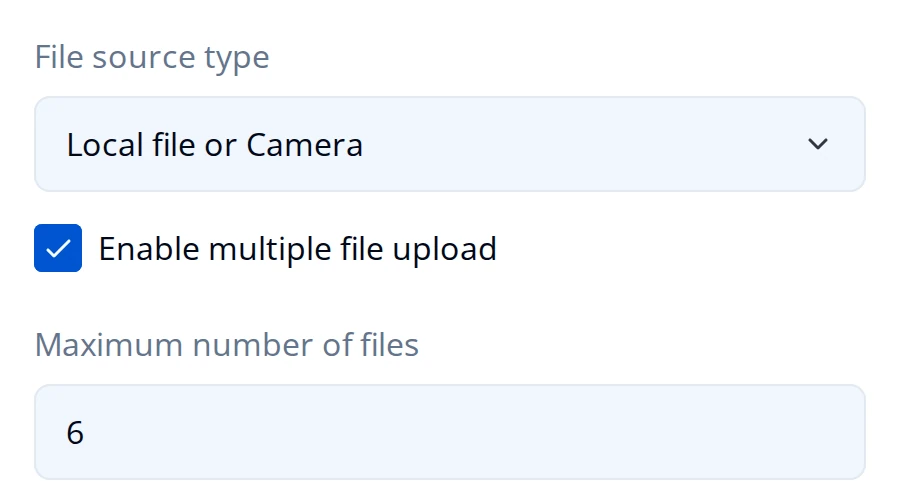
Enable multiple file upload lets one question hold several files, and Maximum number of files caps how many. That cap only appears once multiple upload is on.
| File source type | What the respondent gets |
|---|---|
| Local file | A Select File button that opens the file picker (default) |
| Camera | A Take Photo button that opens the device camera |
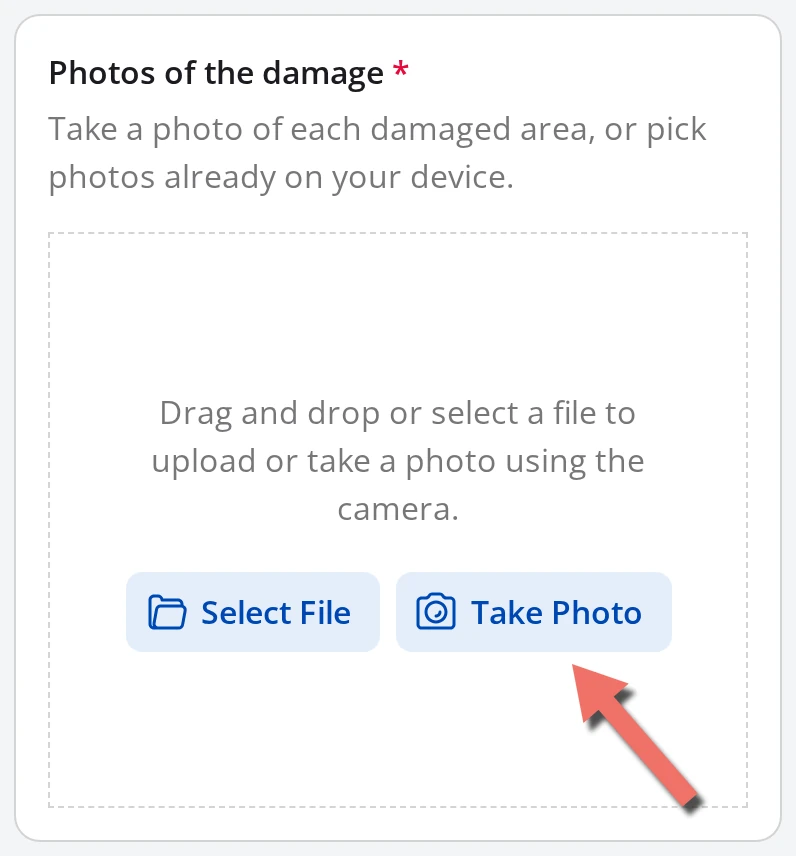
| Local file or Camera | Both buttons, so the respondent picks |
Opening the camera on a phone
Set File source type to Camera or Local file or Camera and the question renders a Take Photo button next to (or instead of) Select File. On a phone that button opens the device camera in the page.
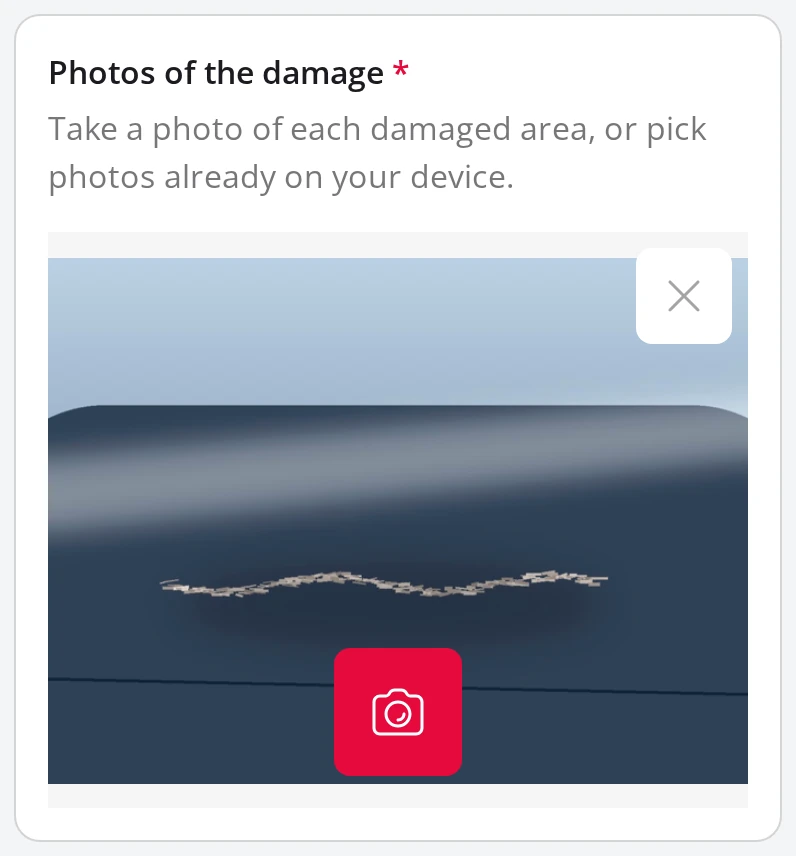
Tapping Take Photo turns the question into a viewfinder with a shutter button. The respondent frames the shot, takes it, and the photo uploads as if they had picked it from the device.
When the browser reports no camera, a Camera question falls back to file selection and a Local file or Camera question simply drops the Take Photo button. The same form works on a desktop without a webcam, so you do not need a separate mobile version.
The respondent's browser decides which camera opens and whether they can flip between front and rear. Hub does not force the rear camera by default.
Limit what respondents can upload
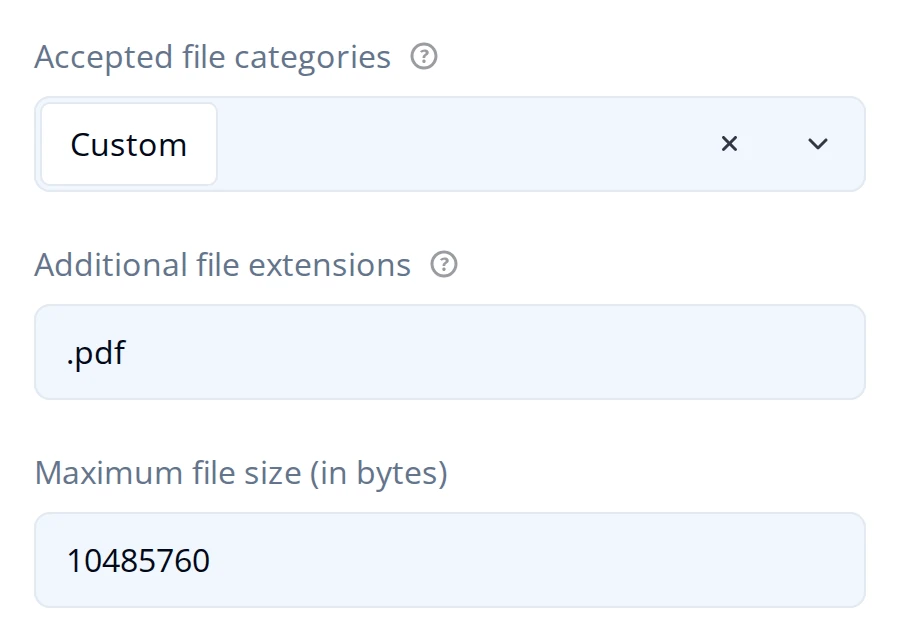
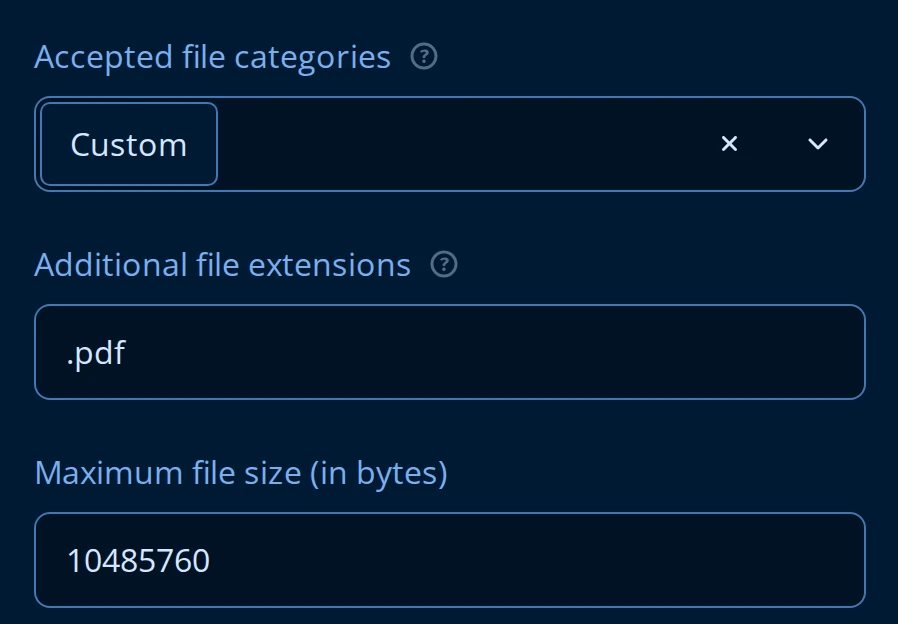
Accepted file categories restricts uploads to whole classes of file. Pick Custom and a second field, Additional file extensions, appears for a comma-separated list of your own.
| Category | Extensions it allows |
|---|---|
| Images | .png, .jpg, .jpeg, .gif, .bmp, .tiff, .svg |
| Videos | .mp4, .avi, .mov, .wmv, .flv, .mkv, .webm |
| Audio | .mp3, .wav, .aac, .ogg, .wma, .flac |
| Documents | .pdf, .doc, .docx, .xls, .xlsx, .ppt, .pptx, .txt, .rtf, .odt |
| Archives | .zip, .rar, .7z, .tar, .gz |
| Custom | Only what you type into Additional file extensions |
Categories and custom extensions add up rather than override each other, so Images plus .pdf accepts both. Leave the field empty to accept any file.
Maximum file size (in bytes) rejects anything larger, with the message "The file size should not exceed" and the limit written out in KB or MB. 0 means no limit. Going over Maximum number of files gives "The maximum number of files you can upload is" and the cap.
The accepted types and size cap are checked in the respondent's browser. Treat them as a way to keep honest uploads tidy, and enforce anything you actually depend on in your own processing.
Other settings
- Preview uploaded images shows thumbnails of what the respondent uploaded. Turn it off to show file icons instead.
- Image height and Image width set the size of the preview area, and the size of photos taken with the camera.
- Confirm file deletion asks the respondent to confirm before a file is removed.
- Placeholder text for Local file, for Camera, and for Local file or Camera override the drop-zone wording. Each applies to the matching File source type, so set the one that goes with the source you chose.
The two settings SurveyJS normally offers here, Store file content in JSON result as text and Wait for upload to complete, are not in the Property Grid. When a workspace has file storage configured, Hub sets both for you so uploads always go to storage and a respondent cannot complete the form while a file is still in flight.
Review uploaded files on a submission
In the answers list
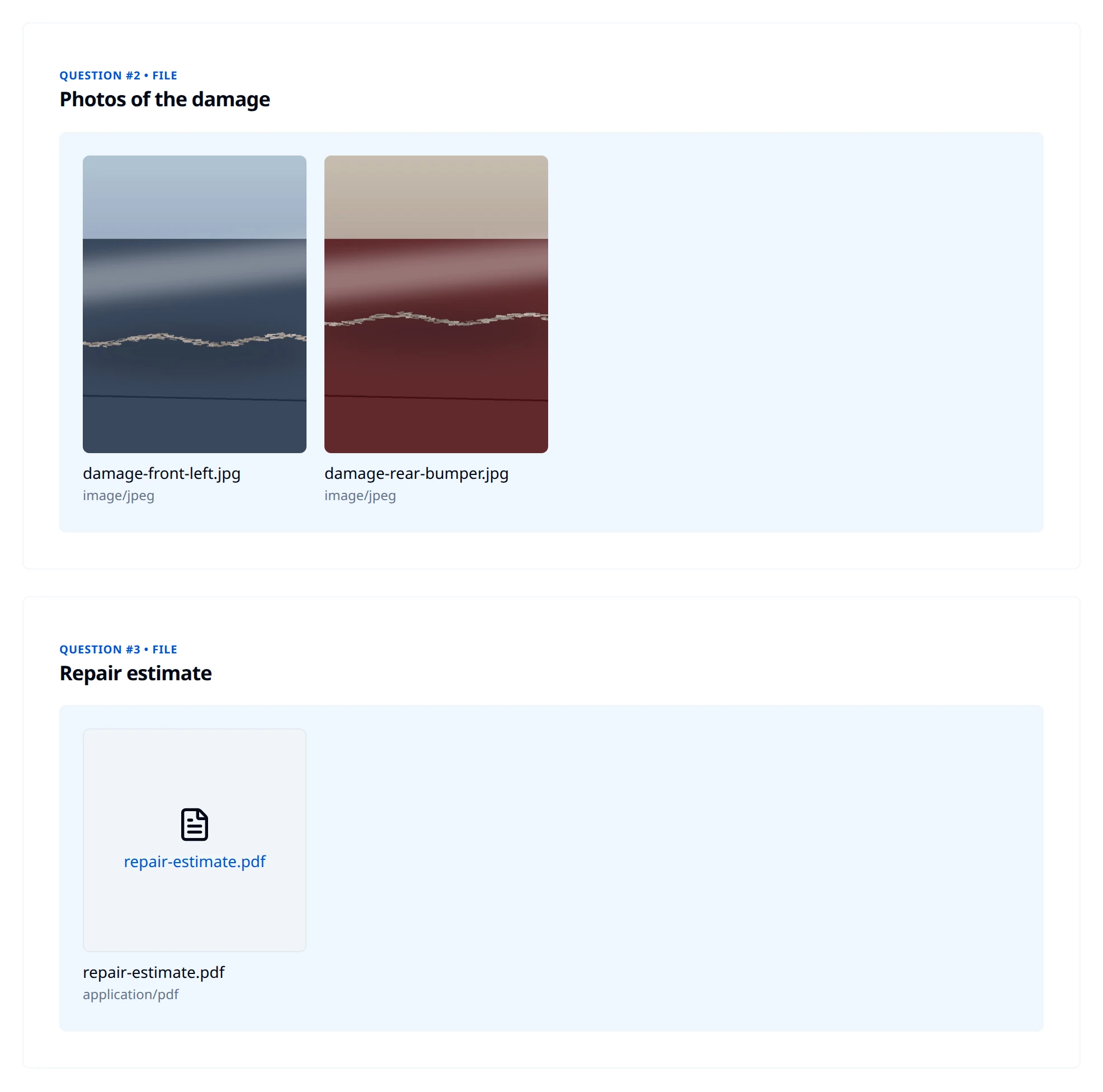
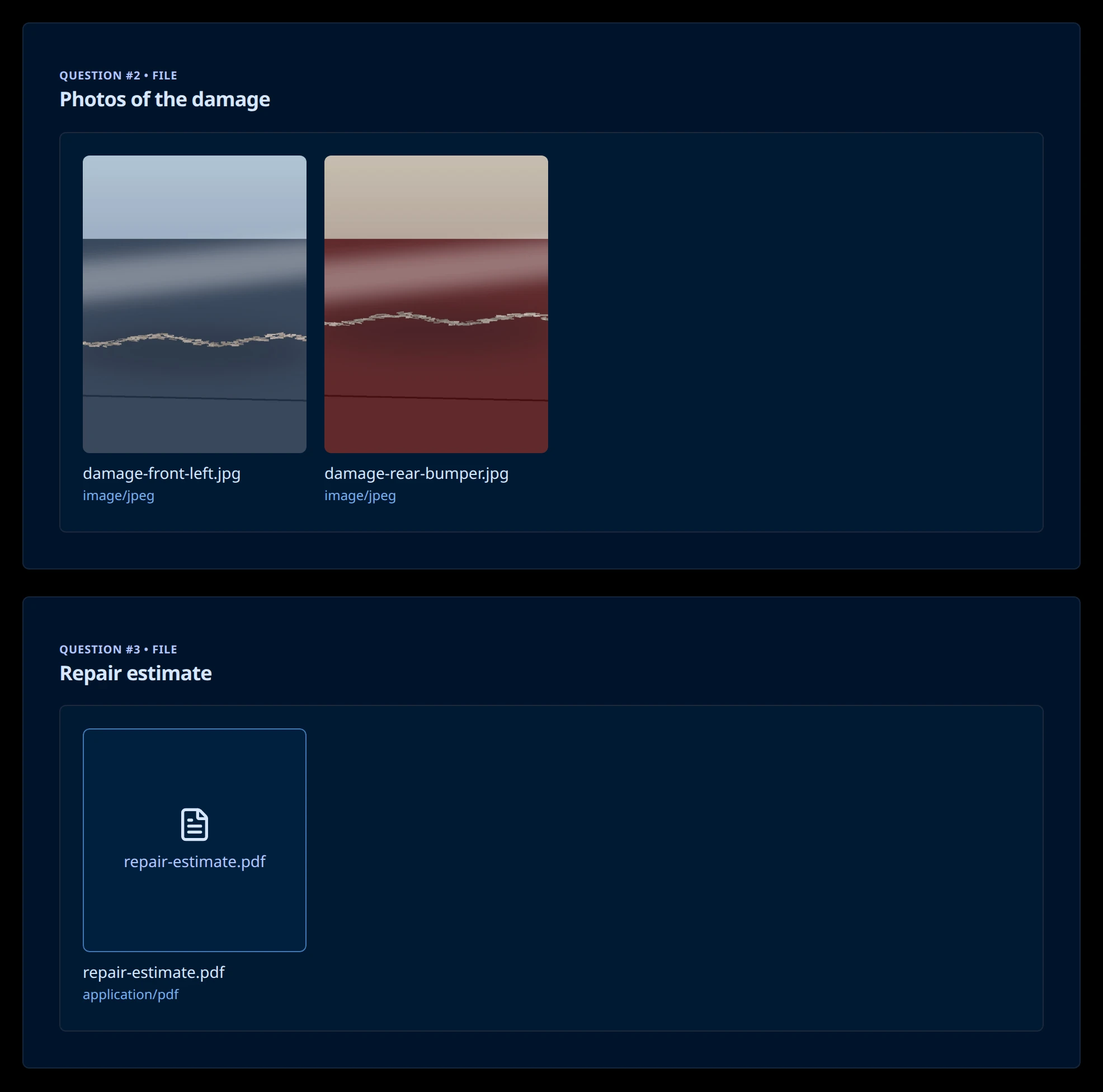
Open a submission from the Submissions grid and its file answers appear inline with the rest. Images show as thumbnails with the file name and type beneath; anything Hub cannot preview, such as a PDF, shows a file icon and a link that opens it.
The submission files list
For everything attached to one submission in a single list, open the ⋯ menu on Submission Details (or on the submission's row in the grid) and choose View Files.
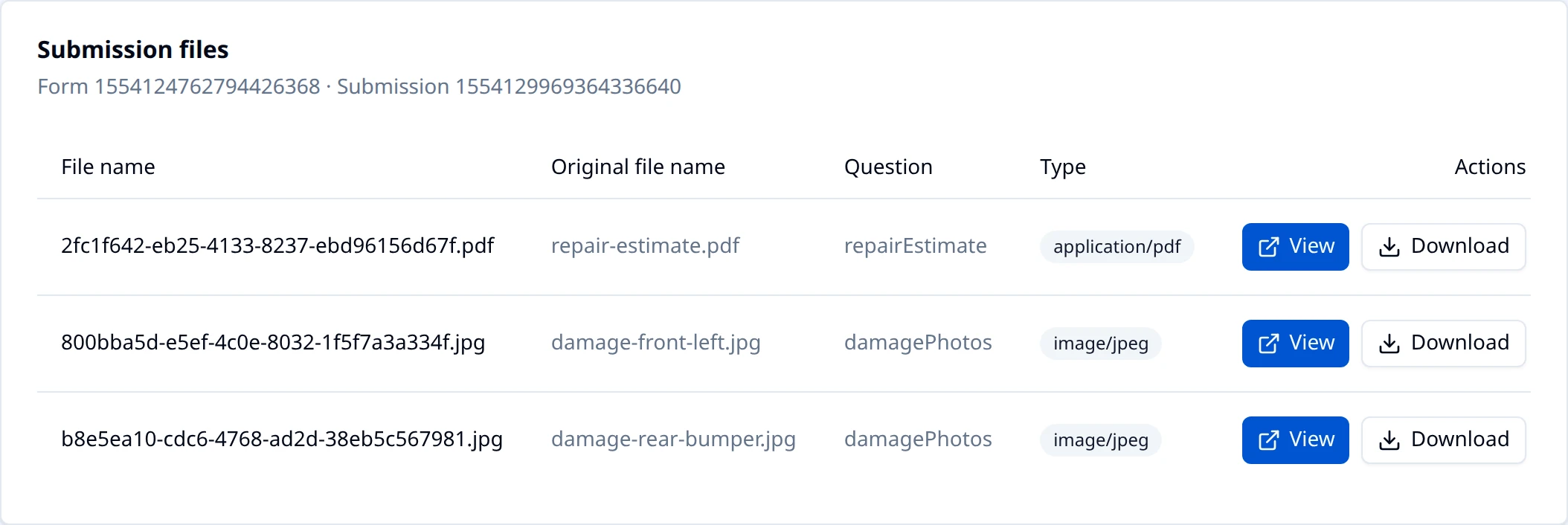
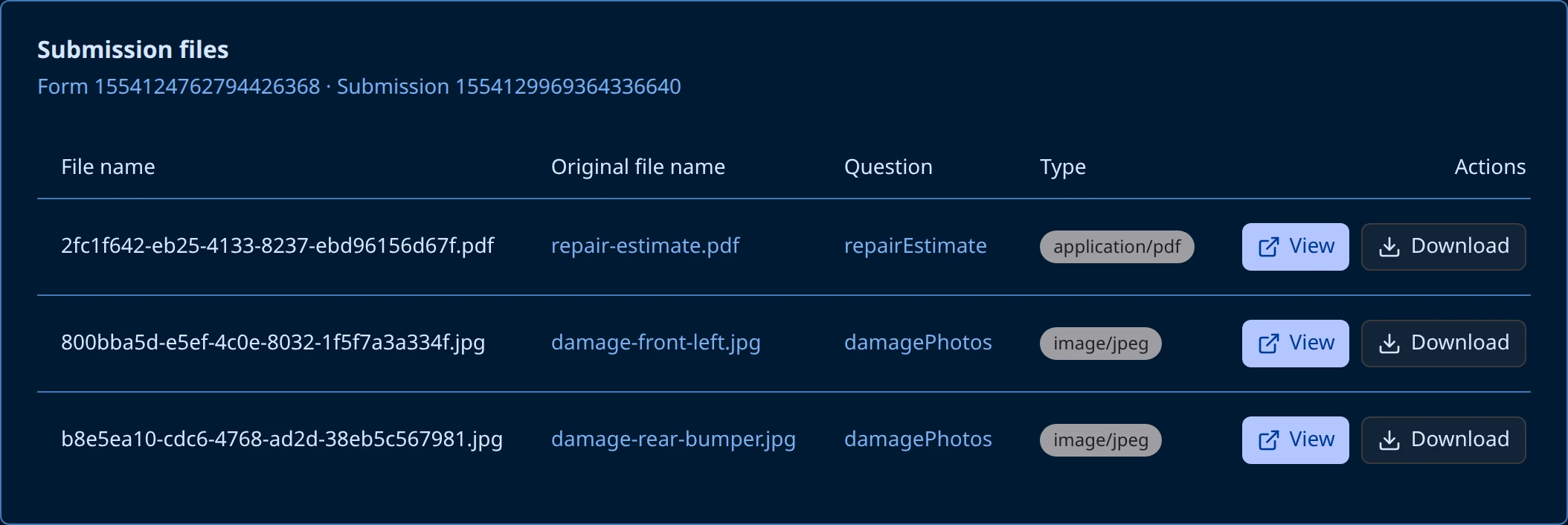
Each row pairs the name the file is stored under with the Original file name the respondent uploaded and the Question it came from, which is how you tell two photo.jpg uploads apart. View opens the file, Download saves it, and clicking the row itself opens the file too.
Download every file at once
Download Files in the same ⋯ menu zips the whole submission as submission-<submission id>-files.zip. Entries inside are named after the question rather than the stored file name, numbered when a question holds several, so a damagePhotos question with two images unpacks as damagePhotos-1.jpg and damagePhotos-2.jpg.