Randomization of Choices for Choice-based Questions
Endatix Hub provides granular control over how options are presented to respondents. Beyond simple shuffling, you can exclude specific items from randomization or group choices together to ensure related options stay as a cohesive unit while still being randomized as a block.
This feature enables you to eliminate order bias without sacrificing the contextual integrity of your lists.
Key Capabilities
- Selective Shuffling: Enable randomization for the whole question but "pin" specific items to their original position.
- Logical Grouping: Assign choices to a "Group". All items within a group will move together during the shuffle.
- Mixed Ordering: Combine fixed items, randomized individual items, and randomized groups within a single question.
This feature applies to all choice-based question types, including:
- Radio group (Single Choice)
- Check boxes (Multiple Choice)
- Multi-select Dropdown (Multiple Choice)
- Dropdown (Single Choice)
- Image Picker (Multiple Choice)
- Ranking
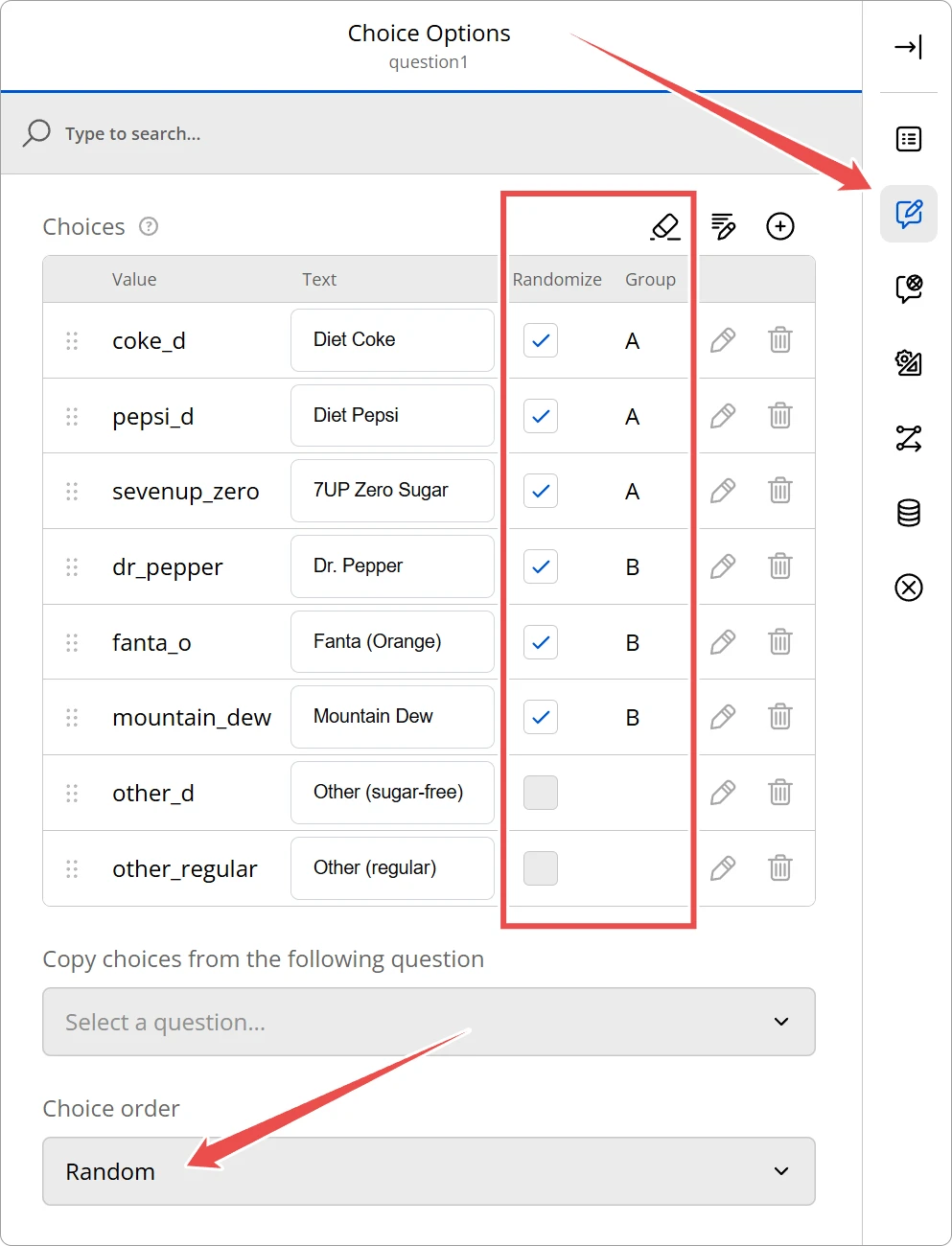
Configuration Guide
To access advanced randomization, you must first enable the general randomization setting for the question.
1. Enable Randomization
In the Property Grid, locate the Choice order dropdown and select Random.
2. Configure Choice Options
Once Random is selected, two new columns appear in the Choices editor table: Randomize and Group.
| Column | Description |
|---|---|
| Randomize | A checkbox determining if this specific item should be shuffled. If unchecked, the item stays in its defined position. |
| Group | A text identifier. Items with the same Group ID (e.g., "A") will be treated as a single block. |
How it Works
The Endatix randomization engine follows a specific logic to determine the final display order:
- Group Identification: The engine looks for items sharing the same
groupvalue. - Block Preservation: If a group of items is set to randomize, they are shuffled internally within their group, but they stay together in the list.
- Sticky Items: Items where
randomizeis set tofalse(like "None of the above") will remain exactly where you placed them in the editor, regardless of the shuffle.
Example Scenario
Imagine you are listing shoe brands. You want to group brands by Category (Group A and Group B) but keep "Reebok" at a fixed position.
- Group A (Diet Coke, Diet Pepsi, 7UP Zero Sugar): These three will shuffle amongst themselves but remain as a block, preserving the context of sugar-free drinks.
- Other (Sugar-free): By unchecking the "Randomize" box, this one will always appear in the 4th position.
- Group B (Dr. Pepper, Fanta, Mountain Dew): These will shuffle amongst themselves but remain as a block, preserving the context of regular drinks.
- Other (Regular): By unchecking the "Randomize" box, this one will always appear in the last position.
Technical Reference (JSON Schema)
Advanced users can define these behaviors directly in the JSON schema using the randomize (boolean) and group (string) properties within the choices array.
{
  "type": "radiogroup",
  "name": "brand_preference",
  "choices": [
    {
      "value": "nike",
      "text": "Nike",
      "group": "A"
    },
    {
      "value": "adidas",
      "text": "Adidas",
      "group": "A"
    },
    {
      "value": "reebok",
      "text": "Reebok",
      "randomize": false
    }
  ],
  "choicesOrder": "random"
}
Property Data Types
| Property | Type | Description |
|---|---|---|
choicesOrder | string | Must be set to "random" to enable these features. |
randomize | boolean | Defaults to true. Set to false to disable shuffling for a specific item. |
group | string | Optional ID to link multiple choices together into a single shuffle-block. |