Rich Text Formatting
What Is Rich Text Formatting?
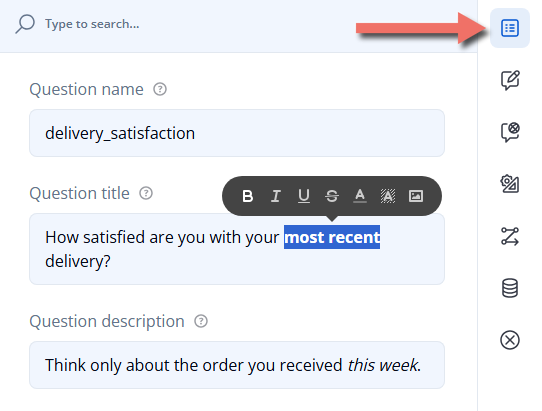
Rich text formatting lets you style individual words, sentences, or entire paragraphs in the text respondents read - a question title, a description, or a choice - instead of the whole element. Bolding the words that matter ("How satisfied are you with your most recent delivery?"), highlighting a warning in red, or color-coding the two ends of a scale helps respondents notice the detail that changes their answer.
In Endatix Hub, you format text the way you would in a word processor: select the words in the Property Grid, then pick a format from the toolbar that appears. Formatting is saved as part of the form, so it shows up in the Preview tab and in the published form.
What You Can Format
Formatting is available in the text fields respondents see:
| Element | Where to format it in the Property Grid |
|---|---|
| Survey | General → Survey title, Survey description |
| Page | General → Page title, Page description |
| Panel, Dynamic Panel | General → Panel title, Panel description |
| Any question | General → Question title, Question description |
| Radio Button Group, Checkboxes, Dropdown, Multi-Select Dropdown, Ranking, and other choice questions | Choice Options → Choices table, Text column |
| Rating Scale | Rating Values → Text column |
| Single-Select Matrix | Columns and Rows → Text column |
| Multi-Select Matrix, Dynamic Matrix | Columns → Column title column |
| Multiple Textboxes | Items → Title column |
Other text fields, such as placeholders, are plain text and ignore formatting.
Formatting Options
Selecting text in a formattable field opens a toolbar with these options:
| Toolbar button | What it does | Shortcut |
|---|---|---|
| B | Bold | Ctrl+B |
| I | Italic | Ctrl+I |
| U | Underline | Ctrl+U |
| S (struck through) | — | |
| A (with a color bar) | Text color, chosen from a palette of 35 colors | — |
| Shaded A | Background (highlight) color, chosen from the same palette | — |
| Picture | Insert image — replaces the selected text with an image file from your computer | — |
On a Mac, use ⌘ instead of Ctrl.
The toolbar has no link button, but a full web address that starts with https:// — typed into any of the fields above — becomes a clickable link in the form automatically. To link your own words instead of the address, add the link in JSON (see Formatting in JSON).
Example: Emphasizing Key Words in a Delivery Survey
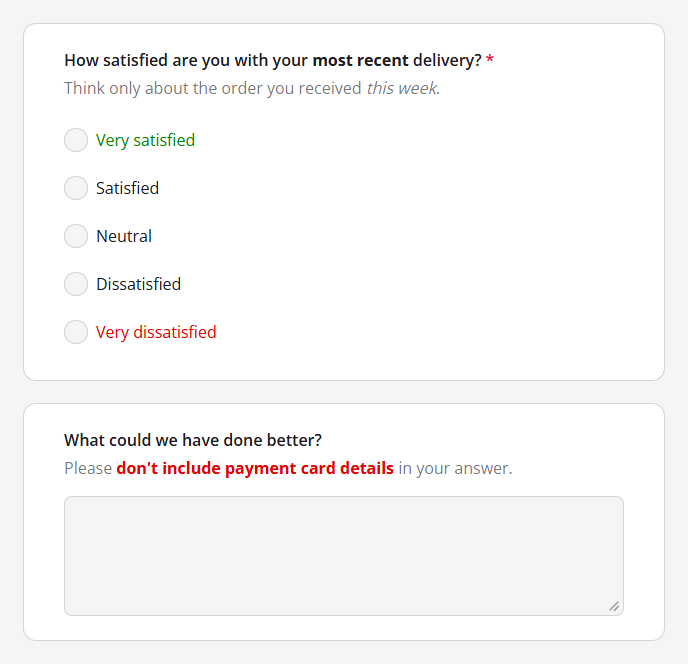
A delivery feedback survey has two questions. Formatting draws attention to the time frame respondents should think about, the two ends of the satisfaction scale, and a privacy warning.
| # | Question type | Question name | Formatting |
|---|---|---|---|
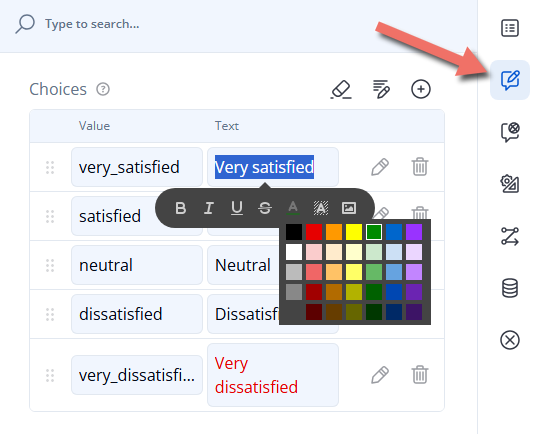
| 1 | Radio Button Group | delivery_satisfaction | "most recent" in bold in the title, "this week" in italics in the description, "Very satisfied" in green and "Very dissatisfied" in red |
| 2 | Long Text | delivery_comments | "don't include payment card details" in bold red in the description |
1. Select the Words to Format
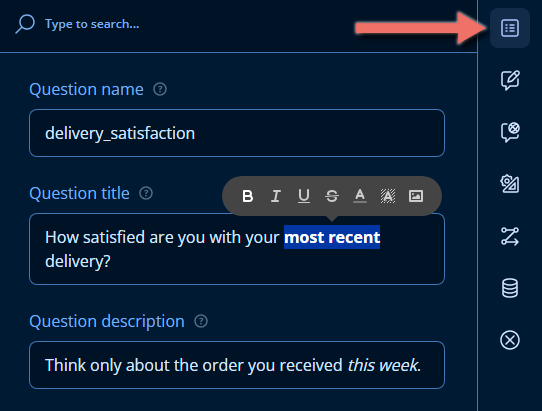
Select the question on the design surface. The Property Grid opens its General category. Click into Question title and select the words to format — drag across them, or double-click a single word. The formatting toolbar appears above the selection.
2. Apply a Format
Click B to make "most recent" bold. Repeat the same steps in Question description to put "this week" in italics.
Formats can be combined. For the Long Text question's description, select "don't include payment card details", click B, then open the text color palette and pick red.
3. Color a Choice
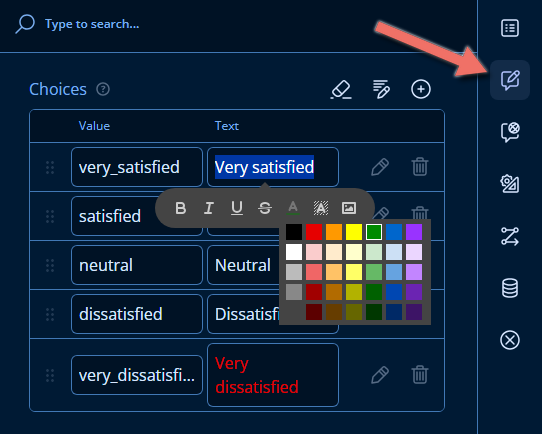
Choice text is formatted in the same way. With the Radio Button Group question selected, open the Choice Options category. In the Choices table, select the text in the Text column — for example, "Very satisfied" — then click A (text color) and pick a color from the palette.
4. Preview the Result
Formatting appears on the design surface as soon as you apply it. Open the Preview tab to see the form as respondents will, then click Save.
Removing Formatting
Select the formatted words, then:
- Bold, italic, underline, strikethrough — click the highlighted button again, or press its shortcut.
- Text color — pick the black swatch in the top-left corner of the palette. The text returns to the form theme's own color.
- Background color — pick the white swatch at the start of the palette's second row.
Formatting in JSON
Formatting has no separate setting: it's stored as HTML tags inside the text itself. Applying bold to "most recent" in the Property Grid changes the question's title in the form JSON to:
"title": "How satisfied are you with your <strong>most recent</strong> delivery?"
You can add the same tags yourself in the JSON Editor tab — useful for formatting many texts at once, copying formatting between forms, or using formats the toolbar doesn't offer, such as links, subscript, and superscript. The example survey above looks like this:
{
  "pages": [
    {
      "name": "page1",
      "elements": [
        {
          "type": "radiogroup",
          "name": "delivery_satisfaction",
          "title": "How satisfied are you with your <strong>most recent</strong> delivery?",
          "description": "Think only about the order you received <em>this week</em>.",
          "isRequired": true,
          "choices": [
            {
              "value": "very_satisfied",
              "text": "<span style=\"color: #008a00\">Very satisfied</span>"
            },
            { "value": "satisfied", "text": "Satisfied" },
            { "value": "neutral", "text": "Neutral" },
            { "value": "dissatisfied", "text": "Dissatisfied" },
            {
              "value": "very_dissatisfied",
              "text": "<span style=\"color: #e60000\">Very dissatisfied</span>"
            }
          ]
        },
        {
          "type": "comment",
          "name": "delivery_comments",
          "title": "What could we have done better?",
          "description": "Please <strong style=\"color: #e60000\">don't include payment card details</strong> in your answer."
        }
      ]
    }
  ]
}
Keep these rules in mind when editing JSON by hand:
- Escape the quotes inside a tag's attributes as
\", as instyle=\"color: #e60000\". - Use
<strong>and<em>, not<b>and<i>. Tags that aren't on the supported list — including<b>,<i>,<br>, and<font>— are removed when the form is displayed, leaving plain text. - Colors accept any CSS color value. The toolbar writes colors as
rgb(230, 0, 0); hex values such as#e60000work just as well. - Links must start with
https://,mailto:, ortel:. Web links open in a new tab. A link to any other address, such ashttp://, is displayed as plain text. - Markdown shorthand also works —
**bold**,*italic*,~~strikethrough~~, and[text](https://example.com). The Property Grid shows Markdown characters exactly as typed; only the form renders them as formatting.
See the Technical Reference for the full list of tags and the properties that accept them.
Important Considerations
- Edit formatted text in the Property Grid. Clicking formatted text on the design surface to edit it in place reveals its HTML tags — for example,
How satisfied are you with your <strong>most recent</strong> delivery?. You can still change the words there, but leave the tags intact. - Don't rely on color alone. Screen readers don't announce text color, and some respondents can't tell red from green. Pair color with wording or bold so the meaning survives without it.
- Check colors against your form theme. Text and background colors are fixed values that don't change with the form's theme — a dark red that reads well on a light background can disappear on a dark one.
- Combine at most two text styles on the same words. In the Property Grid, words can be, for example, bold and italic. Adding underline or strikethrough on top removes the third style when the change is saved.
- Formatted fields stay on one line. Pressing Enter doesn't start a new line.
- Keep inserted images small. An image added from the toolbar is stored inside the form itself, so large pictures make the form slower to load. Icons and small logos work best.
- Keep tags when translating. The Translations tab shows formatting as HTML tags. Translate only the words between the tags — for example,
Wie zufrieden sind Sie mit Ihrer <strong>letzten</strong> Lieferung?— so each language keeps its formatting. - Submission PDFs show titles as plain text. When a submission is exported to PDF, question titles appear without their formatting.
Related Documentation
- Text Piping — insert earlier answers into question titles, descriptions, and choices.
- Form Translation — translate your form's text, including formatted text, into other languages.
Technical Reference (JSON Schema)
Formatting is HTML (or Markdown) inside a text property. Before the text is displayed, unsupported markup — such as <b>, <i>, <br>, and <font> — is removed and only its text is kept.
Supported Formatting
| Format | HTML | Markdown | Toolbar |
|---|---|---|---|
| Bold | <strong>text</strong> | **text** | Yes |
| Italic | <em>text</em> | *text* | Yes |
| Underline | <u>text</u> | — | Yes |
| Strikethrough | <s>text</s> | ~~text~~ | Yes |
| Text color | <span style="color: #e60000">text</span> | — | Yes |
| Background color | <span style="background-color: #ffff00">text</span> | — | Yes |
| Image | <img src="https://example.com/icon.png" alt="Icon"> | — | Yes (embedded as a data: image) |
| Link | <a href="https://example.com">text</a> | [text](https://example.com) | No |
| Subscript, superscript | CO<sub>2</sub>, m<sup>2</sup> | — | No |
| Inline code | <code>text</code> | `text` | No |
Properties That Accept Formatting
| Property | Applies to |
|---|---|
title, description | The survey, pages, panels, and questions |
choices[].text | Choice-based questions, such as radiogroup, checkbox, dropdown, tagbox, and ranking |
rateValues[].text | Rating Scale (rating) |
columns[].text, rows[].text | Single-Select Matrix (matrix); rows[].text also applies to Multi-Select Matrix (matrixdropdown) |
columns[].title | Multi-Select Matrix (matrixdropdown) and Dynamic Matrix (matrixdynamic) |
items[].title | Multiple Textboxes (multipletext) |
labelTrue, labelFalse | Yes/No (Boolean) labels — JSON only; the Property Grid edits them as plain text |
Example — Formatting in a Localized Title
In a multilingual form, each language holds its own copy of the tags:
{
  "type": "radiogroup",
  "name": "delivery_satisfaction",
  "title": {
    "default": "How satisfied are you with your <strong>most recent</strong> delivery?",
    "de": "Wie zufrieden sind Sie mit Ihrer <strong>letzten</strong> Lieferung?"
  }
}
Example — Links, Subscript, and Markdown
{
  "type": "comment",
  "name": "emissions_feedback",
  "title": "How could we reduce the CO<sub>2</sub> footprint of our deliveries?",
  "description": "Read our **sustainability report** first: [example.com/sustainability](https://example.com/sustainability)"
}