Triggers
What Are Triggers?
A trigger is a rule that makes the form do something when a condition becomes true: end the form, jump ahead to a later question, fill in an answer, copy one answer into another question, or calculate a value.
Conditions that show or hide questions change what the form looks like. Triggers change what the form does. They save respondents from typing the same details twice, move them past sections that don't apply to them, and stop a form as soon as it's clear the rest isn't relevant — for example, when a screening question shows that the respondent isn't in the target group.
In Endatix Hub, you create triggers in the Form Builder's Logic tab, as the action of a rule, or in the survey's Conditions settings in the Property Grid.
Trigger Types
| Trigger | What it does | When it happens |
|---|---|---|
| Complete survey | Ends the form. The rest of the pages are skipped, and the respondent sees the Thank You page. | While the condition is true, Next becomes Complete, unless Replace Next with Complete when a complete trigger is met is off. The form ends when the respondent moves on. |
| Skip to question | Moves the respondent to the page of the Question to skip to and focuses that question. | Immediately, as soon as an answer makes the condition true. |
| Set answer | Puts a fixed Answer into the Target question. | Each time an answer in the condition changes and the condition is true. |
| Copy answer | Copies the answer of the Question to copy answer from into the Target question. | Each time the source answer or an answer in the condition changes and the condition is true. |
| Run expression | Calculates an expression and, if a Target question is selected, puts the result into it. | Each time an answer in the condition changes and the condition is true. |
Answers filled in by Set answer, Copy answer, and Run expression are ordinary answers: the respondent can still change them.
Example: Streamlining a Summit Registration Form
An events team registers attendees for a two-day customer summit. The form has five pages:
| Page | Questions (question name) |
|---|---|
| About you | Full name (full_name), Email address (email), I'm registering as (role): An attendee, A speaker, or An exhibitor |
| Attendance | How will you attend? (attendance): In person or Online |
| Travel and accommodation | Do you need a hotel room? (needs_hotel), Arrival date (arrival_date), Departure date (departure_date), Number of nights (hotel_nights) |
| Pass and sessions | Pass type (pass_type): Full pass, Day pass, or Virtual pass; Which sessions do you plan to attend? (sessions) |
| Billing | Is the billing contact the same as the attendee? (billing_same), Billing contact name (billing_name), Billing email address (billing_email) |
Four sets of triggers make the form shorter for everyone:
- Exhibitors are handled by another team, so their registration ends after the first page.
- Online attendees don't need travel questions, and always get a virtual pass.
- When the billing contact is the attendee, their name and email address are filled in for them.
- The number of hotel nights is calculated from the arrival and departure dates.
1. End the Form for Exhibitors
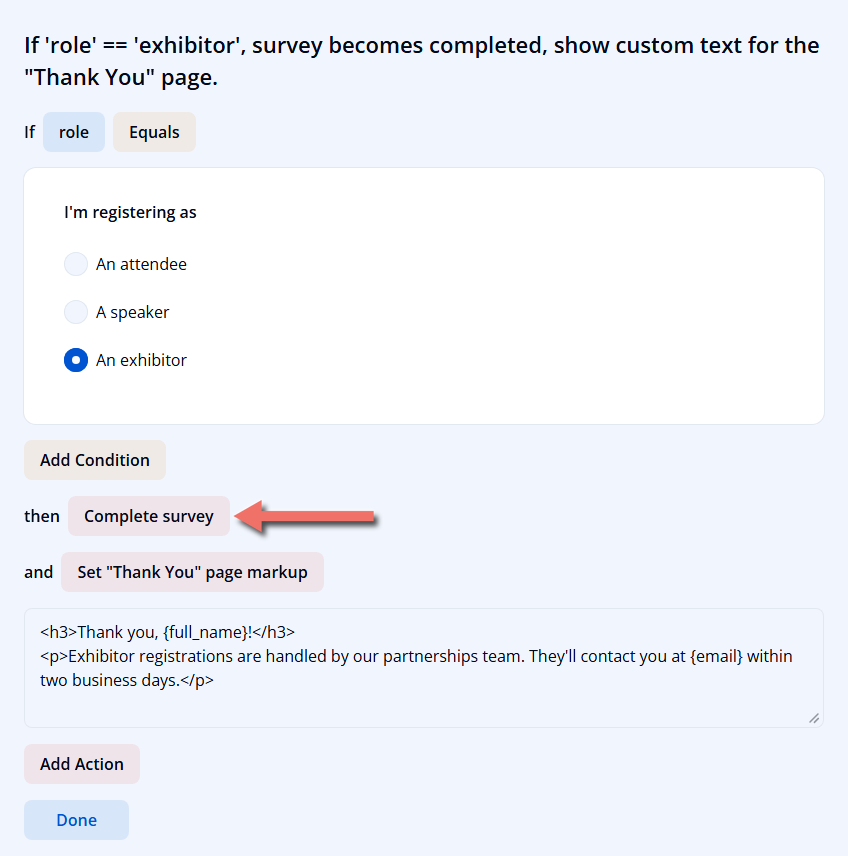
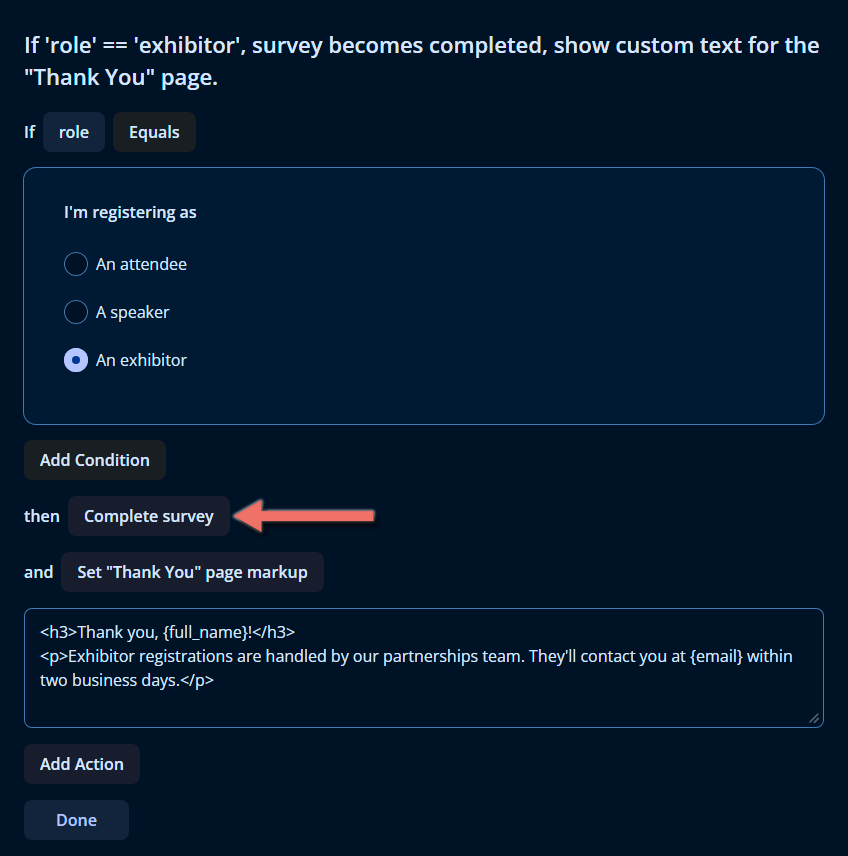
Open the form's Logic tab and click Add New Rule. Then:
-
In the If row, select the
rolequestion with the Equals operator, and select An exhibitor. -
In the then row, open Select action... and choose Complete survey.
-
Click Add Action, choose Set "Thank You" page markup, and enter a message for exhibitors:
<h3>Thank you, {full_name}!</h3><p>Exhibitor registrations are handled by our partnerships team. They'll contact you at {email} within two business days.</p> -
Click Done.
When a respondent selects An exhibitor, the Next button changes to Complete:
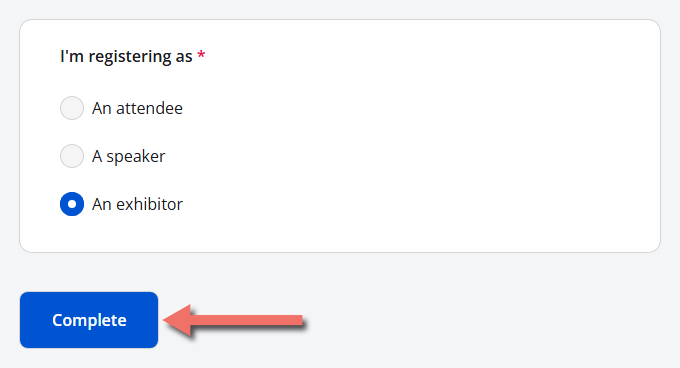
Clicking Complete checks the questions on the current page, as Next would, and then submits the form with the exhibitor's Thank You message. If the respondent changes their answer to An attendee, the button goes back to Next. See Thank You Page for more about the message.
2. Skip Travel Questions for Online Attendees
Click Add New Rule again:
- In the If row, select
attendancewith Equals and select Online. - In the then row, choose Skip to question and select
pass_typeas the question to skip to. - Click Add Action, choose Set answer, select
pass_typeas the Target question, and select Virtual pass — live stream only in the question that appears. - Click Done.
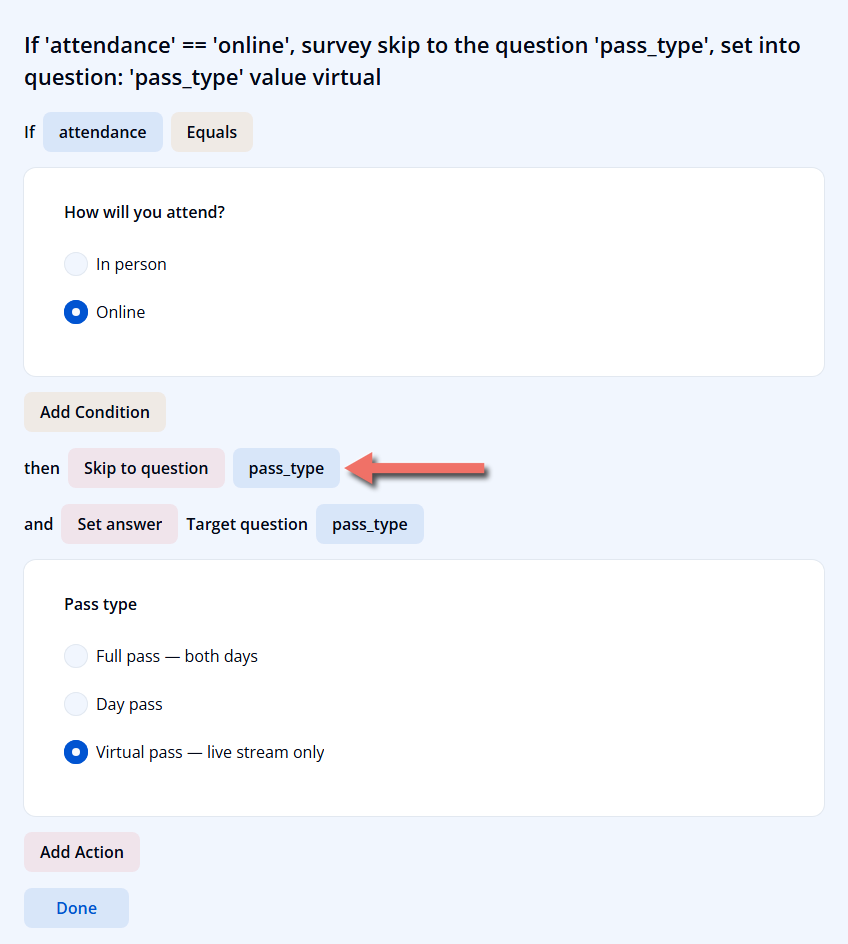
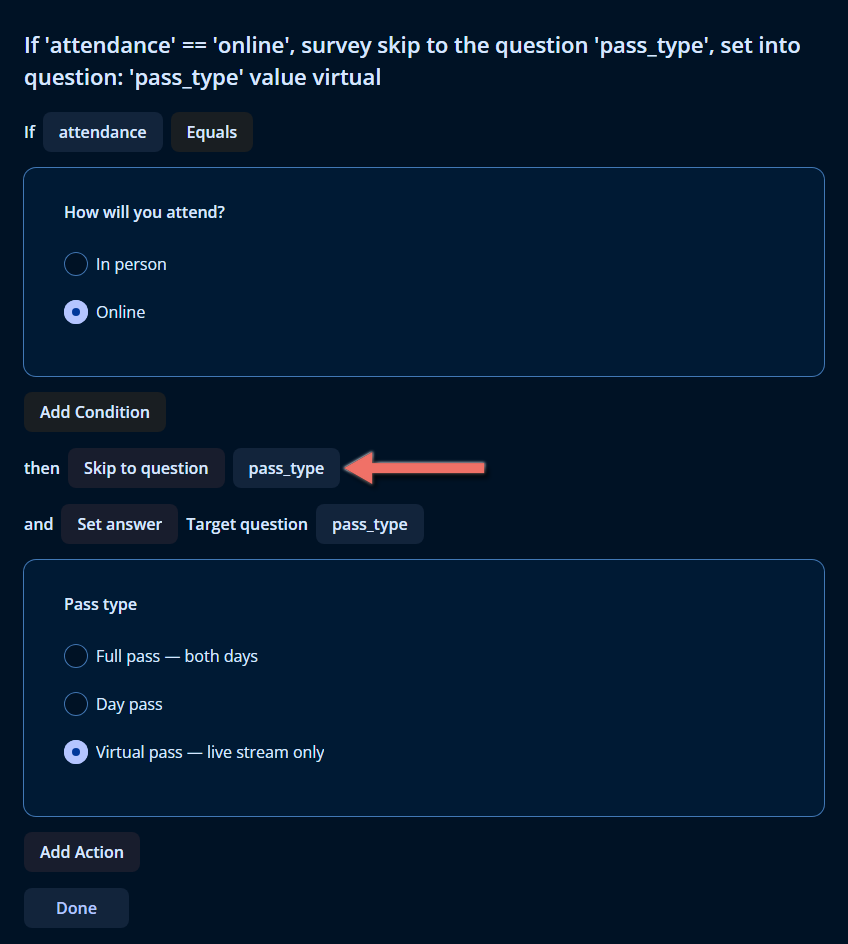
As soon as a respondent selects Online, the form moves to the Pass and sessions page with Virtual pass already selected, skipping Travel and accommodation. Previous takes the respondent back to the Attendance page.
Skip to question moves the respondent on without checking the other questions on the page, so required questions there can be left empty. That's why attendance is on a page of its own in this example: by the time respondents reach it, the questions before it have been checked by the Next button.
3. Copy the Attendee's Details to Billing
Add a third rule:
- In the If row, select
billing_samewith Equals and select Yes. - In the then row, choose Copy answer. Select
full_nameas the Question to copy answer from andbilling_nameas the Target question. - Click Add Action, choose Copy answer again, and copy
emailintobilling_email. - Click Done.
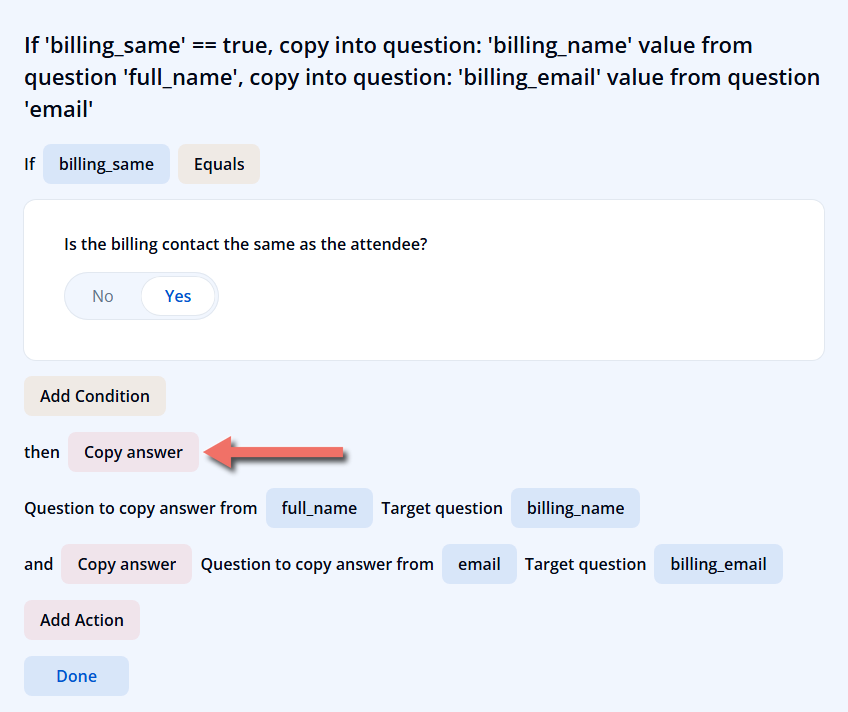
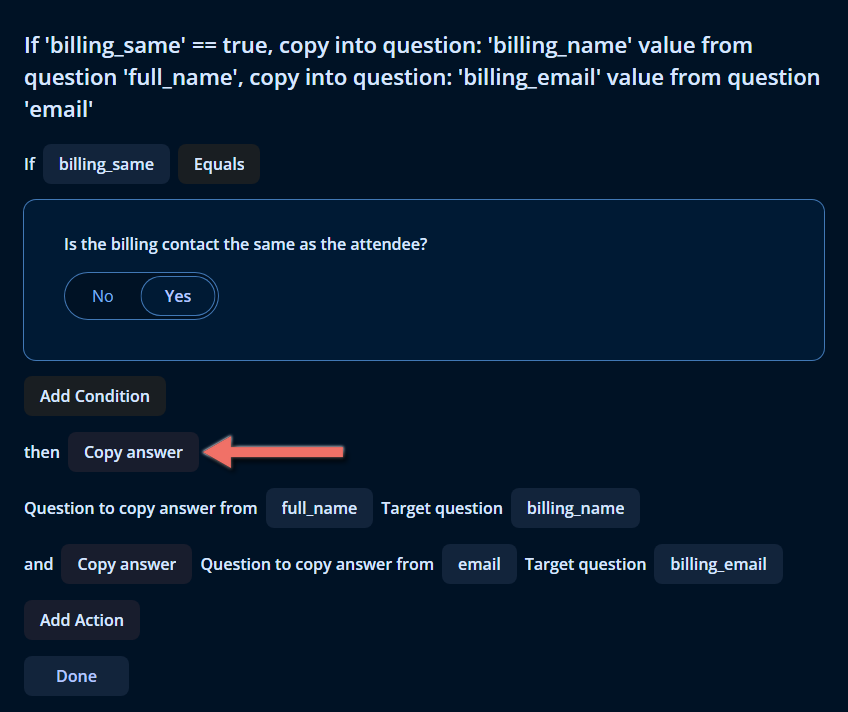
When the respondent answers Yes, both billing fields are filled in. They can still edit them — for example, to use their company's accounts address — and switching the answer back to No leaves the copied details in place.
4. Calculate the Number of Hotel Nights
Add a fourth rule:
-
In the If row, select
arrival_datewith Not empty. -
Click Add Condition, and select
departure_datewith Not empty in the new and row. -
In the then row, choose Run expression, select
hotel_nightsas the Target question, and enter the expression:dateDiff({arrival_date}, {departure_date}, 'days') -
Click Done.
Once both dates are entered, Number of nights shows the difference in days — for example, 3 for arrival on October 14 and departure on October 17. The respondent can change the number, but changing either date calculates it again.
The condition names both dates on purpose. A Run expression trigger runs when an answer in its condition changes, not when a value used only in its expression changes. With just {arrival_date} notempty, changing the departure date wouldn't recalculate the nights.
5. Review the Triggers in the Property Grid
All triggers are also listed in the survey's settings: switch to the Designer tab, click an empty area of the design surface, and click the Conditions icon in the category bar on the right of the Property Grid. Under Triggers, each row shows a trigger's type. Click Show Details (pencil icon) to see its Expression — the condition written in the logic expression syntax — and its other settings.
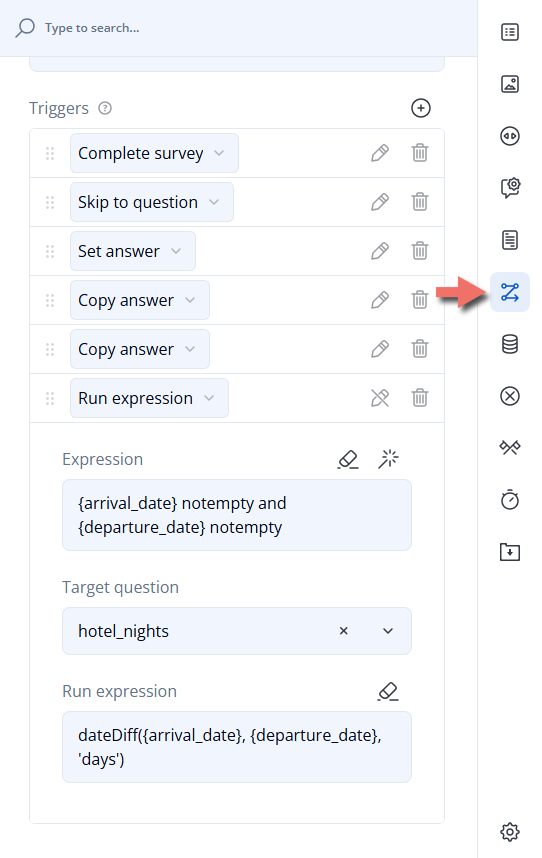
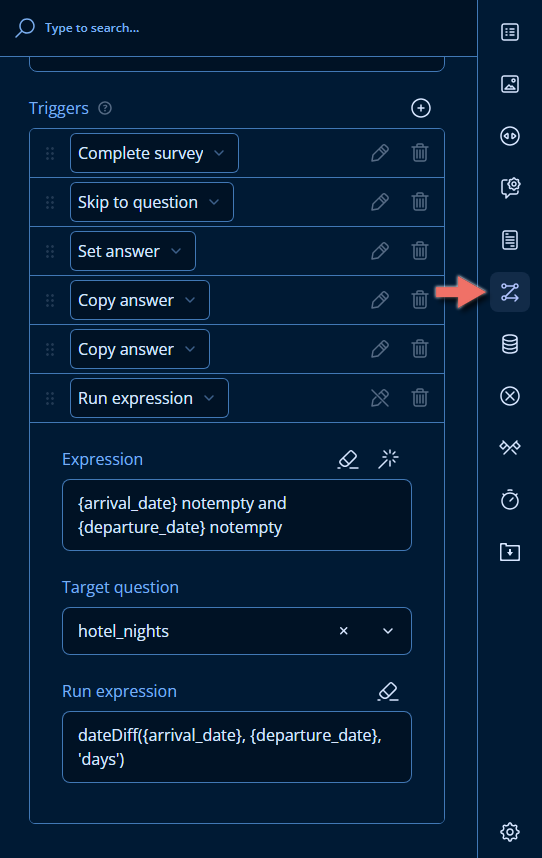
You can add triggers here too: click the + icon next to Triggers, choose the trigger type, and fill in its settings. Drag a trigger by its handle to change the order in which triggers are checked.
In the Logic tab, triggers that share a condition appear as one rule with several actions — together with other actions that use the same condition, such as Set "Thank You" page markup. In the Property Grid, every trigger is listed separately.
6. Test the Form
Open the Preview tab and try each path: select An exhibitor to see the Complete button, choose Online attendance to jump to Pass and sessions, enter hotel dates to see the number of nights, and answer Yes to the billing question. Click Preview Survey Again to start over.
Choosing Between Triggers and Other Logic
Some goals can be reached with a trigger or with a question's own conditions. Use this table to pick the right tool:
| Goal | Use |
|---|---|
| Show a question, panel, or page only to some respondents | Make the question visible if (or the page's or panel's own visibility condition). Hidden pages are skipped automatically, and required questions on visible pages are still checked. |
| Jump past several pages in one step | Skip to question, with the deciding question on its own page |
| End the form early | Complete survey, with a custom Thank You message for that case |
| Suggest an answer the respondent can change | Set answer, Copy answer, or Run expression — or the question's Default value expression if the suggestion is only needed when the question first appears |
| Keep a value always in sync with other answers | A custom variable, an Expression question, or the question's Set value expression |
Important Considerations
- Triggers don't undo their actions. When the condition stops being true, answers that were set, copied, or calculated stay as they are, and the respondent stays on the page they skipped to. In the example, an attendee who switches from Online to In person keeps the Virtual pass until they change it.
- Filled-in answers can be overwritten. Set answer, Copy answer, and Run expression replace the target's answer every time they run — including an answer the respondent typed in themselves.
- Complete survey skips required questions. Questions on later pages are never shown, so they stay unanswered even if they're required. Make sure the submission contains everything you need from respondents who end early.
- Skip to question needs a visible target. If the question to skip to is hidden by its own condition, the respondent isn't moved.
- Triggers are checked in order. When several triggers run on the same change, they run in the order of the Triggers list in the Property Grid.
- Renaming a target question clears a Set answer trigger's answer. Triggers follow a renamed question automatically, but a Set answer trigger loses its Answer when its target question is renamed. Set the answer again after renaming.
Related Documentation
- Logic Expressions — the operators and functions available in trigger conditions and in Run expression.
- Custom Variables — calculate values that stay in sync with the answers.
- Thank You Page — show a different message for respondents who end the form early.
- Validation — check answers before respondents move on.
Technical Reference (JSON Schema)
Triggers are stored in the survey's triggers array, in the order they're checked. The example form's triggers look like this in the JSON Editor:
{
  "title": "Customer Summit Registration",
  "triggers": [
    { "type": "complete", "expression": "{role} = 'exhibitor'" },
    { "type": "skip", "expression": "{attendance} = 'online'", "gotoName": "pass_type" },
    {
      "type": "setvalue",
      "expression": "{attendance} = 'online'",
      "setToName": "pass_type",
      "setValue": "virtual"
    },
    {
      "type": "copyvalue",
      "expression": "{billing_same} = true",
      "setToName": "billing_name",
      "fromName": "full_name"
    },
    {
      "type": "copyvalue",
      "expression": "{billing_same} = true",
      "setToName": "billing_email",
      "fromName": "email"
    },
    {
      "type": "runexpression",
      "expression": "{arrival_date} notempty and {departure_date} notempty",
      "setToName": "hotel_nights",
      "runExpression": "dateDiff({arrival_date}, {departure_date}, 'days')"
    }
  ],
  "completedHtmlOnCondition": [
    {
      "expression": "{role} = 'exhibitor'",
      "html": "<h3>Thank you, {full_name}!</h3>\n<p>Exhibitor registrations are handled by our partnerships team. They'll contact you at {email} within two business days.</p>"
    }
  ]
}
Trigger Properties
| Property | Used by | Description |
|---|---|---|
type | All | The trigger type: "complete" (Complete survey), "skip" (Skip to question), "setvalue" (Set answer), "copyvalue" (Copy answer), or "runexpression" (Run expression). |
expression | All | The condition. The trigger runs when it evaluates to true. A copyvalue trigger without an expression copies the answer every time the source answer changes. |
gotoName | skip | Question to skip to: the name of the target question. |
setToName | setvalue, copyvalue, runexpression | Target question: the name of the question that receives the answer. Optional for runexpression. |
setValue | setvalue | Answer: the value to set, in the target question's format — for example, a choice value or an array of values for a checkbox question. Leave it out to clear the answer. |
isVariable | setvalue | JSON only. When true, setToName names a variable instead of a question. |
fromName | copyvalue | Question to copy answer from: the name of the source question. |
copyDisplayValue | copyvalue | JSON only. When true, copies the text the respondent sees, such as a choice's text, instead of the stored value. |
runExpression | runexpression | Run expression: the expression to calculate. |