Validation
What Is Validation?
Validation checks a respondent's answers before they can move on. A required question left blank, an email address without a domain, a booking reference in the wrong format, or a departure date that comes before the arrival date is flagged with a message on the question, and the respondent can't go to the next page or complete the form until it's fixed.
Catching mistakes while the respondent is still filling out the form is far cheaper than cleaning up the data afterwards: you receive answers you can use, and respondents get a clear explanation of what to correct instead of a rejected submission or a follow-up email.
In Endatix Hub, you set up validation in the Form Builder without writing code. Mark questions as required, add validation rules — a regular expression, a length or number range, or an expression that compares answers — and write the message respondents see when an answer doesn't pass.
How It Works
- Validation runs when the respondent moves on. By default, answers on a page are checked when the respondent clicks Next or Complete. You can check answers as soon as they're entered instead — see Choosing When Validation Runs.
- A failed check blocks progress. The message appears on the question, the question is highlighted, and the cursor moves to the first invalid answer. The respondent stays on the page until every error is fixed.
- Only "Required" checks empty answers. Every other check — a regular expression, a length, a number range — skips a question that has no answer. An optional question with a format rule accepts a blank answer but rejects a wrong one. The exception is the Expression rule, which runs even when its question is empty.
- Built-in checks run before validation rules. A question's rules are evaluated only after its built-in checks pass: the Required check, the question's minimum and maximum values, an incomplete input mask, and the email format check on an Email input.
- Hidden and read-only questions aren't validated. A question hidden by a condition, or made read-only, never blocks the respondent.
- Not every message is an error. A rule can show a Warning or an Informational note instead — the message is displayed, but the respondent can still continue. See Notification Types.
Example: Validating a Conference Registration Form
A conference registration form collects the attendee's details, a booking reference, travel dates, and workshop choices. Each question uses a different kind of validation.
| # | Question type | Question name | Validation |
|---|---|---|---|
| 1 | Single-Line Input | full_name | Required, with a custom error message |
| 2 | Single-Line Input (Input type: Email) | email | Required; email format checked automatically |
| 3 | Single-Line Input | booking_reference | Required; Regex rule for the format ABC-1234 |
| 4 | Single-Line Input (Input type: Number) | attendees | Between 1 and 10, with a custom message above the maximum |
| 5 | Single-Line Input (Input type: Date) | arrival_date | Required |
| 6 | Single-Line Input (Input type: Date) | departure_date | Required; Expression rule: must be after the arrival date |
| 7 | Checkboxes | workshops | No more than two choices |
| 8 | Long Text | accessibility_needs | Text rule: at least 20 characters, shown as a Warning |
1. Make a Question Required
Select the Full name question on the design surface, then click Required (the asterisk icon) on the question's toolbar. You can also select Required in the Property Grid's General category. A required question shows an asterisk (*) after its title.
Without a custom message, respondents see "Response required." To say what's needed and why, open the Validation category and type your own text in Error message for required questions:
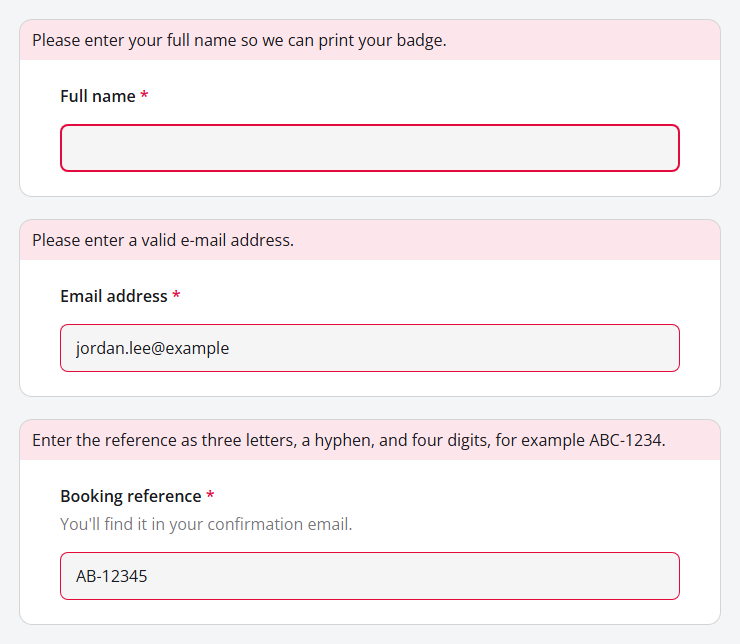
Please enter your full name so we can print your badge.
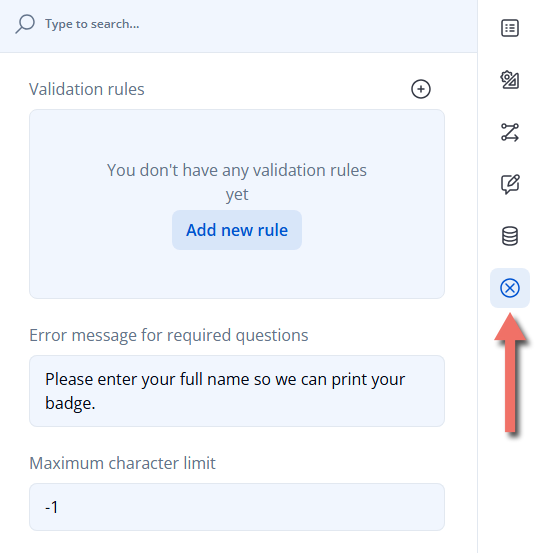
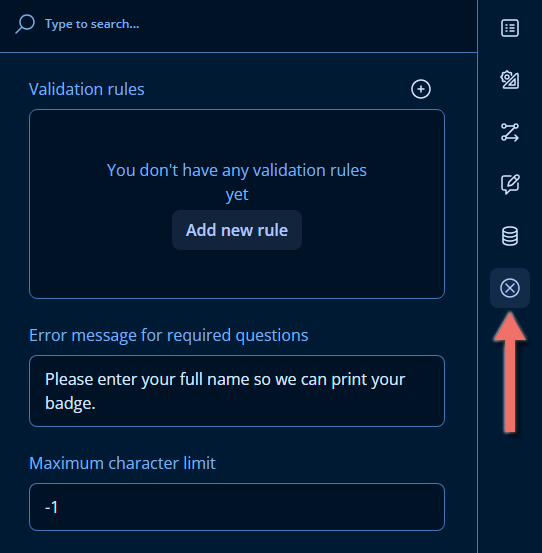
To require an answer only in certain situations — for example, a company name only when the respondent registers as a business — leave Required cleared and set Make the question required if in the Conditions category instead. See Logic Expressions.
When a Single-Line Input's Input type (in the General category) is Email, the question rejects anything that isn't a valid email address, such as jordan.lee@example. You don't need to add a rule for it.
2. Check a Format with a Regular Expression
Booking references always look like ABC-1234: three letters, a hyphen, and four digits. A Regex rule rejects anything else.
- Select the Booking reference question and open the Validation category.
- Under Validation rules, click Add new rule (or the + icon). A new Expression rule is added with its settings expanded.
- Change the rule type from Expression to Regex in the rule's dropdown.
- In Regular expression, enter
^[A-Z]{3}-\d{4}$. - Select Case insensitive so
abc-1234is accepted too. - In Notification message for invalid input, explain the expected format:
Enter the reference as three letters, a hyphen, and four digits, for example ABC-1234.
![Property Grid Validation category for the Booking reference question, showing an expanded Regex rule with the regular expression ^[A-Z]{3}-\d{4}$, Case insensitive selected, a notification message, and Notification type set to Error](/assets/images/validation-regex-rule_light-1b0180dc5d12fb77c903c50839b148d0.png)
![Property Grid Validation category for the Booking reference question, showing an expanded Regex rule with the regular expression ^[A-Z]{3}-\d{4}$, Case insensitive selected, a notification message, and Notification type set to Error](/assets/images/validation-regex-rule_dark-69d47618f0b1e66a5e2444942b542a17.png)
A Regex rule has no default message. Without one, an invalid answer is highlighted in red, but respondents aren't told what's wrong.
See Regular Expressions for pattern syntax and ready-to-use examples.
3. Set a Number Range
A single booking covers between 1 and 10 attendees.
- Select the Number of attendees question. In the General category, set Input type to Number, Min to
1, and Max to10. - Open the Validation category and replace the text in "Value exceeds maximum" error message with:
Group bookings are limited to {0} attendees.
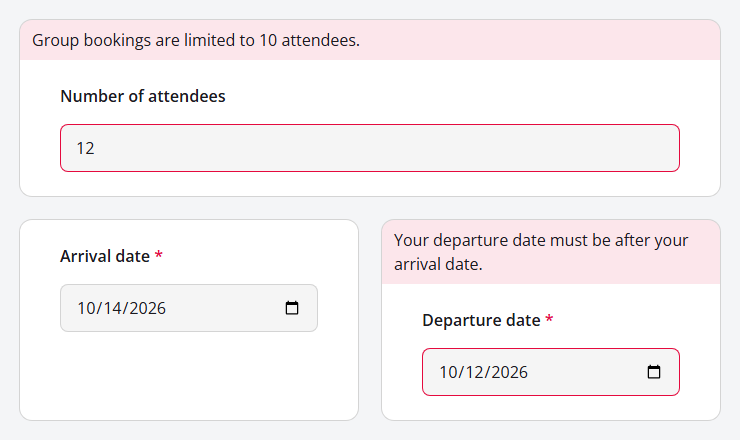
{0} is replaced with the limit, so respondents who enter 12 read "Group bookings are limited to 10 attendees." The message stays correct if you change Max later.
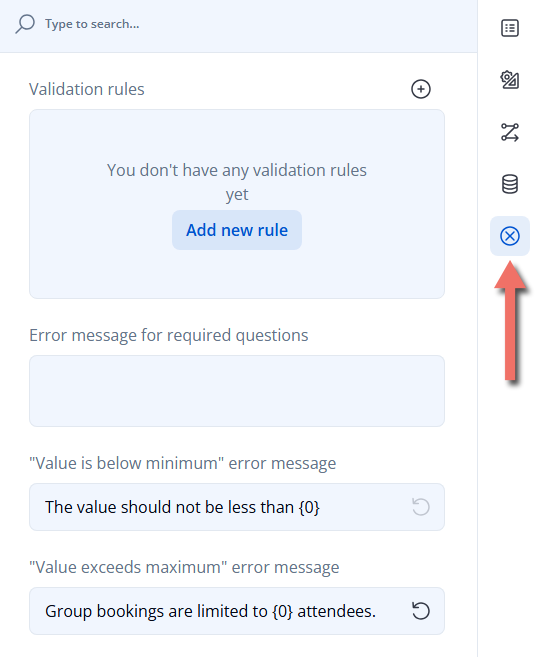
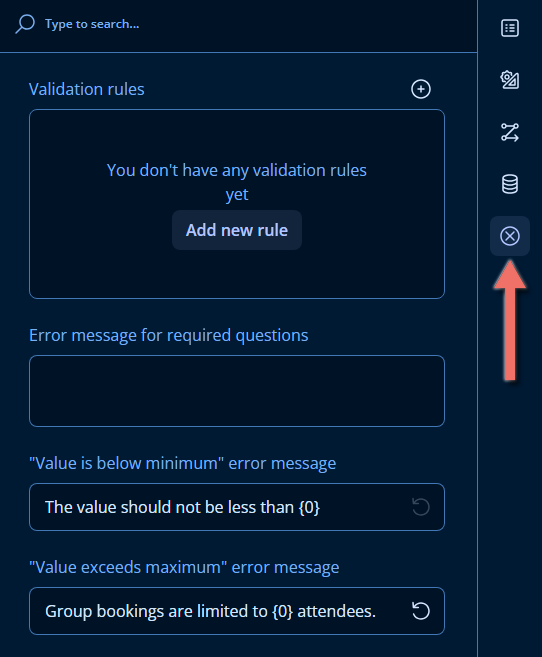
The same Min and Max settings work for dates and times. Set Max on a Date input to a fixed date, or use Max value expression in the Conditions category — for example, today() — to reject dates in the future.
4. Compare Two Answers with an Expression Rule
The departure date must come after the arrival date. Only an Expression rule can check one answer against another.
- Select the Departure date question and open the Validation category.
- Click Add new rule. New rules are Expression rules, so there's no type to change.
- In Valid when, enter the condition the answer must meet. Type it directly or click the magic wand icon to build it in the condition editor:
{arrival_date} empty or {departure_date} > {arrival_date}
- In Notification message for invalid input, enter
Your departure date must be after your arrival date.
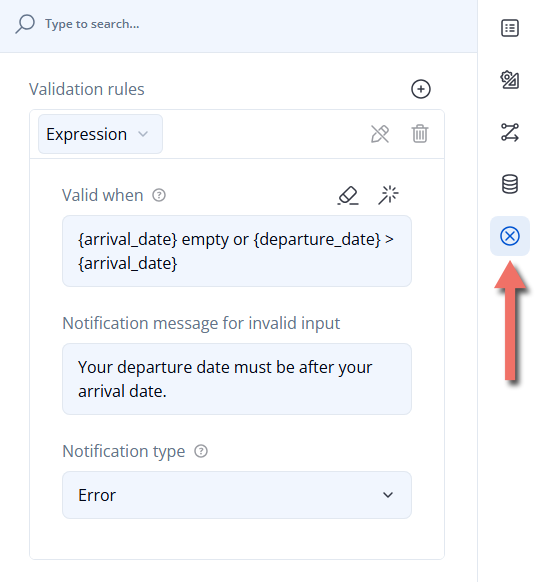
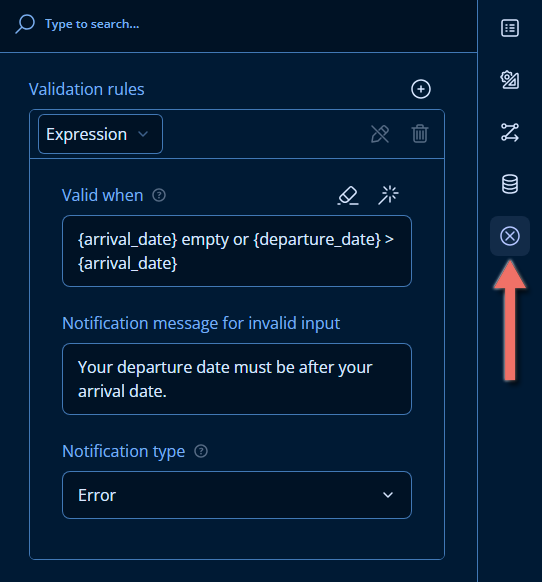
The answer is valid when the expression is true. The {arrival_date} empty or part avoids a misleading message while the arrival date is still blank. See Expression Rules for more examples.
5. Limit the Number of Choices
Attendees can join at most two workshops. Select the Checkboxes question, open Choice Options, and set Maximum choices to select to 2. Once two choices are selected, the remaining ones are disabled until the respondent clears one.
Minimum choices to select works the other way around: selecting too few shows "Please select at least 2 option(s)." when the respondent moves on.
6. Add a Warning Instead of an Error
Short accessibility or dietary notes are often too vague for the venue team, but they shouldn't stop anyone from registering. Select the Long Text question, add a Text rule with Minimum length (in characters) set to 20, write a friendly message, and set Notification type to Warning.
7. Preview the Result
Open the Preview tab, enter some invalid answers, and click Complete. Each question that fails shows its message, and the respondent stays on the page:
When everything looks right, click Save.
Custom Error Messages
Every check has a default message, but a message written for your form tells respondents exactly how to fix their answer. Messages are set in these places:
| Check | Where to set the message |
|---|---|
| Required question | Validation → Error message for required questions |
| Validation rule | The rule's Notification message for invalid input |
| Min and Max (Single-Line Input) | Validation → "Value is below minimum" error message and "Value exceeds maximum" error message |
| Step (Number input) | Validation → "Value does not match step size" error message |
| Other option left empty | Validation → "Empty comment" error message |
| Duplicate entries (Dynamic Matrix, Dynamic Panel) | Validation → Error message for duplicate responses |
A few things to keep in mind when writing messages:
- Say how to fix the answer, not only that it's wrong. "Enter the reference as three letters, a hyphen, and four digits, for example ABC-1234." beats "Invalid format."
- Use
{0}for limits. In the min, max, and step messages,{0}is replaced with the limit that was exceeded. - Messages can use earlier answers. Placeholders such as
{full_name}work in messages the same way they do in titles — see Text Piping. - Messages are translated with the rest of the form. Custom messages appear in the Translations tab next to the question's title and description. See Form Translation.
Default Messages
Without a custom message, respondents see the default text in the form's language:
| Check | Default message (English) |
|---|---|
| Required | Response required. |
| Required panel (no question answered) | Response required: answer at least one question. |
| Email input type, Email rule | Please enter a valid e-mail address. |
| Min / Max | The value should not be less than {0} / The value should not be greater than {0} |
| Text rule | Please enter at least {0} character(s). / Please enter no more than {0} character(s). |
| Text rule with Allow digits cleared | Numbers are not allowed. |
| Number rule | The 'value' should be at least {0} and at most {1} |
| Answer count rule, Minimum choices to select | Please select at least {0} option(s). |
| Expression rule | The expression: {0} should return 'true'. (with the raw expression as {0}) |
| Regex rule | No message |
| Incomplete input mask | Please complete the value to match the required format. |
| Other option left empty | Response required: enter another value. |
| Duplicate entry | This value should be unique. |
The Number default doesn't say which value is meant, the Expression default shows respondents the raw expression, and the Regex rule says nothing at all — write your own message for those rules.
Validation Rules
Rules are added in the Validation rules list of a question's Validation category. A question can have several rules; each one that fails shows its own message. A new rule opens with its settings expanded; to edit an existing rule later, click its pencil icon (Show Details). The trash icon removes a rule.
The rule types offered depend on the question type:
| Rule | Fails when | Settings | Available for |
|---|---|---|---|
| Expression | The expression in Valid when isn't true | Valid when | Every question type |
| Text | The answer is shorter or longer than allowed, or contains digits when they aren't allowed | Minimum length (in characters), Maximum length (in characters) (0 = no limit), Allow digits | Long Text; Single-Line Input with Input type Text, Email, Phone Number, Password, or URL |
| Regex | The answer doesn't match the regular expression | Regular expression, Case insensitive | Same as Text |
| The answer isn't a valid email address | — | Single-Line Input with Input type Email | |
| Number | The answer isn't a number, or is outside the range | Minimum value, Maximum value | Single-Line Input with Input type Number or Range |
| Answer count | Too few or too many choices are selected | Minimum count, Maximum count | Checkboxes, Multi-Select Dropdown, Ranking, Image Picker |
Every rule also has Notification message for invalid input and Notification type.
Several rules overlap with simpler built-in settings: Min and Max instead of a Number rule, the Email input type instead of an Email rule, and Minimum/Maximum choices to select instead of an Answer count rule. Prefer the built-in settings — they also guide the respondent while they answer (for example, by disabling extra choices). Use a rule when you need a Warning or Informational note, or several different messages on the same question.
Notification Types
A rule's Notification type controls how strongly its message is presented:
| Notification type | Appearance | Blocks the respondent? | Use it for |
|---|---|---|---|
| Error (default) | Red | Yes | Answers you can't accept |
| Warning | Orange | No | Answers that are probably a mistake but might be right — an unusually short comment, a very large number |
| Informational | Blue | No | Neutral guidance — for example, "We'll send your badge to this address." |
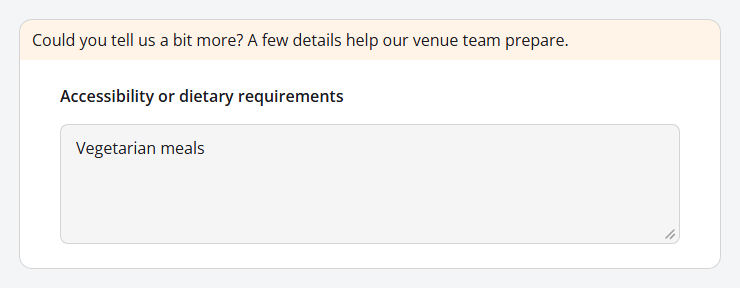
If a question has messages of several types, only the strongest is shown: warnings appear once all errors are fixed, and informational notes once there are no errors or warnings.
Because warnings don't block the respondent, a page without errors moves on as soon as Next or Complete is clicked — before the warning can be read. Set the survey's Run validation option to After an answer is changed (see Choosing When Validation Runs) so warnings and notes appear the moment the respondent leaves the field.
Regular Expressions
A Regex rule compares the answer with a regular expression — a pattern that describes which text is allowed. Endatix forms use standard JavaScript regular expression syntax.
Writing a Pattern
- Anchor the pattern with
^and$.^marks the start of the answer and$the end. Without them, the pattern only has to match somewhere in the answer:\d{4}acceptsabc12345xyzbecause it contains four digits in a row, while^\d{4}$accepts exactly four digits. - Select Case insensitive instead of listing both cases. With it selected,
^[A-Z]{3}$also acceptsabc. - Type backslashes once in the Property Grid. Enter
\din Regular expression. Only in the JSON Editor is each backslash doubled:"regex": "^\\d{4}$". - Keep empty answers in mind. A Regex rule doesn't check a blank answer. Select Required as well if the answer is mandatory.
Common Patterns
| Allow | Regular expression | Accepts |
|---|---|---|
| Exactly six digits (a verification code) | ^\d{6}$ | 048213 |
| US ZIP code, with optional ZIP+4 | ^\d{5}(-\d{4})?$ | 94103, 94103-1208 |
| UK postcode (select Case insensitive) | ^[A-Z]{1,2}\d[A-Z\d]? ?\d[A-Z]{2}$ | SW1A 1AA, m1 1ae |
| International phone number with country code | ^\+[1-9]\d{6,14}$ | +442071838750 |
| Letters, spaces, hyphens, and apostrophes only | ^[A-Za-zÀ-ÖØ-öø-ÿ' -]+$ | Anne-Marie O'Neil |
| No digits anywhere | ^\D*$ | Studio B |
A web address that starts with https:// | ^https://\S+$ | https://endatix.com |
| One of a fixed set of codes | ^(EU|US|APAC)$ | EU, APAC |
Test every pattern in the Preview tab with answers that should pass and answers that should fail before you publish the form.
Regex Rules, Input Masks, and regexMatch
- An input mask (Input Mask Settings → Input mask type) shapes the answer while the respondent types — for example, a phone number pattern that inserts the brackets and hyphens. It suits values with a fixed shape. A Regex rule checks the answer afterwards and suits formats with optional or variable parts.
- The
regexMatchfunction tests a pattern inside an expression. Use it in an Expression rule when the pattern should apply only in some cases — see the conditional phone number example below.
Expression Rules
An Expression rule accepts the answer when its Valid when expression is true. Because it can reference any question, variable, or function, it covers checks that no other rule can. The expression syntax is the same one used for conditions — see Logic Expressions for every operator and function.
| Check | Question the rule is on | Valid when |
|---|---|---|
| The departure date is after the arrival date | departure_date | {arrival_date} empty or {departure_date} > {arrival_date} |
| Both email addresses match | email_confirm | {email_confirm} = {email} |
| The respondent is at least 18 | date_of_birth | age({date_of_birth}) >= 18 |
| Three percentages add up to 100 | budget (Multiple Textboxes) | {budget.marketing} + {budget.sales} + {budget.research} = 100 |
| A UK mobile number format applies only to UK residents | phone | {country} != 'uk' or regexMatch({#phone}, '^(\+44|0)7\d{9}$') |
Keep these points in mind:
- Expression rules run even when the question is empty. Write the expression so that a blank answer passes — or select Required — to avoid an error before the respondent has had a chance to answer.
- Put the rule on the question the respondent should fix. The message appears on the question that owns the rule, and that question is the one the cursor moves to.
- Always write a message. The default message shows the raw expression.
Built-in Checks and Limits
Besides required questions and rules, many question types have validation settings of their own.
Single-Line Input and Long Text
| Setting | Category | What it does |
|---|---|---|
| Input type → Email | General | Rejects values that aren't valid email addresses. |
| Min, Max | General | Reject values outside the range. Available when Input type is Number, Range, Date, Date and Time, Month, Time, or Week. |
| Step | General | For Number inputs, rejects values that aren't a multiple of the step — for example, 0.5 with a step of 1. |
| Min value expression, Max value expression | Conditions | Calculate the limit instead of fixing it — for example, today() to reject future dates. |
| Input mask type | Input Mask Settings | Formats the answer while typing (Pattern, Numeric, Date and Time, Currency) and rejects an incomplete pattern. |
| Maximum character limit | Validation | Stops the respondent from typing beyond the limit and shows a character counter. -1 (the default) uses the survey-level Restrict answer length setting in Question Settings; 0 removes the limit. |
Choice Questions
| Setting | Question types | What it does |
|---|---|---|
| Minimum choices to select | Checkboxes, Multi-Select Dropdown | Shows an error when too few choices are selected. |
| Maximum choices to select | Checkboxes, Multi-Select Dropdown | Disables the remaining choices once the maximum is reached. |
| "Empty comment" error message | Questions with an Other option | The message shown when Other is selected but its text box is empty — the text box is always required. |
Matrices, Panels, and Repeating Questions
| Setting | Question types | What it does |
|---|---|---|
| Require an answer in each row | Single-Select Matrix | Every row must be answered, not only one. |
| Prevent duplicate responses in rows | Single-Select Matrix | No two rows can have the same answer. |
| Required, Prevent duplicate responses, validation rules | Columns of Multi-Select Matrix and Dynamic Matrix | Each column has its own settings, applied to every cell in the column. Cell error message alignment (Layout) sets where cell messages appear. |
| Minimum row count, Maximum row count | Dynamic Matrix | Limit how many rows the respondent can have. |
| Prevent duplicate responses in the following column | Dynamic Matrix | Rejects two rows with the same value in the chosen column. |
| Minimum number of entries, Maximum number of entries | Dynamic Panel | Limit how many entries the respondent can add. |
| Prevent duplicate responses in the following question | Dynamic Panel | Rejects two entries with the same answer to the chosen question. |
| Required on a panel | Panel, Dynamic Panel | At least one question inside must be answered. |
File Upload
In the General category, Maximum file size (in bytes) rejects larger files — 5242880 allows up to 5 MB — and Accepted file categories limits which kinds of files can be selected.
Choosing When Validation Runs
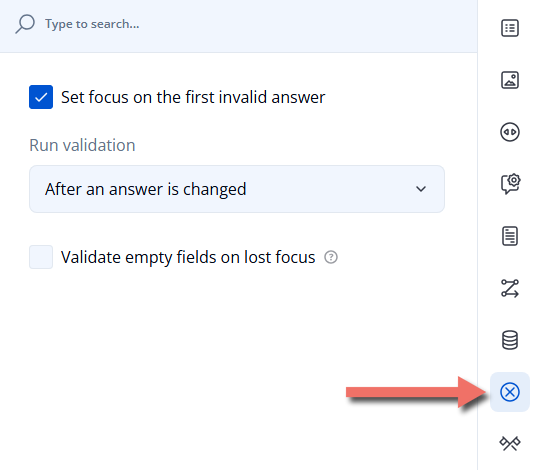
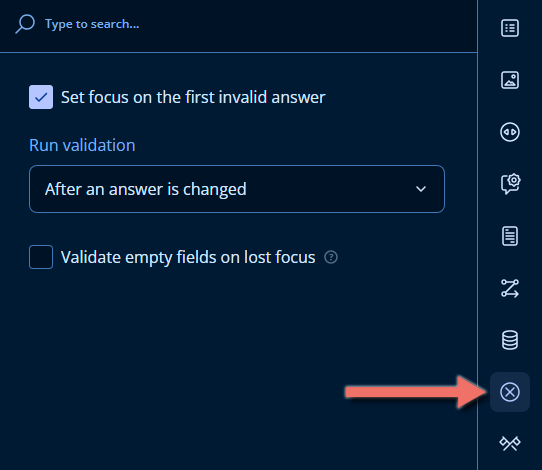
Survey-wide validation settings are in the survey's own Validation category. Click an empty area of the design surface to show the survey's settings, then open Validation:
| Setting | Options |
|---|---|
| Run validation | When switching to the next page (default) — answers on a page are checked when the respondent clicks Next or Complete. After an answer is changed — each answer is checked as soon as it's entered; for text inputs, when the respondent leaves the field. The respondent sees problems immediately. Upon survey completion — the respondent can move freely between pages; everything is checked when they click Complete, and they are taken back to the first page with an error. |
| Validate empty fields on lost focus | Available with After an answer is changed. When selected, leaving a required question empty shows its message right away instead of waiting for Next or Complete. |
| Set focus on the first invalid answer | Selected by default. When validation fails, the cursor moves to the first question with an error. |
Related settings in other categories:
- Data → Update input field values — with While typing, text answers are checked as the respondent types rather than when they leave the field (used together with After an answer is changed).
- Question Settings → Error message alignment — shows messages at the Top (default) or Bottom of each question. Override it for a single question in its Layout category, or for all questions in a panel in the panel's Question Settings.
- Question Settings → Required symbol(s) — the marker after required question titles (
*by default). See Question Settings.
Important Considerations
- Validation runs in the respondent's browser. It guides respondents filling out the form; answers sent directly to the Endatix API aren't checked against the form's validation settings.
- Editing a submission skips validation. Changes made to a submission from its Submission Details page aren't blocked by the form's rules, so incomplete or out-of-range data can be corrected or kept as needed.
- Hidden questions don't block the respondent. If a question is hidden by a condition, its Required setting and rules are ignored. Use this to require an answer only when a question is relevant.
- Allow digits only rejects answers that end with a digit. With Allow digits cleared, a Text rule rejects
Room 12but accepts4th floor. To reject digits anywhere, use a Regex rule with^\D*$. - Keep regular expressions simple. Patterns with nested repetition, such as
(a+)+, can make the form slow to respond on long answers. Anchored patterns with fixed lengths —\d{4}rather than\d+— are both safer and stricter. - Choice questions don't offer Text or Regex rules. Those rules check typed answers; to restrict selections, use the limits described in Choice Questions.
Related Documentation
- Logic Expressions — the operators and functions available in Valid when, Make the question required if, and
regexMatch. - Text Piping — insert earlier answers into messages and titles.
- Question Loops — repeat a set of questions for each selected item using Dynamic Panels.
- Form Translation — translate custom error messages with the rest of the form.
Technical Reference (JSON Schema)
The example form looks like this in the JSON Editor:
{
  "title": "Conference Registration",
  "pages": [
    {
      "name": "registration",
      "elements": [
        {
          "type": "text",
          "name": "full_name",
          "title": "Full name",
          "isRequired": true,
          "requiredErrorText": "Please enter your full name so we can print your badge."
        },
        {
          "type": "text",
          "name": "email",
          "title": "Email address",
          "isRequired": true,
          "inputType": "email"
        },
        {
          "type": "text",
          "name": "booking_reference",
          "title": "Booking reference",
          "description": "You'll find it in your confirmation email.",
          "isRequired": true,
          "validators": [
            {
              "type": "regex",
              "text": "Enter the reference as three letters, a hyphen, and four digits, for example ABC-1234.",
              "regex": "^[A-Z]{3}-\\d{4}$",
              "caseInsensitive": true
            }
          ]
        },
        {
          "type": "text",
          "name": "attendees",
          "title": "Number of attendees",
          "inputType": "number",
          "min": 1,
          "max": 10,
          "maxErrorText": "Group bookings are limited to {0} attendees."
        },
        {
          "type": "text",
          "name": "arrival_date",
          "title": "Arrival date",
          "isRequired": true,
          "inputType": "date"
        },
        {
          "type": "text",
          "name": "departure_date",
          "startWithNewLine": false,
          "title": "Departure date",
          "isRequired": true,
          "inputType": "date",
          "validators": [
            {
              "type": "expression",
              "text": "Your departure date must be after your arrival date.",
              "expression": "{arrival_date} empty or {departure_date} > {arrival_date}"
            }
          ]
        },
        {
          "type": "checkbox",
          "name": "workshops",
          "title": "Which workshops will you attend?",
          "description": "Choose up to two.",
          "choices": [
            { "value": "forms_101", "text": "Form design fundamentals" },
            { "value": "logic", "text": "Logic and expressions" },
            { "value": "analytics", "text": "Analytics dashboards" },
            { "value": "integrations", "text": "Webhooks and integrations" }
          ],
          "maxSelectedChoices": 2
        },
        {
          "type": "comment",
          "name": "accessibility_needs",
          "title": "Accessibility or dietary requirements",
          "validators": [
            {
              "type": "text",
              "notificationType": "warning",
              "text": "Could you tell us a bit more? A few details help our venue team prepare.",
              "minLength": 20
            }
          ]
        }
      ]
    }
  ]
}
Question Properties
| Property | Type | Applies to | Description |
|---|---|---|---|
isRequired | boolean | Questions, panels | Required. Default false. |
requiredIf | string (expression) | Questions, panels | Make the question required if. |
requiredErrorText | string (localizable) | Questions, panels | Error message for required questions. |
validators | array | Questions | Validation rules. See Validation Rule Objects. |
errorLocation | "default" | "top" | "bottom" | Questions | Error message alignment (Layout). "default" inherits the survey setting. |
inputType | string | Single-Line Input (text) | "email" adds the email format check. "number", "range", "date", "datetime-local", "month", "time", and "week" support min and max. |
min, max | number | string | Single-Line Input | Min and Max. Dates use the yyyy-mm-dd format. |
minValueExpression, maxValueExpression | string (expression) | Single-Line Input | Min value expression and Max value expression, such as today(). |
minErrorText, maxErrorText, stepErrorText | string (localizable) | Single-Line Input | Messages for values below min, above max, or off step. {0} is replaced with the limit. |
step | number | Single-Line Input (inputType: "number") | Step. |
maxLength | number | Single-Line Input, Long Text (comment) | Maximum character limit. -1 (default) uses the survey's maxTextLength; 0 means no limit. |
minSelectedChoices, maxSelectedChoices | number | Checkboxes (checkbox), Multi-Select Dropdown (tagbox) | Minimum choices to select and Maximum choices to select. 0 means no limit. |
otherErrorText | string (localizable) | Choice questions | "Empty comment" error message. |
eachRowRequired, eachRowUnique | boolean | Single-Select Matrix (matrix) | Require an answer in each row and Prevent duplicate responses in rows. |
keyName | string | Dynamic Matrix (matrixdynamic), Dynamic Panel (paneldynamic) | The column or question whose value must be unique across rows or entries. |
keyDuplicationError | string (localizable) | Dynamic Matrix, Dynamic Panel | Error message for duplicate responses. |
columns[].isRequired, columns[].isUnique, columns[].validators | boolean, boolean, array | Multi-Select Matrix (matrixdropdown), Dynamic Matrix | Required, unique-value, and rule settings for every cell in a column. |
items[].isRequired, items[].validators | boolean, array | Multiple Textboxes (multipletext) | Required and rule settings for an individual textbox. |
minRowCount, maxRowCount | number | Dynamic Matrix | Minimum row count and Maximum row count. |
minPanelCount, maxPanelCount | number | Dynamic Panel | Minimum number of entries and Maximum number of entries. |
maxSize | number | File Upload (file) | Maximum file size (in bytes). 0 means no limit. |
Validation Rule Objects
Each entry in validators has a type and the properties for that type. All rules share text and notificationType.
type | Property Grid name | Properties |
|---|---|---|
| (all) | — | text (string, localizable) — Notification message for invalid input. notificationType ("error" | "warning" | "info", default "error") — Notification type. |
"expression" | Expression | expression (string) — Valid when. |
"text" | Text | minLength, maxLength (number, default 0 = no limit); allowDigits (boolean, default true). |
"regex" | Regex | regex (string) — escape each backslash in JSON: "^\\d{4}$"; caseInsensitive (boolean, default false). |
"email" | — | |
"numeric" | Number | minValue, maxValue (number). |
"answercount" | Answer count | minCount, maxCount (number). |
Survey Properties
| Property | Type | Default | Description |
|---|---|---|---|
checkErrorsMode | "onNextPage" | "onValueChanged" | "onComplete" | "onNextPage" | Run validation. |
validateVisitedEmptyFields | boolean | false | Validate empty fields on lost focus. Applies when checkErrorsMode is "onValueChanged". |
autoFocusFirstError | boolean | true | Set focus on the first invalid answer. |
textUpdateMode | "onBlur" | "onTyping" | "onBlur" | Update input field values. |
questionErrorLocation | "top" | "bottom" | "top" | Error message alignment. |
requiredMark | string | "*" | Required symbol(s). |
maxTextLength, maxCommentLength | number | 0 | Restrict answer length — the default maxLength for Single-Line Input and Long Text questions — and Restrict comment length — the limit for comment boxes and Other text boxes. 0 means no limit. |
Example — Warning and Informational Notes with Immediate Validation
{
  "checkErrorsMode": "onValueChanged",
  "pages": [
    {
      "name": "page1",
      "elements": [
        {
          "type": "text",
          "name": "attendees",
          "title": "Number of attendees",
          "inputType": "number",
          "min": 1,
          "validators": [
            {
              "type": "numeric",
              "maxValue": 50,
              "notificationType": "warning",
              "text": "That's a large group. Please double-check the number before you continue."
            }
          ]
        },
        {
          "type": "text",
          "name": "email",
          "title": "Email address",
          "inputType": "email",
          "isRequired": true,
          "validators": [
            {
              "type": "expression",
              "expression": "{email} notempty",
              "notificationType": "info",
              "text": "We'll send your badge and invoice to this address."
            }
          ]
        }
      ]
    }
  ]
}
Example — Conditional Pattern with regexMatch
A UK mobile number is required to match its format only when the respondent lives in the UK:
{
  "type": "text",
  "name": "phone",
  "title": "Mobile number",
  "inputType": "tel",
  "validators": [
    {
      "type": "expression",
      "expression": "{country} != 'uk' or regexMatch({#phone}, '^(\\+44|0)7\\d{9}$')",
      "text": "Enter a UK mobile number without spaces, for example 07700900123."
    }
  ]
}