Personalized Forms
A personalized form shows each participant their own values: a greeting with their first name, a question about their own company, a question only for one tier. You build it in the designer with the properties from the form's Audience tab, and check it as any participant before anyone gets a link.
This page needs personalization turned on for your Endatix deployment, a form with at least one property, and permission to edit the form.
Use a property in the form
Each property has a variable name, shown on the Audience tab's Properties view (First name becomes first_name). Use it in braces anywhere the designer takes a variable:
- Text: a title of
Welcome, {first_name}, orHow many people at {company} use the product?. See Text Piping. - Conditions: a Visible if of
{tier} = 'Gold'shows a question only to Gold participants. See Logic Expressions. - Starting answers: a Default value expression of
{company}fills a question with the participant's value, and they can still change it.
The designer already knows the form's properties, so do not add them under Custom variables. Custom variables are for values that come from somewhere else: a parameter in the form's link (see Prefilling and Personalization) or a value calculated in the form (see Custom Variables). A custom variable with the same name as a property gets a warning in Diagnostics.
Preview the form as a participant
The designer's Preview tab can run the form with one participant's values, so you see the greeting, the questions and the conditions the way that person will. Nothing you enter is saved, and no submission is created.
- Open the form in the designer and select the Preview tab.
- Click Preview as in the toolbar below the form.
- Choose a participant. The list starts with None (no values), then the test participants, then real participants, up to 20 in all.
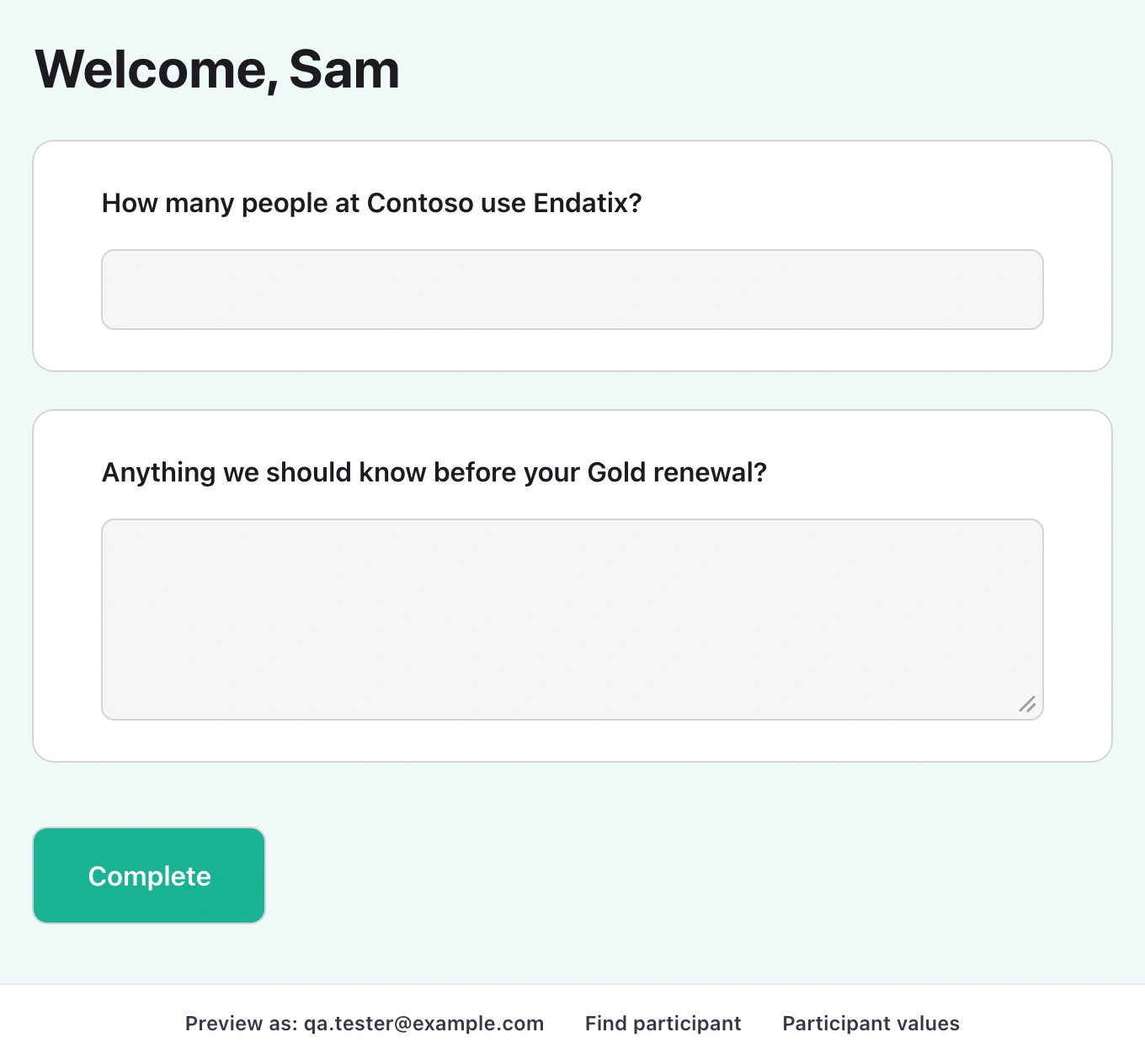
Participant values shows the values the preview uses, read-only. To change a value, use Edit values on the Audience tab; the designer reads the values again when you next open Preview.
The preview uses the form as it is in the designer, including changes you have not saved yet.
Find a participant past the first 20
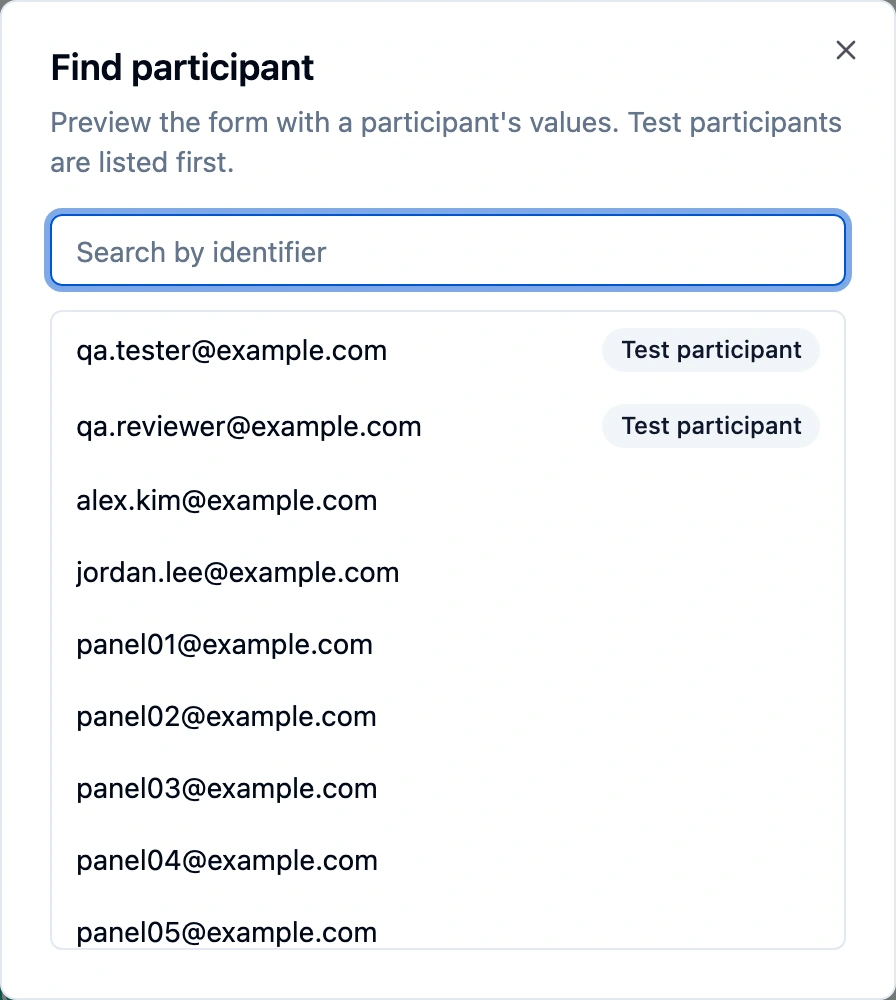
When the form has more than 20 participants, Find participant appears next to Preview as.
- Click Find participant.
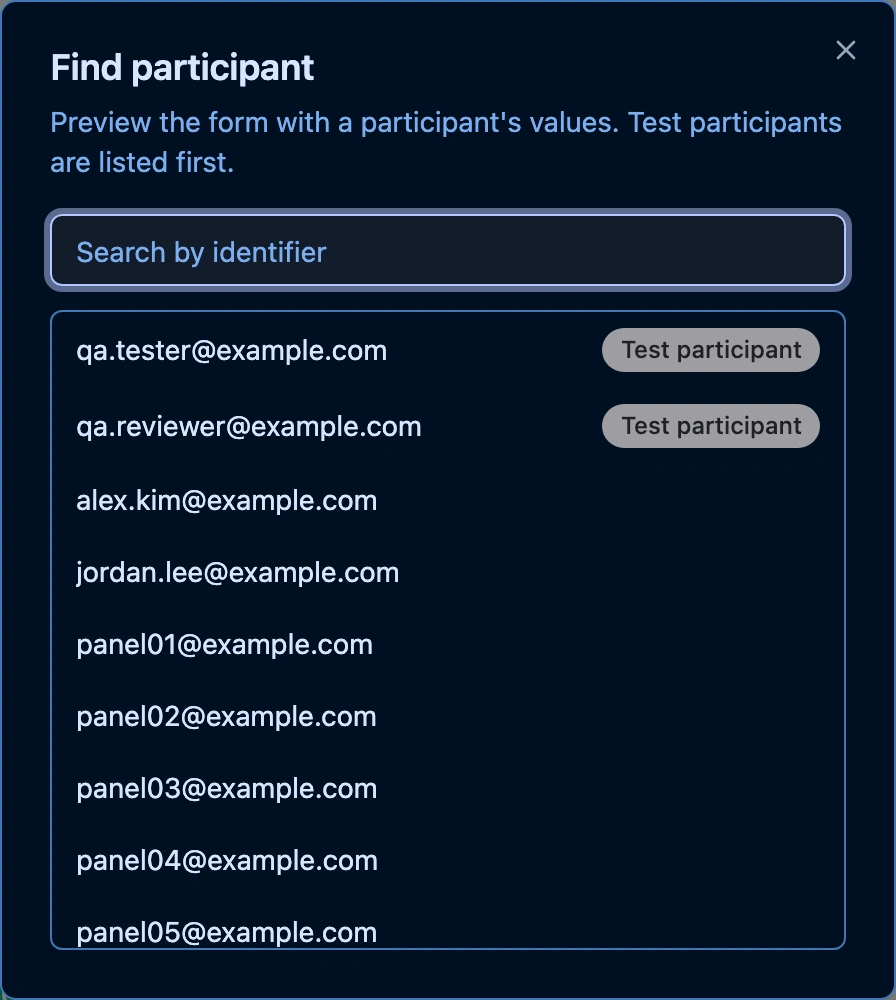
- Type part of an identifier in Search by identifier, or scroll: the list loads more as you go. Test participants come first, marked Test participant.
- Click a participant. The preview runs with their values, and they stay in the Preview as list until you leave the designer.
Fix the Personalization warnings
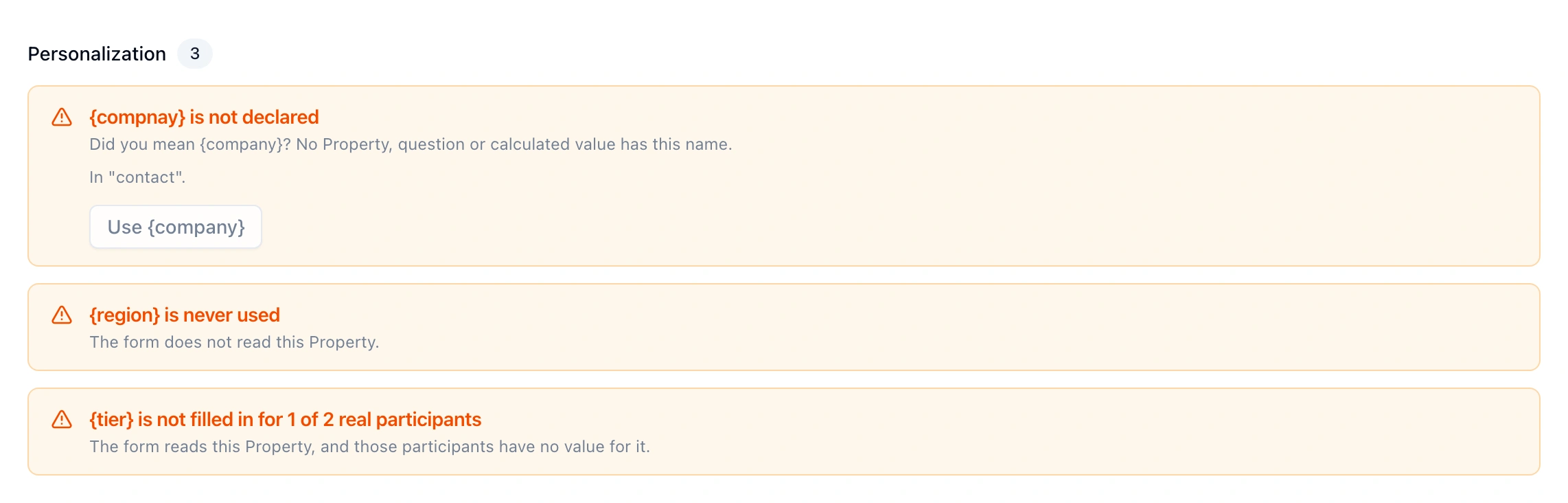
The designer's Diagnostics tab lists Personalization warnings when the form and its properties do not line up. A warning never blocks a save. When the tab bar is too narrow for every tab, for example with the Property Grid open, Diagnostics is under the ... button.
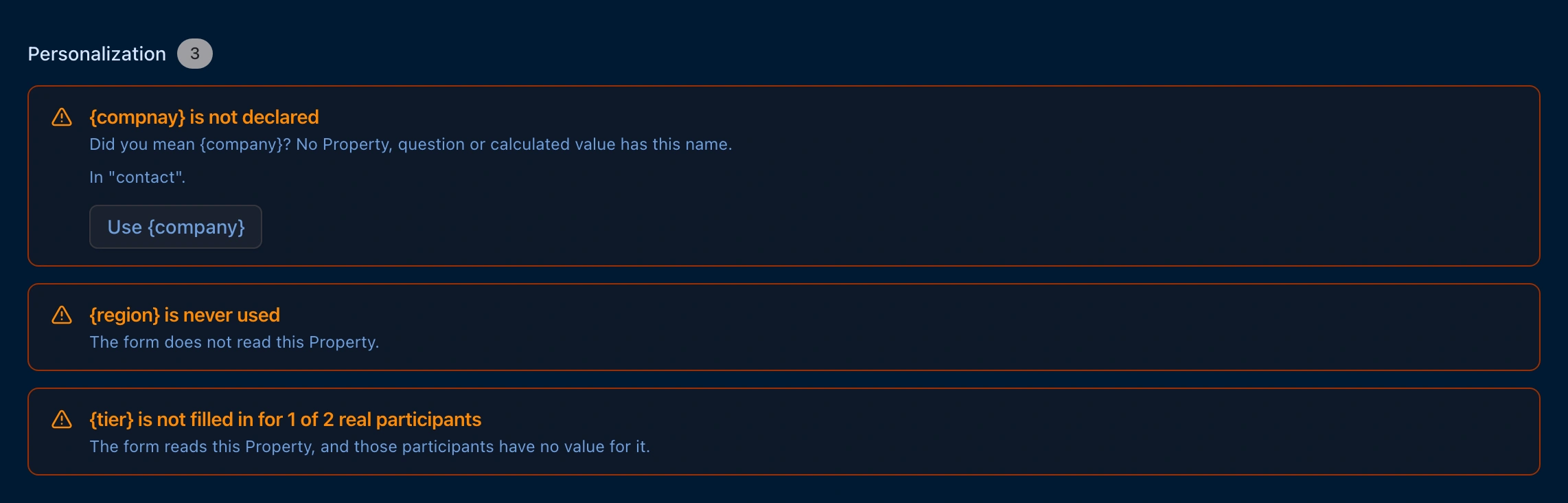
| Warning | What it means | What to do |
|---|---|---|
{name} is not declared | The form uses a name that no property, question or calculated value has, usually a typo. It names the question it is in. | Click Use {suggestion} when it offers the right name, or fix the text yourself. |
{name} is never used | The form never reads that property. | Use it in the form, or leave it if you keep it only for your records. |
{name} is not filled in for N of M real participants | Some real participants have no value, so the form shows that place empty for them. | Fill the values in on the Audience tab, or reword the text so it reads well without one. |
A question (or calculated value) shares its name with the property {name} | The property replaces that question's answer, or the two overwrite each other. | Rename the question or the calculated value. |
The Audience tab shows the same coverage for the saved form: see Check which values the form uses.
Check the saved form on the Audience tab
The designer previews the form you are editing. To see the saved form as participants will get it, and to find anyone on a large form, use Preview as on the Audience tab. From there, Test as this participant opens a real test submission with the same values.
Limitations
- Values are edited on the Audience tab. The designer shows a participant's values but cannot change them, and cannot add a property or a test participant.
- Conditions are not checked against a property's values. Diagnostics does not warn about a condition no participant can meet, such as
{tier} = 'Platinum'when nobody has that tier. - Preview as needs a property and a participant. On a form with neither, the designer's Preview works as before, without Preview as.