Prefilling and Personalization
What Is Prefilling?
Prefilling means a form arrives with some of its values already supplied, based on information you already have about the respondent — a name, an account ID, a plan tier — so they see fewer blank fields and the form feels tailored to them rather than generic.
Endatix supports two ways to pre-fill a form:
- Query string variables (this guide) — values are read directly in the respondent's browser from the link they open, with no backend involved. It's the simplest option and well suited to personalized links in an email campaign or CRM outreach — append the data to the URL, and the form does the rest.
- Access-token prefilling — your backend creates a submission with data it already holds and issues a scoped, expiring access token for it. This relies on the Endatix API and is aimed at developers integrating Endatix server-side; see Form Prefilling and Sharing for details.
The rest of this guide covers query string variables. Beyond prefilling a question, the same variables can:
- Drive logic — show, hide, or branch based on where the respondent came from.
- Personalize text — pipe the value into a question's title or description.
Creating a Variable
Variables are declared in the Form Builder, not on any single question — they belong to the survey as a whole.
- Open your form in the Form Builder and click the Survey settings icon (the sliders icon above the Property Grid) to open Survey Settings.
- Select the Conditions category.
- Under Custom variables, click + Add new variable.
- Give it a short, descriptive Name — letters, numbers, and underscores, unique across the survey. This is the name you'll use in expressions as
{variableName}and match against a query string parameter of the same name. - Leave Expression empty. An empty expression means the variable's value comes entirely from outside the form (the query string) — Endatix Hub never overwrites it with a computed value.
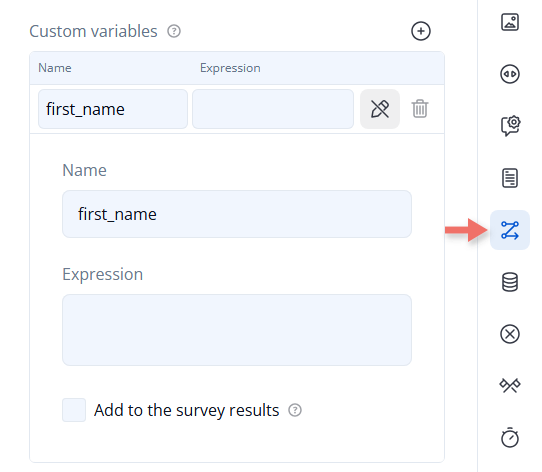
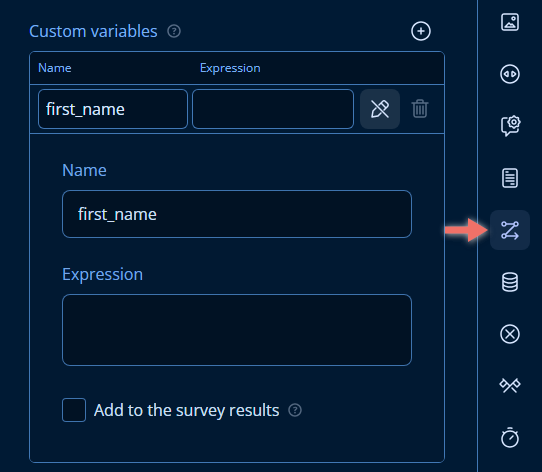
The Add to the survey results checkbox controls whether the variable's current value is written into the submission data (survey.data) alongside the question answers. Enable it if you want to keep a record of, for example, which campaign a respondent arrived from.
Passing Values Through the URL
Once your form is public, its fill-out link looks like:
https://app.endatix.com/share/{formId}
Append query string parameters to that link, and any parameter whose name isn't reserved (see below) becomes a variable in the survey automatically — no code required. Chain multiple values with &:
https://app.endatix.com/share/1442869143157080064?first_name=Jordan&campaign=spring_launch
This link sets two variables: first_name to Jordan and campaign to spring_launch.
A few names are reserved for other platform features and are never turned into variables, even if present in the URL: token, theme, language, and lang. Avoid naming your own variables after these.
Query string values arrive as plain strings. SurveyJS automatically converts a numeric- or boolean-looking value before an expression uses it — the same conversion (and the same edge cases with leading zeros or a leading +) described in Type Conversion in Expressions. Use the {#variableName} form if you need the exact, unconverted text.
The parameters stay in the address bar after the page loads — Endatix Hub doesn't strip them, so the link stays shareable and bookmarkable with the same pre-fill data.
If the form is embedded in your own page rather than opened on its share link, the respondent's URL is yours and Endatix never sees these parameters. Pass the same pairs on the embed snippet's data-prefill attribute instead - see Embedding a Form.
Prefilling a Question
With the variable in place, point a question at it using Default value expression — a standard SurveyJS property available on every question type.
Using a Single-Line Input question as an example:
- Select the question in the Designer (for example, a "First Name" question).
- In the Property Grid, search for default value to jump straight to the field, or find it under the question's Conditions category.
- Set Default value expression to
{first_name}.
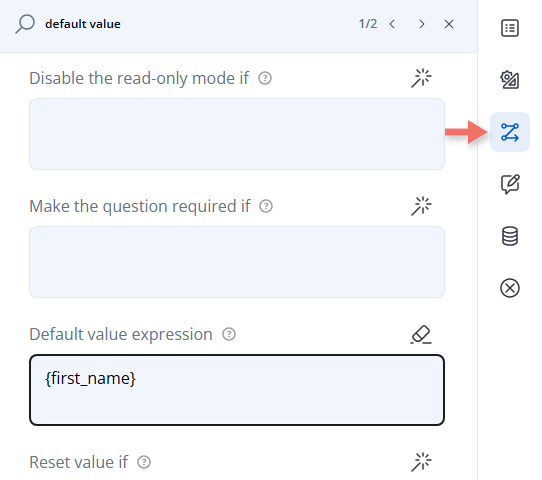
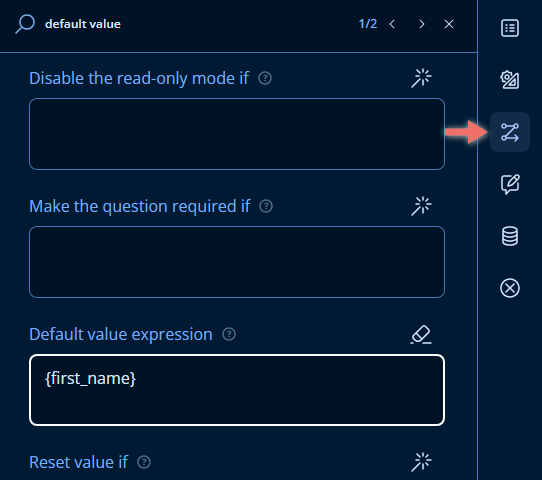
Default value expression only seeds the question's starting value — the respondent can still review and change it. Set value expression keeps recalculating and would silently overwrite anything the respondent types, so avoid it for prefilling. If the query parameter is missing from the URL, the variable is simply empty and the question starts blank — no error.
Respondent Experience
When a respondent opens .../share/{formId}?first_name=Jordan, the First Name field arrives pre-filled and ready to review, edit, or accept as-is:

Using Variables in Logic
A variable behaves exactly like a question or calculated value inside an expression, so it works in any condition Endatix Hub accepts — not just in Default value expression.
For example, show a question only for respondents who arrived through a specific campaign link:
{
  "type": "comment",
  "name": "campaign_feedback",
  "title": "What made you click through from our spring email?",
  "visibleIf": "{campaign} = 'spring_launch'"
}
See Logic Expressions for the full set of operators and functions you can combine a variable with.
Using Variables in Text Piping
A variable can also be piped directly into a question's title or description, personalizing the form's own wording — not just its logic. Reference it the same way, in curly braces. (The same syntax pipes a respondent's earlier answers too — see Text Piping.)
Say a personalized link tells you which brand a respondent is being asked about:
https://app.endatix.com/share/1442869143157080064?brand_name=Spotify
A Rating question can pipe {brand_name} straight into its title:
{
  "type": "rating",
  "name": "brand_rating",
  "title": "How would you rate {brand_name}?"
}
When that respondent opens the link, the title renders with the value already filled in:

Important Considerations
- Reserved names (
token,theme,language,lang) are never captured as variables, regardless of what's in the URL. - A variable with a blank expression stores nothing until a value is set — either by a matching query string parameter or, later, by your own logic (a trigger, another expression). It is not part of the form's respondent-facing UI.
- Query string values are strings first; numeric-looking values are converted the same way question answers are (see Type Conversion in Expressions).
- Variable names must be unique across variables, calculated values, and questions in the same survey.
Related Documentation
- Logic Expressions — the full expression syntax variables participate in.
- Text Piping — pipe earlier answers, not just variables, into titles, descriptions, and choice text.
- Form Prefilling and Sharing — pre-populate an entire submission from your backend using access tokens, instead of query string variables.
- Carry Forward — another way to drive a question's choices from earlier answers.
- Embedding a Form — pass the same variables to a form running inside your own web page.
Technical Reference (JSON Schema)
A variable created through Custom variables is stored on the survey as a calculatedValues entry with no expression — declaring the name without computing a value. Default value expression is a standard SurveyJS question property.
{
  "calculatedValues": [
    { "name": "first_name" },
    { "name": "campaign" }
  ],
  "pages": [
    {
      "name": "page1",
      "elements": [
        {
          "type": "text",
          "name": "attendee_name",
          "title": "First Name",
          "defaultValueExpression": "{first_name}"
        }
      ]
    }
  ]
}
Custom Variable Properties
| Property | Type | Default | Description |
|---|---|---|---|
name | string | — | Required, unique identifier. Reference it in expressions as {name}, and supply it from the URL as ?name=value. |
expression | string | omitted | Omit it (as shown above) to declare a passthrough variable whose value comes only from outside the form. Provide one to compute the value instead — Endatix Hub then recalculates and overwrites it on every value change, the same as any other calculated value. |
includeIntoResult | boolean | false | Set to true (the Property Grid's Add to the survey results checkbox) to save the variable's current value into survey.data with the submission. |
Relevant Question Properties
| Property | Type | Description |
|---|---|---|
defaultValueExpression | expression | Seeds the question's starting value from an expression, such as a variable reference. The respondent can still edit the result. |
setValueExpression | expression | Continuously recalculates the question's value. Avoid for prefilling — it overwrites respondent edits. |