Translating with Microsoft Excel
When managing form translations externally, you may encounter character encoding issues if you open Endatix CSV files directly in Microsoft Excel. This article explains why this happens and provides a step-by-step guide to importing your translation files correctly.
To learn how to export the translation CSV file see Form Translation.
Understanding CSV Encoding
Endatix Hub generates translation files encoded in UTF-8 without BOM (Byte Order Mark). This is a deliberate design choice to ensure maximum compatibility with modern translation management systems (TMS), web applications, and data processing tools.
However, Microsoft Excel historically prioritizes compatibility with legacy systems.
When you double-click a CSV file to open it, Excel often assumes the file uses a localized encoding (such as ANSI or Windows-1252) rather than standard UTF-8.
As a result, specialized characters—such as accented letters, currency symbols, or non-Latin scripts—may appear as garbled text or "unwanted characters" (e.g., é instead of é).
For more information see Microsoft's documentation article about opening UTF-8 CSV files.
Recommended Alternatives
For the smoothest experience, we recommend using a modern spreadsheet application like Google Sheets or LibreOffice Calc. These platforms natively support UTF-8 without BOM and will open Endatix translation files correctly without requiring additional configuration.
How to Import into Excel Correctly
If you prefer to use Microsoft Excel, you must import the data rather than opening the file directly. Follow these steps to ensure your characters render correctly:
- Open Microsoft Excel to a blank workbook.
- Navigate to the Data tab in the ribbon.
- Click on Get Data (or From Text/CSV, depending on your Excel version).
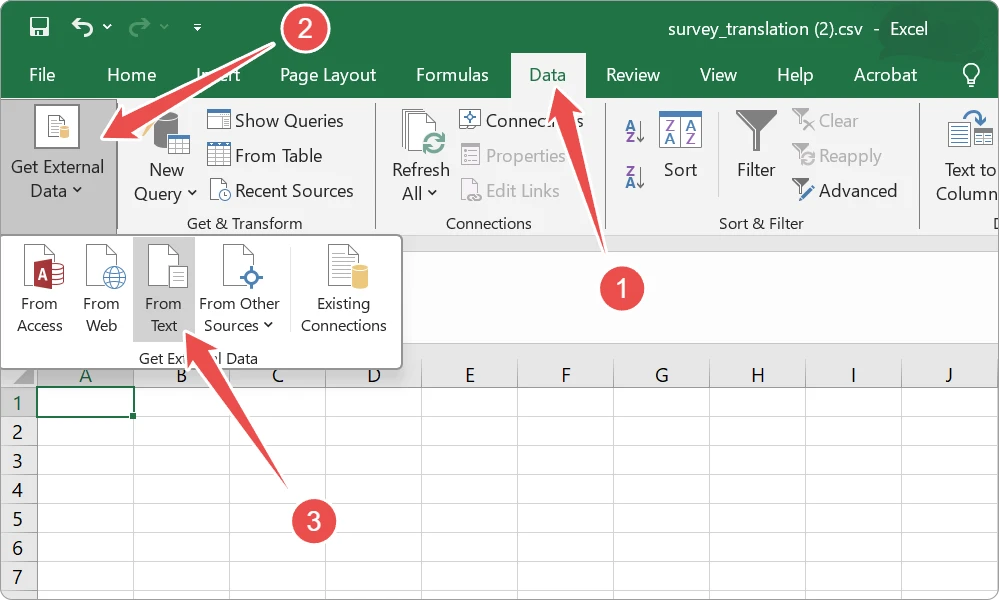
- Select your exported Endatix translation CSV file and click Import.
- In the window that appears, locate the File Origin dropdown.
- Select 65001: Unicode (UTF-8).
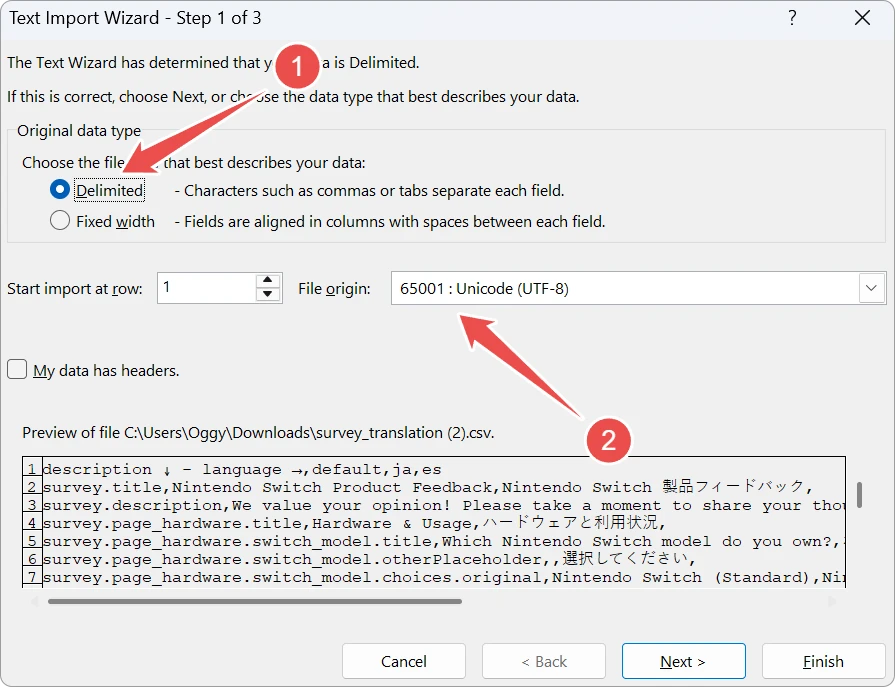
- Ensure that "comma" is selected as the delimiter in Step 2 of the import wizard.
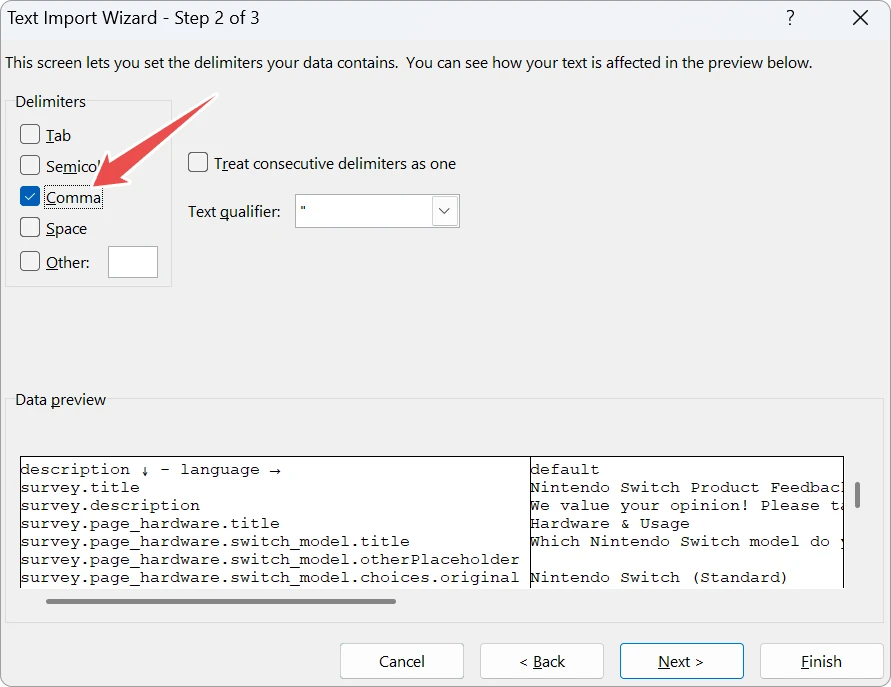
- Verify that the characters in the preview pane look correct.
- Click Load to bring the data into your spreadsheet.
You can now edit your translations safely. When you are finished, save the file as a CSV UTF-8 (Comma delimited) (*.csv) to preserve the encoding when importing it back into Endatix Hub.
When working with the CSV file, do not modify the "Description" column or any of the column headers. Endatix uses these keys to map the translations back to the correct questions and properties. Changing them will break the link between your translation and the form element.