Run a personalized survey
A research team surveys a known panel: customers, employees, or members. Each person should get their own link, see questions that use their own name or company, and come back to the same response if they open the link again, while the team tries the survey without its test answers ending up in the results.
You finish with a file of personal links ready to send, a Link status for every person on the form, and an export that holds only real responses.
Before you start
- Personalization is on for your Endatix deployment. Ask whoever runs it if a form has no Audience tab. The setup is on Hub Environment.
- Permission to edit the form. The coverage counts and participant pages need it.
- Permission to test forms, for Test as this participant.
- A list of your people as a CSV, with one row per person, a column that identifies each person (for example their email), and one column per fact you want to use.
Turn on personalization
Personalization is turned on for the whole deployment, not per form. To check, open the form from the Forms list, click the section menu next to the form name (it shows Overview), and choose Audience. If the menu has no Audience, ask whoever runs your Endatix deployment to turn personalization on.
Add properties and import the audience
- On the Properties view, add one property for each fact the form will use, such as
First nameandCompany. Note each variable name (first_name,company): the form uses it. - On the People view, click Import CSV, choose the column that identifies people, and map each other column to a property.
Import the real panel as real people. Add one or two test people with the values you want to try, either with Add person and Add as test person, or with a second import that has Import as test people on. A person's test status cannot change later.
See Audience for each field and for how imports treat people already on the form.
Use the properties in the form and check coverage
- In the designer, put the variable names in braces wherever the form should show a person's value: a title of
Welcome, {first_name}, or a question that asks about{company}. See Text Piping for where they work. - Save the form.
- Back on the Audience tab, open the Properties view.
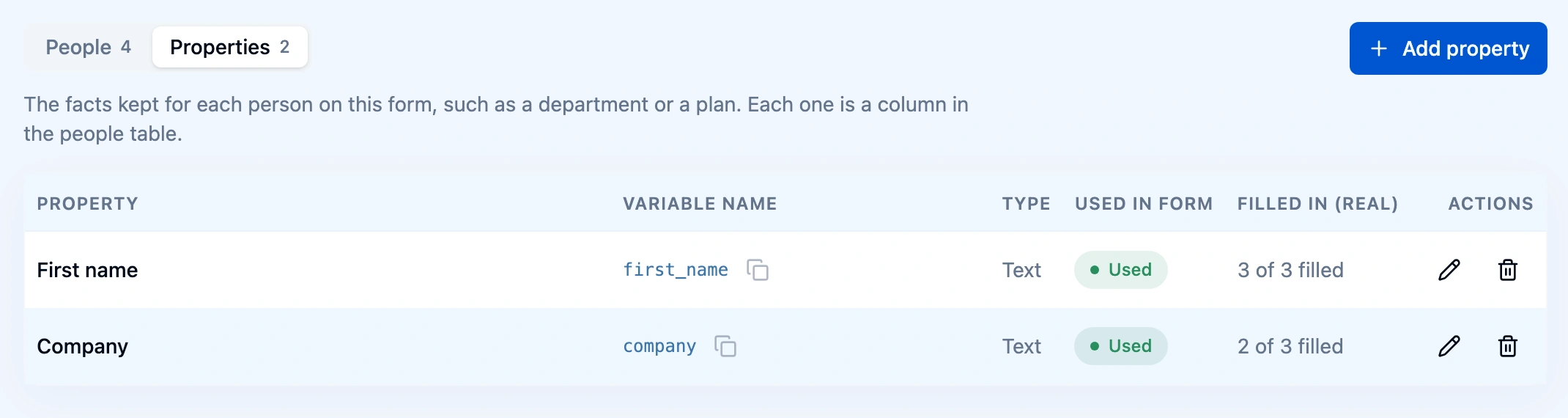
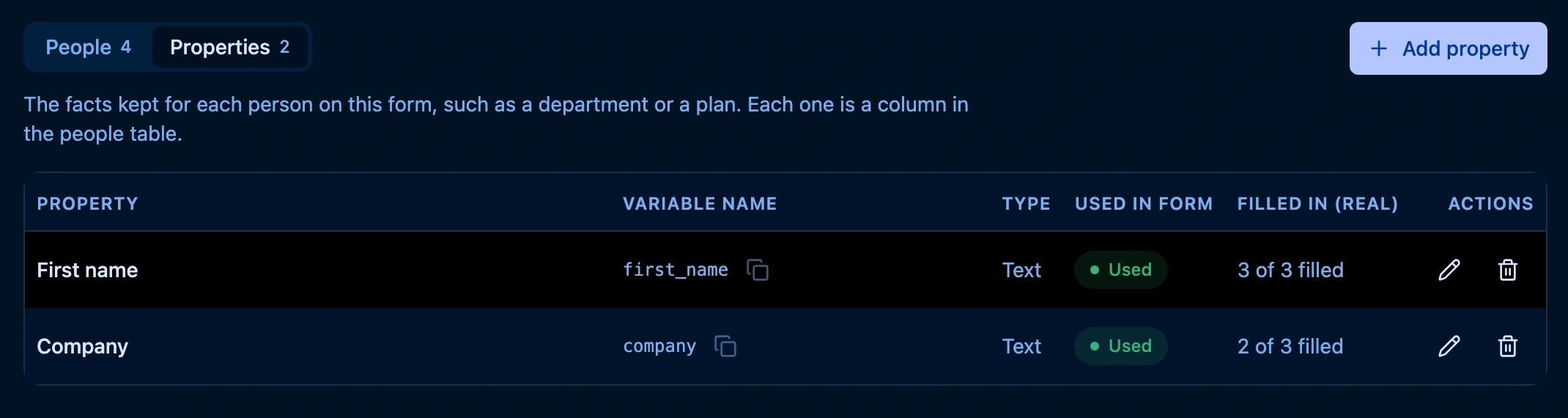
Decide what to do with each gap before you send links:
- Not used: the form never reads that property. Fix the variable name in the designer, or leave it if the property is only for your records.
- Fewer than all filled: some real people have no value, and the form shows those places empty for them. On the People view, the N not filled in mark names who. Fill the values in with Edit, or reword the question so it still reads well without one.
A response starts with the person's values as they are when their link is first opened, so finish the values first. See Check which values the form uses.
Test as a participant and use Start over
- On the People view, click the flask icon (Test as this person) in a test person's row, or Test as this participant on their page. The form opens in a new tab as that person.
- Check the greeting and questions read correctly with their values, and answer as they would.
- After you change the form or the person's values, click Start over in the Test inspector, the TEST button at the bottom right. It opens a new test submission with the latest form and values.
Each test is a test submission: it never uses a real person's link and stays out of exports unless you ask for it. See Testing Submissions for the Test inspector and Start over.
Generate and share personalized links
First decide who can open the form:
- Public: best for a panel. Each person's link opens their own response without signing in.
- Private, the default for new forms: a link shows Sign in required to anyone who is not signed in to your Endatix workspace.
Change it with the Visibility switch on the form's Overview. See Visibility (Public / Private).
Then make the links:
- On the People view, click Personalised links.
- Click Generate and download. Hub downloads a CSV with each person's email and link.
- Send each link from your own email or panel tool.
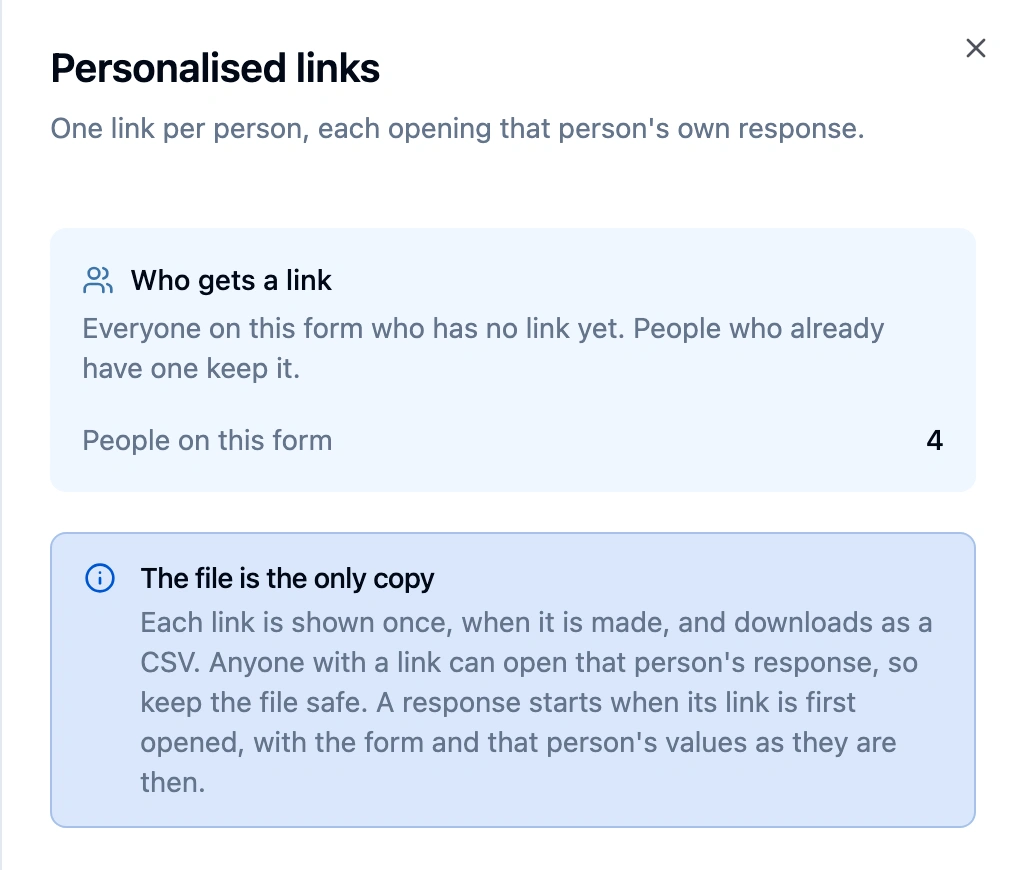
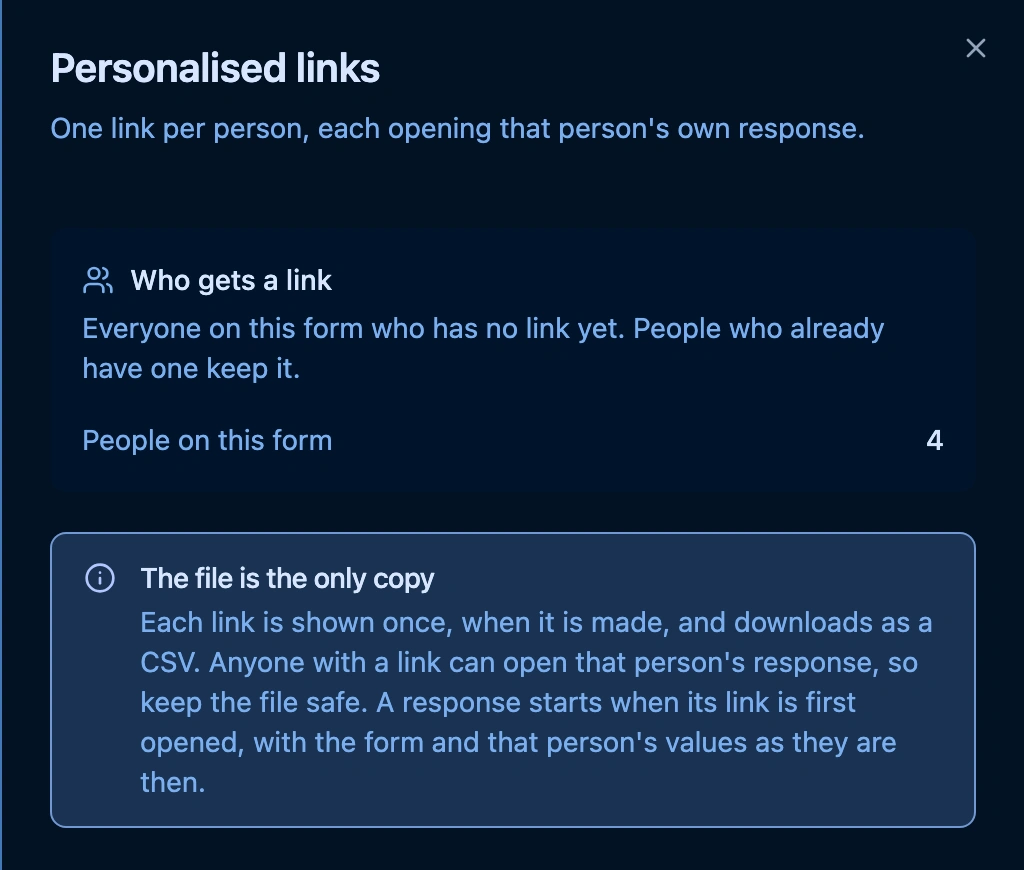
Keep the file safe: Hub shows each link only once, and anyone with a link can open that person's response. Test people never get a link. People who already have one keep it, so after you add more people, click Personalised links again to make links for the new ones only.
Follow link status and open participant pages
On the People view, the Link column shows each real person's link as Not issued, Issued, or Opened. Click Opened to see the response that link started.
Click a person's identifier to open their page: their values, their link with when it was opened, and their submissions on this form. Use it to answer "did this person get and open their link?" without searching the Submissions page. See Open a participant's page.
Export the real submissions without the test ones
- Open the form's Submissions page.
- Set the Submission Type filter to Production. The grid hides test submissions.
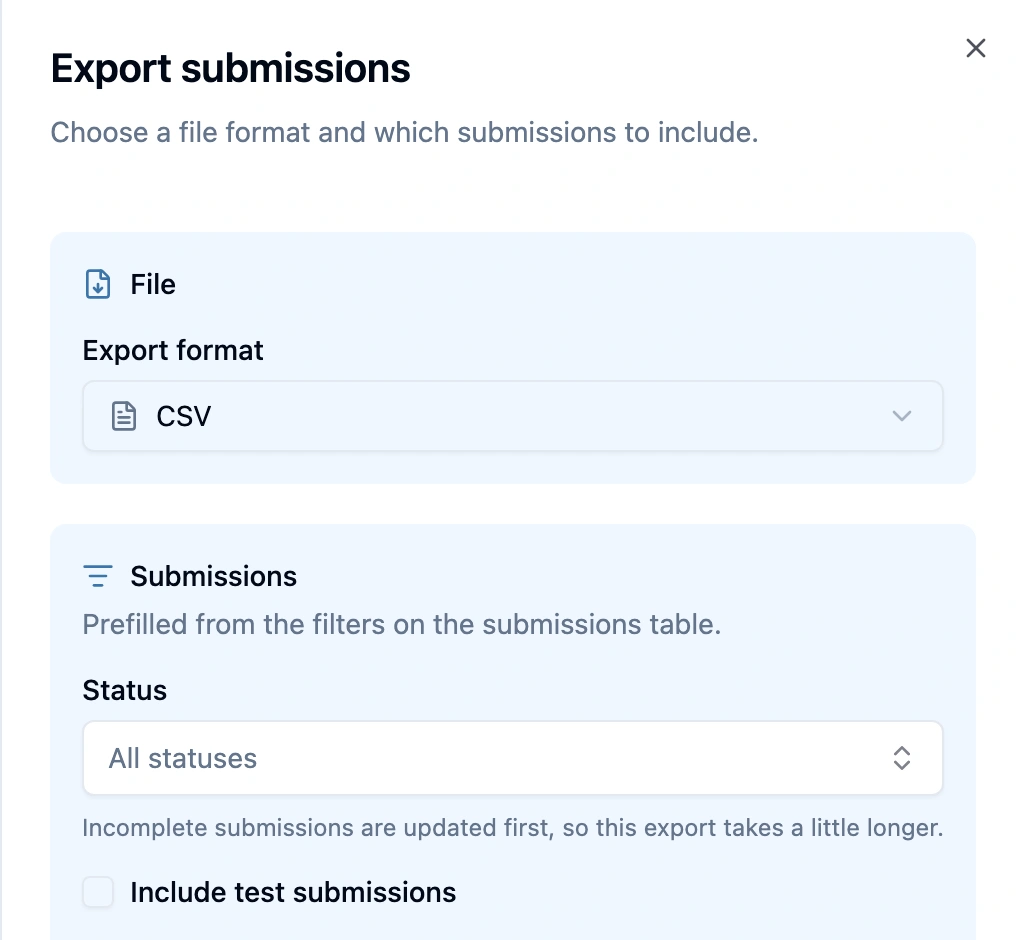
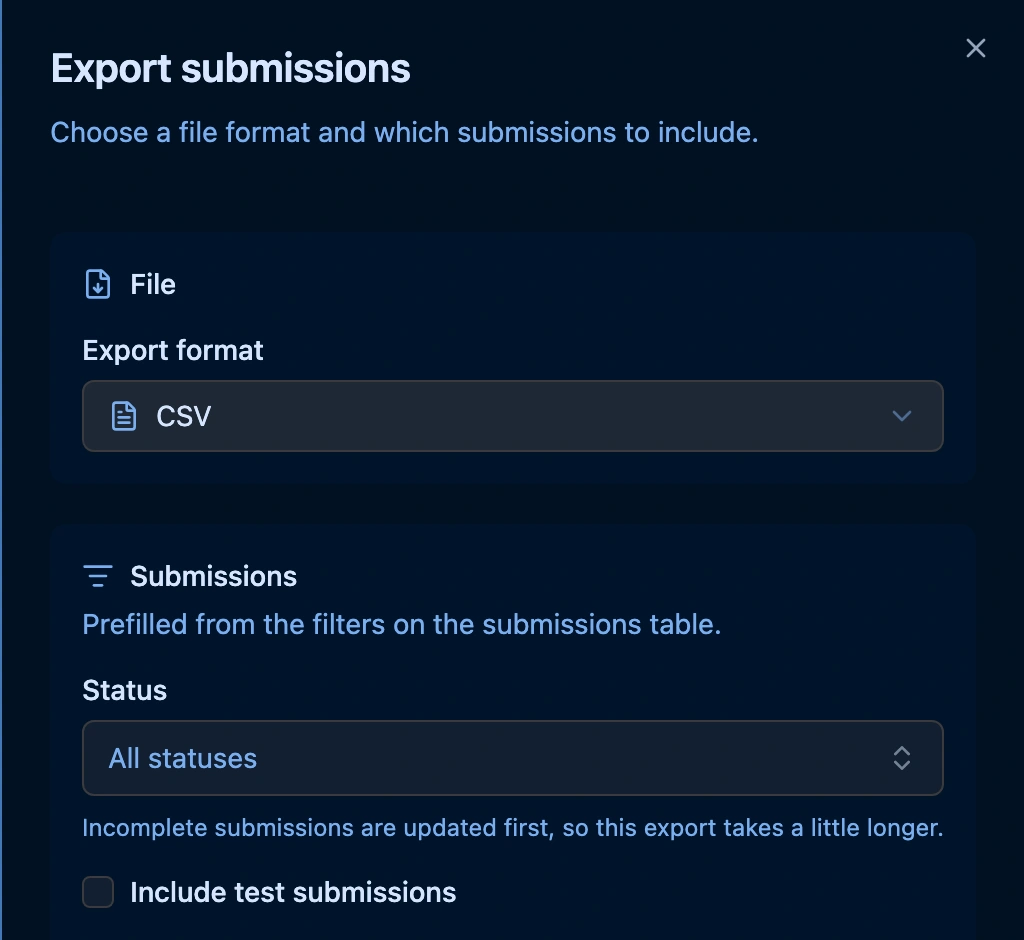
- Click Export Submissions. The panel copies the filter, so Include test submissions is off.
- Choose the Export format and click Export.
See Keep test submissions out of exports and Exporting Submissions.
Done when
- The Properties view shows Used for every property the form needs, and each Filled in (real) count is one you accept.
- A test person's form shows their own values, and your test submissions show under Submission Type: Test.
- Every real person reads Issued or Opened in the Link column, and the CSV of links is stored safely.
- Your export has one row per real response and no test submissions.
Limitations
- Links on a private form need a sign-in. A respondent without an account in your workspace cannot open their link until the form is public.
- Links are shown once. Hub keeps no copy you can download again, and a person who has a link does not get a new one.
- Testing happens in your own browser. Test as this participant opens the form for you; there is no link to send a colleague to test as someone.
- Values are fixed when a link is first opened. Editing a person afterwards does not change a response they already started.
- No Test inspector in embeds. An embedded form shows the plain test notice with Start over.