Visibility (Public / Private)
Every Endatix form is either public or private. The setting is called Visibility and it answers one question: does a respondent have to sign in before they can open the form?
New forms are created private.
| Public | Private | |
|---|---|---|
| Who can open it | Anyone with the link | Signed-in users in your workspace |
| Sign-in required | No | Yes |
| Respondent needs an account | No | Yes |
| Limit one per user available | No | Yes |
Public forms
Anyone who has the URL can open a public form and submit a response. There is no sign-in step and no account - the link is the access control. If the link is forwarded, posted on a page, or picked up by a search engine, whoever holds it can respond.
Get the link from Form Overview:
- Open the form from the Forms list.
- Choose Share.
- On the Share link tab, copy the Public share link.
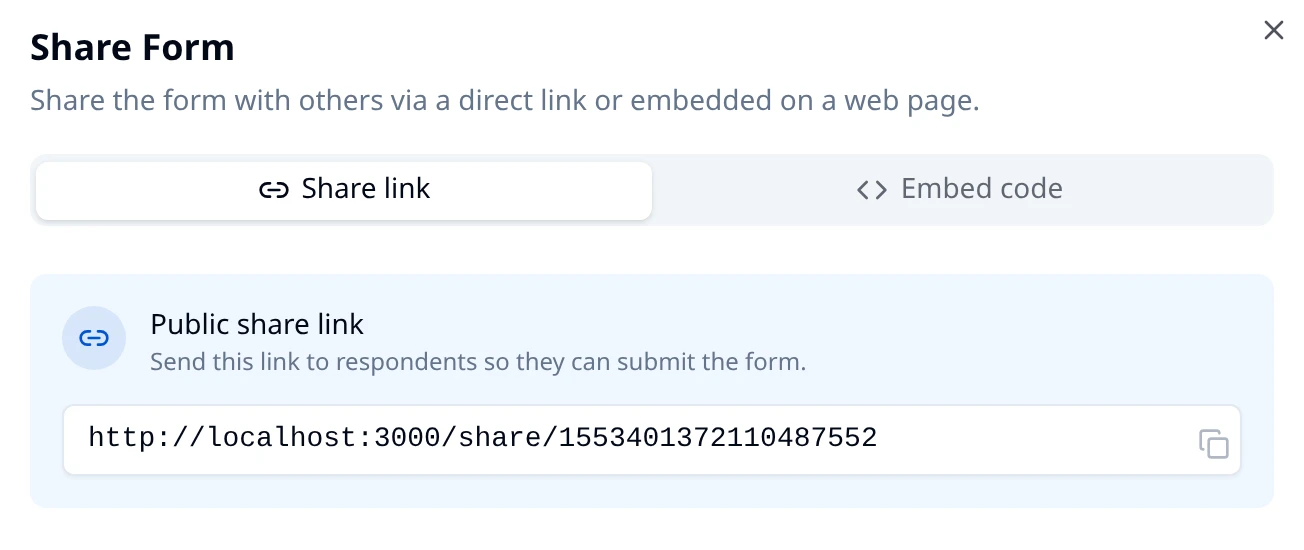
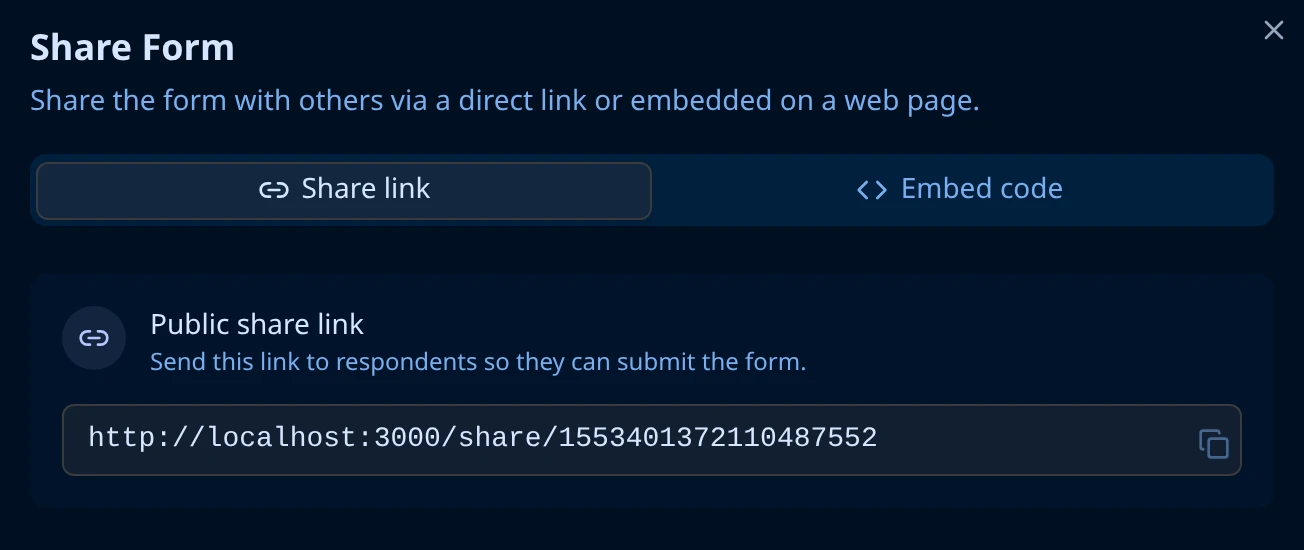
The link has the shape https://<your-hub>/share/<formId>. The Embed code tab of the same dialog gives you a <script> tag that renders the form inside your own page - see Embedding a Form.
Anyone who already copied the URL keeps it. Switching the form to private later closes the link for them, but it does not remove responses they already submitted.
Private forms
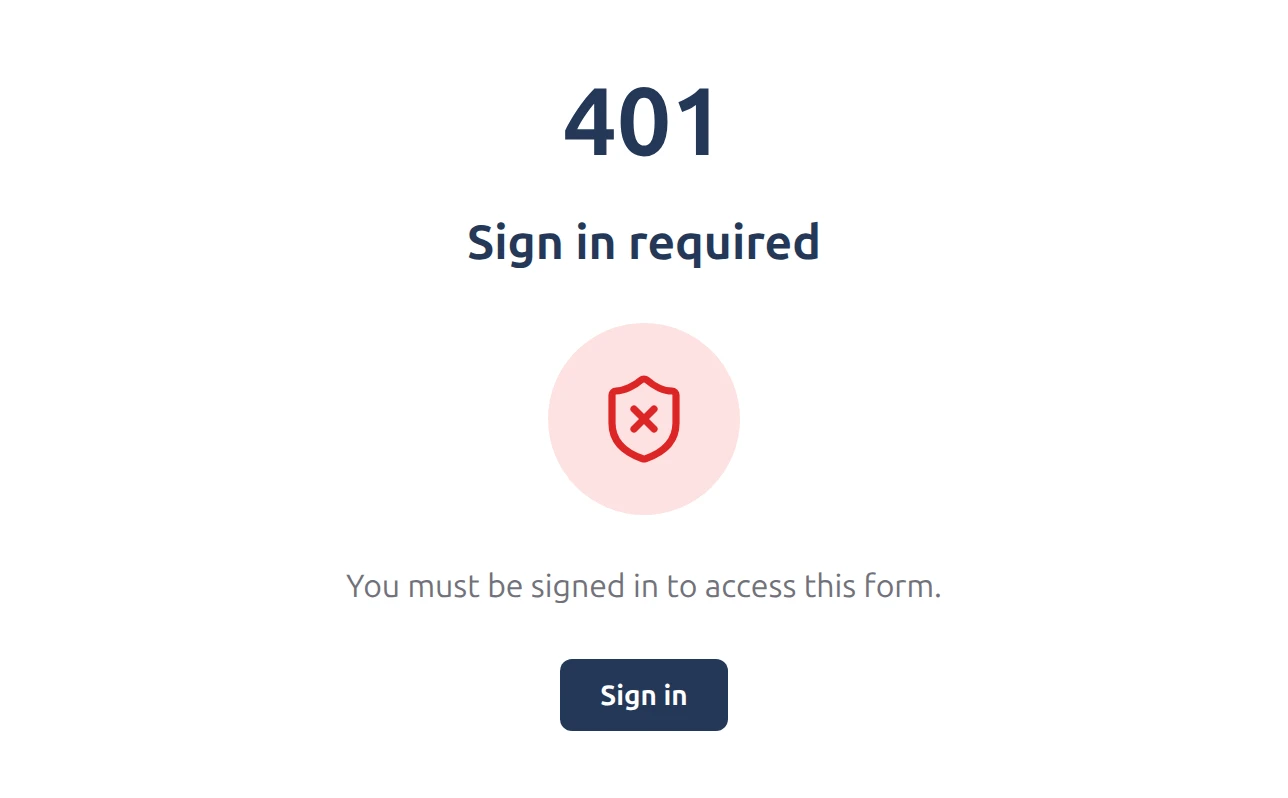
A private form asks the respondent to authenticate. A visitor who is not signed in gets 401 - Sign in required, with a Sign in link that returns them to the form once they authenticate. The same wall appears inside the frame when a private form is embedded in another site.
Permissions
Being signed in is not always enough. Endatix checks two permissions, and they control different things:
Granted automatically to every signed-in user - no role assignment needed. Someone signed in to a different workspace does not have it for your forms and gets 403 - Access denied.
Comes from the respondent's role. Without it the form still opens and every question is readable, but the respondent cannot submit.
How the default roles land:
| Role | Opens a private form | Submits a response |
|---|---|---|
| Admin, PlatformAdmin | Yes | Yes - these roles pass every permission check |
| Creator | Yes | Yes |
| Respondent | Yes | Yes |
| Signed in, no other role | Yes | No - the form is read-only |
Respondent is the role for people who should fill in private forms but have no business in Hub: it carries submissions.create and no Hub access. It is also the default role a new tenant assigns on self-registration, so people who create their own account can answer private forms without being able to open Hub.
Custom roles work the same way - add submissions.create to any role whose members need to respond. The full list is in the API Permissions Reference.
Switch a form between public and private
- Open the form from the Forms list to reach Form Overview.
- Find the Visibility row.
- Turn the switch on for Public (globe) or off for Private (lock).
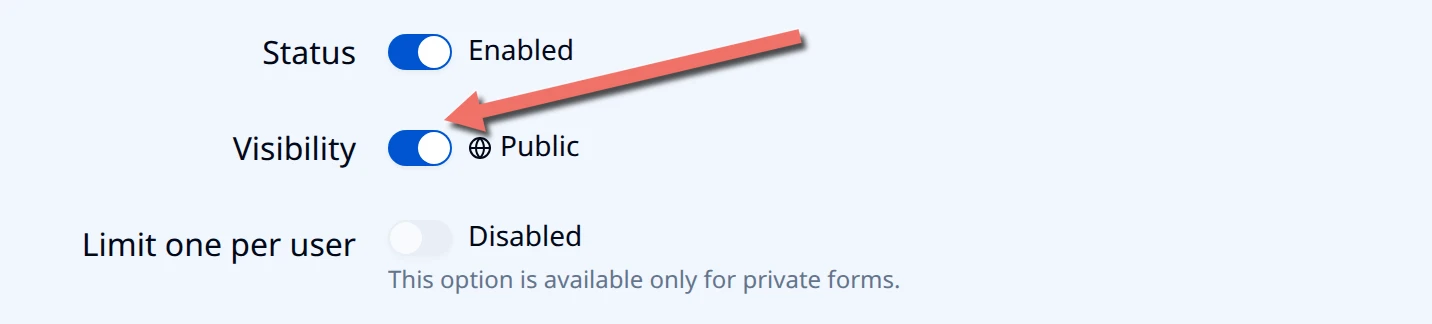
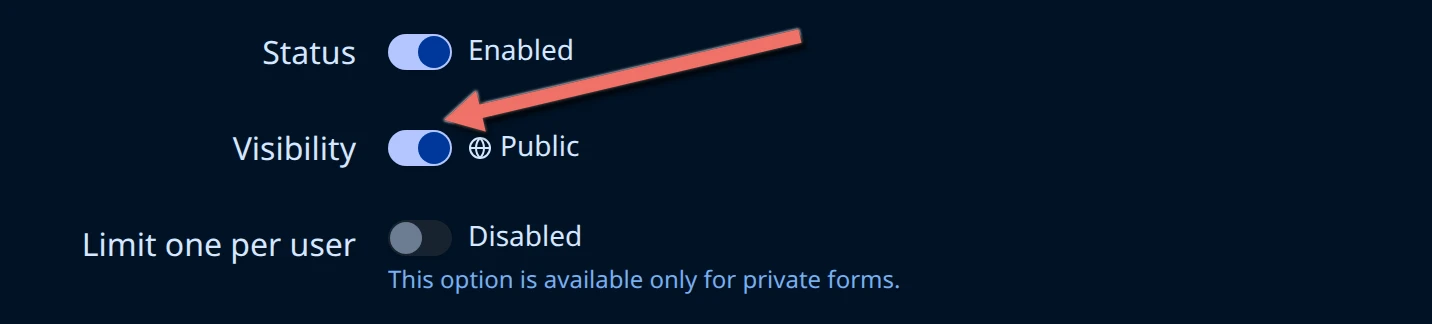
There is no save step - the change is stored as soon as you flip the switch, and a toast confirms Form is now public or Form is now private.
Switching after the form has started collecting
You can flip Visibility at any point in a form's life, including after it has collected submissions. Nothing about the form's past is rewritten:
- Submissions already collected stay exactly as they are. Making a form private does not hide, delete, or re-attribute them.
- The URL does not change.
/share/<formId>is the same address before and after. Going public re-opens that address to everyone; going private closes it to anyone who is not signed in. - The change applies immediately, to the next person who opens the link.
Use this to run a form in phases - collect internally from signed-in staff first, then publish the same link publicly once the questions settle.
Visibility is re-checked when a response is saved, not only when the form is opened. An anonymous respondent who already had a public form open can keep answering, but their save is rejected once the form turns private. Switch to private at a quiet moment, or expect to lose answers that were in progress.
Limit one per user (one response per person) only works on a private form, because it needs a signed-in identity to count against. Turning it on is permanent, and while it is on the Visibility switch is disabled with the tooltip Visibility cannot be changed while "one response per person" is enabled. A form with that setting turned on can never be made public. See One Response Per Person.
Find forms by visibility
The Forms list has a Visibility filter with All visibility, Public, and Private. Each form card also carries a Public or Private badge, so you can check the setting without opening the form.