Exporting Submissions
Download a file of a form's responses — CSV, Excel, or JSON — or a codebook that describes the form's questions without any response data. The export panel opens from the Submissions grid and starts with that grid's filters already filled in. On a wide screen it slides in from the side; on a narrow screen it opens from the bottom.
Some workspaces still show Export Submissions as a dropdown listing CSV, Excel, and a fixed set of formats an administrator configured directly on the API. This article covers the panel described below, which workspaces move to over time. Either way you pick a format, optionally narrow the rows, and download a file.
Export a Format
- Open the form's Submissions page.
- Filter the grid if you already know which rows you want. Those filters are copied into the panel.
- Click Export Submissions above the grid.
Prepare (First Export of a Form)
The first time anyone exports a given form, Endatix compiles that form's questions into an export-friendly structure and loads its existing submissions into it.
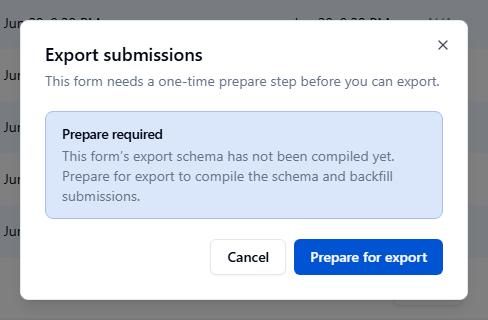
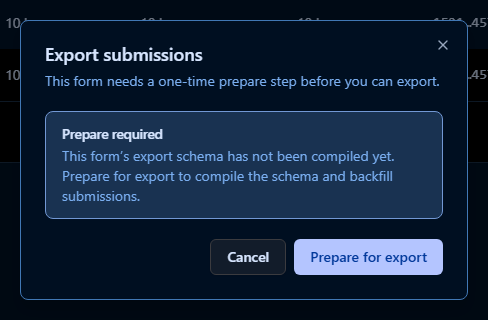
Click Prepare for export. This runs once per form. Later exports, including other people's, skip straight to the format picker. Preparing does not change any submission. It only builds the export structure.
Choose a Format and Filters
Once the form is prepared, the panel shows the export format and, for row-based formats, which submissions to include:
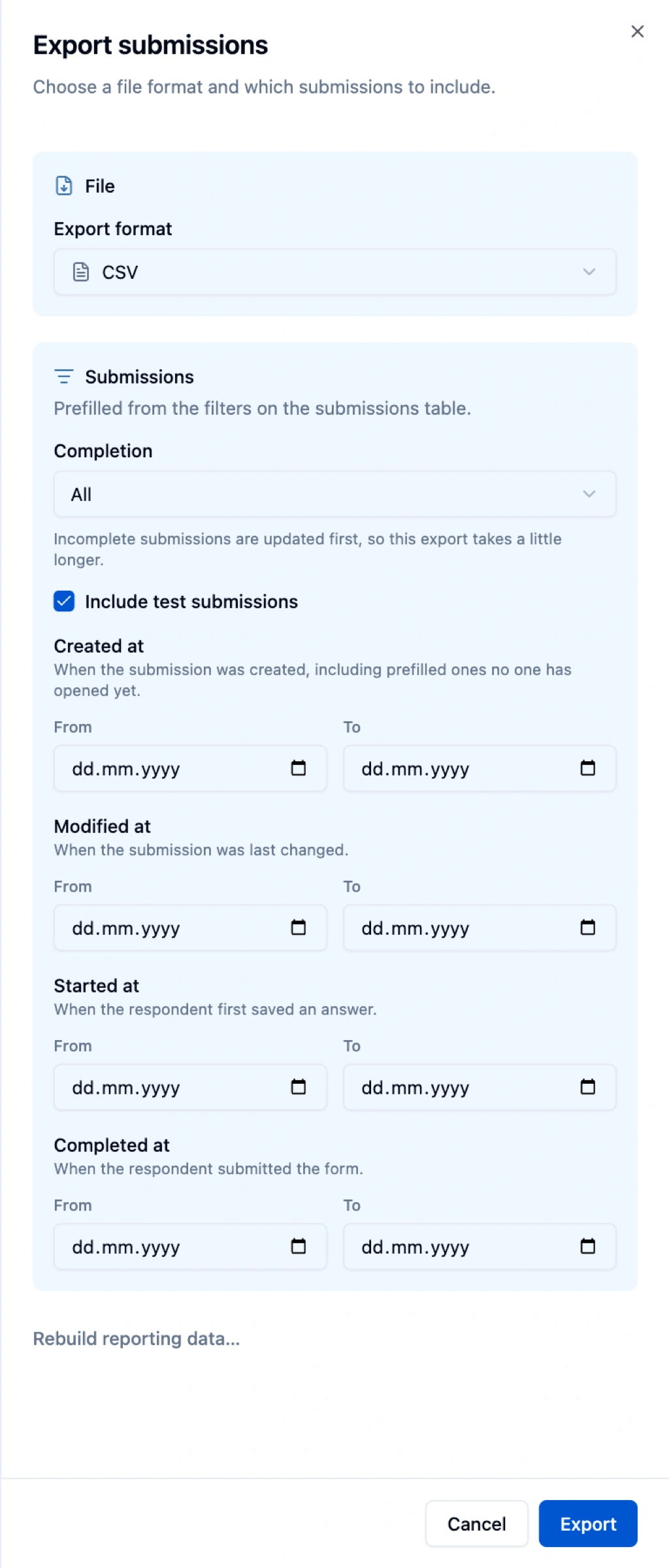
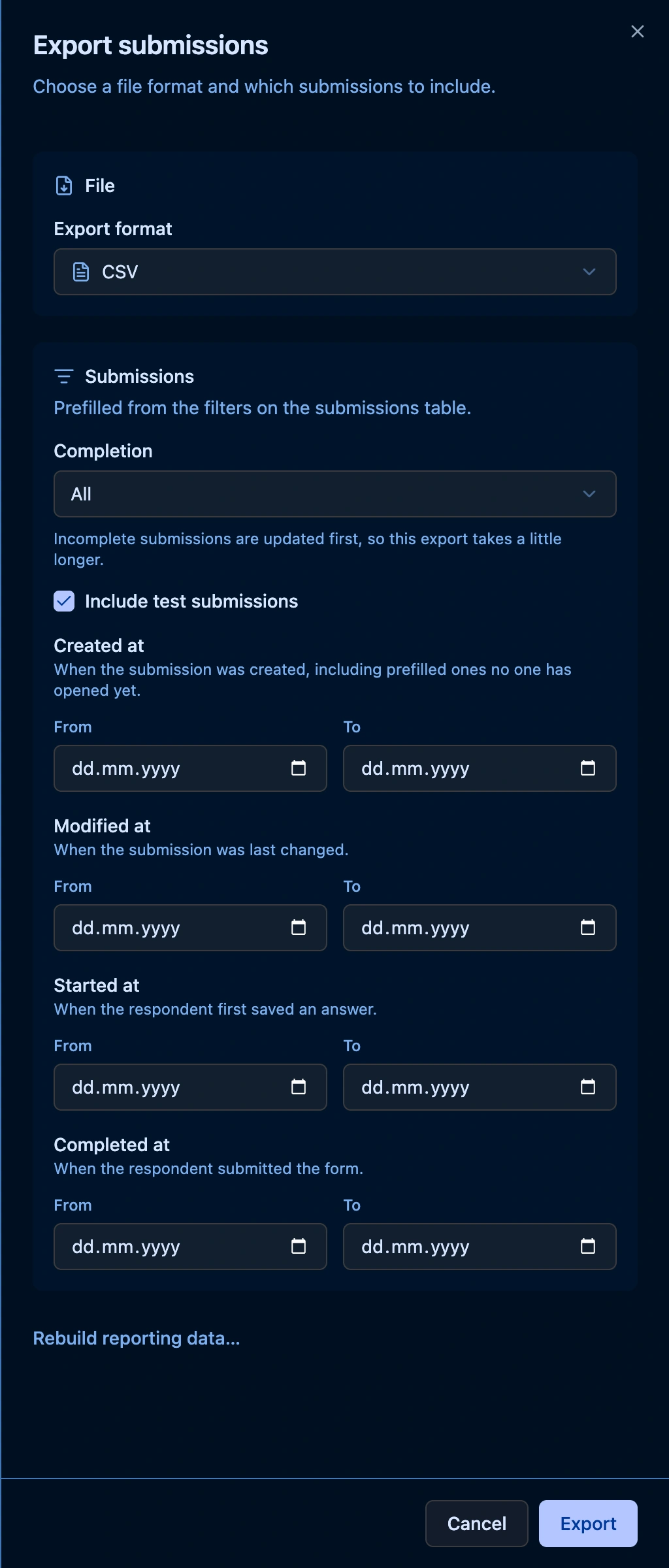
The Submissions section says it is prefilled from the filters on the submissions table. Change any field before you download; that change applies to this export only and does not change the grid.
| Field | What it does |
|---|---|
| Export format | Which of the workspace's configured formats to download. Grouped by Submissions (response data) and Codebook (metadata only) when both exist. See Where Formats Come From. |
| Completion | Completed, Incomplete, or All. Copied from the grid's Complete filter: only complete rows become Completed, only incomplete rows become Incomplete, and no selection (or both) becomes All. Incomplete and All include drafts. The export panel updates those drafts in the export structure before the download, which can take a moment. A draft can still change after the file is downloaded. Deleted submissions are not included. |
| Include test submissions | Copied from the grid's Submission Type filter. It is off when the grid shows production submissions only. It is on when the grid has no type filter, shows tests only, or shows both. See Submission Type. |
| Created at, Modified at, Started at, Completed at | Optional date ranges, copied from the matching grid filters. Created at is when the submission was created, including prefilled ones nobody has opened. Modified at is when it was last changed. Started at is when the respondent first saved an answer. Completed at is when they submitted the form, and it only appears when Completion includes completed submissions. |
Press Export, or Enter, to download the file. While drafts are being updated, the button reads Updating submissions….
Codebook Formats Skip the Filters
Select a Codebook format and the row filters disappear. A codebook describes the form's questions, so submission filters do not apply:
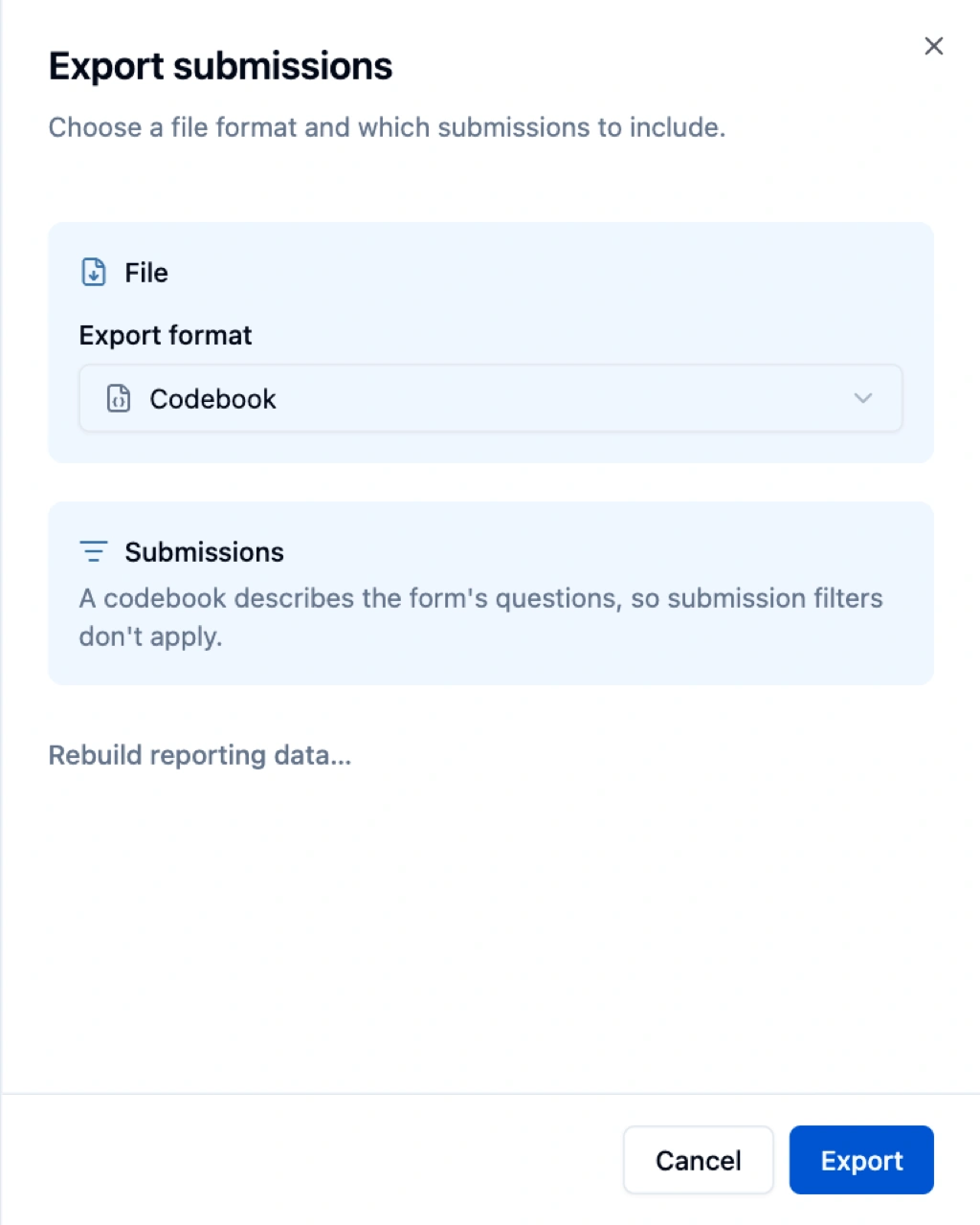
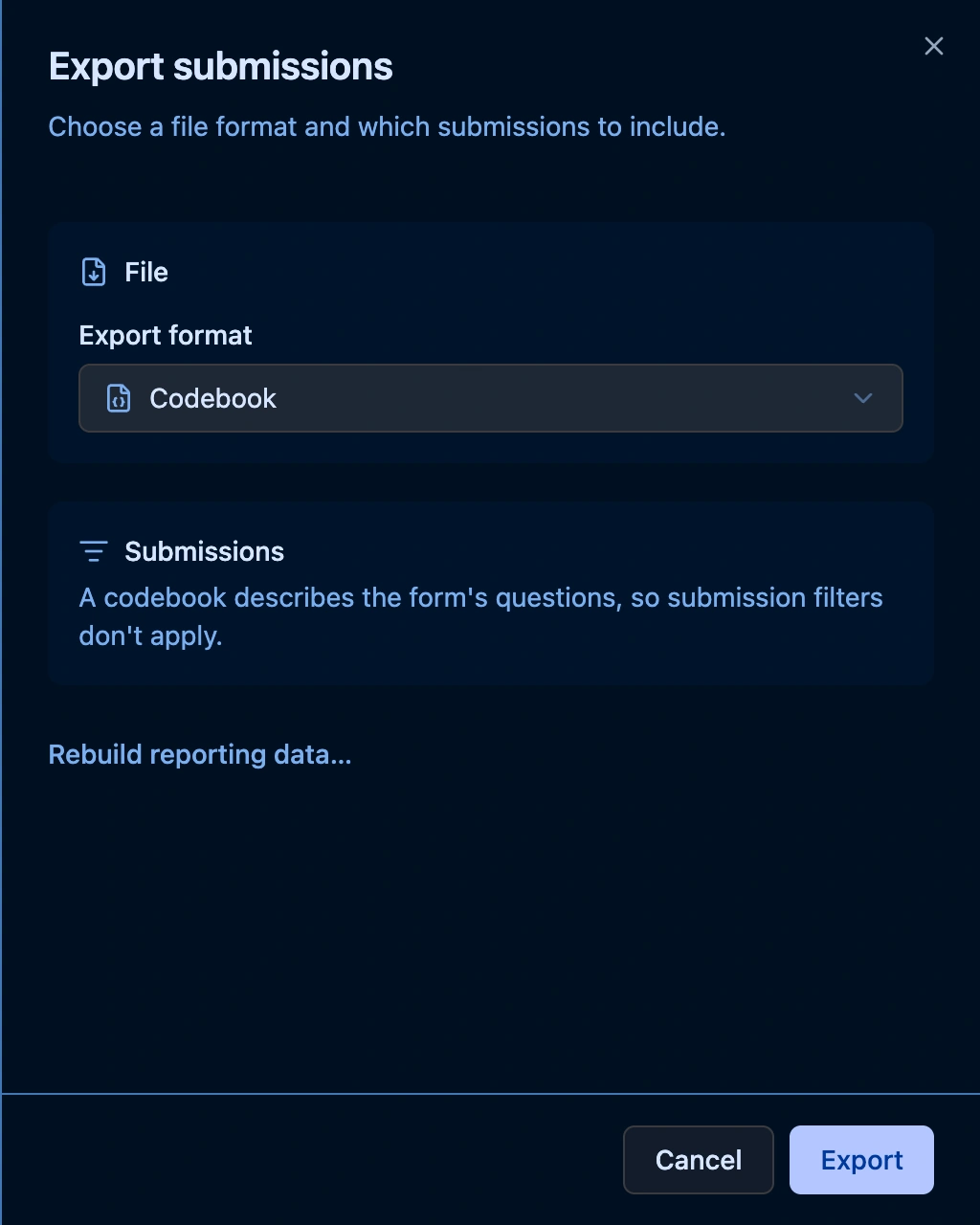
A codebook lists every question, its type, and its choice values and labels — the metadata a statistics package (SPSS, R, or Crunch.io) needs to make sense of a separate data file's column headers and coded values. Some codebook formats also ask for a language, used for question and choice labels.
Rebuild Reporting Data
Once a form is prepared, Rebuild reporting data… appears at the bottom of the panel. Use it if the form's questions changed after you prepared it and an export is missing new columns, or an export failed and you want to retry the load. Full recompile replaces the export structure from the form's current questions instead of extending it. Use it only if the structure looks wrong, since it discards the history of removed or renamed questions.
Updating drafts when you export Incomplete or All is separate from rebuild. That step only refreshes the drafts in this download. It does not recompile the form.
Where Formats Come From
The formats listed in Export format are configured per workspace at Settings → Organization → Export formats, by someone with permission to manage organization settings:
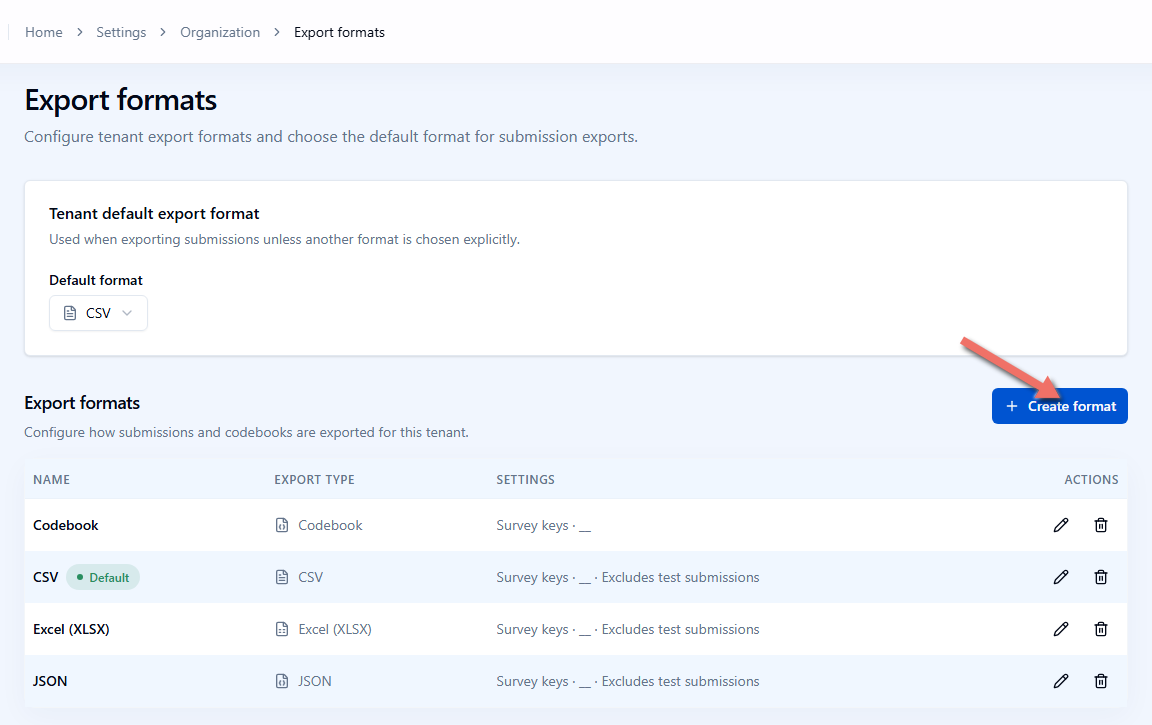
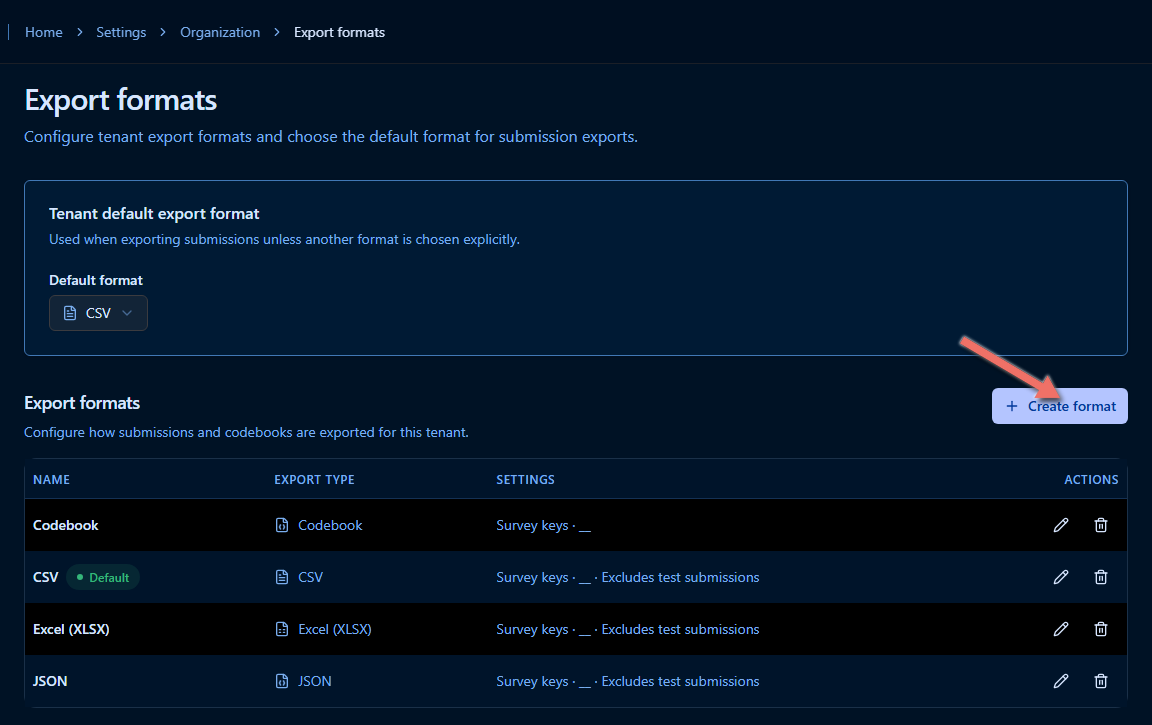
Every new workspace starts with four formats — CSV (the tenant default), Excel (XLSX), JSON, and Codebook — which cover the common cases. An administrator can add more: for example, a Codebook (Shoji) format, shown here mid-creation, produces a codebook in the variant Crunch.io expects instead of Endatix's own default shape:
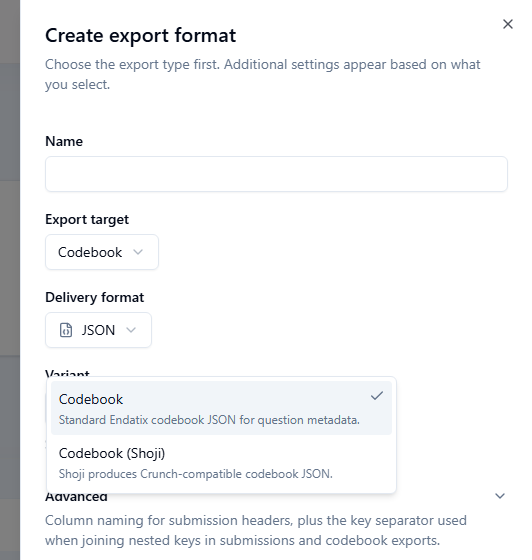
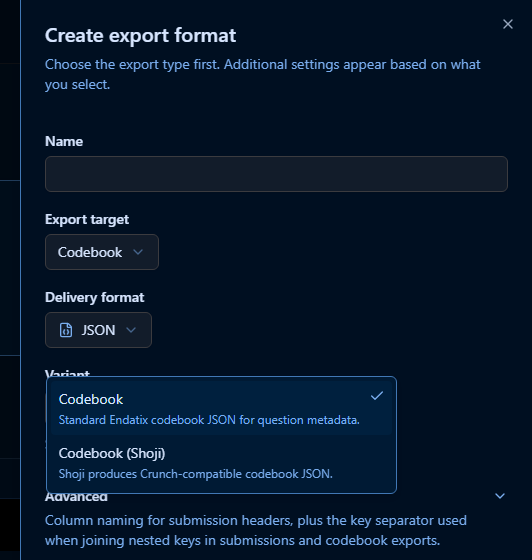
Each format also has Column naming and a key separator (under Advanced) that control how nested question keys — a choice within a multi-select question, for example — are joined into one column header, such as question__choice. As a regular user exporting submissions, you don't need to touch any of this. It's here so you know who to ask if a format you need isn't in the list, or if you're the one setting up a new workspace.
Exporting a Single Submission as PDF
Export format downloads many submissions at once. To export exactly one submission, open it and use Export PDF in its own top bar:


See Submission Details for what Export PDF includes and how it chooses a language.
To hand that PDF to someone who has no Hub account, generate an Export PDF share link instead: Sharing Submissions.
Important Considerations
- Prepare is per form, not per user. Once anyone prepares a form for export, every user exporting that form skips the prepare step.
- The panel starts from the grid. Completion, test submissions, and the four date ranges are copied from the filters already on the Submissions page. Clear a grid filter before you open the panel if you do not want it in the file.
- The export panel refreshes drafts before an Incomplete or All download. Completed exports use the submissions already prepared. A draft that changes after you download the file is not in that file. Deleted submissions are never included.
- Refreshing drafts needs permission to edit the form. Without that permission the download still runs, and incomplete submissions stay as of their last update. If only some drafts can be updated in one export, the file still downloads and the panel says so.
- A codebook has no rows to filter. Completion, test-submission, and date filters apply only to Submissions formats.
- Full recompile discards export history. It rebuilds the export structure from the form's current questions only. A question that was removed or renamed loses its column history in future exports.
A checkbox or multi-select whose choices are written on the form becomes one column per choice. A Multi-Select Dropdown backed by a data list has no choices on the form, so the selected ids stay in a single column and are not replaced with labels. If the form was already prepared, use Rebuild reporting data… once so that column is added.
lazyLoadedQuestion
"val1, val2, val3"