Submission Details
What Is Submission Details?
Submission Details is the full-page view of one submission: every answer, when it was started and completed, who submitted it (if identified), and any dynamic variables or calculated values SurveyJS set while the respondent filled out the form. Open it to read a response in full, jump straight to one question, export it, or edit it.
Open a Submission
Click any row in the Submissions grid to open that submission's Submission Details page. Back to submissions in the top bar returns you to the grid with the filters, sorting, and page you left it on.
The Top Bar


| Control | What it does |
|---|---|
| Back to submissions | Returns to the Submissions grid. |
| Export PDF | Downloads this submission as a PDF. Uses the submission's language unless you've turned off Display in <language> in View Options, in which case it uses the form's default language. |
| Copy JSON | Copies the submission's full data — metadata and answers — to the clipboard as JSON. |
| Edit | Opens the submission's answers for editing. Hidden on narrow screens; use the ⋯ menu instead. |
| ⋯ (more options) | View Files, Share Links, Download Files, and Delete — see More Options. |
More Options
Click ⋯ for actions that don't fit in the top bar:


| Action | What it does |
|---|---|
| View Files | Opens the list of files this submission's respondent uploaded. |
| Share Links | Generates a short-lived link to Share (continue and complete), View (read-only), or Edit this submission. |
| Download Files | Downloads the files uploaded with this submission. |
| Delete | Deletes the submission after you confirm, then returns you to the Submissions grid. |
On narrower screens, this menu also carries Edit and a Status shortcut that the wider layout already shows elsewhere.
Metadata
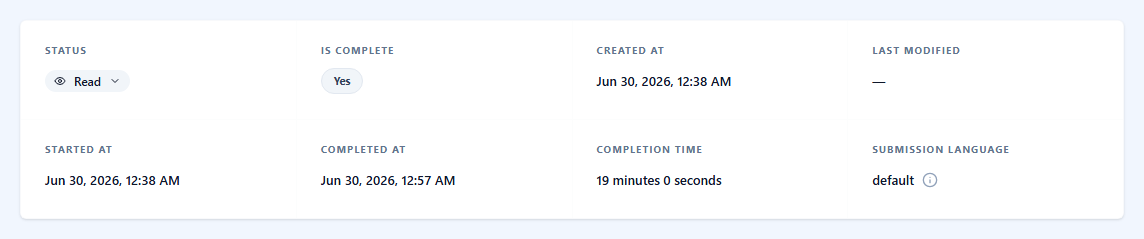
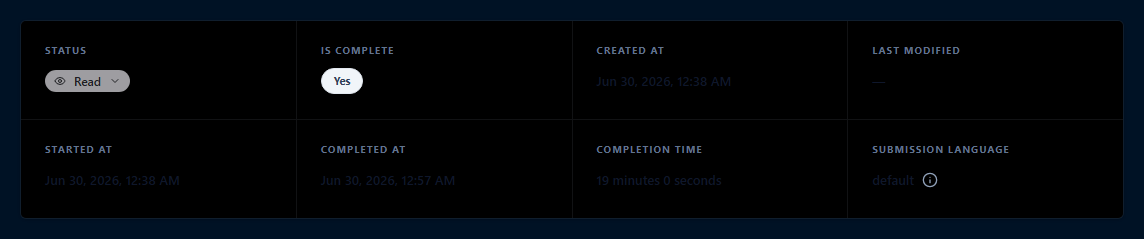
Below the top bar, a card summarizes the submission:
| Cell | Shows |
|---|---|
| Status | The review status. Click it to change it the same way as Change the Status in the grid. |
| Is Complete | Yes or No. |
| Created at, Last modified, Started at, Completed at | The same timestamps shown as columns in the Submissions grid. A dash means that timestamp doesn't apply yet. |
| Completion time | How long the respondent took, from start to completion, written out in full (for example 19 minutes 0 seconds). A dash for incomplete submissions. |
| Submission language | The language the respondent's browser was using, or default when none was stored. Hover the info icon for how it relates to the Display in <language> view option. |
A This is a test submission banner appears above these cells for test submissions — ones made by a user with permission to test forms, on a form with Limit one per user turned on.
Submission Answers
The rest of the page is a set of tabs. Submission Answers, the default tab, lists every page and question of the form with the respondent's answer:
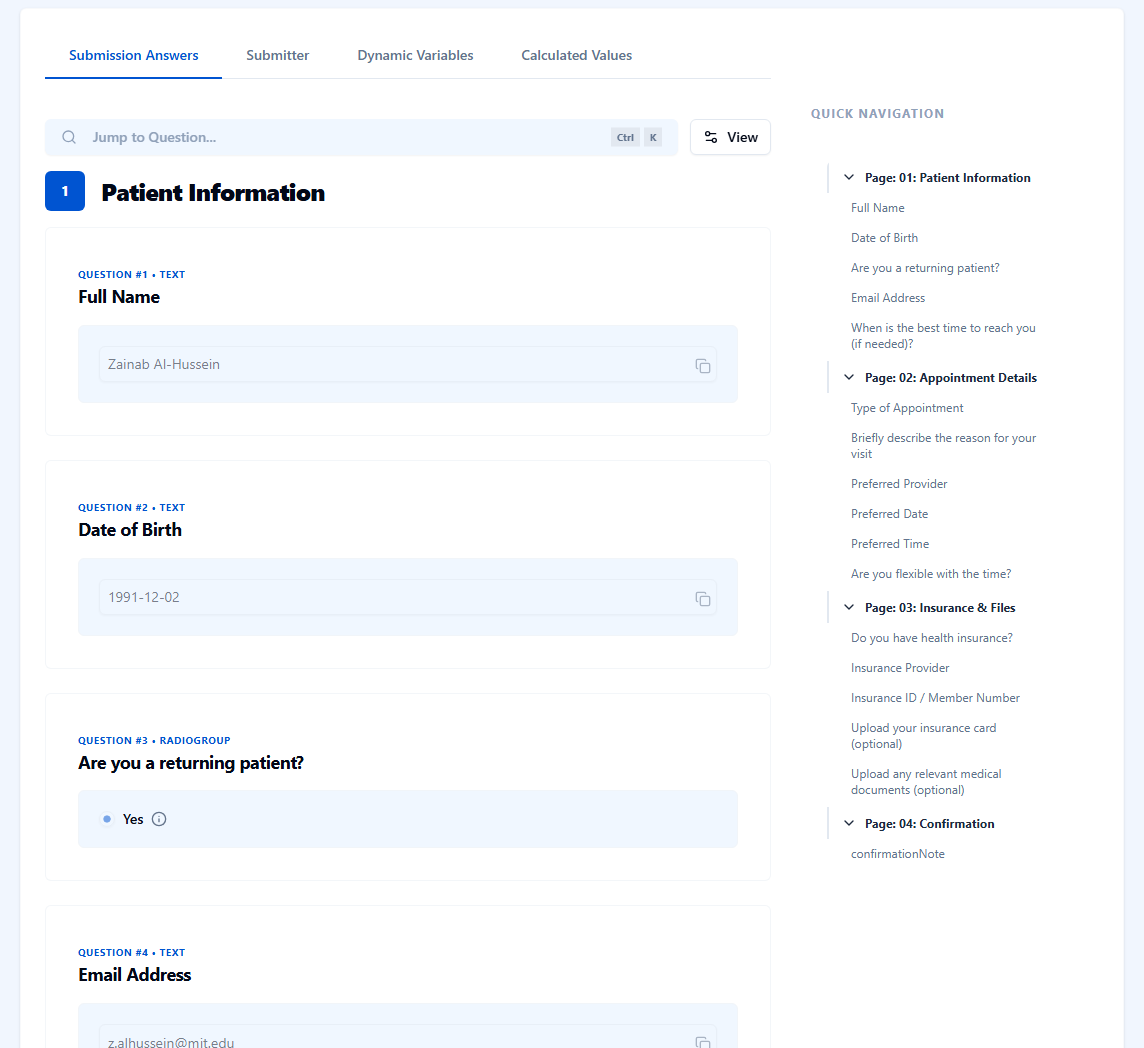
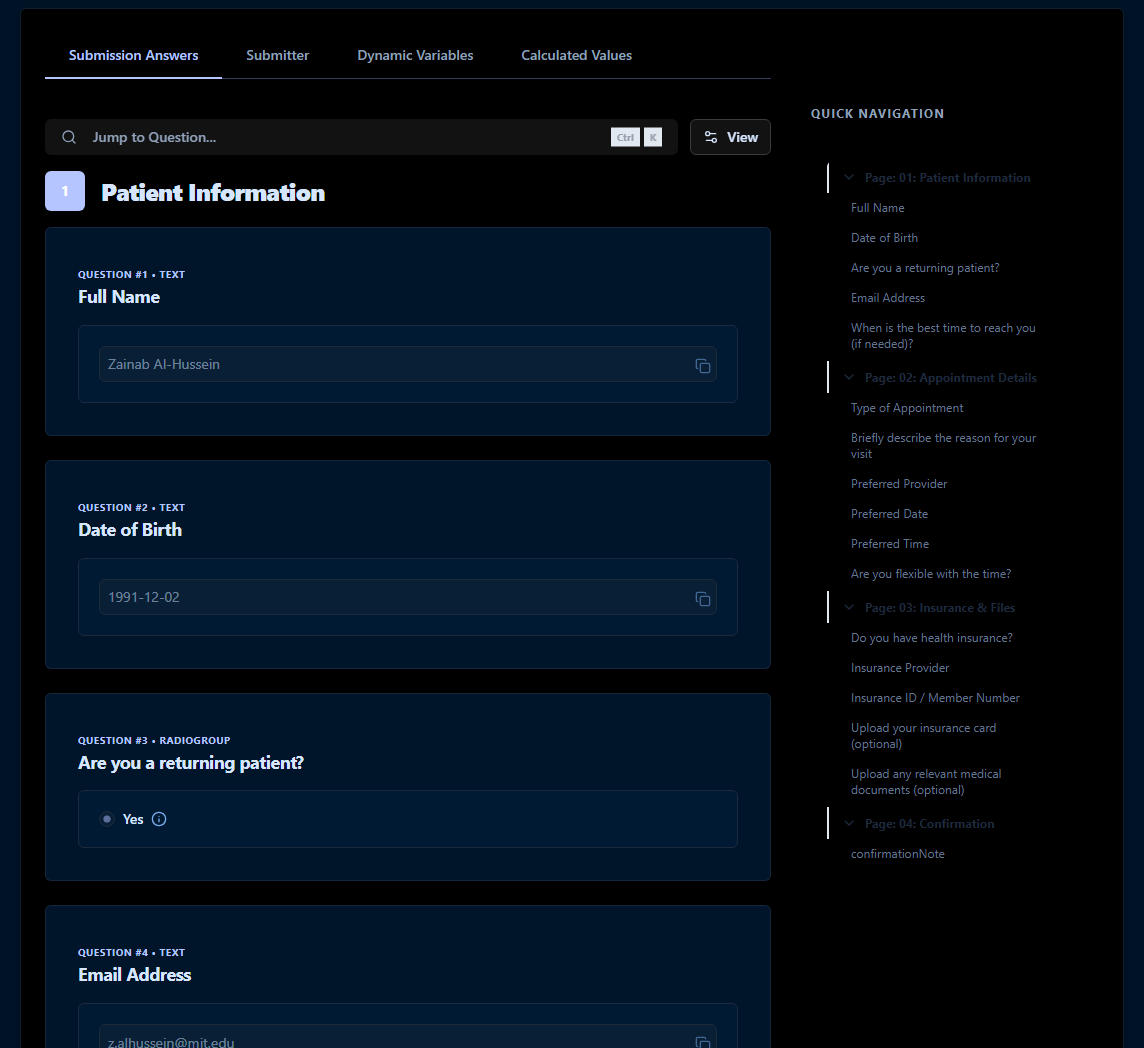
- Pages are numbered in the order the respondent went through them, each with its questions underneath.
- Each question card shows the question's number (if it's numbered in the Form Builder) and type, its title, and the answer rendered the way its question type displays a value — a rating shows stars, a signature shows the drawn image, a file question lists the uploaded file.
- Quick Navigation, on the right, lists every page and question as a jump link; click one to scroll to it and highlight its card.
Jump to Question
Click Jump to Question... — or press Ctrl+K (⌘+K on macOS) — to search by title, question type, or number:
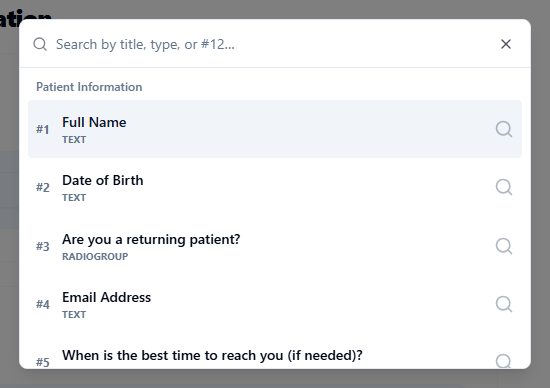
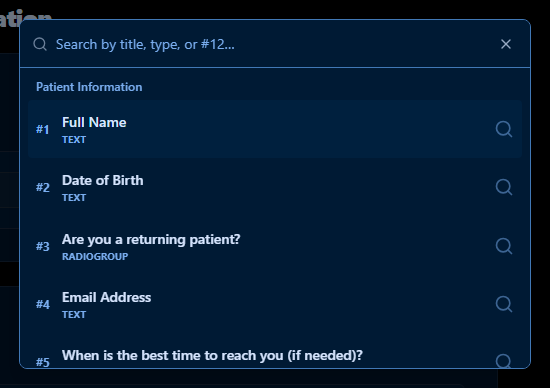
Type part of a title, a type such as radiogroup, or a number such as #12, then select a result to scroll to that question and highlight it.
View Options
Click View to change what the Submission Answers tab includes:
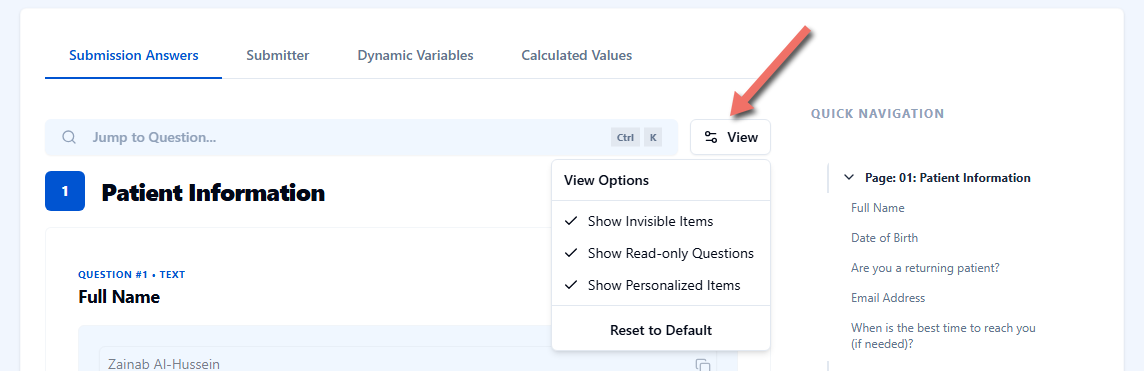
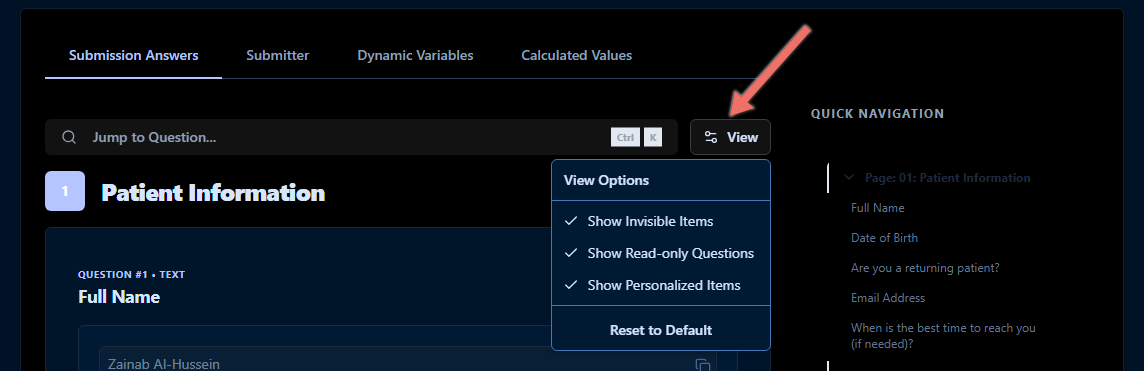
| Option | What it does |
|---|---|
| Show Invisible Items | Includes pages and questions that conditional logic hid from the respondent, marked with an eye-off icon. Cleared, they're left out entirely — not just hidden — so Quick Navigation and Jump to Question only list what the respondent actually saw. |
| Show Read-only Questions | Reserved for a future release; toggling it has no visible effect on this build. |
| Show Personalized Items | When a question's title uses text piping or a custom variable, highlights the piped-in value in the title so you can see what was substituted. Cleared, titles show as plain text. |
| Display in <language> | Only shown when the submission has a stored language. Switches the question titles, descriptions, and choices between that language and the form's default. Also changes the language Export PDF uses. |
| Reset to Default | Turns every option back on. |
Your choices are saved in your browser and apply the next time you open any submission's answers, until you change them again.
Submitter
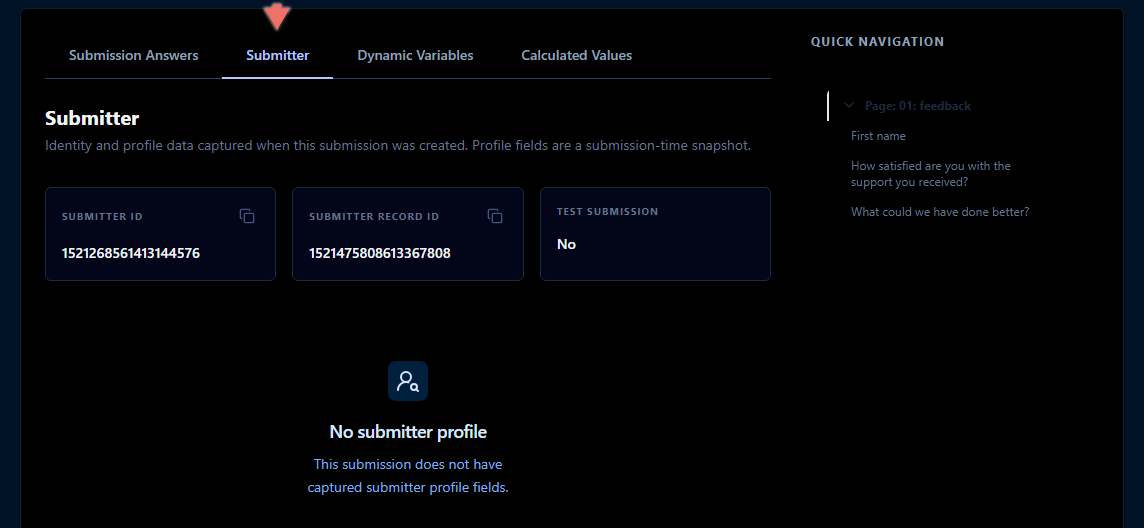
The Submitter tab shows who submitted the form, when Endatix could identify them:
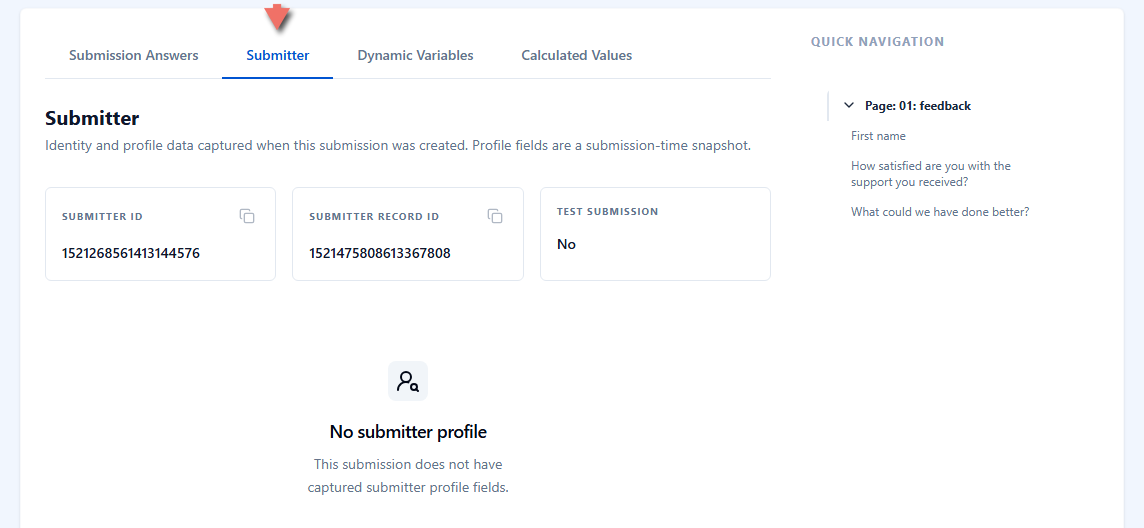
| Field | Shows |
|---|---|
| Submitter ID | The same ID shown in the grid's Submitter column, in full. Click the copy icon to copy it. |
| Submitter record ID | Endatix's internal ID for the submitter record this submission is linked to. |
| Test Submission | Yes or No — the same flag the Submission Type filter in the grid uses. |
An anonymous submission — one Endatix couldn't tie to an identified respondent — shows a dash for both IDs instead. Below the fact cards, a table lists any saved submitter profile fields (a snapshot taken when the submission was created); a submission with none shows No submitter profile, as in the screenshot above. See Collecting Submitters Data for identifying respondents and capturing profile fields.
Dynamic Variables
The Dynamic Variables tab lists runtime values SurveyJS set from the submission's metadata or JavaScript while the form was open:
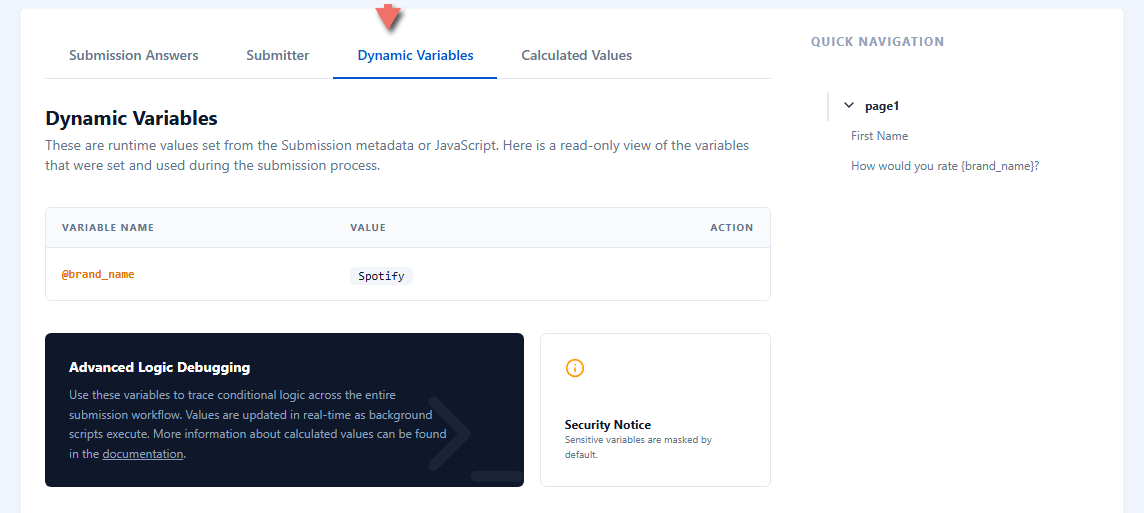
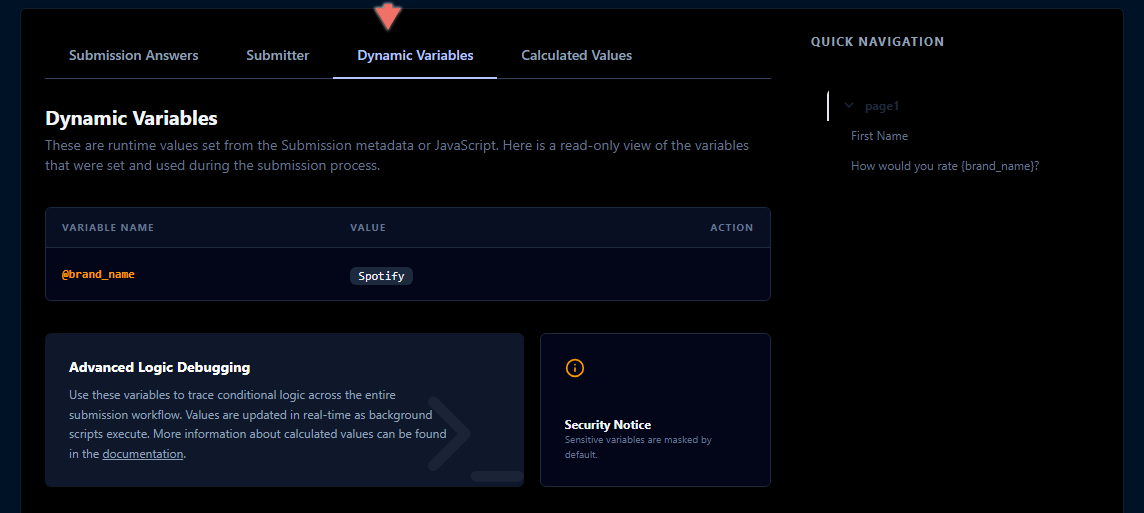
Each row shows the variable's @name and its value, with a copy button. A variable is masked as a row of dots when its name contains a word such as secret, key, password, token, hash, email, or phone — hover the masked value to confirm which variable it is without revealing it. A form with no dynamic variables shows an empty state instead of the table.
Calculated Values
The Calculated Values tab lists the form's custom variables that have an expression — read-only values SurveyJS recalculated during the submission. Each row shows the variable's current value and whether it's In result (saved with the submission's data) or Not in result. Large numbers are shortened, for example 1.2K for 1200; click Copy JSON in the top bar to see the exact value. A form with no such variables shows an empty state instead of the table. See Custom Variables for a populated example of this tab.
Important Considerations
- Invisible items are excluded, not just hidden, by default. With Show Invisible Items off (the default is on), a question a condition hid from the respondent doesn't appear anywhere on the page — not in Submission Answers, Jump to Question, or Quick Navigation.
- View Options are per-browser, not per-submission. They're saved locally and apply to every submission you open afterward, the same way column choices work in the Submissions grid.
- Sensitive-variable masking is name-based. Endatix masks a dynamic variable by matching words in its name, not by inspecting its value. Name a variable so its purpose — and sensitivity — is obvious.
- Copy JSON copies everything, including any sensitive dynamic variables. Unlike the Dynamic Variables tab, the raw JSON isn't masked. Share it only with people who should see the underlying data.
Related Documentation
- Viewing Submissions — the grid this page opens from.
- Custom Variables — define the values that appear on the Calculated Values tab.
- Text Piping and Conditional Logic — the form features behind personalized titles and invisible items.
- Collecting Submitters Data — identify respondents and capture the profile fields shown on the Submitter tab.
- Sharing Submissions - send one submission to someone outside Hub with a short-lived link.