Testing Submissions
A test submission is a response you make to try a form, not one a respondent gives. Endatix keeps it apart from real data: it doesn't count toward Limit one per user, never uses a person's personalized link, and is left out of exports unless you ask for it. Making one needs permission to test forms.
How test submissions differ from real ones
| Test submission | Real submission | |
|---|---|---|
| Limit one per user | Never counts, so you can test as often as you like | Counts: one completed response per person |
| Personalized links | Never opens or uses up a link | A person's link opens their own response |
| Submissions page | Shown under Submission Type: Test | Shown under Submission Type: Production |
| Exports | Left out unless Include test submissions is on | Included |
Make a test submission
- Test as this participant. On the form's Audience tab, open the form as one of its people, with their values. Each click makes a new test submission on the latest saved form. Use a test person, or any real person: their personalized link stays unused. See Test as this participant.
- Fill in a one-response form yourself. On a form with Limit one per user, a response you make while signed in to Hub with permission to test forms is recorded as a test submission, so you can fill it in again.
Read the Test inspector
When you can test forms, a test submission shows the Test inspector: a round button with a TEST tag at the bottom right of the form. Click it to open its menu.
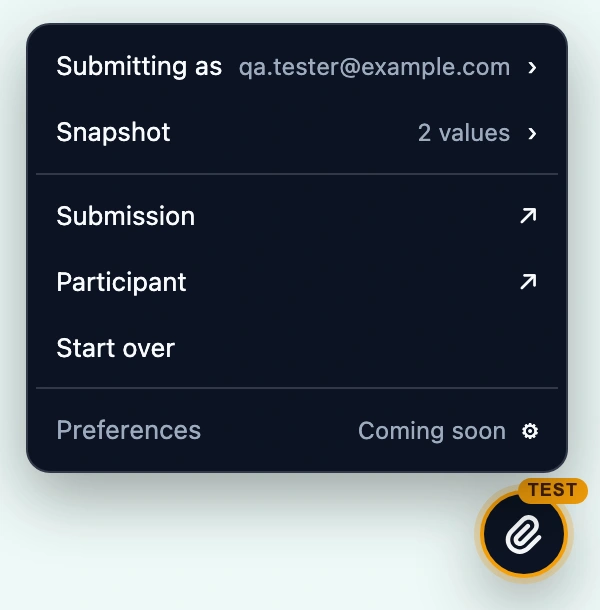
- Submitting as opens who this test submission is for: their Identifier, their Label, the Snapshot source (Test as this participant, Personalised link, or On behalf), and their Submitter fields.
- Snapshot opens the values the form was opened with, and when they were Captured.
- Submission opens the submission's details in Hub, in a new tab. Until the first answer is saved, it says Not saved yet.
- Participant opens the person's page on the Audience tab, in a new tab. Without permission to edit the form, the row is Audience and opens the form's test people instead.
- Start over discards this test submission and opens a new one for the same person. See Start over.
On a test submission you made by filling in the form yourself, not with Test as this participant, Snapshot says None, the row after Submission is Audience, and there is no Start over.
Submitting as and Snapshot
Both panels are tagged Frozen: their values were fixed when the test submission was created, so editing the person afterwards does not change them. Back returns to the menu.
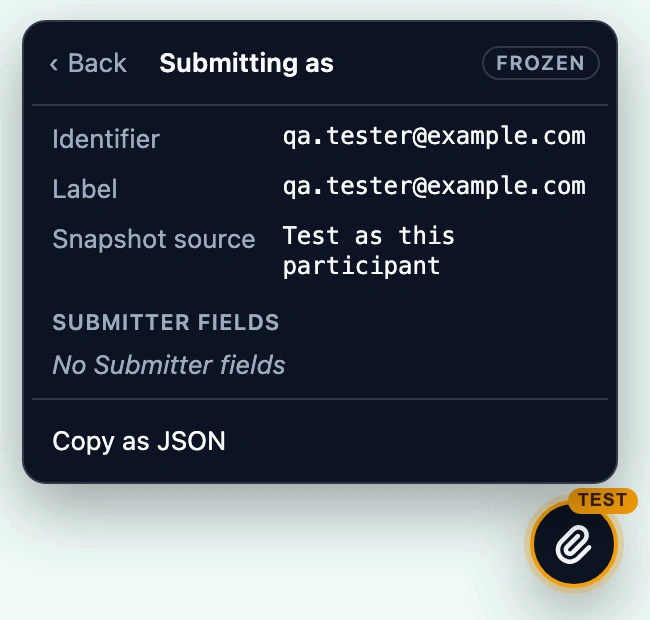
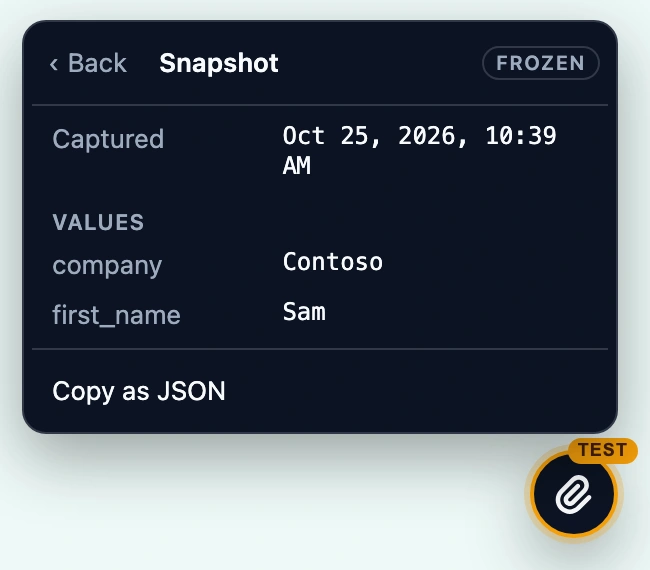
Copy as JSON copies the panel's values to the clipboard, for example to paste into a bug report.
Use it from the keyboard
- Press Tab until the Test inspector button has focus. It comes last on the page.
- Press Enter to open the menu, and the arrow keys to move between rows.
- Press Enter on Submitting as or Snapshot to open its panel.
- Press Esc to go back to the menu, and Esc again to close it. Focus returns to the button.
Who sees it
| Who opens the test submission | What they see |
|---|---|
| You, with permission to test forms | The Test inspector |
| Anyone else, for example a colleague you shared the page with | Only the notice You are submitting a test submission, with no values |
| A real respondent | Neither |

An embedded form shows the notice with Start over instead of the Test inspector.
Start over
Start over in the Test inspector menu discards the current test submission and opens a new one for the same person, with their current values and the latest saved form. Use it after you edit the person's values on the Audience tab or change the form in the designer: an open test submission keeps the values it started with until you start over.
Start over works only on a test submission, and only while the person is still on the form.
Find test submissions on the Submissions page
On the form's Submissions page, the Submission Type filter shows Production (real) submissions, Test submissions, or both.
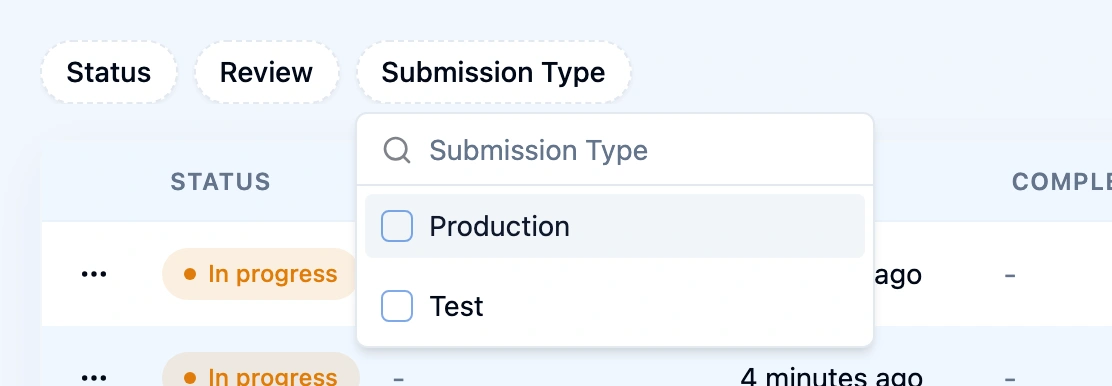
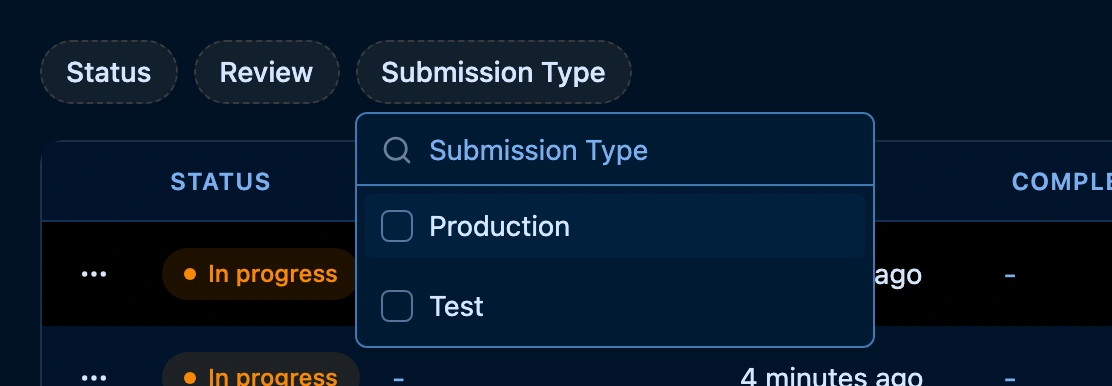
See Viewing Submissions for the other filters.
Keep test submissions out of exports
An export leaves test submissions out unless Include test submissions is on.
In Hub, the export panel copies that switch from the grid's Submission Type filter: it is off only when the grid shows Production submissions alone. To leave test submissions out, set the filter to Production before you open the panel, or turn Include test submissions off in it. See Exporting Submissions.
An export requested outside Hub, for example through the API or a custom export format, leaves test submissions out unless the request asks for them.
Limitations
- Start over needs Test as this participant. A test submission you made by filling in the form yourself cannot start over.
- Panels show what the form was opened with. Values that change while you answer are not shown yet.
- Preferences are not available yet. The row says Coming soon.