Viewing Submissions
What Is the Submissions Page?
Every time someone fills out one of your forms, Endatix saves their answers as a submission. A submission is saved as soon as the respondent's first answers are stored, not only when they complete the form, so you also see forms that were started but not finished.
The Submissions page lists all submissions of one form in a grid. Use it to check how many responses have come in, follow up on incomplete ones, keep track of which submissions have been reviewed, and open a submission to read or edit its answers. Filters, sorting, and your choice of columns narrow a long list down to exactly what you need — for example, last week's completed submissions that nobody has reviewed yet.
Open a Form's Submissions
Each form has its own Submissions page.
From the Forms List
- Click Forms in the Hub sidebar.
- Find the form. Forms that aren't in a folder are listed under Unassigned. For a form in a folder, click the folder under Folders, or pick the folder in the list at the top of the page.
- Hover over the form's card. Design, Share Link, and Submissions appear at the bottom of the card.
- Click Submissions.
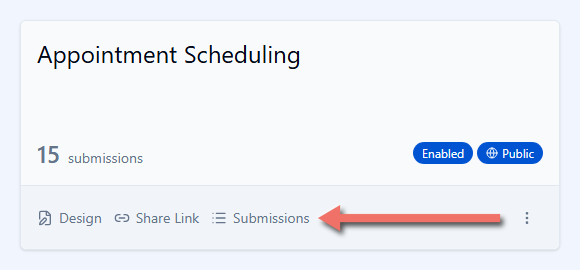
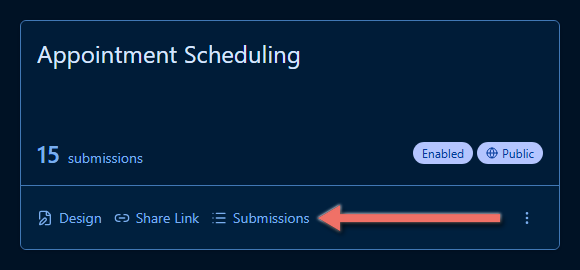
The card also shows how many submissions the form has. While a form shows No submissions yet, its Submissions link is dimmed; open the page from the form's details instead.
From the Form Details
Click a form's card anywhere except the links at the bottom. The form's details open in a panel on the right. Click Submissions at the top of the panel.
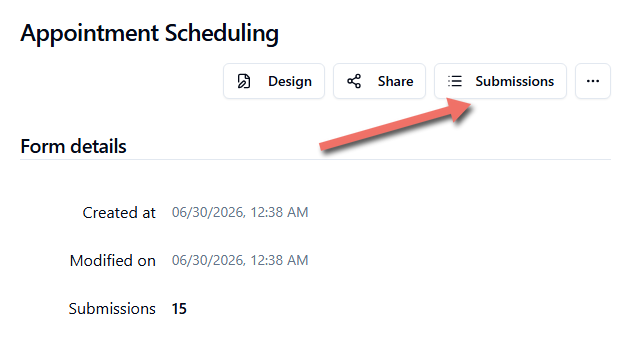
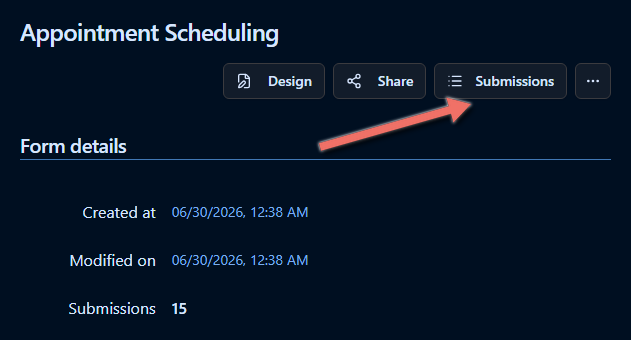
The same Submissions button is at the top of the form's Form Overview page, which opens when you leave the Form Builder with its back arrow.
Return From a Submission
Click a row in the grid to open that submission's Submission Details page. Back to submissions takes you back to the list with the filters, sorting, and page you left it on.
The filters, sorting, page, and rows per page are also part of the page's web address. Bookmark a filtered list to come back to it later, or send the link to a colleague who has access to the form.
The Submissions Page at a Glance
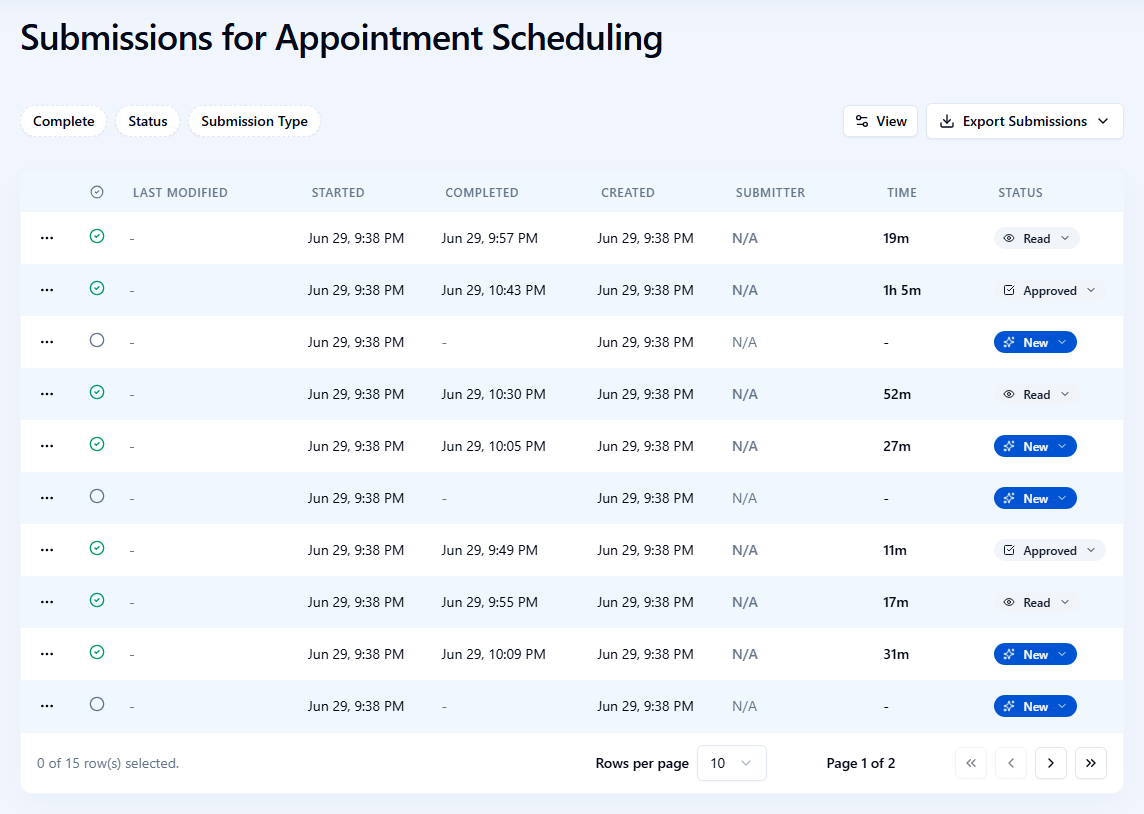
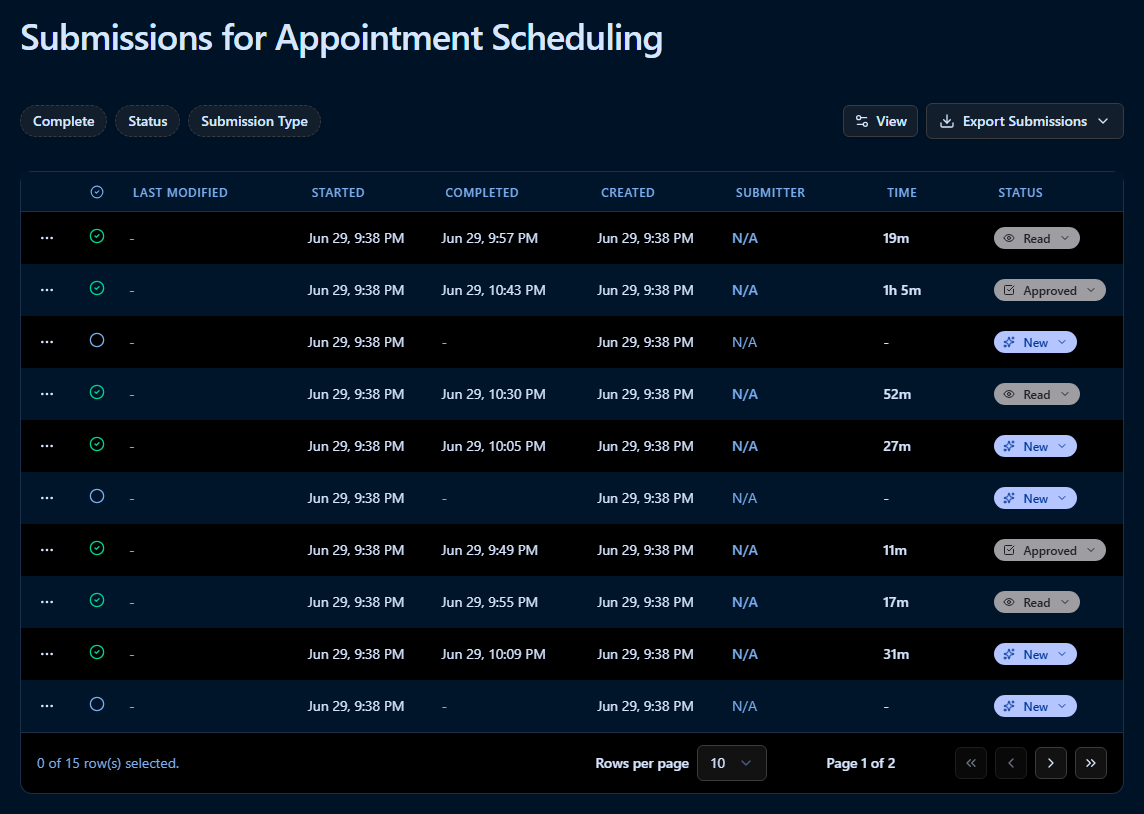
| Control | What it does |
|---|---|
| Complete, Status, Submission Type | Filter the list. See Filter by Complete, Status, and Submission Type. |
| Column headers | Sort the list, filter by a date or a submitter, and hide or move columns. See Sort Submissions and Filter by Date. |
| Reset Filters / Reset Sorting / Reset | Appears next to the filters once a filter or sorting is applied. See Clear Filters and Sorting. |
| View | Chooses which columns the grid shows. See Choose Columns. |
| Export Submissions | Downloads the form's submissions as a file. See Export Submissions. |
| Rows per page and the page buttons | Move through a long list. See Pages. |
Until you sort the list, the newest submissions are at the top. Completed submissions are shown in slightly bolder text than incomplete ones.
Columns
| Column | Shows |
|---|---|
| ⋯ (no title) | The actions menu of the submission. See Submission Actions. |
| Complete (check mark icon) | A green check mark for a completed submission, an empty circle for one that was started but not completed. Hover over the icon to see Complete or Incomplete. |
| Last modified | When the submission was last changed. A dash means it hasn't changed since it was created. |
| Started | When the respondent started filling out the form. |
| Completed | When the respondent completed the form. A dash for incomplete submissions. |
| Created | When the submission was first saved. It's usually the same as Started, but it's earlier for a submission that was prefilled before the respondent opened it. |
| Submitter | The ID of the identified respondent who filled out the form, or N/A for an anonymous submission. Long IDs are shortened; hover over one to see it in full and copy it. Your administrator can give this column a different name, such as Panelist ID. |
| Time | How long the respondent took, from Started to Completed. A dash for incomplete submissions. |
| Status | The review status: New, Read, or Approved. See Change the Status. |
| Submitter details, such as Email | Details saved about the submitter. Shown only when your administrator has set them up — see Collecting Submitters Data. |
| Question columns | One column per question with the respondent's answer. Hidden until you turn them on — see Choose Columns. |
Filter Submissions
Filters show only the submissions that match. Combine as many as you need: a submission is listed only when it matches every filter. The list goes back to its first page whenever you change a filter.
Filter by Complete, Status, and Submission Type
Click a filter above the grid and select one or more options. When you select several options of the same filter, submissions that match any of them are listed — New and Read under Status lists the submissions that haven't been approved yet.
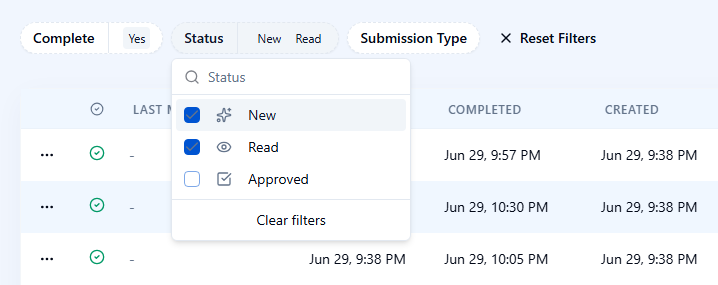
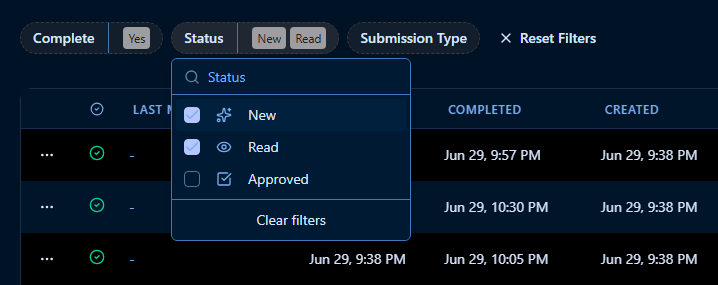
| Filter | Options |
|---|---|
| Complete | Yes — completed submissions. No — submissions that were started but not completed. |
| Status | New, Read, Approved — the review status set in the Status column. |
| Submission Type | Production — real submissions. Test — submissions that a user with permission to test forms made on a form with Limit one per user turned on. Endatix marks them as tests so that testing doesn't use up that user's one response. |
The filter button shows your selection — or, with more than two options selected or on a smaller screen, how many options are selected. To clear one filter, open it and click Clear filters at the bottom of its list.
Filter by Date
Last modified, Started, Completed, and Created each have their own date filter:
- Hover over the column header and click its menu icon.
- Pick a From date, a To date, or both. The range includes both days.
- Click Apply.
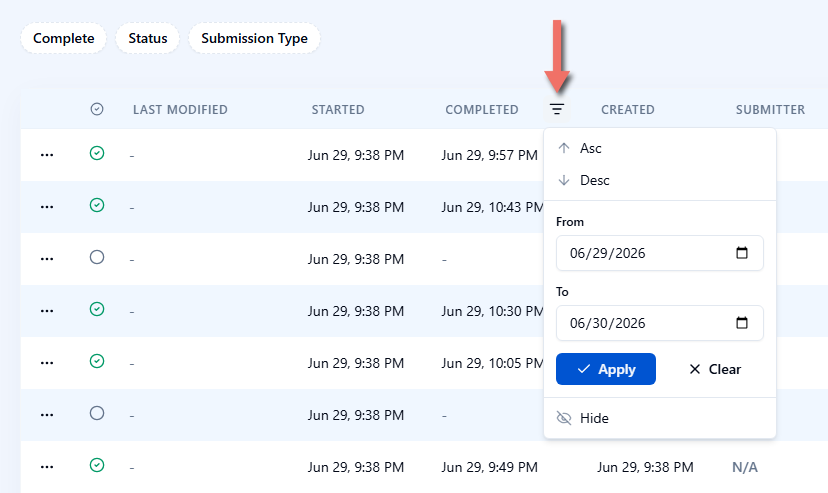
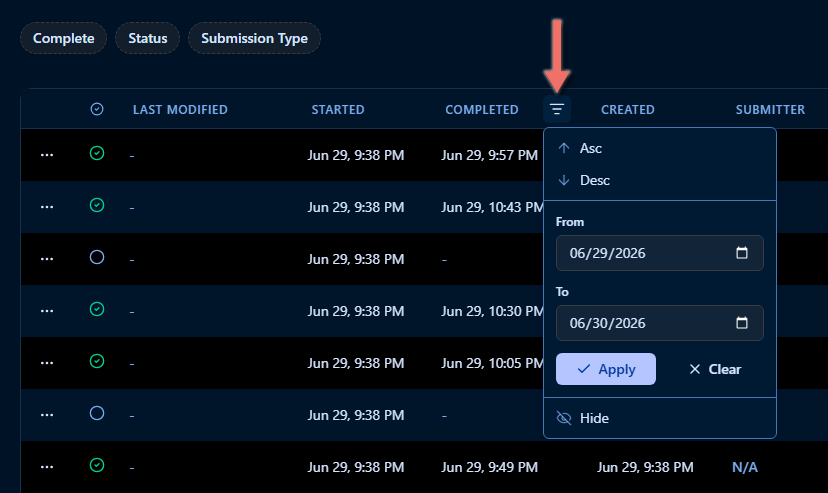
To remove the date filter, open the menu again and click Clear. Date filters on different columns combine — for example, submissions created in March and completed in April.
Filter by Submitter
The Submitter column menu — and the Email column menu, when your workspace shows submitter emails — has a Filter box instead of dates. Type the respondent's full ID or email address and click Apply. The filter looks for an exact match, so part of an ID or address doesn't find anything.
Recognize Active Filters
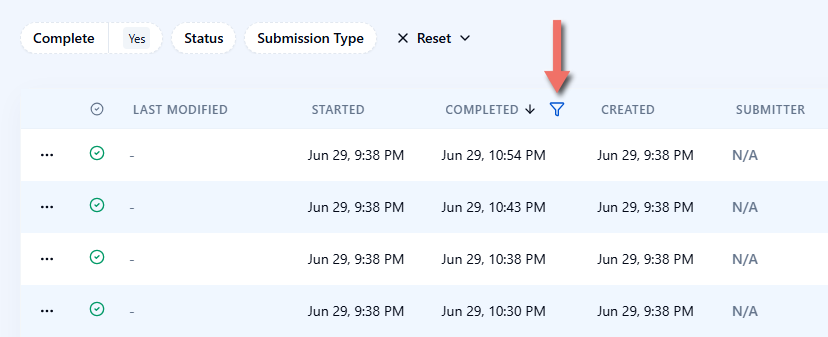
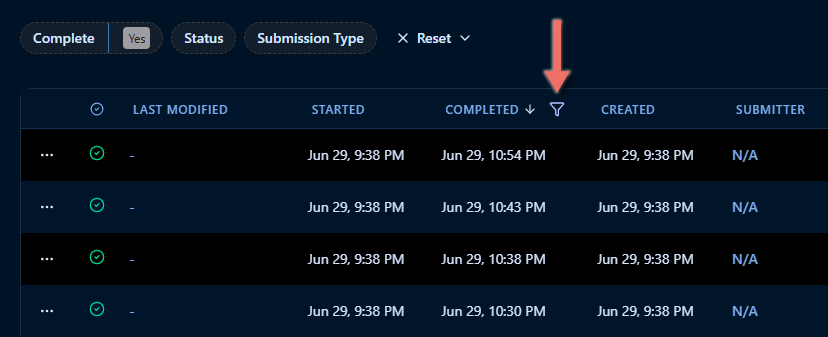
- The Complete, Status, and Submission Type buttons show the options you selected.
- A column with an active date or submitter filter shows a highlighted filter icon in its header, even when you aren't hovering over it.
- A Reset Filters button — or a Reset menu when the list is also sorted — appears next to the filters.
When no submission matches your filters, the grid shows No submissions match current filters. with a Reset Filters button.
Sort Submissions
Click a column title to sort by that column. Each click moves to the next step: ascending (arrow up), descending (arrow down), and back to the default order, newest first. You can also open a date or Submitter column's menu and click Asc or Desc, or Clear sorting to go back to the default order.
The list is sorted by one column at a time; sorting by another column replaces the previous sort. On the Complete column, hover over the check mark icon to show its sort button. Question and submitter detail columns can't be sorted.
Last modified, Started, Completed, and Created sort all of the form's submissions. Complete, Submitter, Time, and Status reorder only the submissions on the page you're looking at — page 2 is sorted on its own. To sort by one of these columns across more submissions, show more rows per page first.
Clear Filters and Sorting
The button next to the filters depends on what's applied:
| Applied | Button |
|---|---|
| Filters only | Reset Filters — clears all filters. |
| Sorting only | Reset Sorting — returns to the default order, newest first. |
| Filters and sorting | Reset — a menu with Reset Filters, Reset Sorting, and Reset All, which clears both. |
Choose Columns
Show and Hide Columns
Click View to open Toggle Columns, the list of every column the grid can show. A check mark means the column is shown; click a column to show or hide it. The menu closes after each click, so click View again to change another column.
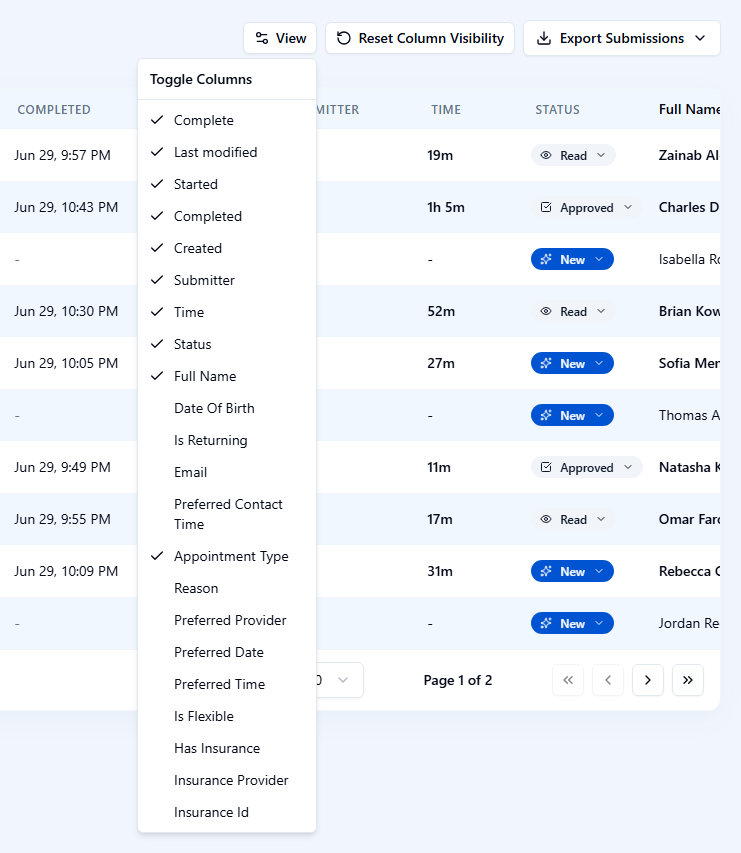
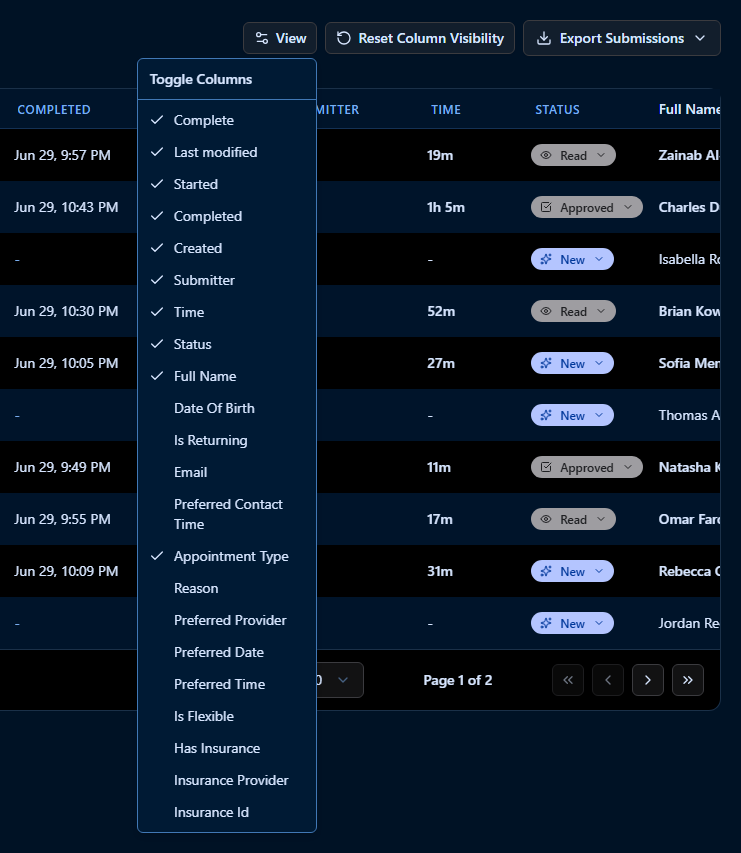
Below the standard columns, the list has a column for each of the form's questions, named after the question's name — a question named appointmentType becomes Appointment Type. Question columns are hidden until you turn them on and are added at the right end of the grid; scroll the grid sideways if they're out of view. They're available for these question types: Single-Line Input, Long Text, Checkboxes, Radio Button Group, Dropdown, Multi-Select Dropdown, Yes/No (Boolean), Rating Scale, Slider, and Ranking. Open a submission to see answers to other questions, such as matrices, dynamic panels, file uploads, and signatures.
To hide a date or Submitter column quickly, open its column menu and click Hide.
Reorder Columns
Drag a column header to the left or right to move the column. The ⋯ column always stays first.
Reset the Column Layout
Once you've changed the columns, a reset button appears next to View:
| Changed | Button |
|---|---|
| Shown or hidden columns | Reset Column Visibility — shows the standard columns and hides the question columns again. |
| Column order | Reset Column Order — puts the columns back in their original order. |
| Both | Reset — a menu with Reset Column Order, Reset Column Visibility, and Reset All. Reset All also clears the filters and sorting. |
Your column choices are saved in your browser, separately for each form, and are there the next time you open the form's submissions.
Pages
The bottom of the grid shows how many submissions match — for example, 0 of 15 row(s) selected. means 15 submissions — and which page you're on.
- Rows per page sets how many submissions a page shows: 10 (default), 20, 30, 40, or 50.
- The arrow buttons go to the previous and next page. On wide screens, the double arrows go to the first and last page.
Work With a Submission
Open a Submission
Click anywhere in a row to open the submission's Submission Details page, where you can read all of its answers.
Change the Status
The Status column tracks your review progress. Click a submission's status and pick New, Read, or Approved. The change is saved immediately. Endatix doesn't change the status on its own — opening a submission leaves it New until you change it.
Submission Actions
Click ⋯ at the start of a row for actions on that submission:
| Action | What it does |
|---|---|
| Edit | Opens the submission's answers for editing. |
| Share Links | Generates a short-lived link to the submission: Share to let someone continue and complete it, View for a read-only view, or Edit to change its answers. |
| View Files | Lists the files uploaded with the submission. |
| Download Files | Downloads the files uploaded with the submission. |
| Delete | Deletes the submission after you confirm. |
Export Submissions
Export Submissions downloads the form's submissions as a file — such as a CSV or Excel file — to analyze them in a spreadsheet or another tool. Your workspace's settings decide which export formats are available.
Important Considerations
- Column choices stay in one browser. Shown, hidden, and reordered columns are saved in the browser you use, not in your Endatix account. They don't carry over to another browser or device, aren't shared with colleagues, and are lost if you clear your browser's data.
- Filters and sorting live in the web address. They're kept when you go back from a submission or bookmark the page, but opening the Submissions page from the Forms list starts without them.
- Date filters use whole days in UTC. Dates in the grid are shown in your own time zone, but From and To count full days in Coordinated Universal Time. If you're far from UTC, a submission made late in the evening or early in the morning can fall on the neighboring day.
- Some columns sort only the current page. See Sort Submissions.
- Smaller screens show fewer columns. On a narrow screen, Created, Completed, and Time are hidden until you turn them on in View — unless you've already changed the columns for that form.
- Question columns follow the question's name, not its title. Renaming a question in the Form Builder changes its column header. Give questions meaningful names, such as
appointmentTyperather thanquestion7, so their columns are easy to recognize.
Related Documentation
- Submission Expiration — how long respondents can resume an incomplete submission.
- Pre-filling and Personalization — pass values into a form through its link.
- Custom Variables — calculated values saved with each submission and shown on the Submission Details page.
- Collecting Submitters Data — identify respondents and add submitter detail columns such as Email.
- Sharing Submissions - send one submission to someone outside Hub with a short-lived link.